Home
» WEB
»
How to Upload to Google Drive: 4 Easy Methods
How to Upload to Google Drive: 4 Easy Methods
To upload files to Google Drive, open Drive in a browser or use the Drive app on your phone, choose the files you want, and wait for the upload to finish. You can upload individual files, entire folders, drag items into a browser window, or send files from Android and iPhone. The best method depends on where your files are stored and whether you need to upload a folder structure.
Before you start, sign in to the Google Account where you want the files saved and check that it has enough available storage. Uploads use space in your Drive, including when you add files to a shared folder. See Google’s official guide to uploading files and folders for platform-specific details.
Method 1: Upload one or more files from a computer
This browser method works on Windows and Mac and is a good choice for documents, photos, videos, PDFs, and other files.
Open the destination folder in My Drive or a shared folder where you have permission to add files.
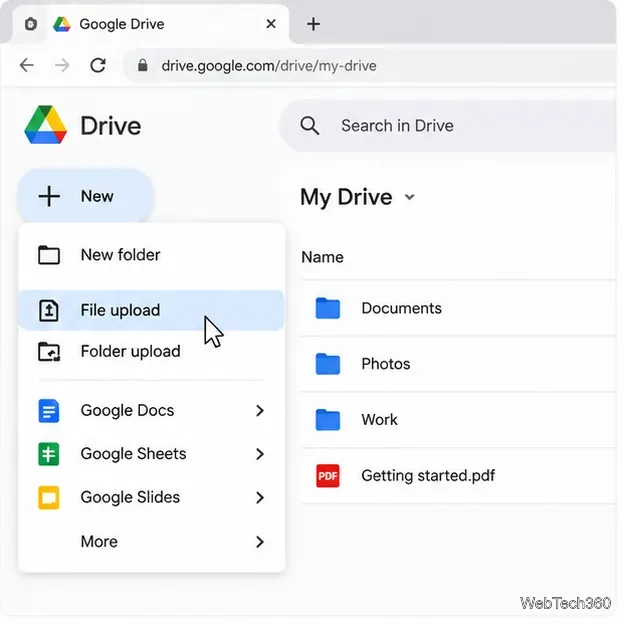
Click New near the upper-left corner, then choose File upload.
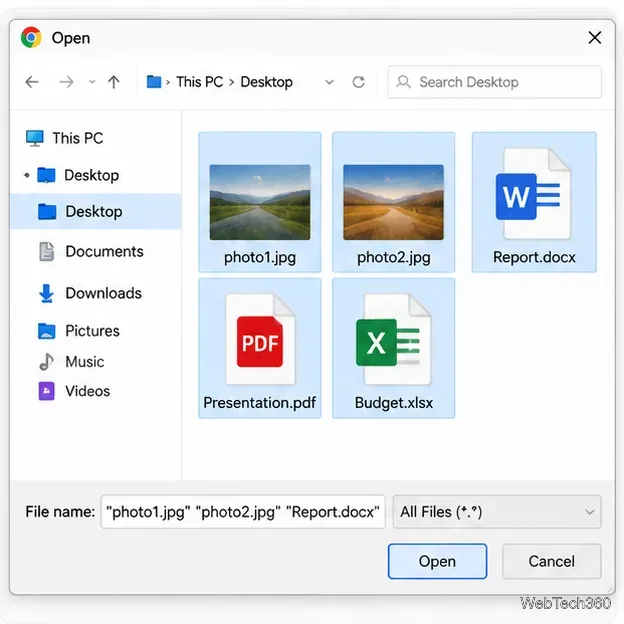
In the computer’s file picker, select a file. To select several files, use the usual multi-select keys for your operating system.
Choose Open and watch the upload status in Drive. Keep the browser window open until the upload completes.
Choose New, then File upload to select files from your computer.Select one file or multiple files in the file picker before confirming.
Upload the files while you are inside the folder where you want them to appear. If you start from the Drive home view, the files usually go into the current My Drive location rather than a folder you intended to use.
Method 2: Upload an entire folder
Use folder upload when you want to preserve a set of local files and subfolders instead of choosing each item separately.
Open Google Drive in your desktop browser and navigate to the destination.
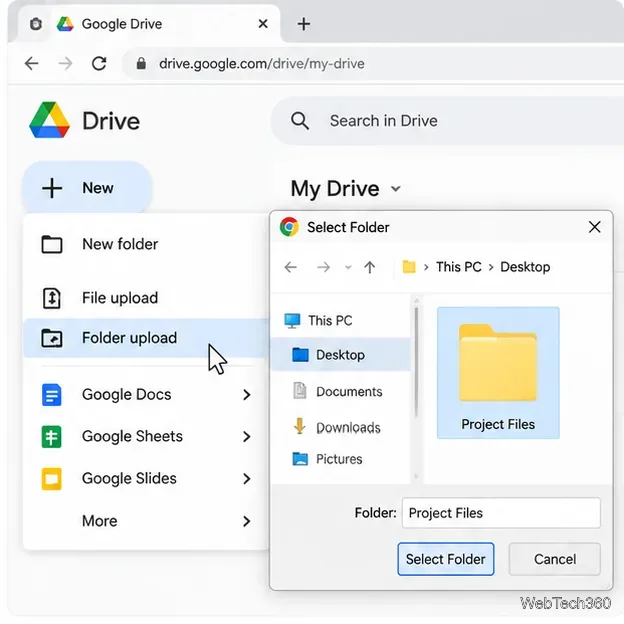
Select New, then Folder upload.
Choose the folder on your computer and confirm the selection.
If your browser asks you to confirm uploading multiple files, review the prompt and proceed only if you trust the files.
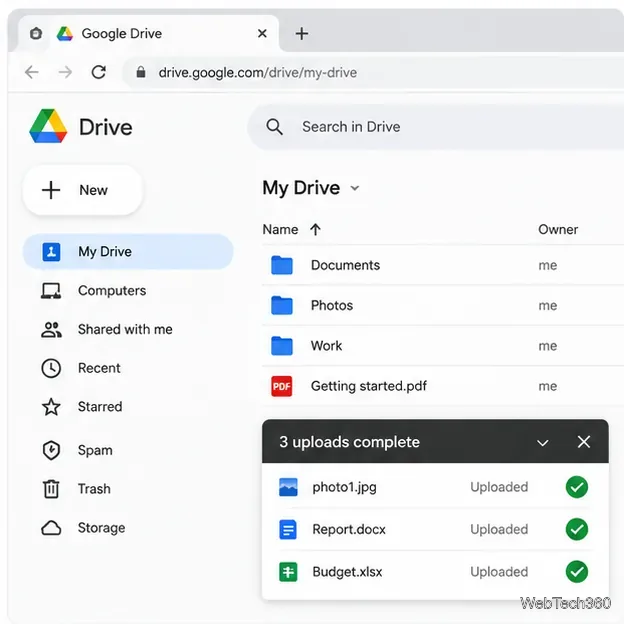
Wait for Drive to finish transferring the folder contents. Check the upload panel for errors before closing the tab.
Folder upload sends a folder’s contents to Drive in one operation.Use the upload panel to confirm that the transfer has completed.
Note: Folder upload is generally a desktop-browser feature. If the option is unavailable, use a computer browser or upload the individual files from the mobile app. Large folders may take time because every item must transfer.
Method 3: Drag files or folders into Drive
Drag-and-drop is often the quickest option when the files are already visible in File Explorer or Finder.
Open File Explorer on Windows or Finder on Mac and locate the items you want to upload.
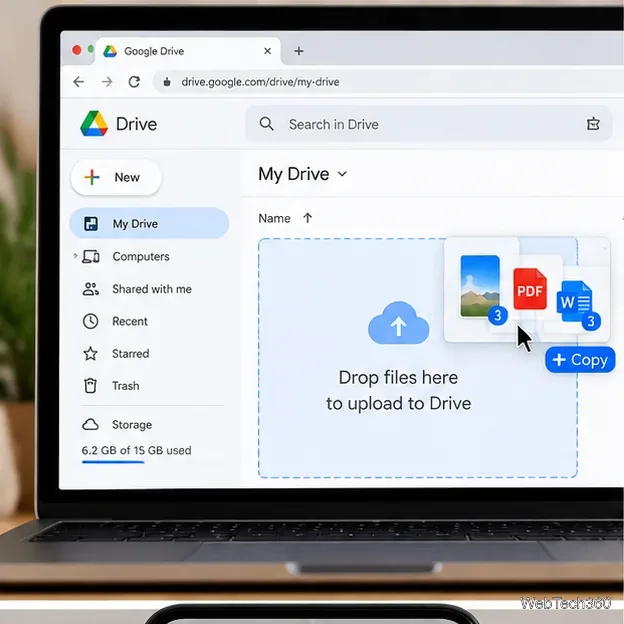
Drag the selected files—or a folder, where supported—into the Drive browser window.
Wait for the upload progress or completion notice, then confirm the items appear in the destination.
Drop selected items into the open Drive folder to begin uploading.
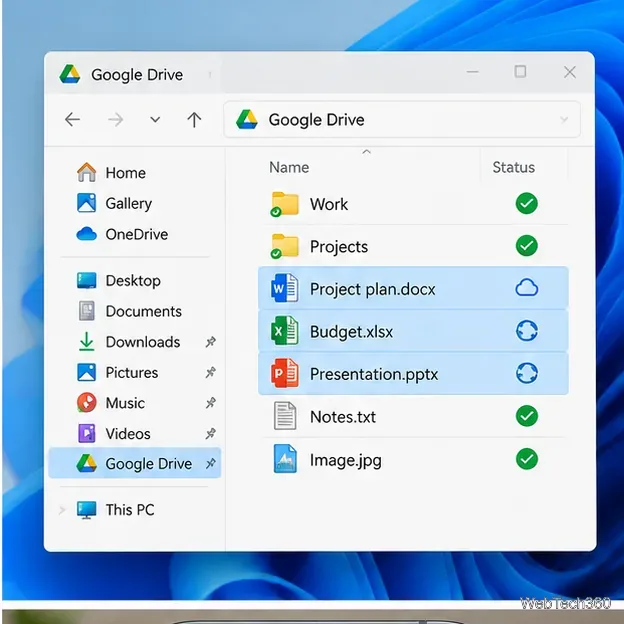
If you regularly move files between your computer and Drive, you can also install Google Drive for desktop. After setup, use the Google Drive location in your computer’s file manager and let the app sync changes. This is different from a one-time browser upload: syncing can continue in the background, so check the app’s status if a file does not appear online.
Drive for desktop can sync files placed in its Google Drive location.
Method 4: Upload from an Android phone, iPhone, or iPad
The Google Drive mobile app can upload files already stored on your device. Menu wording can vary slightly by app version.
On Android
Open the Google Drive app and navigate to the destination folder if needed.
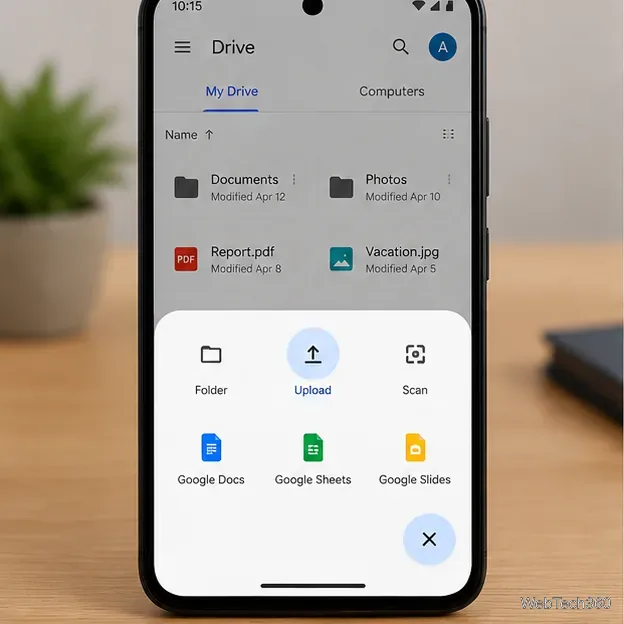
Tap the + (New) button, then tap Upload.
Browse your device, tap the file you want, and select additional files if the picker allows it.
Return to Drive and wait for the upload to complete. Uploaded items appear in My Drive unless you chose another destination.
On Android, tap + and then Upload to choose files on the device.
On iPhone or iPad
Open the Drive app and tap +.
Choose File upload, then select the file from the available locations.
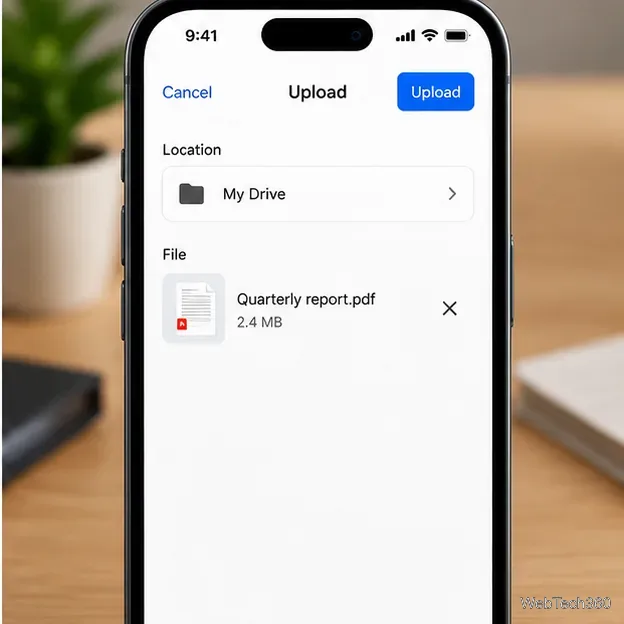
If the upload screen offers a Location field, choose the Drive folder where the file should be saved.
Check the filename and tap Upload. Wait until the file appears in Drive.
On iPhone or iPad, verify the destination and filename before tapping Upload.
For mobile uploads, a stable Wi-Fi connection is helpful for large files. On Android, Drive settings include an option to transfer files only over Wi-Fi; check it if uploads do not start over mobile data. On iPhone or iPad, confirm that Drive can access the file in its current location.
What happens if a file has the same name?
When a file with the same name already exists in Drive, the upload flow may offer to replace the existing file or keep both, depending on the platform and context. If you need to preserve both copies, choose Keep both files when that option appears. If you replace a file, verify that you selected the correct item before confirming.
Troubleshooting upload problems
The upload is stuck: Check your internet connection, wait a little longer for large files, and retry if the status reports an error.
You cannot upload to a folder: Confirm that you are signed in to the correct account and have permission to add files to that folder.
The file is missing: Check the destination folder, My Drive, and the upload panel. Search Drive by filename if needed.
Storage is full: Review your available Drive storage and remove unneeded items or make room before retrying.
You need a Google Docs file: Uploading a Word document does not automatically mean it has been converted to Google Docs format. Drive has a desktop setting for converting uploads if you want that behavior.
For the most reliable result, choose the destination folder before uploading, keep the app or browser open until the transfer finishes, and verify the file appears in Drive. Google’s upload instructions also explain how to save both files when names match and how to upload through Drive for desktop.