Home
» WEB
»
How to Use Compatibility View Settings in Edge (IE Mode)
How to Use Compatibility View Settings in Edge (IE Mode)
If you’re looking for the old Internet Explorer “Compatibility View” setting, Microsoft Edge now handles legacy sites with Internet Explorer mode (IE mode). On a personal Windows device, the current approach is to allow IE mode in Settings, add the site to the IE mode pages list, and reload it. The older one-click “Reload in Internet Explorer mode” menu is no longer shown on consumer devices by default; work or school devices can retain that option when an administrator configures IE mode policies. See Microsoft’s current Edge IE mode instructions and its announcement about the security changes.
What “Compatibility View” means in Edge
“Compatibility View” was an Internet Explorer feature name. In today’s Edge, the relevant tool is IE mode, which lets selected older websites use Internet Explorer compatibility inside an Edge tab. It is meant for specific legacy applications that do not work correctly in a modern browser; it is not a general switch that makes every outdated page work.
Microsoft retired support for the Internet Explorer 11 desktop app on June 15, 2022. IE mode remains available for sites that still need it, but use it only for websites you trust and only for as long as necessary. Microsoft removed the consumer menu entry starting with Edge 141 and removed the IE mode toolbar button starting with Edge 142. That is why older tutorials may show controls you cannot find.
Set up IE mode on a personal Windows device
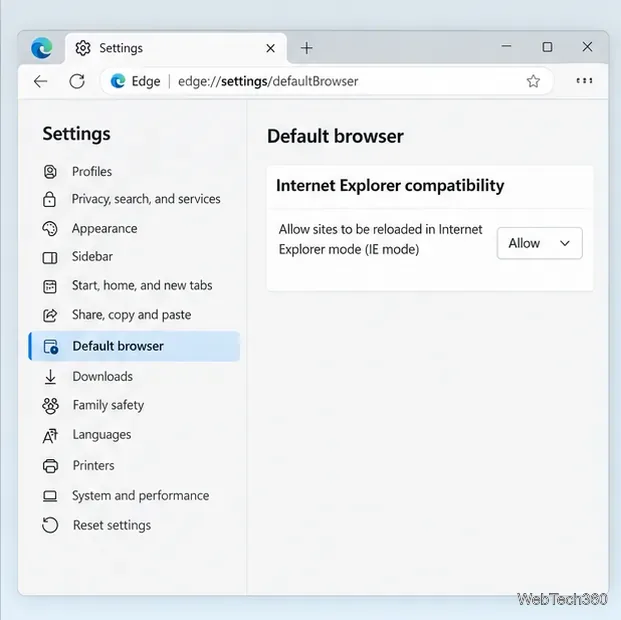
Open the Default browser settings. In Edge’s address bar, enter edge://settings/defaultBrowser and press Enter. You can also open Settings and more (…) > Settings > Default browser.
Allow sites to use IE mode. Under Internet Explorer compatibility, set Allow sites to be reloaded in Internet Explorer mode (IE mode) to Allow. If Edge asks you to restart, restart the browser before continuing.
The Default browser page contains the setting that enables IE mode for selected sites.
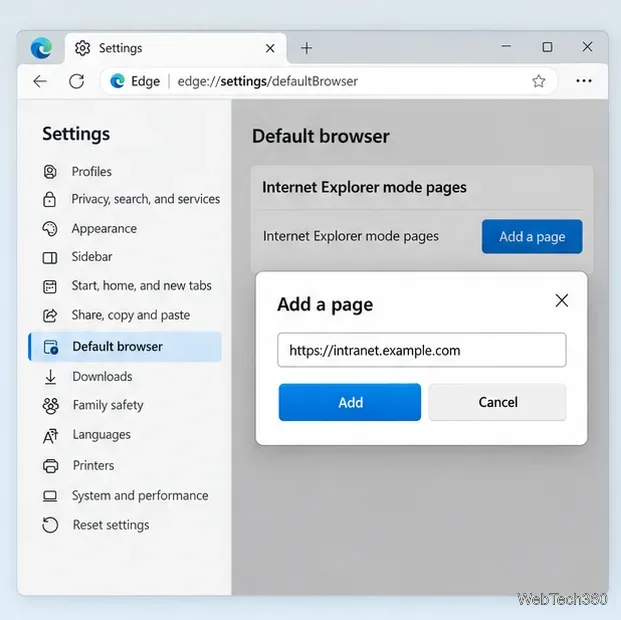
Add the legacy site. On the same Default browser page, find Internet Explorer mode pages and select Add a page. Enter the website address you need, then select Add. Add the site you actually use, such as your organization’s legacy portal, rather than a link from an unexpected email or pop-up.
Add the legacy site to Edge’s Internet Explorer mode pages list.
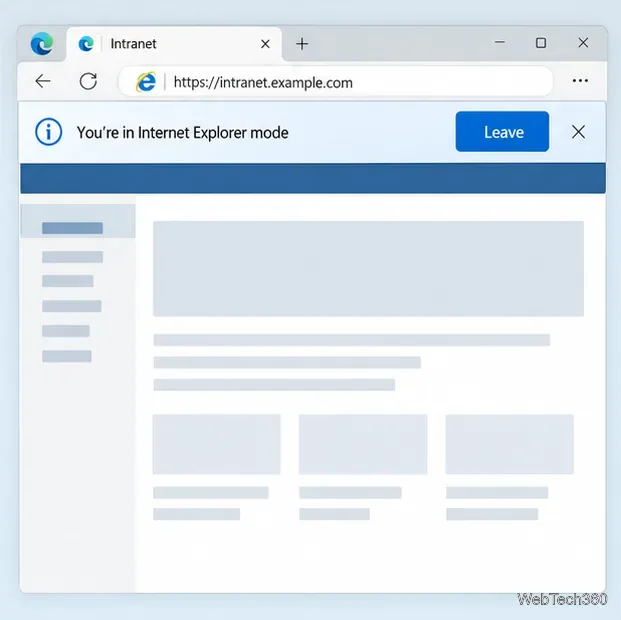
Reload and confirm. Return to the site and refresh the tab. Edge should load the listed page in IE mode. Look for the IE mode indicator beside the address bar and the information banner across the page. Select Leave on the banner when you want to exit IE mode, or close that tab and open the site in a new Edge tab.
The banner confirms IE mode is active and provides a Leave button to return to standard Edge browsing.
In current consumer versions, adding a site to the list is the supported route; the old menu command for manually switching an unlisted page is hidden by default. If you do not see the setting or the Add a page control, your device or browser may be managed by an organization, or its policies may restrict the feature.
Use the reload command on a work or school device
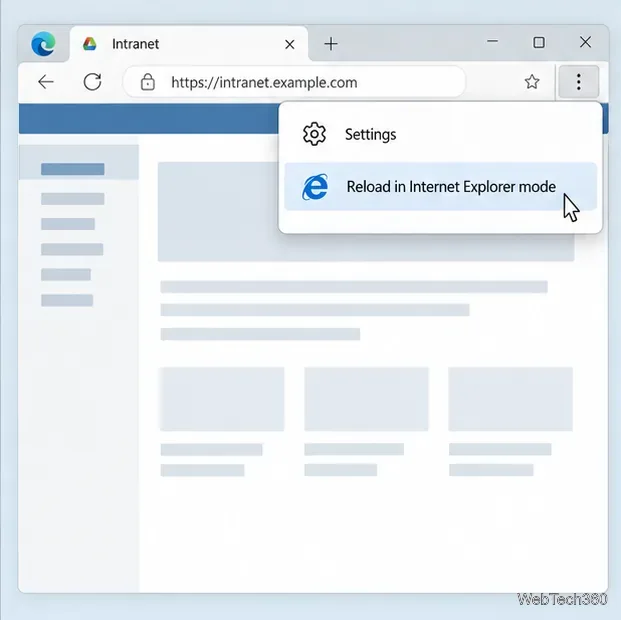
On an organization-managed device where IT has enabled IE mode, open the legacy site, select Settings and more (…) > Reload in Internet Explorer mode, and follow any banner prompt. Some sites already included in the organization’s Enterprise Mode Site List open in IE mode automatically. If a listed site is controlled by policy, Edge may disable the manual reload or exit option.
The reload command is available when an organization configures IE mode policies.
If the option is missing or greyed out, contact your help desk. Microsoft says managed devices show the manual command only when the organization has configured the relevant IE mode policy. IT can maintain approved legacy URLs in an Enterprise Mode Site List. Avoid changing Group Policy or registry values yourself on a work computer.
Manage the list and fix common problems
The page still opens normally: confirm the URL is in the Internet Explorer mode pages list, then refresh the tab. If the application moves to a different host during sign-in, ask your IT team whether the additional address must also be configured.
The setting is unavailable: on a managed device, policy may control it. Ask IT whether the site belongs on the organization’s site list. On a personal device, use the per-site list instead of looking for the removed toolbar button or menu command.
The site worked before but no longer does: local IE mode site-list entries normally remain for 30 days and do not sync between devices. Add the page again if the entry has expired. An organization can set a different expiration period. See Microsoft’s IE mode local site list guidance.
You want to stop using IE mode: remove the site from the Internet Explorer mode pages list or change the Allow setting if you no longer need any listed sites. For an active IE mode tab, use Leave in the banner.
IE mode is a compatibility bridge for a small number of trusted legacy sites. If you control the website or application, plan to update it for a modern browser so you can stop relying on the older rendering environment.