Home
» WEB
»
How to Use Netflix Picture-in-Picture in Chrome: Step-by-Step
How to Use Netflix Picture-in-Picture in Chrome: Step-by-Step
To watch Netflix in picture-in-picture (PiP) on a computer, start a title in Chrome and open Chrome’s Media controls menu in the top-right toolbar. Choose Enter picture-in-picture if it appears. If Netflix does not show that control, Google’s Picture-in-Picture Extension offers a keyboard shortcut you can try. Both options use Chrome’s or extension software; Netflix’s own PiP help covers mobile apps and says browser PiP can behave differently by device.
This guide is for desktop Chrome. Netflix lists Chrome as a supported browser, subject to the operating system and browser requirements on its current system requirements page. Keep Chrome updated if Netflix playback itself is unavailable.
Try Chrome’s built-in picture-in-picture control first
1. Start a Netflix video in Chrome
Open Netflix in a desktop Chrome window, sign in, choose a show or movie, and start playback. Leave the video in its normal player view while you open PiP; you can switch tabs after the floating window appears.
A Netflix video playing in a regular Chrome tab before you open the PiP controls.
2. Open Chrome’s Media controls
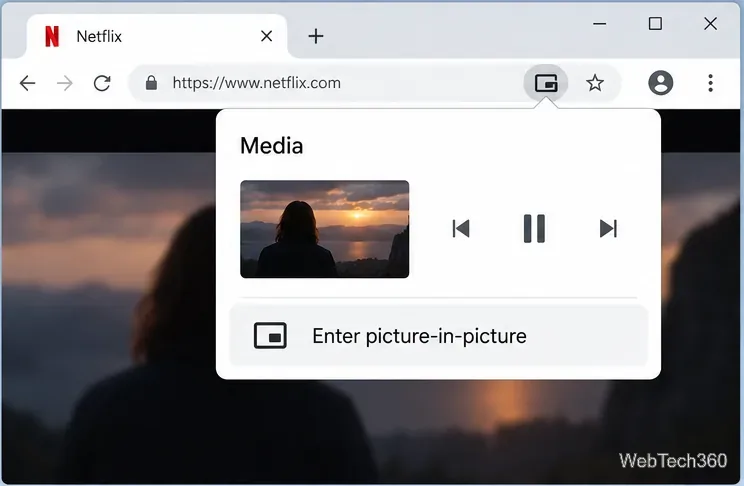
Select Media controls at the top-right of Chrome, near the address bar. Chrome’s help page describes this menu as the way to watch a video in a smaller PiP window while browsing other tabs.
3. Select “Enter picture-in-picture”
In the media card for Netflix, select Enter picture-in-picture. The video should move into a separate, movable window. Drag it to a convenient corner, then return to another tab or app while it stays visible.
Chrome’s Media menu can expose a direct “Enter picture-in-picture” control for active video.
If the Media menu is missing or does not offer PiP, make sure the video is actively playing and check again. Some sites do not expose every browser control in the same way. Continue with the extension method below if the built-in option is not available.
Use Google’s PiP extension if the built-in option is missing
1. Install the extension from the Chrome Web Store
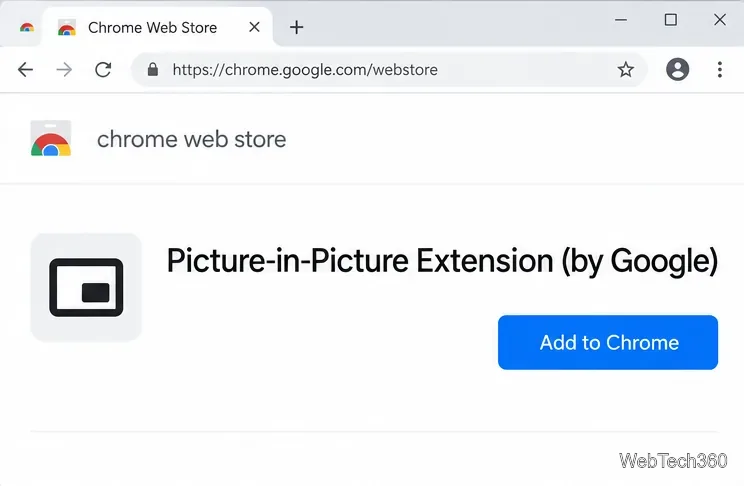
Open the listing, confirm that the name is Picture-in-Picture Extension (by Google) and that the publisher is Google, then select Add to Chrome and confirm the prompt if one appears. Google’s extension instructions note that Chrome extensions cannot be added while browsing as a guest or in Incognito, and a work or school administrator may block installation. Review the listing’s permissions and privacy disclosure before adding it; the listing identifies user activity as a data type it handles.
Check the extension name and Google publisher on the Chrome Web Store listing before installing.
2. Open Netflix and activate PiP
Start a title in Netflix, then press Alt + P (Windows or Linux) or Option + P (Mac). You can also select the extension’s toolbar icon when the video is active. If Chrome asks you to approve extension access, review the prompt and allow only what you are comfortable with.
3. Move or close the floating window
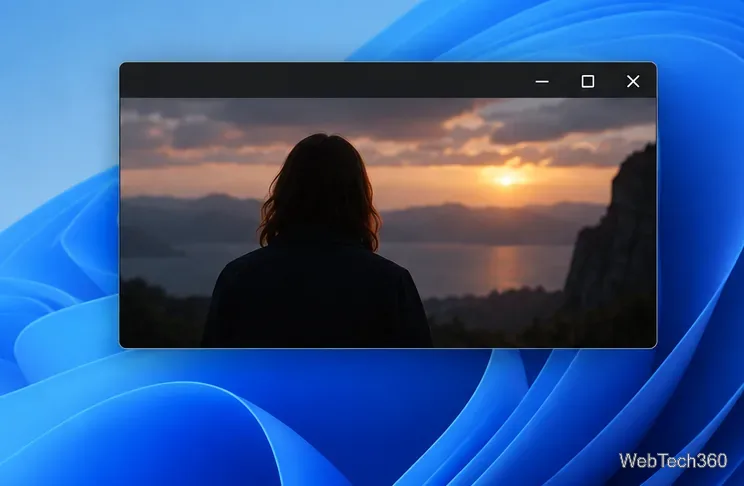
Drag the PiP window to reposition it. To return to the full Netflix tab, use the window’s return-to-tab control if shown; to stop PiP, close the floating window. The exact window controls can vary by operating system and extension version.
The video sits in its own floating window so you can keep it in view while working elsewhere.
Fix common Netflix PiP problems
No Media controls button: Start playback in the Netflix tab and look again at Chrome’s upper-right toolbar. If the PiP option still is not listed, try the Google extension or update Chrome.
The keyboard shortcut does nothing: Confirm the extension is enabled at chrome://extensions, return to the Netflix tab, and start playback first. A managed browser may prevent extension use.
The window opens but video stops or looks wrong: Close PiP and return to the Netflix tab. Netflix says PiP on browsers and other devices is supplied by the browser or other software and may not work as expected, so the behavior is not guaranteed by Netflix.
Netflix will not play in Chrome at all: Check Netflix’s supported-browser and operating-system requirements. PiP cannot fix a sign-in, playback, or browser-compatibility problem.
Is this the same as Netflix’s mobile PiP?
No. Netflix documents its built-in PiP for supported Android phones and tablets, iPhones, and iPads using the Netflix app. Desktop Chrome relies on browser or extension controls, which Netflix says are not made by Netflix and may behave differently. For mobile instructions and device requirements, see Netflix’s PiP help page.
For most desktop viewers, the quickest route is to try Chrome’s Media controls first, then use Google’s extension if that menu does not provide PiP for the Netflix video.