Home
» WEB
»
How to Wrap Text in Google Sheets: 2 Easy Methods
How to Wrap Text in Google Sheets: 2 Easy Methods
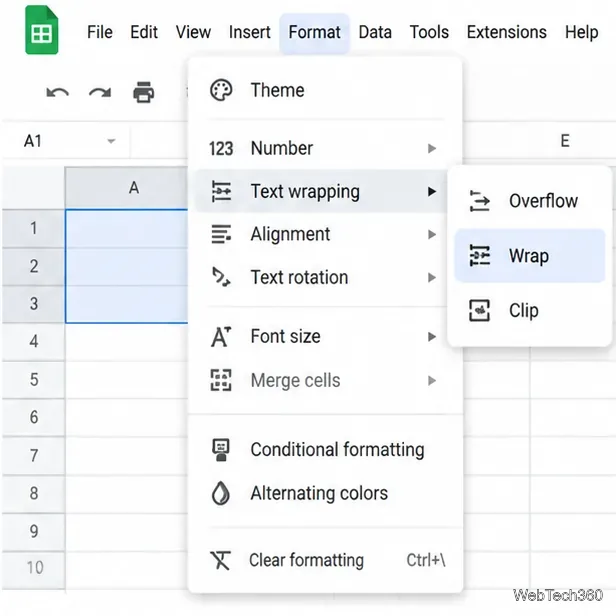
To wrap text in Google Sheets, select the cells you want to change, then choose Format > Wrapping > Wrap (the menu may appear as Format > Text wrapping > Wrap depending on the interface). You can also use the text-wrapping button on the toolbar. Sheets displays long entries on multiple lines inside each cell, usually increasing row height so the content remains visible.
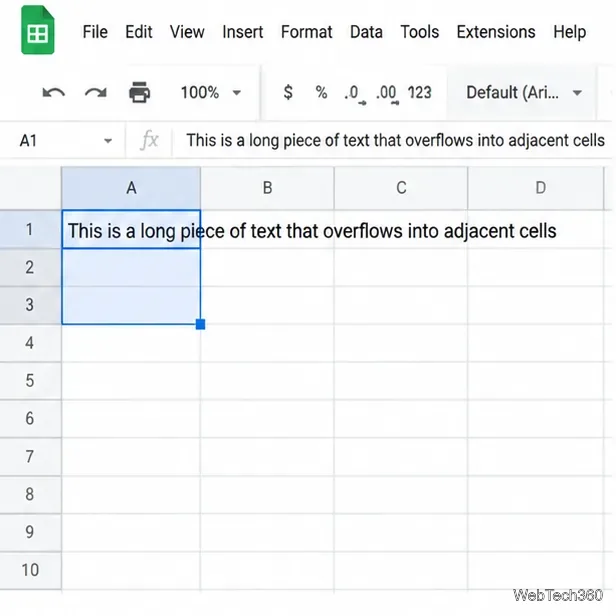
When wrapping is off, long text can extend into adjacent empty cells.
Method 1: Wrap text from the Format menu
This method is useful when you want to choose the wrapping behavior deliberately or cannot immediately spot the toolbar button.
Select the cells. Click one cell, or drag across a range. To select separate cells or ranges, hold Ctrl on Windows or ⌘ Command on Mac while clicking or selecting additional cells.
Open the formatting menu. From the top menu, choose Format, then Wrapping or Text wrapping.
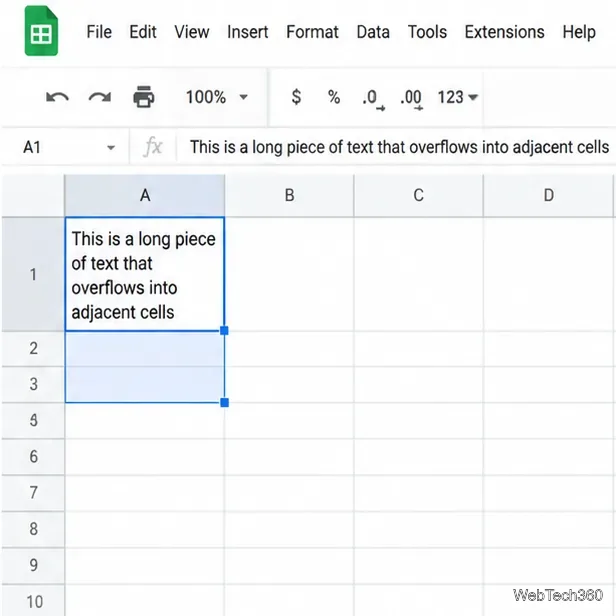
Choose Wrap. Sheets breaks the displayed text across lines to fit the column width. The row generally grows taller to show the wrapped content.
Review the result. If some lines are still difficult to read, adjust the column width or row height and check the vertical alignment.
Open the wrapping options in Format and choose Wrap.
Tip: Wrapping changes how the text is displayed, not the underlying cell value. It does not split the contents into multiple cells.
Method 2: Wrap text from the toolbar
If you frequently format spreadsheets, the toolbar is a quick alternative. The exact icon placement can vary with window size and interface updates.
Select the cell or range that contains the text.
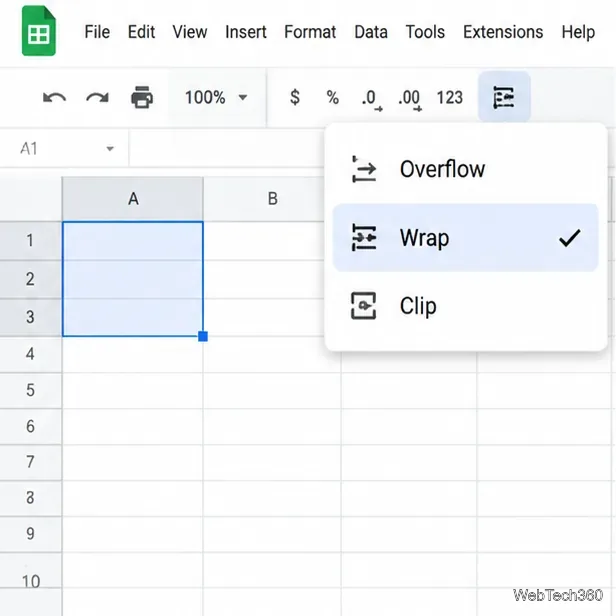
Find the Text wrapping control in the toolbar near the alignment and other formatting controls. If you do not see it, look for additional toolbar options or use Method 1.
Open the control’s menu and select Wrap (the icon typically depicts text lines with a bent arrow).
Check the selected cells to confirm that the text appears on multiple lines.
The toolbar provides the same wrapping choices as the Format menu.After wrapping, the full entry is visible inside the cell and the row is taller.
Wrap, Overflow, or Clip: Which should you use?
Google Sheets offers three main ways to display text that is wider than a cell. Choose based on whether you need to see the complete entry and how much vertical space your sheet can use.
Wrap: Shows the text on multiple lines within the cell. This is usually best for descriptions, notes, addresses, and long labels. Row height can increase.
Overflow: Lets text extend into neighboring cells when those cells are empty. It can keep rows compact, but the text is obscured where the next cell contains data.
Clip: Displays only the portion that fits within the cell’s existing width, without spilling into adjacent cells or wrapping to more lines. It can suit compact tables where the full value is not needed on screen.
For example, wrap a “Customer Notes” column so readers can see each note. Overflow may work for a short title followed by empty cells. Clip can make a wide URL column look tidier, but remember that the hidden part remains in the cell and can still be viewed by selecting it or reading the formula bar.
Make wrapped text easier to read
Adjust column width: Drag the boundary between column letters. A wider column usually means fewer wrapped lines.
Resize rows: If text appears cut off, drag the row boundary to make more vertical space. Avoid fixed row heights that hide lines.
Set alignment: Use the horizontal and vertical alignment controls to position content consistently. For multi-line cells, top alignment can make rows easier to scan.
Check merged cells: Merged ranges and manually set row heights can affect how content appears. If wrapping looks wrong, test the setting on an ordinary, unmerged cell and review the row height.
Troubleshooting: Text still looks cut off
First, confirm that Wrap is selected rather than Clip or Overflow. Next, widen the column slightly or increase the row height. If only part of the sentence is visible, check whether the row has a manually specified height or whether the cell belongs to a merged range. You can also click the cell and inspect the formula bar to confirm that the full value is still present.
Both methods apply the same setting, so use whichever is easiest to find. For most text-heavy spreadsheets, Wrap is the clearest choice; use Overflow or Clip when preserving a compact layout matters more than showing every line at once.