How to Disable JavaScript in Chrome for One Tab or a Site
Learn how to disable JavaScript in Chrome temporarily with DevTools, block it for one site, or change the browser default, plus how to restore it.
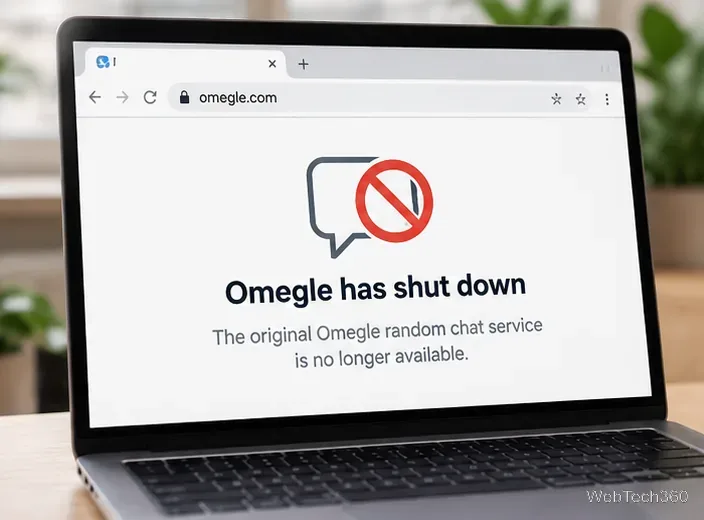
If Omegle is not working for you, the main reason is no longer a temporary server problem. The original Omegle service shut down on November 8, 2023, after operating for about 14 years. That means the old random text and video chat system cannot be restored by changing browsers, switching Wi-Fi networks, clearing DNS settings, or using a VPN.
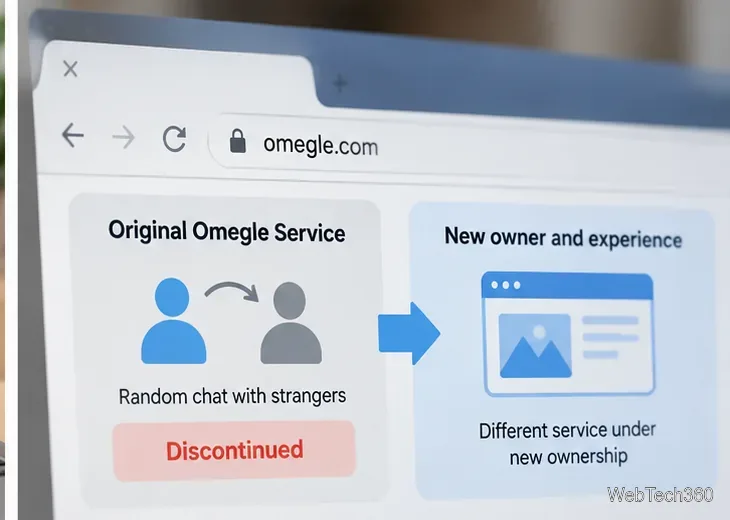
The situation is a little confusing in 2026 because the omegle.com domain is active again and its presentation has changed. However, the original anonymous chat service that people used before November 2023 is gone. If a new product appears on that domain, it should be treated as a different service rather than a continuation of the old Omegle.
Omegle founder Leif K-Brooks closed the service after years of trying to deal with misuse, moderation challenges, legal pressure, and the personal cost of keeping the platform running. In his shutdown message, he said operating Omegle was no longer sustainable financially or psychologically.
That distinction matters because many older troubleshooting guides were written when Omegle was still online. Back then, an “Error connecting to server” message could sometimes be caused by a temporary outage, an IP restriction, a browser problem, or a network configuration issue. Those fixes are no longer relevant to the discontinued service.
Not in its original form. The domain has changed since the 2023 shutdown, and public domain-registration information has also changed. You can check current registration details through ICANN Lookup. The important point for users is that seeing the Omegle name online does not prove that the old service has returned or that the original founder is involved.
Because ownership, terms, age requirements, and available features can change, read the current site's policies before creating an account, sharing personal information, or turning on your camera.
If your goal is to access the pre-2023 Omegle chat system, these common fixes will not solve the problem:
If you are only trying to open the current website—not the discontinued old chat service—you can still troubleshoot normal browser connectivity:
Do not install an unknown “Omegle app,” browser extension, certificate, or executable just because a page claims it is required to make Omegle work. The Federal Trade Commission advises users to be cautious with unexpected links and downloads because they can be used for phishing or malware; see its phishing guidance.
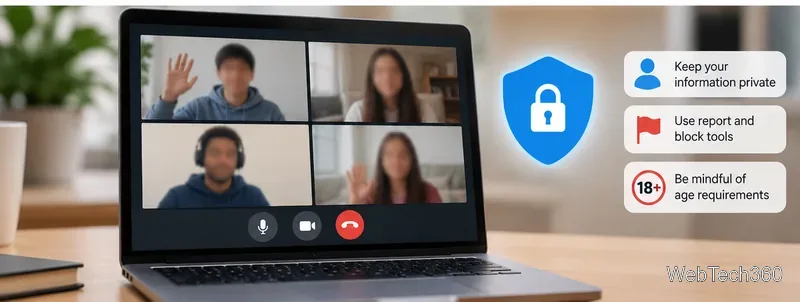
Random video chat services can expose you to strangers, so check the site's age rules, privacy policy, moderation tools, and payment model before using it. Avoid sharing your full name, address, school or workplace, phone number, financial information, passwords, or other details that could identify or locate you.
If a service has blocking and reporting tools, know where they are before starting a chat. Parents and caregivers can also review the FTC's online safety resources for children and teens.
No. A VPN may change your IP address, but it cannot restore the original Omegle service because that platform was shut down in 2023.
If you are trying to use the old Omegle service today, an IP ban is not the main issue. The service itself no longer operates. Historical advice about changing IP addresses or networks applies only to the period when Omegle was still running.
You should not assume so. The original service ended in November 2023, and the domain has since changed. Check the current operator, terms, privacy policy, age rules, and features before using anything that now appears under the Omegle name.
Bottom line: if you searched “why is Omegle not working?” because the old random chat will not connect, there is nothing wrong with your browser or Wi-Fi that can bring it back. The original Omegle is discontinued, and any current or future service using the name should be evaluated as a separate product.
Learn how to disable JavaScript in Chrome temporarily with DevTools, block it for one site, or change the browser default, plus how to restore it.
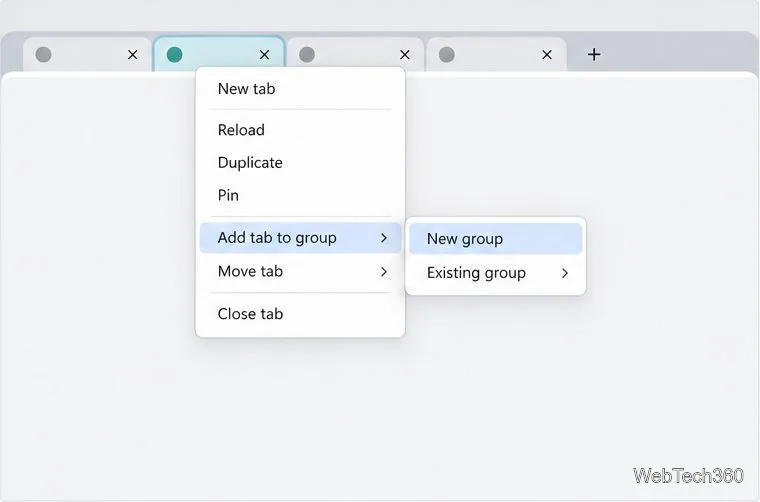
Organize related Chrome tabs into a group, then hide or reopen them with one click. See the current desktop steps, keyboard option, and what collapsing does.
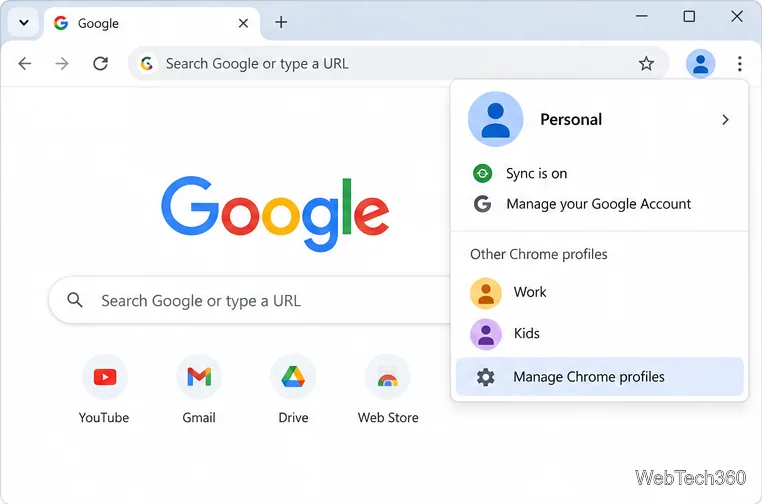
Rename a Chrome profile from its menu or profile manager, see what the label affects, and fix display delays without changing your Google Account name.
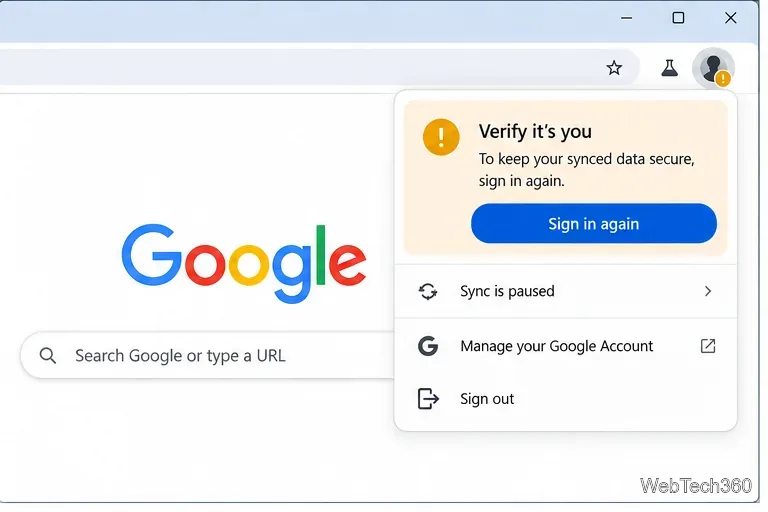
Fix Chrome sync pausing and repeated sign-in prompts by restoring account access, keeping site data, updating Chrome, and checking extensions or profiles.
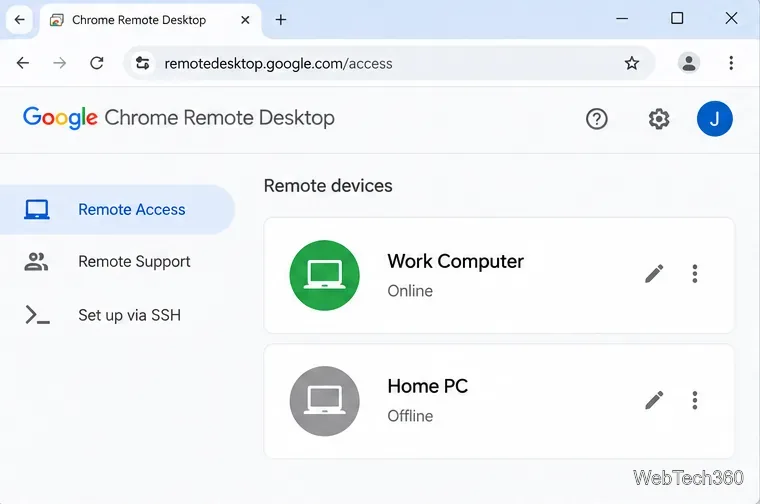
Chrome Remote Desktop not working? Fix offline hosts, update Chrome, reset remote access, check permissions, firewall rules, and managed-network restrictions.
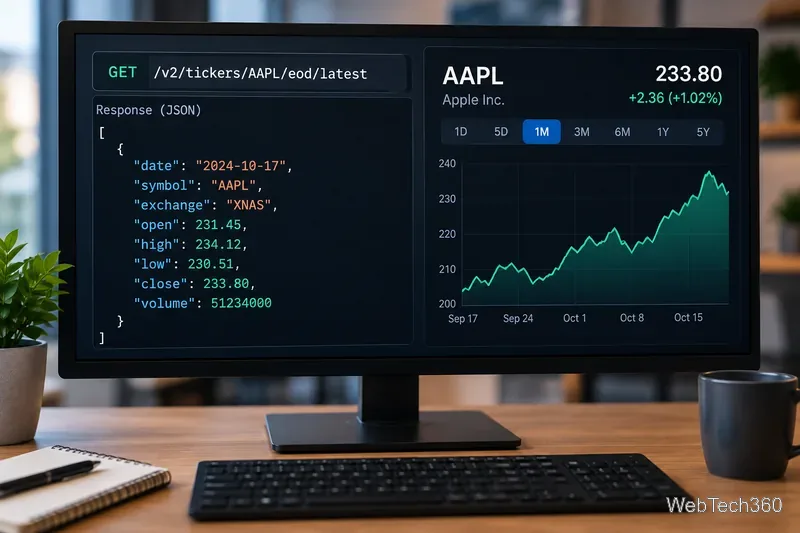
Marketstack review covering API v2, real-time and intraday data, historical coverage, pricing, limits, pros, cons, and who should use it.
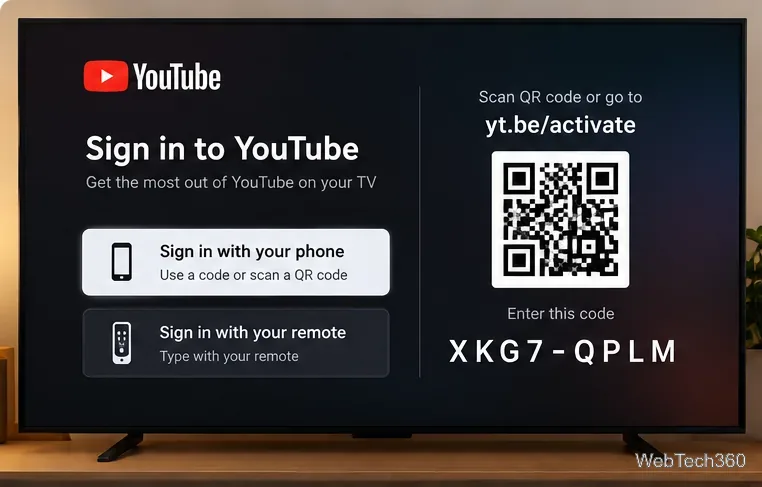
Learn how to activate YouTube at youtube.com/activate or yt.be/activate, enter your TV code, choose your Google Account, and fix sign-in problems.
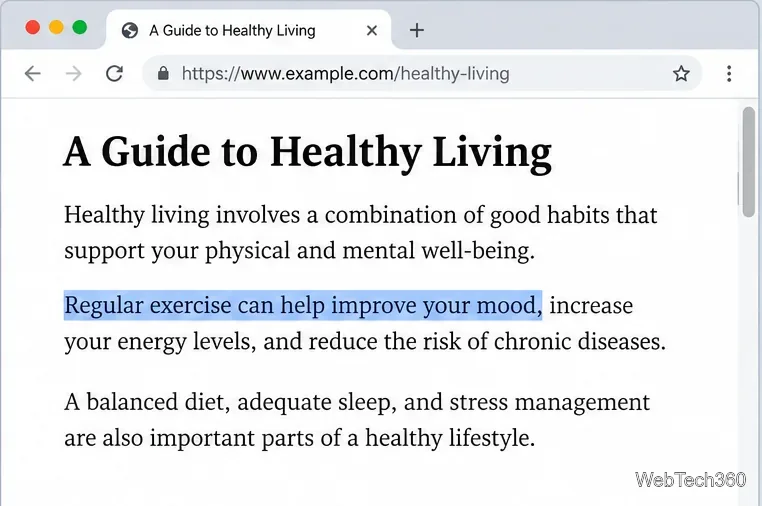
Learn how to link directly to selected text in Chrome with Copy link to highlight, how text-fragment URLs work, and what to do if a link fails.
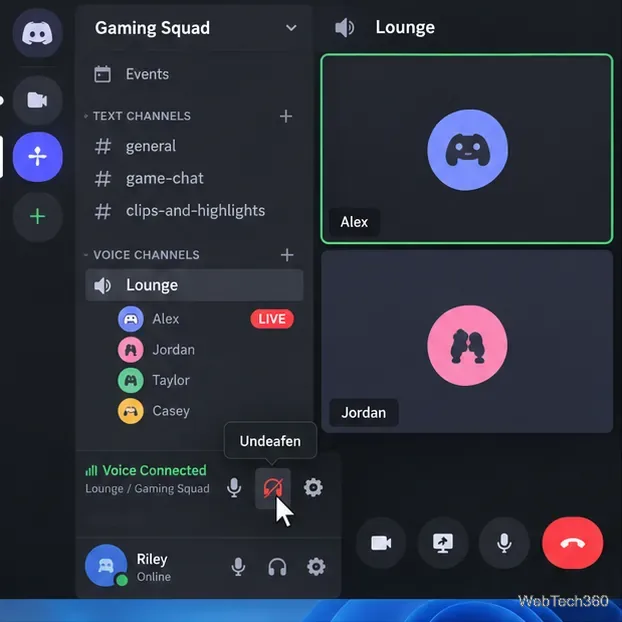
Can't hear anyone on Discord? Check Deafen and user volume, choose the right output device, reset Voice & Video, and fix Windows audio settings.
Learn how to add roles in Discord, change a role name, set permissions, assign or remove members, reorder roles, and delete roles safely.