How to Disable JavaScript in Chrome for One Tab or a Site
Learn how to disable JavaScript in Chrome temporarily with DevTools, block it for one site, or change the browser default, plus how to restore it.
If YouTube shows “Something went wrong”, start with the simple fixes: reload the page or reopen the app, confirm your connection works, and try YouTube on another device or browser. The message is a general failure notice, not proof that your password is wrong. YouTube’s own troubleshooting guidance recommends restarting the browser or device, reducing open tabs, and using an up-to-date browser for this class of error.
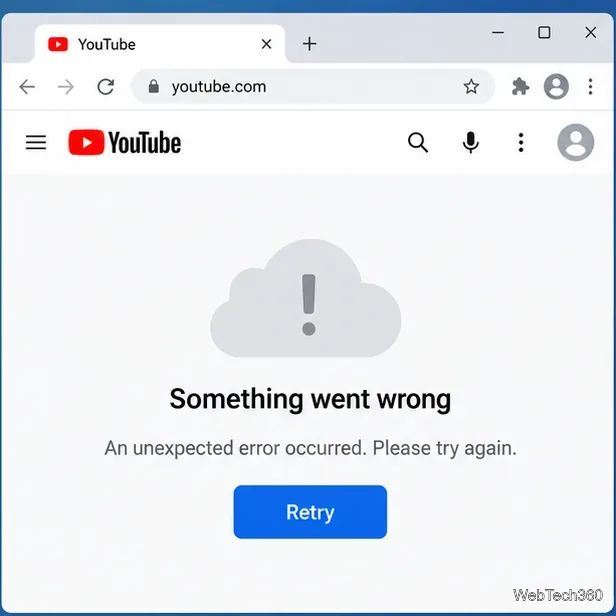
The error usually means YouTube could not complete a request. The cause may be temporary YouTube-side trouble, stale browser data, an extension that changes page behavior, a network or VPN problem, an outdated app, or a Google Account sign-in issue. A useful clue is where the error appears: if only one browser fails, focus on that browser; if several devices fail on different networks, the problem is more likely to be outside your device.
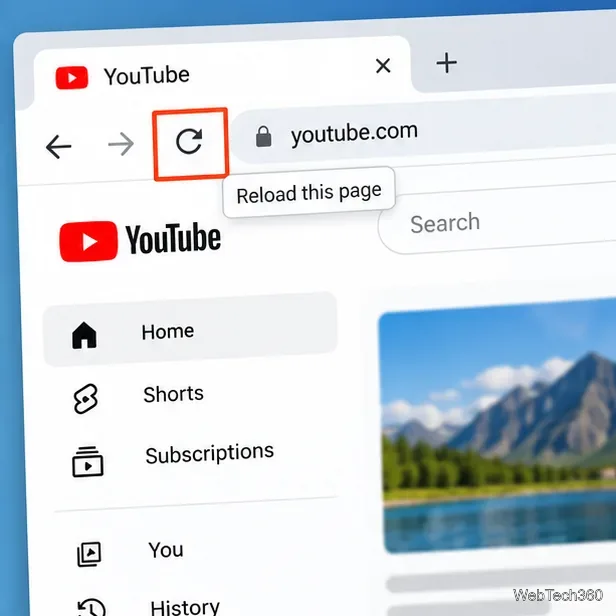
Reload YouTube, then close and reopen the browser or app. If you have many tabs open, close the ones you do not need. Restarting the device is also worth doing before changing deeper settings. These actions match YouTube’s official playback troubleshooting steps.
If YouTube still fails, test it on another device or switch between Wi-Fi and mobile data. When the same problem appears broadly, check YouTube’s official known-issue posts or the support updates described on the @TeamYouTube support page. A confirmed service issue has to be fixed by YouTube, not by changing your local settings.
On a computer, install the latest stable version of your browser. Google Account sign-in supports modern browsers including Chrome, Safari, Firefox, Opera, and Edge, and it requires normal browser features such as JavaScript. Google also notes that unsupported or unsafe extensions can interfere with sign-in; see its supported-browser guidance.
Try YouTube in a private or incognito window. If it works there, an extension, cookie, or other saved browser data is a strong suspect. On Android or iPhone/iPad, update the YouTube app first. For mobile sign-in problems, YouTube also recommends reinstalling the app if updating does not help.
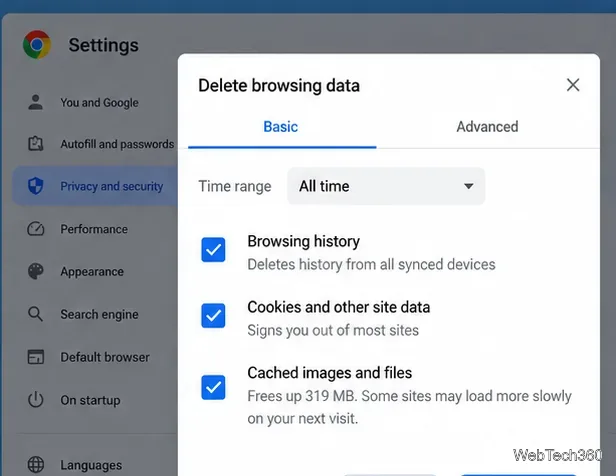
In Chrome, open More > Delete browsing data. Choose a time range and select Cookies and other site data plus Cached images and files, then delete the data and reopen YouTube. Google documents the current options in its Chrome browsing-data guide. Clearing cookies can sign you out of websites, so save any work first.
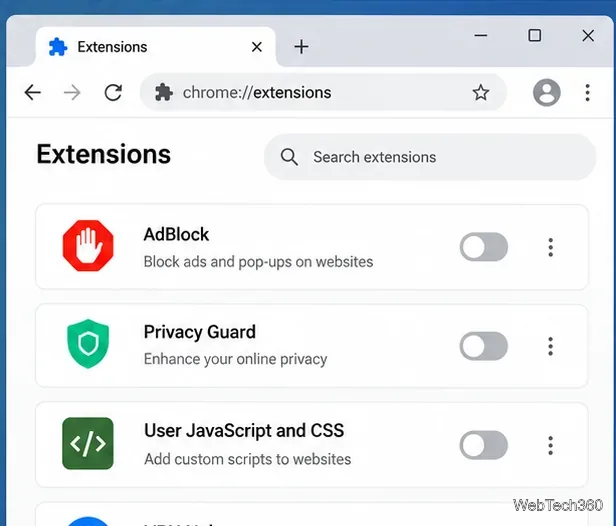
Next, temporarily turn off extensions that alter YouTube or network traffic, especially ad blockers, privacy tools, script blockers, VPN extensions, and proxy helpers. Reload YouTube after disabling them. If the error disappears, re-enable extensions one at a time until you identify the conflict.
If the YouTube app itself is failing, open Settings > Apps > YouTube > Storage & cache and tap Clear cache. Menu names vary by phone. Google confirms that clearing an Android app cache removes temporary data without being the same as clearing all app storage. If the problem continues, update or reinstall the app using the official Android app troubleshooting guidance.
There is no universal YouTube “clear cache” button in iOS Settings. If the app is current but still cannot sign in, YouTube recommends uninstalling and reinstalling it. After reinstalling, sign in again with the Google Account linked to your YouTube profile.
Try signing in directly to your Google Account. If Google sign-in also fails, use the YouTube sign-in troubleshooter. If Google flags unusual activity, complete the Google Security Checkup and review unfamiliar sessions or devices. Do not remove devices merely because you own several; act on sessions you do not recognize.
Finally, if YouTube works on another network, review your VPN, proxy, DNS filtering, firewall, or managed-network rules. Google notes that proxies, firewalls, and security software can interfere with account access. On a work or school device, ask the administrator before changing those controls.
If YouTube fails on multiple current devices and on more than one independent network, and YouTube has acknowledged a known issue, waiting for the service to recover is the correct fix. If only one browser or app fails, continue with its cache, extensions, updates, or reinstall steps. If only your account fails while YouTube works when signed out, focus on Google Account sign-in and security rather than repeatedly changing network settings.
Learn how to disable JavaScript in Chrome temporarily with DevTools, block it for one site, or change the browser default, plus how to restore it.
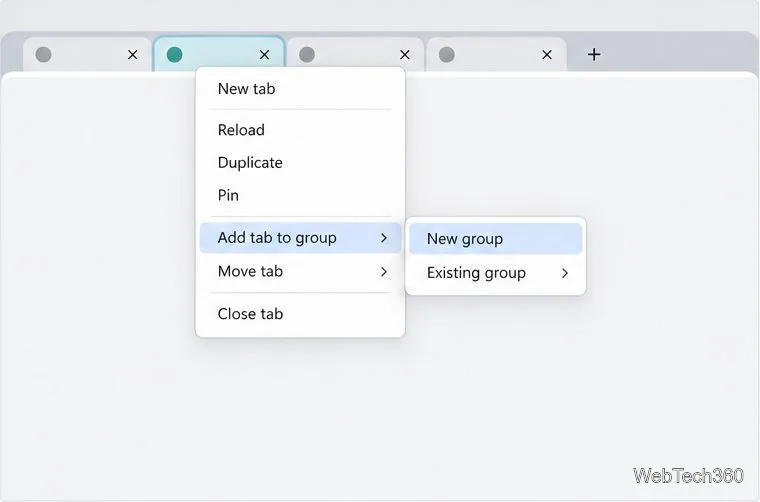
Organize related Chrome tabs into a group, then hide or reopen them with one click. See the current desktop steps, keyboard option, and what collapsing does.
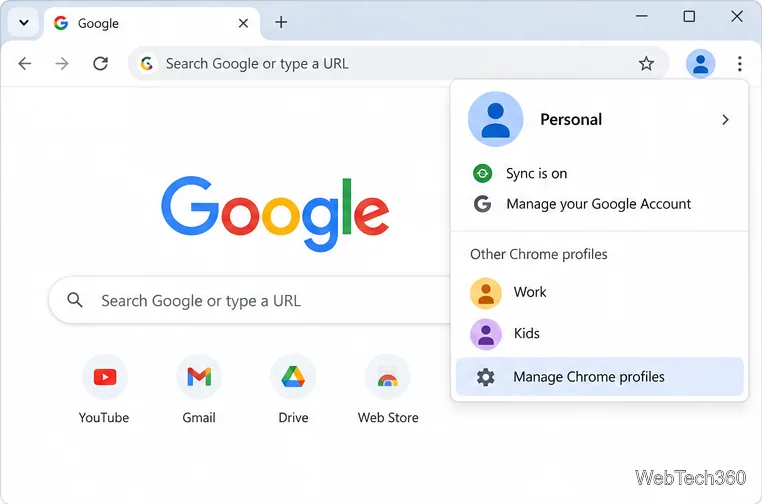
Rename a Chrome profile from its menu or profile manager, see what the label affects, and fix display delays without changing your Google Account name.
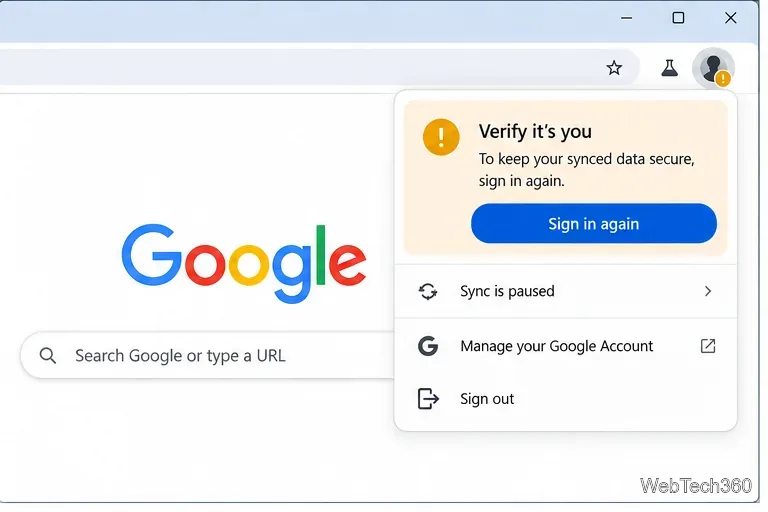
Fix Chrome sync pausing and repeated sign-in prompts by restoring account access, keeping site data, updating Chrome, and checking extensions or profiles.
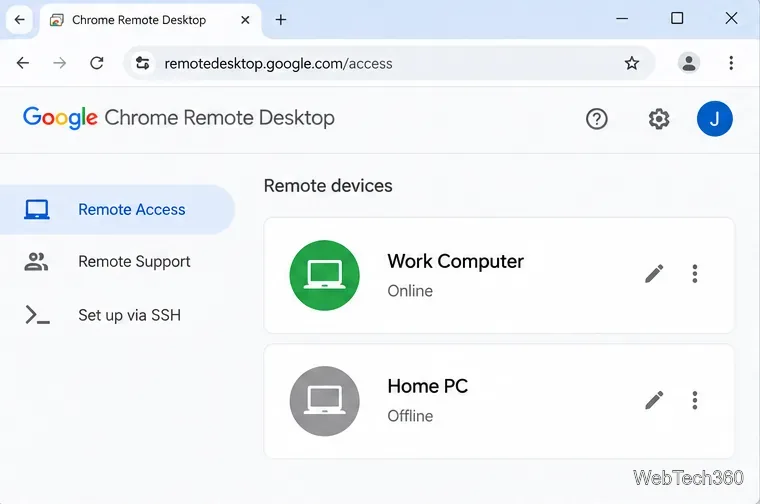
Chrome Remote Desktop not working? Fix offline hosts, update Chrome, reset remote access, check permissions, firewall rules, and managed-network restrictions.
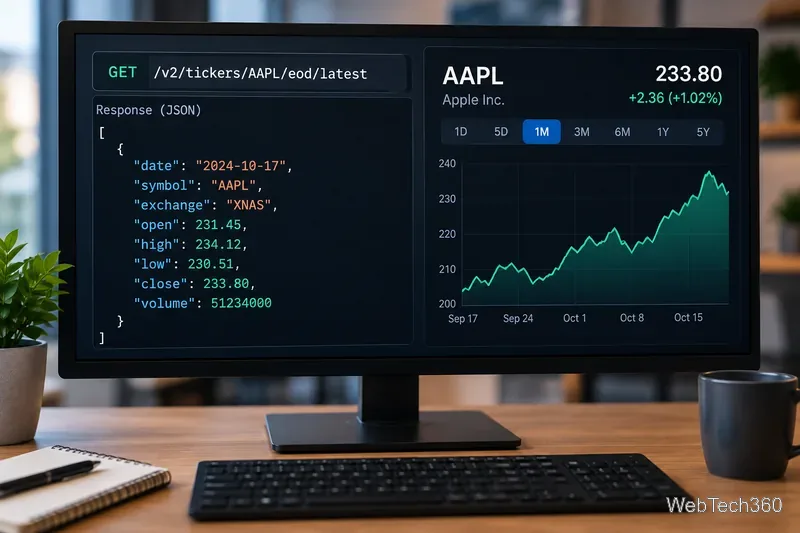
Marketstack review covering API v2, real-time and intraday data, historical coverage, pricing, limits, pros, cons, and who should use it.
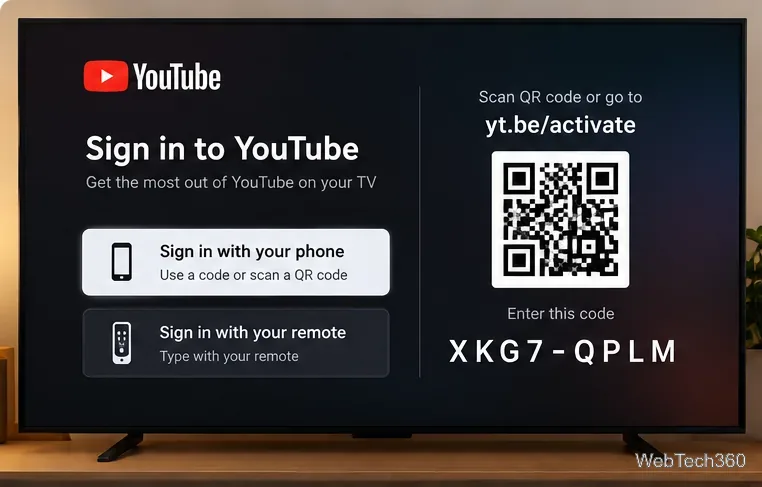
Learn how to activate YouTube at youtube.com/activate or yt.be/activate, enter your TV code, choose your Google Account, and fix sign-in problems.
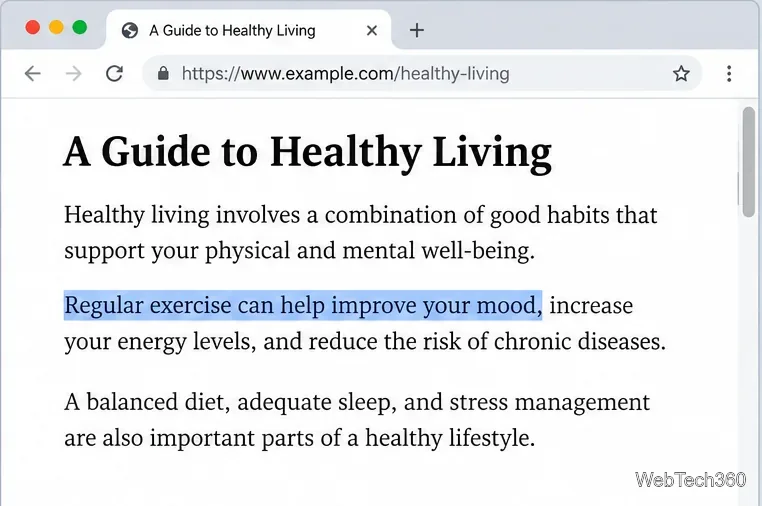
Learn how to link directly to selected text in Chrome with Copy link to highlight, how text-fragment URLs work, and what to do if a link fails.
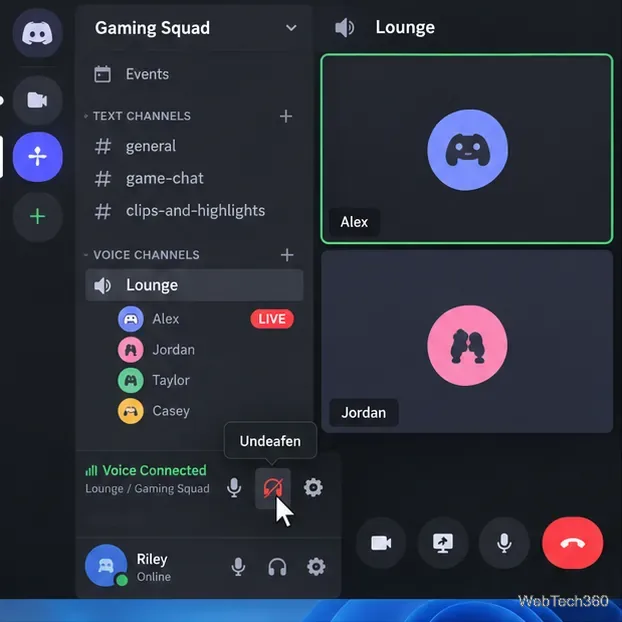
Can't hear anyone on Discord? Check Deafen and user volume, choose the right output device, reset Voice & Video, and fix Windows audio settings.
Learn how to add roles in Discord, change a role name, set permissions, assign or remove members, reorder roles, and delete roles safely.