How to Edit an NVIDIA BIOS: Fast Checks Before Changing VBIOS
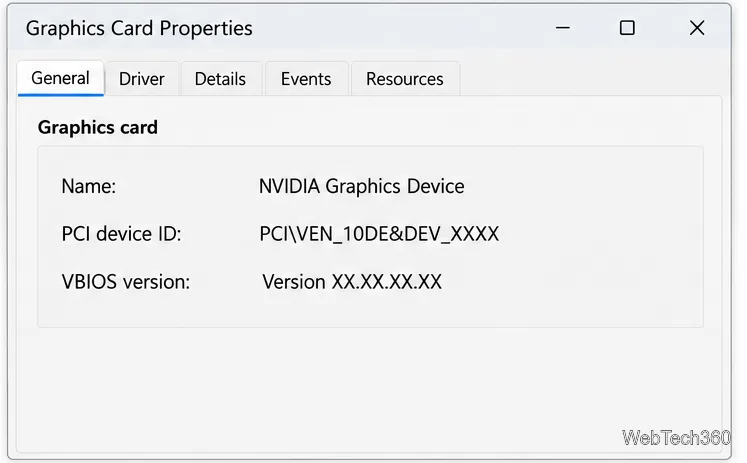
Learn whether an NVIDIA BIOS editor supports your GPU, how to back up a graphics-card VBIOS, and when to use safer tuning or vendor firmware tools.
Quick answer: Temp File Cleaner (TFC) scans a broader set of known temporary-file locations; Temp Cleaner lists files in one TEMP directory. Both are older utilities, so check compatibility before downloading. For routine cleanup on a current Windows PC, start with Microsoft’s built-in Storage Sense. Removing temporary files can free space, but it does not guarantee a speed boost.
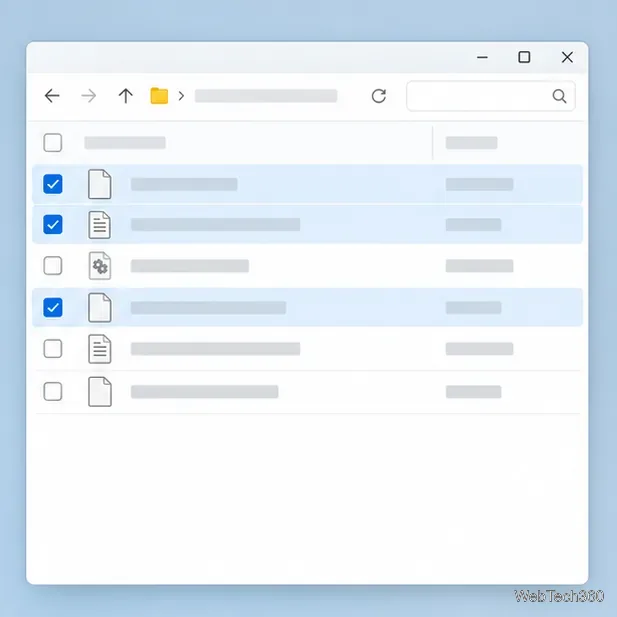
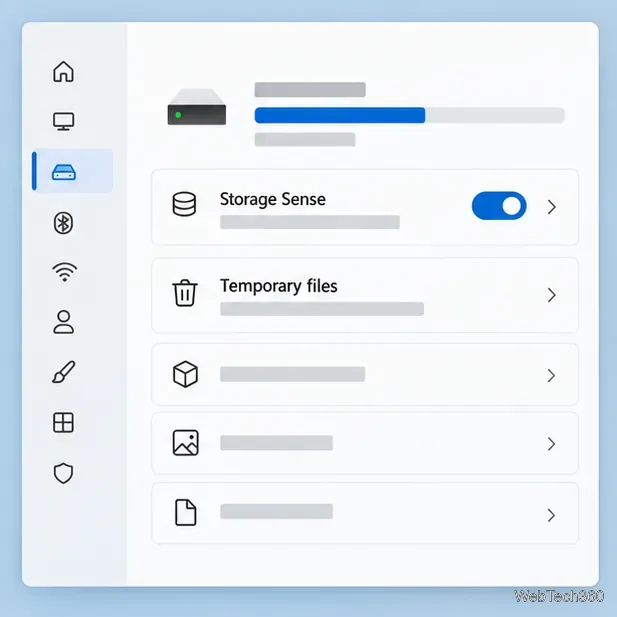
The interface figures below are explanatory mockups, not screenshots of installed TFC or Temp Cleaner builds.
The ADDPCs TFC page lists Windows 10 and earlier, but does not claim Windows 11 support. Its v3.1 manual is from 2011, so some paths and browser references are dated. MuldeR’s Temp Cleaner page describes its TEMP-folder function but gives no current Windows 11 compatibility statement; the project’s SourceForge listing shows a Temp Cleaner folder dated December 20, 2013. Skip either tool if its support status does not cover your PC or workplace policy.
TFC is free for personal use, according to its manual. It can scan known paths across a selected drive or root, including user and Windows temp folders. Its documented options also cover browser cache, cookies, history, recent-file shortcuts, Windows Update cache, and the Recycle Bin. That breadth can remove useful data: clearing cookies may sign you out, while emptying the Recycle Bin removes files from ordinary recovery.
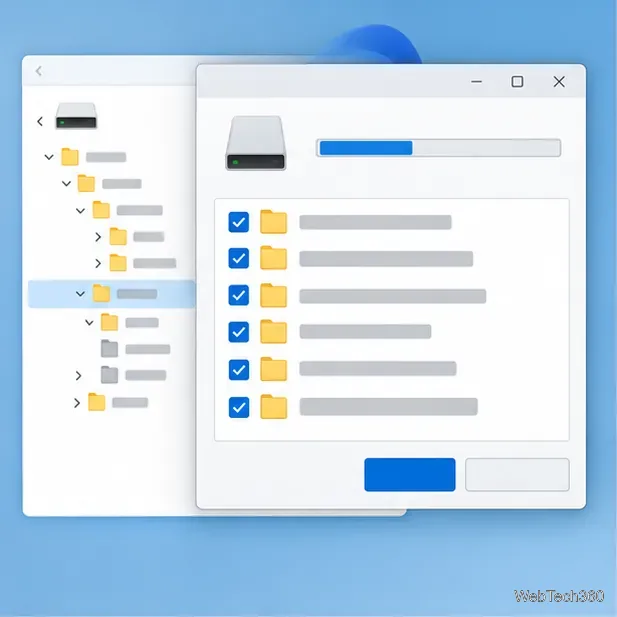
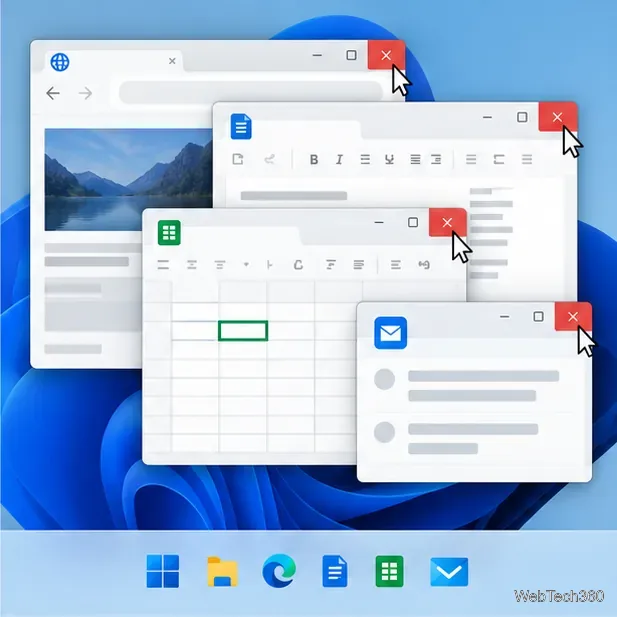
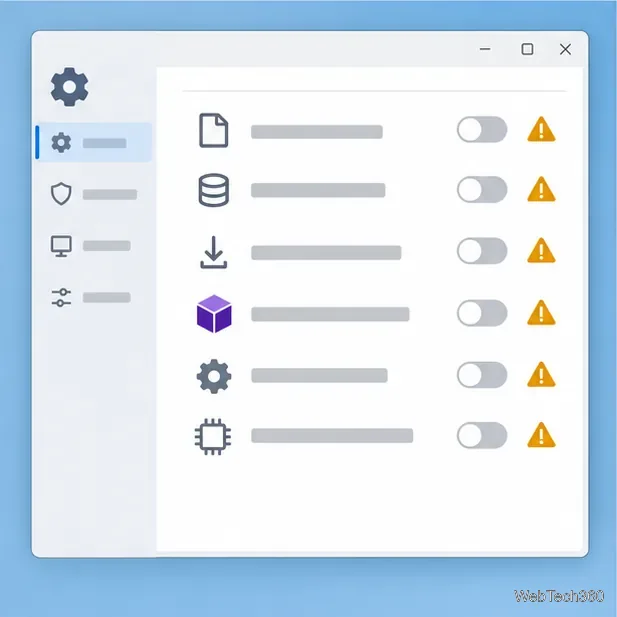
--test mode that logs planned deletions without removing files. Review that log first if using the documented version. For a real cleanup, let files in use remain; do not force-delete them.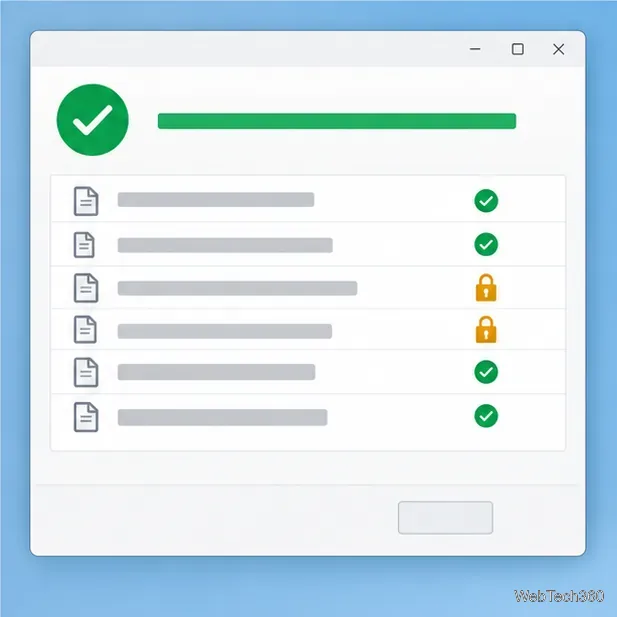
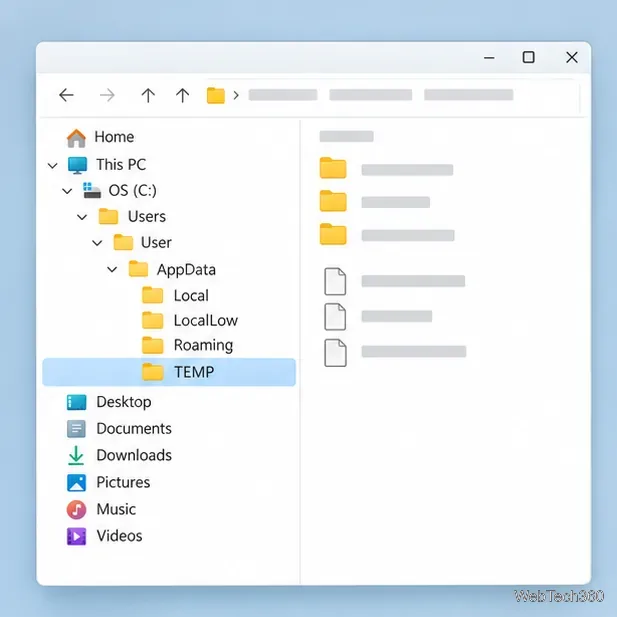
Temp Cleaner is a free open-source project. Its author says the tool lists and removes files in your TEMP directory. It is not a whole-drive cleaner and should not be expected to clear browser history, cookies, the Recycle Bin, or every application cache. The path can vary by system, so confirm the location shown by the utility.
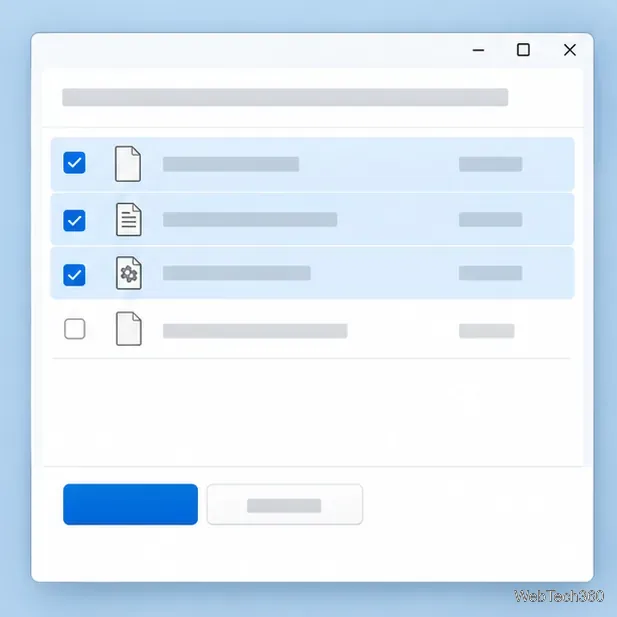
On Windows 10 or 11, open Start > Settings > System > Storage and review Temporary files, or open Storage Sense to configure automatic cleanup. Microsoft says Storage Sense works on the system drive by default and leaves Downloads alone unless you change that setting. Be careful with Previous Windows installation(s): removing it deletes Windows.old and removes the option to roll back to the earlier Windows version. See Microsoft’s Storage Sense instructions and drive-space guide before removing system files.
Use TFC only when its broader targets are helpful and you understand every selected category. Use Temp Cleaner when you want to inspect one TEMP directory. For most people on current Windows versions, Storage Sense or the Temporary files page is the sensible first stop: both are built in and let you review categories. Temporary files can return as apps run, so cleanup is maintenance rather than a one-time performance fix.
Learn whether an NVIDIA BIOS editor supports your GPU, how to back up a graphics-card VBIOS, and when to use safer tuning or vendor firmware tools.
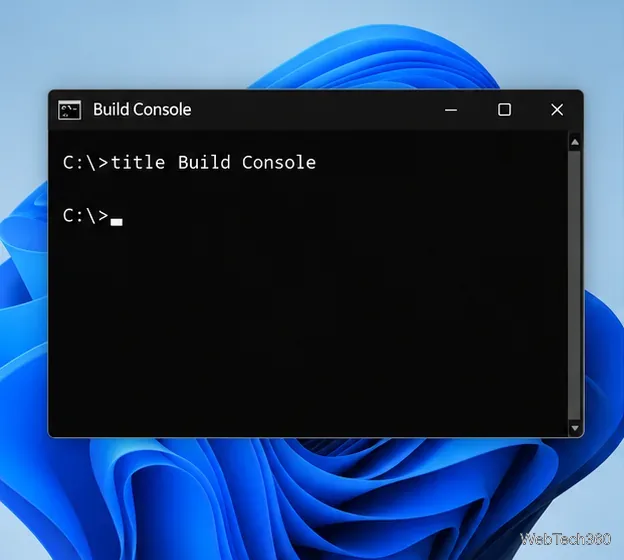
Rename a Command Prompt window with the title command, set a reusable shortcut label, or keep a Windows Terminal tab title from resetting.
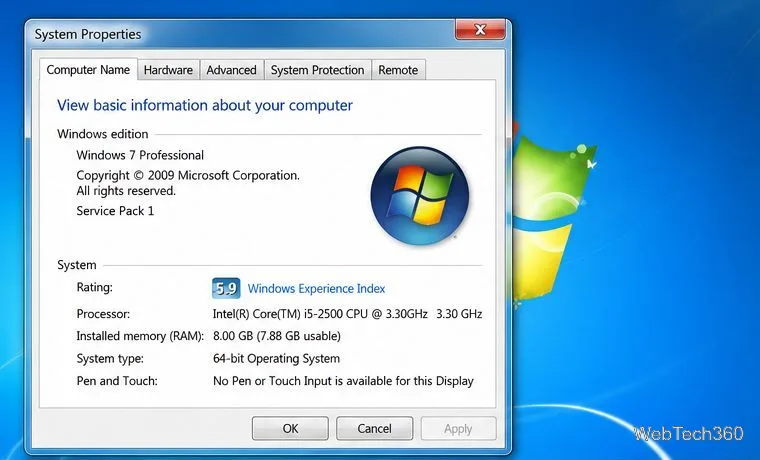
Find a compatible Windows 7 driver, install it through Device Manager or the manufacturer’s package, and roll back if a device stops working.
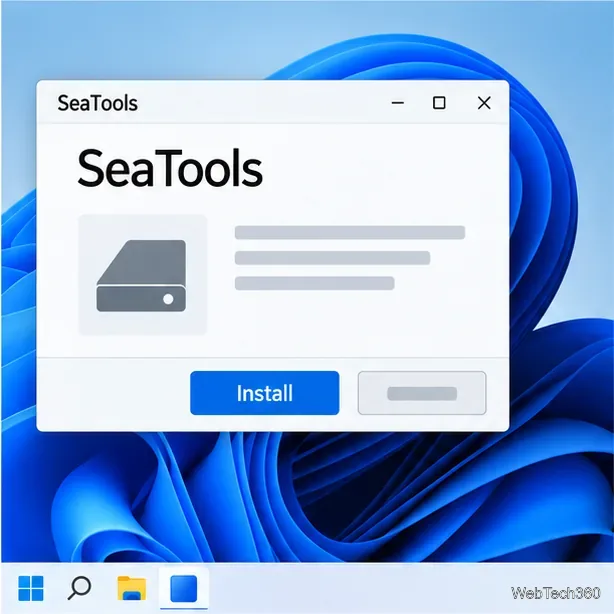
Use SeaTools to check a Seagate or Maxtor drive, run safe and long diagnostics, interpret results, and understand the data-loss risk before trying Fix All.
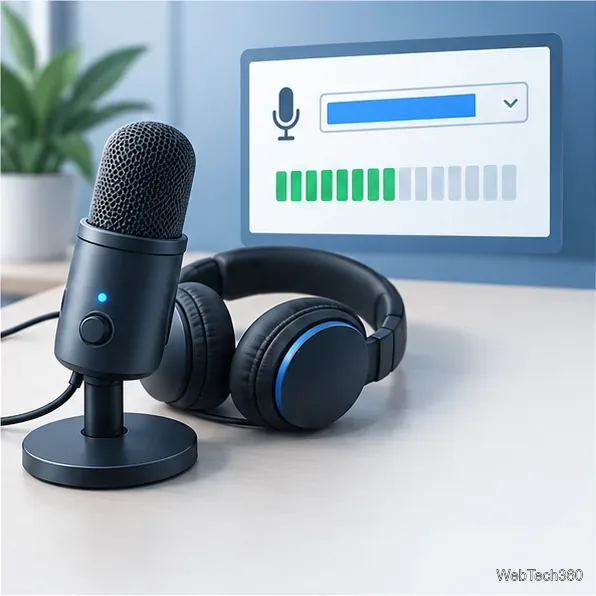
Learn TinyTalk’s direct-IP voice chat workflow, prepare your microphone, connect two PCs on a LAN, and understand why internet calls need extra care.
Extract multiple password-protected RAR archives in one batch, keep each archive in its own folder, and troubleshoot passwords and split volumes.
Compare Temp File Cleaner and Temp Cleaner, see what each one can remove, and learn safer checks to make before cleaning Windows temporary files.
Learn what Time Stopper was designed to do, why its old trial-extension instructions are unreliable, and how to manage software trials, billing, and project files safely.
Turn on Facebook desktop notifications in your browser, choose which alerts Facebook sends, and fix blocked alerts in Windows or macOS.
Use PowerShell or CertUtil to calculate a SHA-256 hash, compare it with the publisher’s checksum, and understand mismatches.