How to Edit an NVIDIA BIOS: Fast Checks Before Changing VBIOS
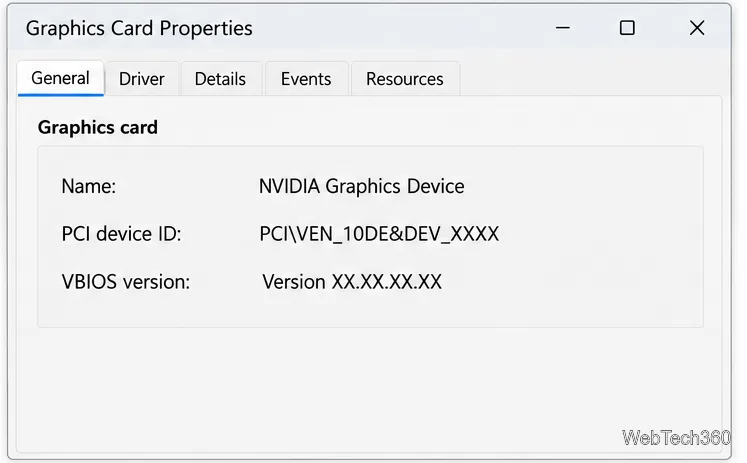
Learn whether an NVIDIA BIOS editor supports your GPU, how to back up a graphics-card VBIOS, and when to use safer tuning or vendor firmware tools.
To update a driver in Windows 7, open Device Manager and either let Windows search or install a compatible package from the PC or device maker. Windows 7 support ended on January 14, 2020, so searches may return nothing and some makers no longer offer Windows 7 downloads. Confirm the exact model and 32-bit or 64-bit system type first.
Update a driver to fix a device problem or meet a compatibility need. A newer version is not automatically better. The illustrations show Windows 7-era screens; wording and available drivers can vary.
Right-click Computer, choose Properties, and note the Windows edition and System type. For built-in components, start at the PC maker’s support page; for add-on devices, check the device maker. Save the current installer or create a restore point before changing a working driver. Microsoft’s Windows 7 lifecycle page lists the end-of-support date.
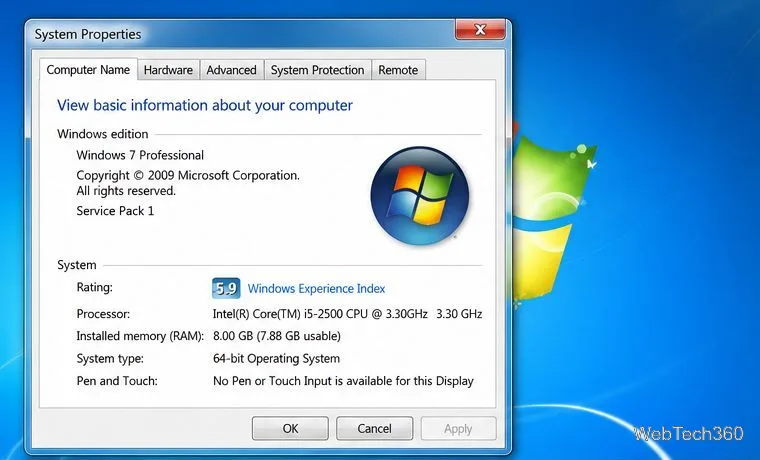
Open Computer properties and record the Windows edition and whether the system is 32-bit or 64-bit. Also write down the full PC model or the exact model of the part you want to update. Driver downloads are not interchangeable across similar-looking models or system types.
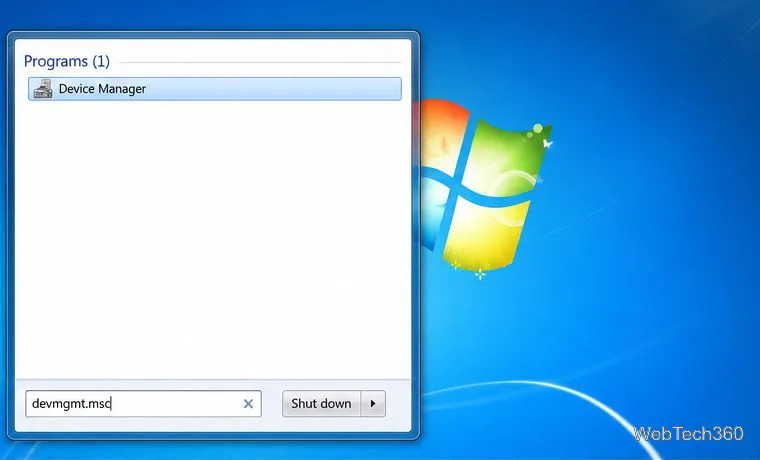
Click Start, type devmgmt.msc in the search box, and press Enter. You can also right-click Computer, choose Manage, and select Device Manager in the left pane. Approve a User Account Control prompt if Windows displays one.
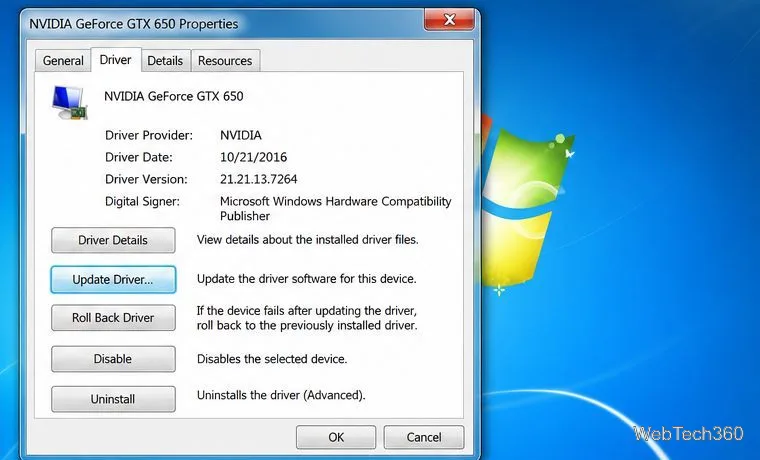
Expand the relevant category, such as Display adapters or Network adapters, then open the device’s Properties. Note its provider, date, and version on the Driver tab. For an unknown device, check Properties > Details > Hardware Ids before searching.
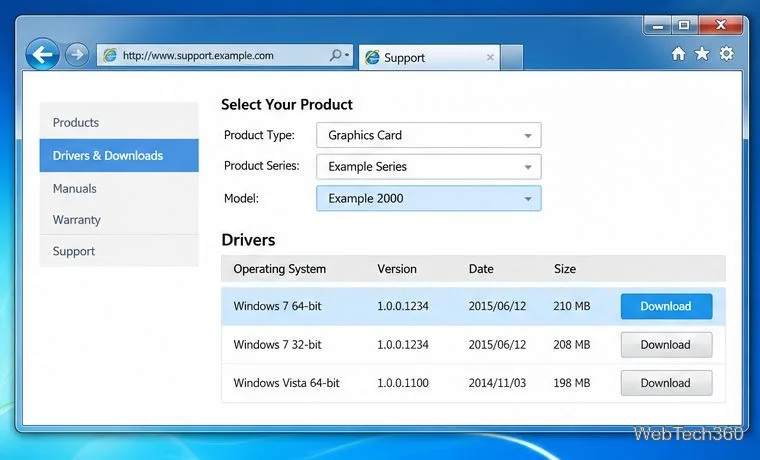
Search the PC or device maker’s official support site by model. Choose a package marked for Windows 7 and your system type. Check supported models and prerequisites, and note whether the download is an installer or compressed folder. Avoid third-party driver-updater sites and packages for newer Windows versions. The Microsoft Update Catalog is another official source; use a listing only when it matches your hardware and Windows version.
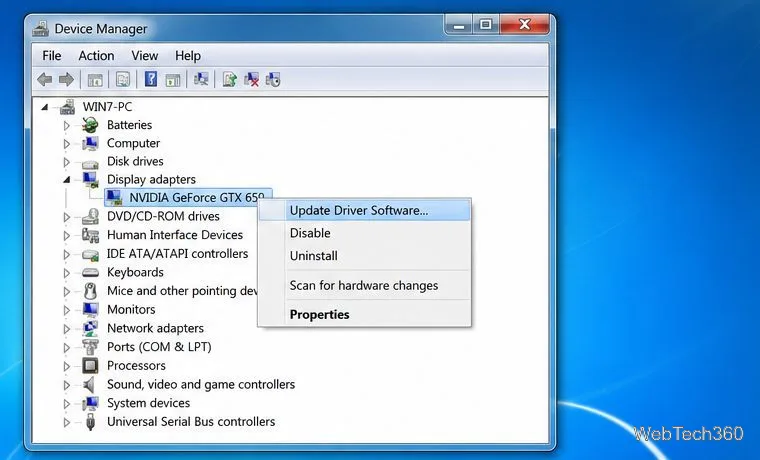
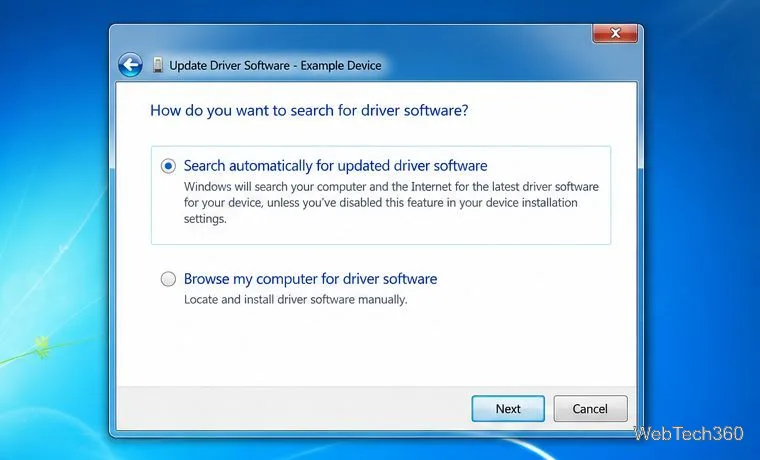
Right-click the device, choose Update Driver Software, then select Search automatically for updated driver software. If Windows finds nothing, check the manufacturer’s site in Step 4; a no-results message does not prove that no compatible package exists. Microsoft’s current Device Manager driver guide covers newer Windows versions, so labels differ from Windows 7.
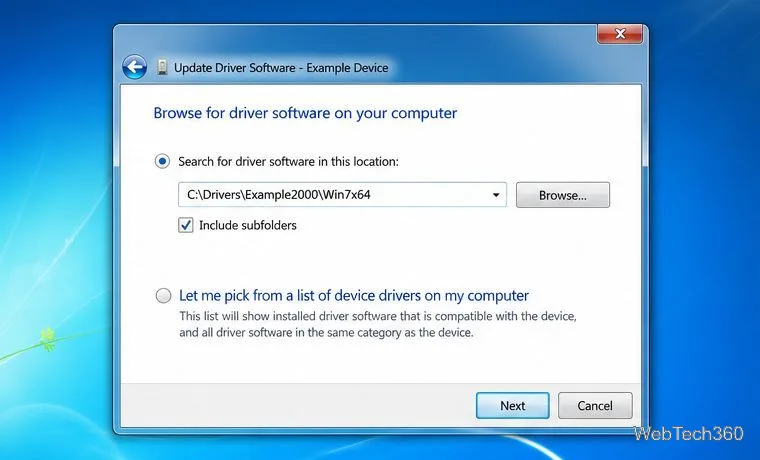
Run the manufacturer’s setup program if provided. For driver files, extract the download, choose Browse my computer for driver software, select the extracted folder, keep Include subfolders checked when available, and click Next. Don’t select an unrelated folder or force an incompatible driver.
Restart if prompted, then test the device. Reopen its Properties > Driver tab and check the provider or version. A newer date alone does not prove that the driver is suitable.
Open Properties > Driver and choose Roll Back Driver if available. Confirm and restart if requested. If rollback is disabled, reinstall the previous package you saved or use a restore point. Don’t uninstall the device unless you have a compatible installer and recovery plan.
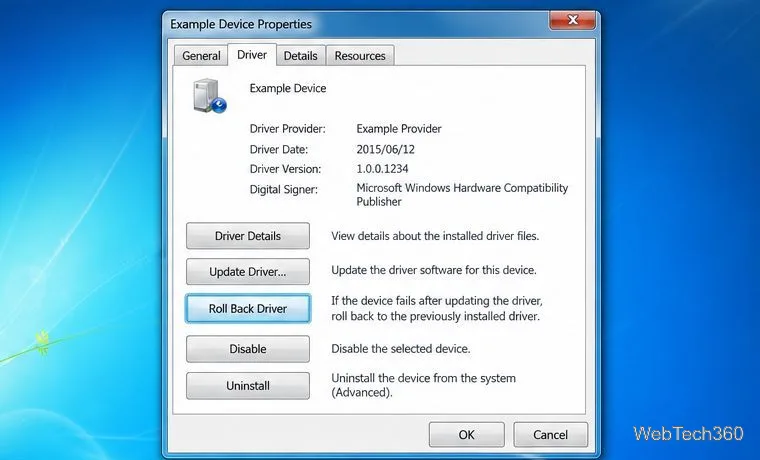
Recheck the model, Windows edition, service pack requirements, and system type. For an unknown device, compare its hardware ID with the maker’s documentation. If no Windows 7 driver is offered, don’t try an unrelated package. Consider a supported operating system or replacement hardware. Verify the file and publisher if Windows shows a driver-signing warning.
For a PC that remains connected to the internet, remember that installing a driver does not restore Windows 7 security support. Microsoft ended Windows 7 support on January 14, 2020; its unsupported Windows guidance explains what that means.
Learn whether an NVIDIA BIOS editor supports your GPU, how to back up a graphics-card VBIOS, and when to use safer tuning or vendor firmware tools.
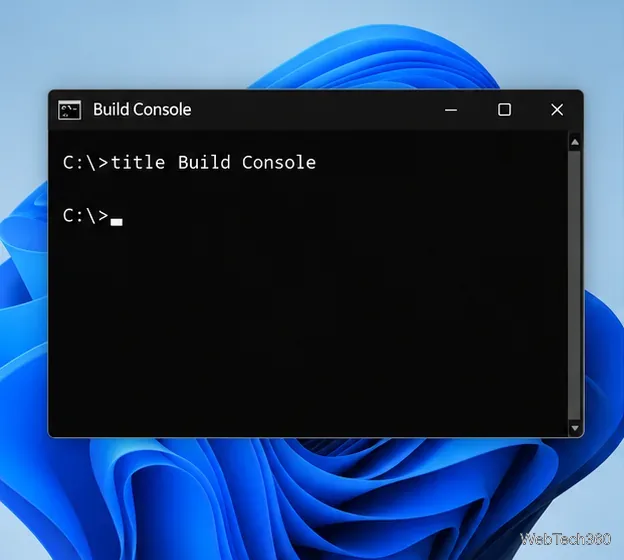
Rename a Command Prompt window with the title command, set a reusable shortcut label, or keep a Windows Terminal tab title from resetting.
Find a compatible Windows 7 driver, install it through Device Manager or the manufacturer’s package, and roll back if a device stops working.
Use SeaTools to check a Seagate or Maxtor drive, run safe and long diagnostics, interpret results, and understand the data-loss risk before trying Fix All.
Learn TinyTalk’s direct-IP voice chat workflow, prepare your microphone, connect two PCs on a LAN, and understand why internet calls need extra care.
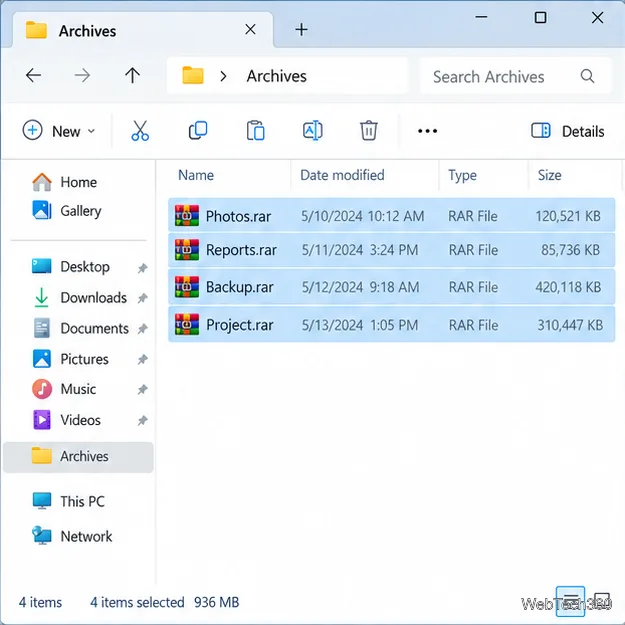
Extract multiple password-protected RAR archives in one batch, keep each archive in its own folder, and troubleshoot passwords and split volumes.
Compare Temp File Cleaner and Temp Cleaner, see what each one can remove, and learn safer checks to make before cleaning Windows temporary files.
Learn what Time Stopper was designed to do, why its old trial-extension instructions are unreliable, and how to manage software trials, billing, and project files safely.
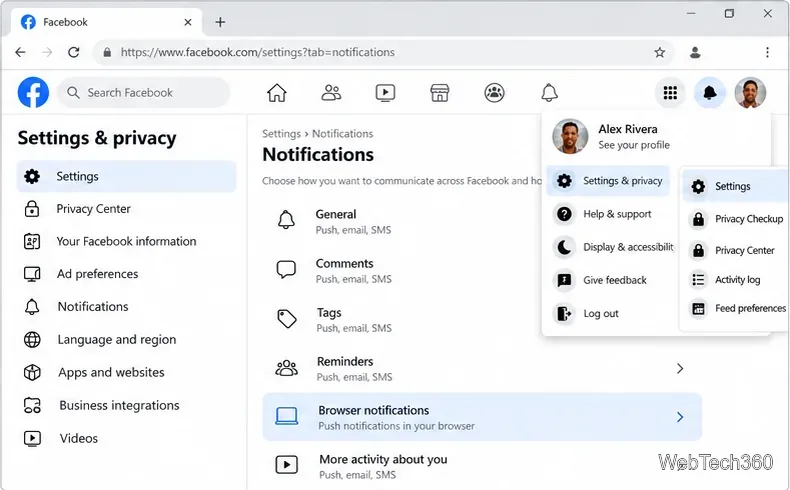
Turn on Facebook desktop notifications in your browser, choose which alerts Facebook sends, and fix blocked alerts in Windows or macOS.
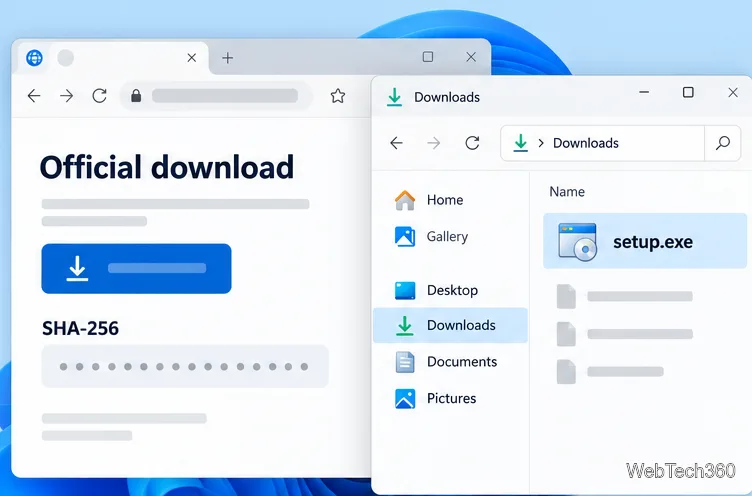
Use PowerShell or CertUtil to calculate a SHA-256 hash, compare it with the publisher’s checksum, and understand mismatches.