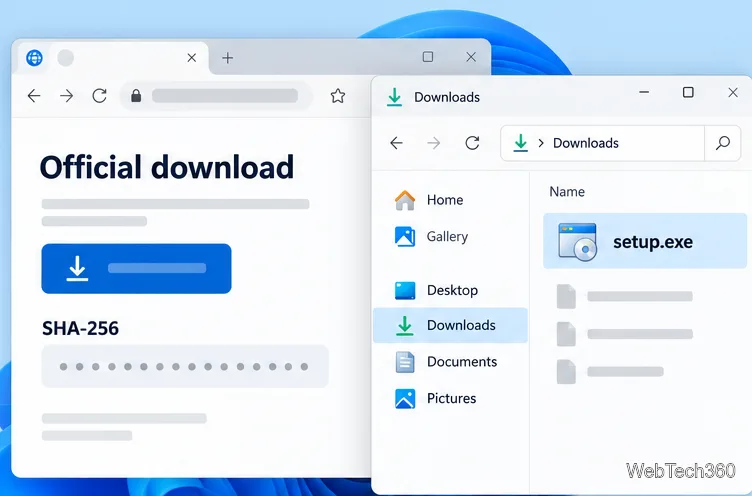
How to Edit an NVIDIA BIOS: Fast Checks Before Changing VBIOS
Learn whether an NVIDIA BIOS editor supports your GPU, how to back up a graphics-card VBIOS, and when to use safer tuning or vendor firmware tools.
The fastest safe answer is to check whether your exact graphics card can be edited at all. There is no universal NVIDIA BIOS editor supported for every GeForce model. The old NiBiTor workflow is a legacy, third-party approach; do not assume it understands a current card’s VBIOS. First record the card details and save an untouched ROM copy. If you only want to change clock behavior, use a reversible tuning feature such as the Performance panel in the NVIDIA app when it is available for your GPU.
A graphics card’s VBIOS is firmware stored on the card. It is separate from your motherboard’s BIOS or UEFI settings. This guide concerns the card’s VBIOS. Laptop graphics firmware is usually tied to the laptop maker’s exact system configuration, so use the laptop manufacturer’s support page rather than a desktop-card ROM.
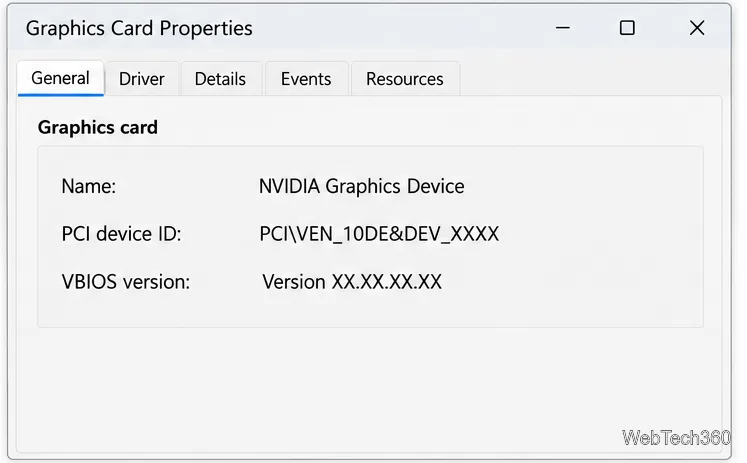
Write down the GPU name, board partner, full card model or part number, PCI device ID, memory configuration, and current VBIOS version. NVIDIA documents this query for systems with nvidia-smi installed:
nvidia-smi --query-gpu=gpu_name,pci.bus_id,vbios_version --format=csvSee NVIDIA’s reference for useful nvidia-smi queries. A GPU family name alone is not enough to select firmware: cards that use the same GPU chip can have different circuit boards, memory, power limits, and firmware.
Check the label on the card, the system’s hardware information, or a trusted GPU information utility. Compare the full model and revision with the board maker’s support page. If the model or VBIOS version cannot be identified, stop here and ask the card or computer manufacturer to confirm it.
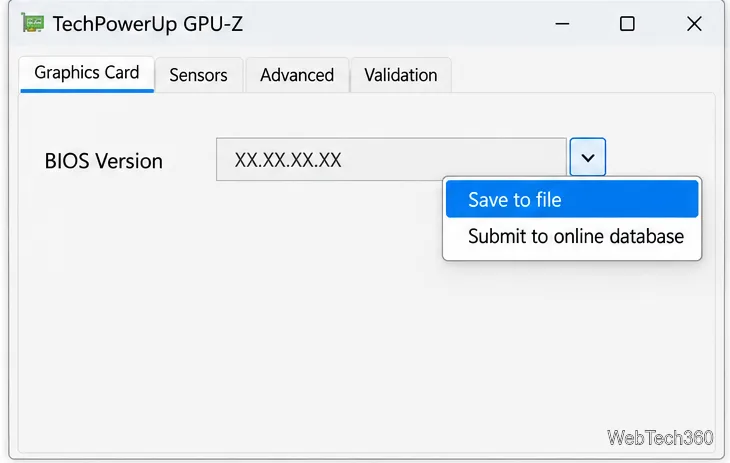
NVIDIA’s support instructions describe using GPU-Z to extract the installed GeForce VBIOS: open GPU-Z, click the small arrow beside BIOS Version, choose Save to file, and store the ROM with a clear name. Follow the current NVIDIA instructions for extracting a GeForce video BIOS ROM.
Keep the original file unchanged in two locations, and make a separate working copy if you proceed. A saved ROM is useful evidence for support, but it does not guarantee that you can recover a card after a failed flash.
If you are working with an older card and have confirmed that the editor supports that exact model and ROM format, open a copy of the saved ROM in NiBiTor. Change only a setting you understand, then save the result under a new filename so the untouched backup remains intact.
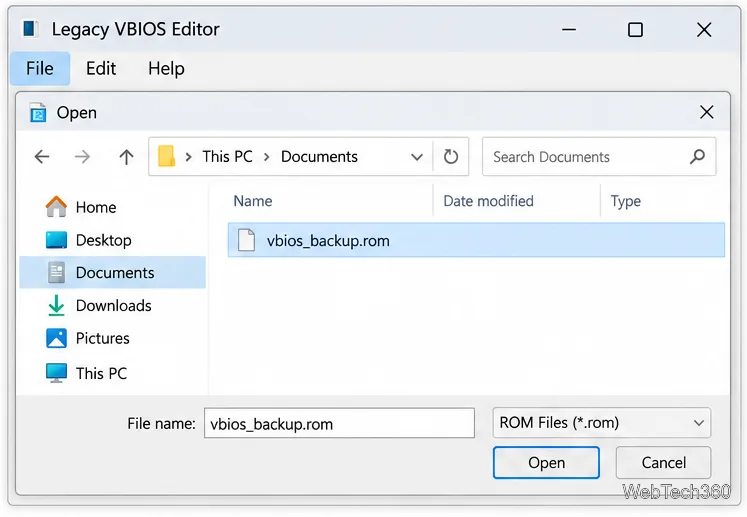
Do not proceed if the program shows a blank device, unknown fields, implausible values, or a compatibility warning. Do not use a ROM from a card that merely looks similar. Avoid changing voltage, memory timings, or power limits without model-specific documentation and a recovery plan. The old instruction to make NiBiTor detect a modern card is not a supported shortcut.
Editing a ROM file and installing firmware are separate actions. Do not flash a modified image unless the card maker explicitly supports that procedure for your exact board. For an official update, get the package and instructions from the card or computer manufacturer, verify the model and listed firmware before starting, connect stable power, and do not shut down or interrupt the updater.
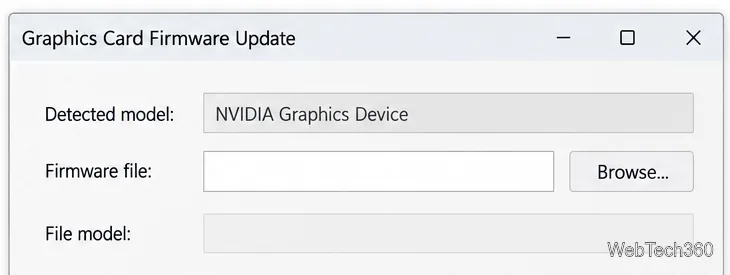
NVIDIA firmware utilities are designed for specific models and issues, not general VBIOS editing. For example, NVIDIA says its RTX 5060 UEFI firmware tool should be used only when the described blank-screen-on-reboot issue occurs; the tool checks whether an update is needed. Board partners may provide their own model-specific procedure, such as this ASUS graphics-card VBIOS update guide. Follow the instructions for your exact product.
For ordinary performance tuning, use software controls rather than rewriting firmware. NVIDIA documents automatic GPU tuning in the NVIDIA app’s Performance panel. NVIDIA says the tuning scan can take about 10–20 minutes and recommends letting the system idle while it runs. Availability depends on the GPU and app version. Make small changes, watch temperatures and stability, and return to defaults if you see crashes or artifacts.
Do not assume a legacy editor can safely modify a current GeForce VBIOS. Use supported tuning software for clock changes, and install firmware only through an update procedure supplied for the exact card and issue. A backup reduces the chance of losing the original file, but it cannot make an unsupported flash safe.
Learn whether an NVIDIA BIOS editor supports your GPU, how to back up a graphics-card VBIOS, and when to use safer tuning or vendor firmware tools.
Rename a Command Prompt window with the title command, set a reusable shortcut label, or keep a Windows Terminal tab title from resetting.
Find a compatible Windows 7 driver, install it through Device Manager or the manufacturer’s package, and roll back if a device stops working.
Use SeaTools to check a Seagate or Maxtor drive, run safe and long diagnostics, interpret results, and understand the data-loss risk before trying Fix All.
Learn TinyTalk’s direct-IP voice chat workflow, prepare your microphone, connect two PCs on a LAN, and understand why internet calls need extra care.
Extract multiple password-protected RAR archives in one batch, keep each archive in its own folder, and troubleshoot passwords and split volumes.
Compare Temp File Cleaner and Temp Cleaner, see what each one can remove, and learn safer checks to make before cleaning Windows temporary files.
Learn what Time Stopper was designed to do, why its old trial-extension instructions are unreliable, and how to manage software trials, billing, and project files safely.
Turn on Facebook desktop notifications in your browser, choose which alerts Facebook sends, and fix blocked alerts in Windows or macOS.
Use PowerShell or CertUtil to calculate a SHA-256 hash, compare it with the publisher’s checksum, and understand mismatches.