How to Edit an NVIDIA BIOS: Fast Checks Before Changing VBIOS
Learn whether an NVIDIA BIOS editor supports your GPU, how to back up a graphics-card VBIOS, and when to use safer tuning or vendor firmware tools.
TinyTalk is a legacy direct-IP voice chat tool for two Windows PCs. Its documented workflow is: both users launch it, the receiving PC listens, and the caller enters that PC’s IP address and selects Connect. A local network is the easiest setup; internet calls can be blocked by routers and firewalls.
Compatibility information for this release ends at Windows 7, so Windows 10 and 11 support is unconfirmed. I could not verify a current official download or support page. Avoid third-party mirrors and never bypass a Windows warning for an unverified copy. TinyTalk’s current encryption and access controls are also undocumented, so don’t use it for confidential calls.
Both participants need a Windows PC, a working microphone and speakers or headset, and a network path between them. The old description lists installer and portable-executable versions, but no current requirements. If you cannot verify the program’s source, choose a maintained voice-chat application instead.
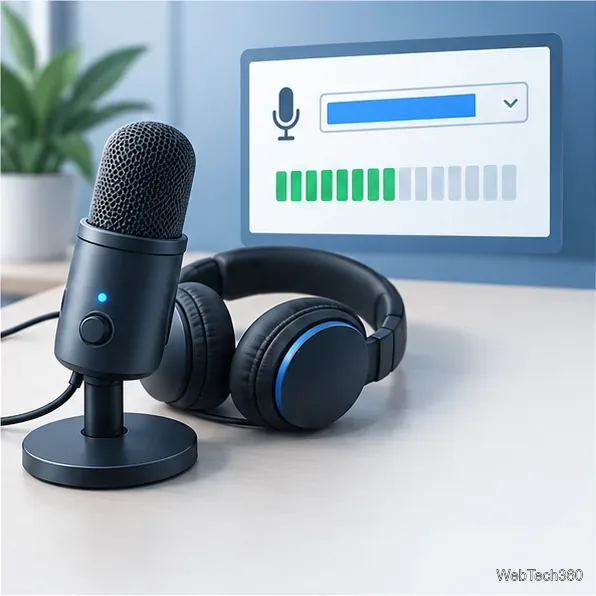
In Windows 11, open Settings > System > Sound, select the microphone under Input, and test it. Under Settings > Privacy & security > Microphone, enable desktop-app microphone access if needed; Windows 10 uses a different path. See Microsoft’s microphone troubleshooting guide.
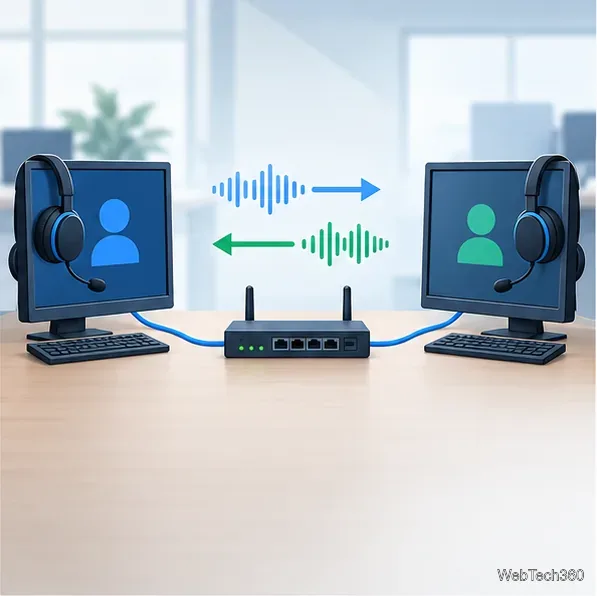
A typical local IPv4 address may begin with 10, 172.16 through 172.31, or 192.168. Those ranges are reserved for private networks and are not directly reachable across the public internet, as specified in RFC 1918.
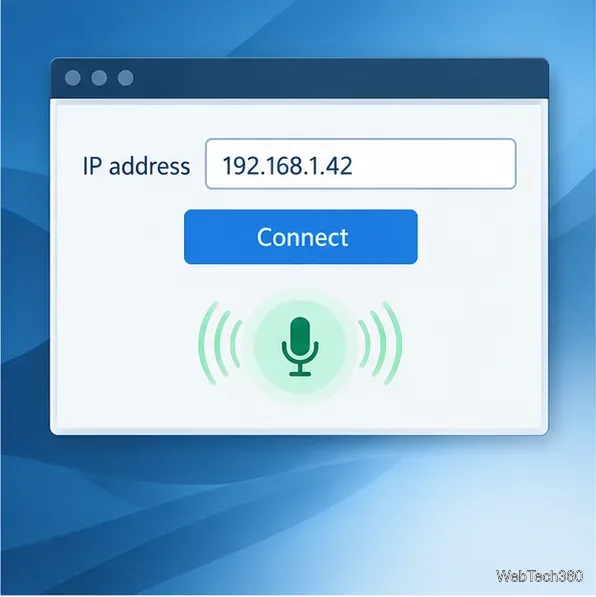
Possibly, but an IP address alone may not work. A computer behind a router normally uses a private address, while the router handles outside traffic. A direct incoming call needs a route through the router and Windows firewall. TinyTalk’s documented requirements don’t specify its port or whether it uses TCP or UDP, so a reliable port-forwarding recipe cannot be given.
Don’t disable the firewall or open a guessed port. Microsoft says allowing a trusted app is generally safer than opening a port, though both carry risk. Only configure access if you administer the network and have verified, version-specific TinyTalk instructions. Otherwise, choose a maintained voice service or a VPN that supports device-to-device reachability; TinyTalk’s compatibility with a VPN is unconfirmed.
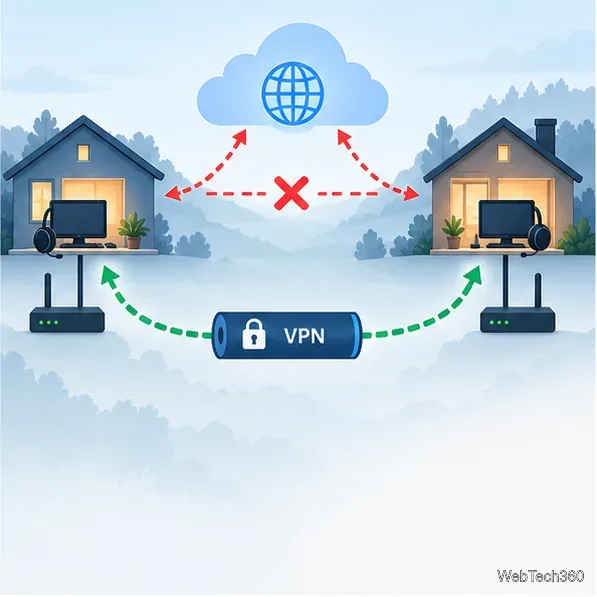
Bottom line: TinyTalk’s documented workflow is simple for two PCs on a reachable local network: launch it on both, enter the receiving computer’s address, and connect. Its age, unverified current download and compatibility status, and unknown internet-call requirements make it a poor choice for exposed or sensitive use.
Learn whether an NVIDIA BIOS editor supports your GPU, how to back up a graphics-card VBIOS, and when to use safer tuning or vendor firmware tools.
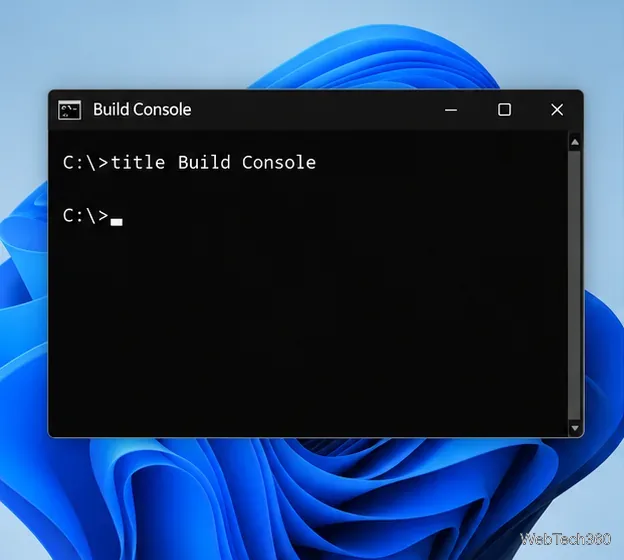
Rename a Command Prompt window with the title command, set a reusable shortcut label, or keep a Windows Terminal tab title from resetting.
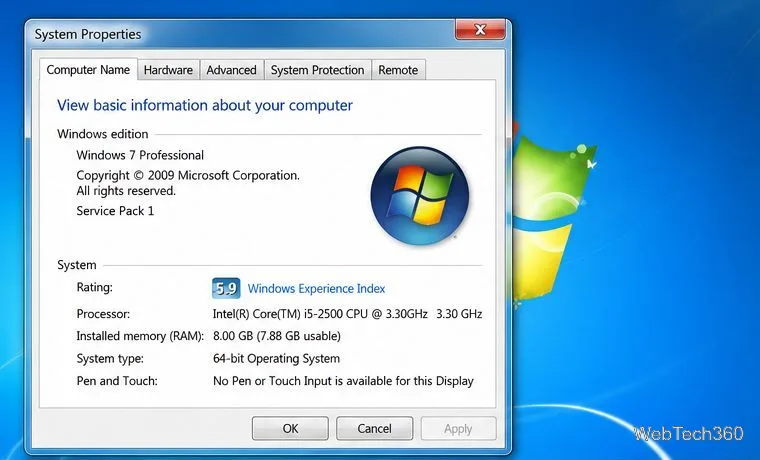
Find a compatible Windows 7 driver, install it through Device Manager or the manufacturer’s package, and roll back if a device stops working.
Use SeaTools to check a Seagate or Maxtor drive, run safe and long diagnostics, interpret results, and understand the data-loss risk before trying Fix All.
Learn TinyTalk’s direct-IP voice chat workflow, prepare your microphone, connect two PCs on a LAN, and understand why internet calls need extra care.
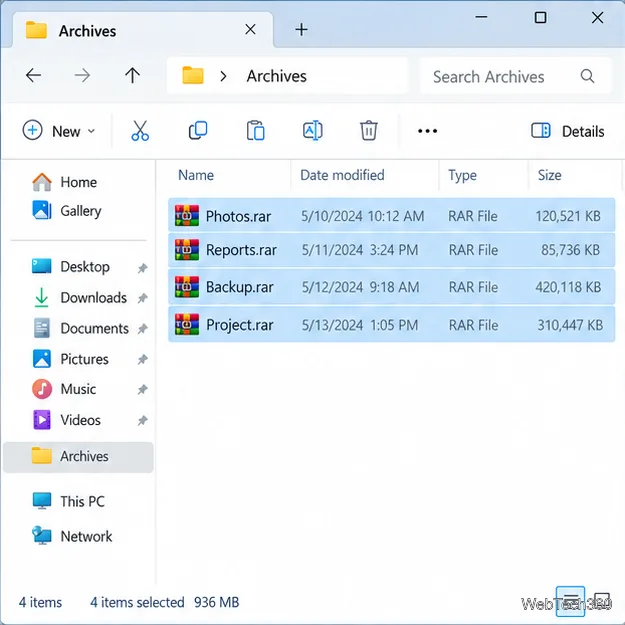
Extract multiple password-protected RAR archives in one batch, keep each archive in its own folder, and troubleshoot passwords and split volumes.
Compare Temp File Cleaner and Temp Cleaner, see what each one can remove, and learn safer checks to make before cleaning Windows temporary files.
Learn what Time Stopper was designed to do, why its old trial-extension instructions are unreliable, and how to manage software trials, billing, and project files safely.
Turn on Facebook desktop notifications in your browser, choose which alerts Facebook sends, and fix blocked alerts in Windows or macOS.
Use PowerShell or CertUtil to calculate a SHA-256 hash, compare it with the publisher’s checksum, and understand mismatches.