How to Edit an NVIDIA BIOS: Fast Checks Before Changing VBIOS
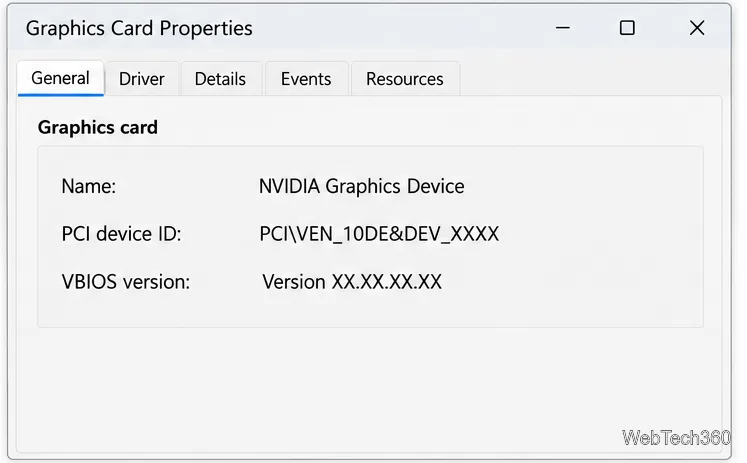
Learn whether an NVIDIA BIOS editor supports your GPU, how to back up a graphics-card VBIOS, and when to use safer tuning or vendor firmware tools.
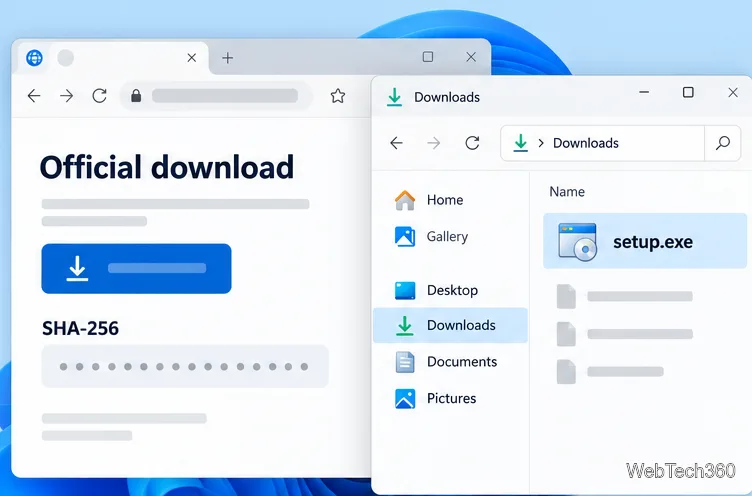
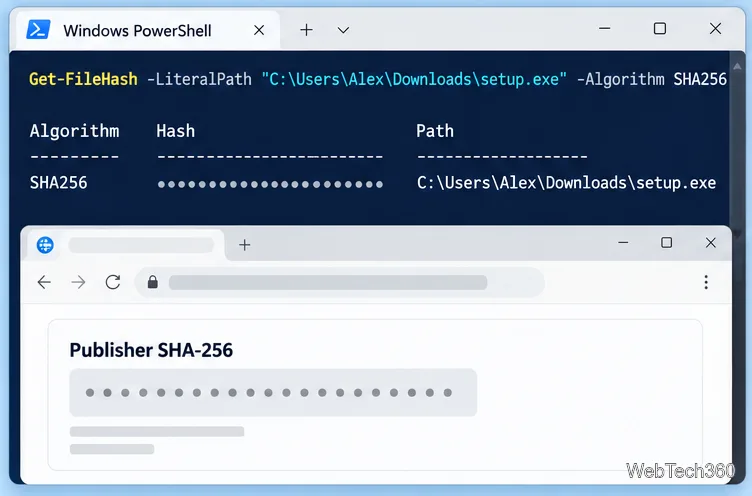
To check whether a file in Windows matches a known-good copy, calculate its SHA-256 hash and compare the result with the value published by the file’s publisher. Windows includes PowerShell’s Get-FileHash cmdlet and the certutil command, so you do not need a third-party checksum utility. A hash by itself is only a fingerprint; it can confirm a match only when you have a trustworthy reference value.
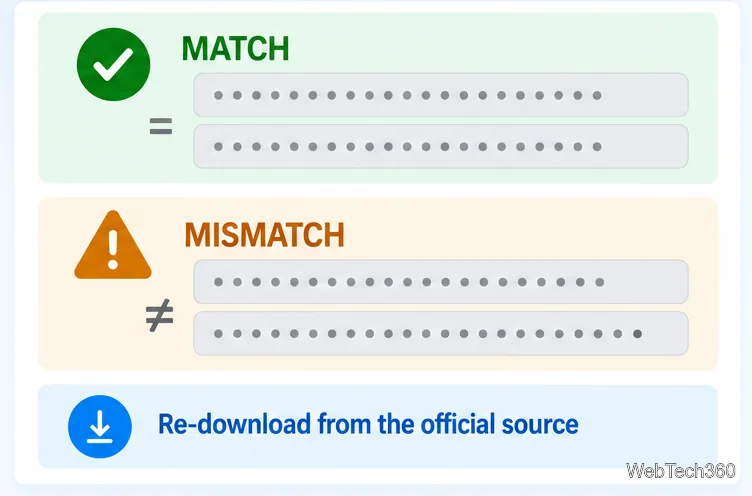
A hash is a fixed-length value calculated from a file’s contents. The filename and extension do not determine the hash, but changing the contents usually changes it. If two files have the same SHA-256 hash, they have the same contents for practical file-checking purposes. A mismatch means the bytes differ; it does not reveal whether the cause was an incomplete download, a different release, a damaged drive, or an intentional change.
For a download, the reference should come from the software publisher’s official page and match the exact file, version, and architecture you downloaded. A checksum copied from an untrusted mirror does not establish that a file is genuine. If the publisher does not publish a hash, calculating one locally cannot prove authenticity.
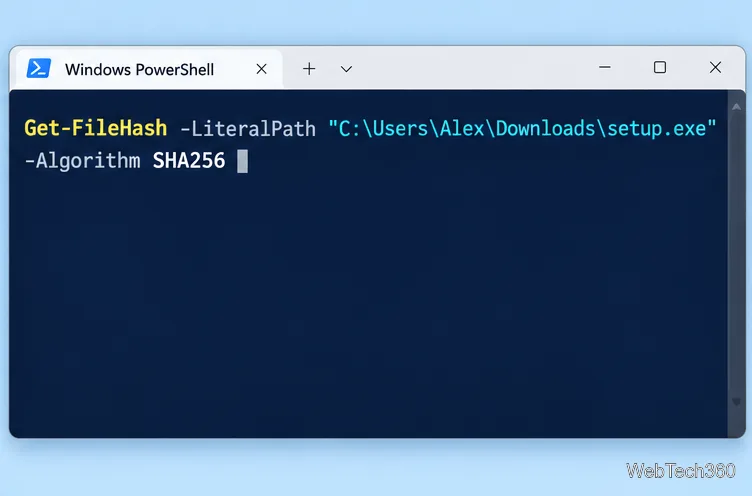
Get-FileHash -LiteralPath "C:\Users\YourName\Downloads\installer.exe" -Algorithm SHA256Replace the sample path with the file’s full path, keeping the quotation marks if the path contains spaces. The command prints the algorithm, hash, and path. PowerShell uses SHA-256 by default, but naming the algorithm makes the comparison explicit. Microsoft documents the command and its supported parameters in the Get-FileHash reference.
$expected = "PASTE_THE_PUBLISHED_SHA256"
$actual = (Get-FileHash -LiteralPath "C:\Users\YourName\Downloads\installer.exe" -Algorithm SHA256).Hash
$actual -eq $expected
A result of True means the locally calculated value matches the value you entered. False means they differ; recheck that you copied the right checksum and selected the matching download before drawing conclusions.
If you prefer Command Prompt, run this built-in command in Windows Terminal or a Command Prompt window:
certutil -hashfile "C:\Users\YourName\Downloads\installer.exe" SHA256Read the hash printed between the command output lines and compare it with the same publisher value. The official CertUtil documentation describes -hashfile as generating and displaying a cryptographic hash over a file.
Older download pages may provide MD5 or SHA-1 values, and an .sfv file contains CRC-32 checksums for a set of files. These formats can still help detect some accidental transfer errors when you compare them with a trusted original manifest. They are not a safe way to establish that a download is authentic. Microsoft notes that MD5 and SHA-1 are no longer considered secure against attack; use SHA-256 when the publisher offers it. If a legacy source provides only an MD5 value, treat it as a limited change check rather than proof of trust.
Get-FileHash checks a file against a reference you provide; it does not know what a Windows system file should contain. For protected Windows files, use System File Checker from an elevated terminal: sfc /verifyonly scans without repairing, while sfc /scannow scans and attempts repairs. Microsoft lists these options in its SFC command reference. Use the hash method for downloads, archives, backups, and other files where you have a trusted checksum.
Learn whether an NVIDIA BIOS editor supports your GPU, how to back up a graphics-card VBIOS, and when to use safer tuning or vendor firmware tools.
Rename a Command Prompt window with the title command, set a reusable shortcut label, or keep a Windows Terminal tab title from resetting.
Find a compatible Windows 7 driver, install it through Device Manager or the manufacturer’s package, and roll back if a device stops working.
Use SeaTools to check a Seagate or Maxtor drive, run safe and long diagnostics, interpret results, and understand the data-loss risk before trying Fix All.
Learn TinyTalk’s direct-IP voice chat workflow, prepare your microphone, connect two PCs on a LAN, and understand why internet calls need extra care.
Extract multiple password-protected RAR archives in one batch, keep each archive in its own folder, and troubleshoot passwords and split volumes.
Compare Temp File Cleaner and Temp Cleaner, see what each one can remove, and learn safer checks to make before cleaning Windows temporary files.
Learn what Time Stopper was designed to do, why its old trial-extension instructions are unreliable, and how to manage software trials, billing, and project files safely.
Turn on Facebook desktop notifications in your browser, choose which alerts Facebook sends, and fix blocked alerts in Windows or macOS.
Use PowerShell or CertUtil to calculate a SHA-256 hash, compare it with the publisher’s checksum, and understand mismatches.