How to Batch Extract Password-Protected RAR Files in WinRAR

To batch extract password-protected RAR files in WinRAR, group archives that use the same password, select them together, and run one extraction job. In the extraction dialog, choose a destination and set Options > Extract archives to > Separate subfolders in destination folder. Enter the known password when prompted. If the archives use different passwords, process one password group at a time.

What this method requires

Batch extraction saves time when you already have the correct password. It does not remove or bypass encryption. WinRAR can process several selected archives at once and place their contents in separate subfolders; the separate-folder choices appear when multiple archives are selected. This keeps files from different archives from being mixed together or overwriting one another. See the WinRAR release notes for multiple-archive extraction.

The original article recommended a separate password-recovery utility. This walkthrough uses WinRAR’s supported extraction workflow instead. Use it for archives you own or are authorized to open, and only with passwords you have permission to use.

Batch extract RAR archives in WinRAR

  1. Prepare the archives. Put the RAR files you want to extract in one folder, and make sure there is enough free space at the destination for their uncompressed contents. Sort files into groups by password before starting. A single batch works best when every selected archive has the same password; repeat the process for each group that uses a different one. Keep the original archives until you have checked the extracted files.
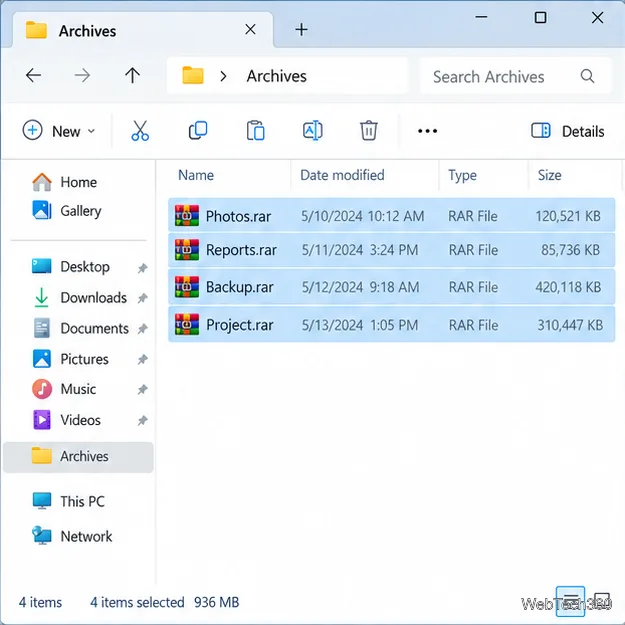
  2. Select one group. Install or update WinRAR from the official RARLAB download page. Open WinRAR and browse to the folder containing your archives. Select the files in one password group with Ctrl-click or Shift-click. Do not select unrelated files. If Windows 11 hides WinRAR’s commands in a submenu, use WinRAR’s own file window to select the archives.
    File Explorer window with Photos.rar, Reports.rar, Backup.rar, and Project.rar selected in an Archives folder.
    Select only the archives that belong in the same password group.
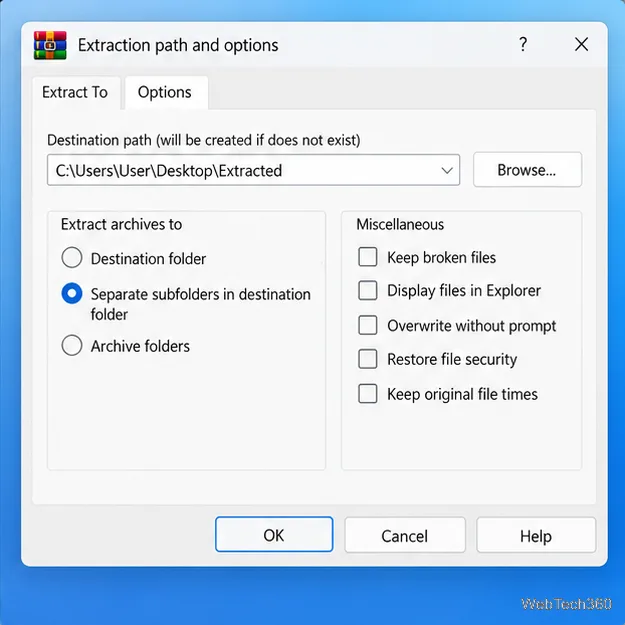
  3. Choose the destination and folder layout. Click Extract To. In the extraction dialog, enter or browse to a destination folder. Open the Options tab and find Extract archives to. Choose Separate subfolders in destination folder, then click OK to begin. WinRAR creates a folder for each selected archive inside the destination. This option is available for multiple selected archives, as described in the official extraction notes.
    WinRAR extraction dialog showing separate subfolders selected in the Extract archives to options.
    Choose separate subfolders to keep each archive’s extracted files together.
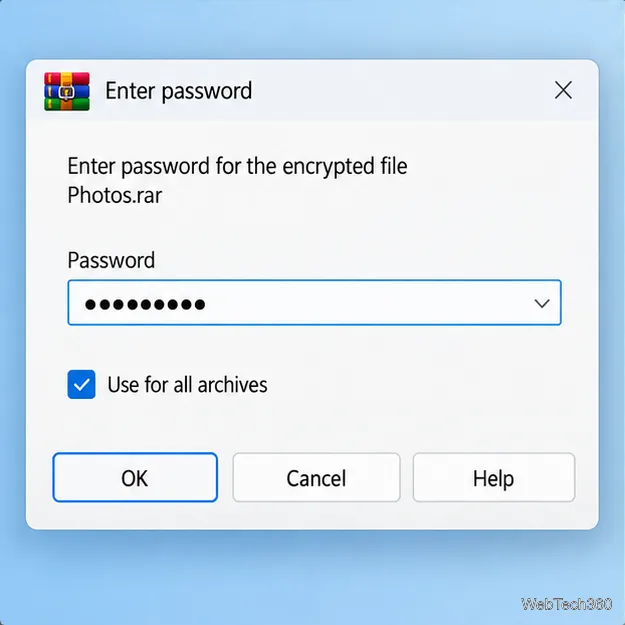
  4. Enter the password and check the results. When WinRAR requests a password, type the known password for that group. If the prompt includes Use for all archives, select it only when the selected archives share that password. If it does not appear, follow the prompts WinRAR shows.
    WinRAR Enter password prompt with a masked password field and Use for all archives checked.
    Reuse a password across the batch only when every selected archive has the same password.

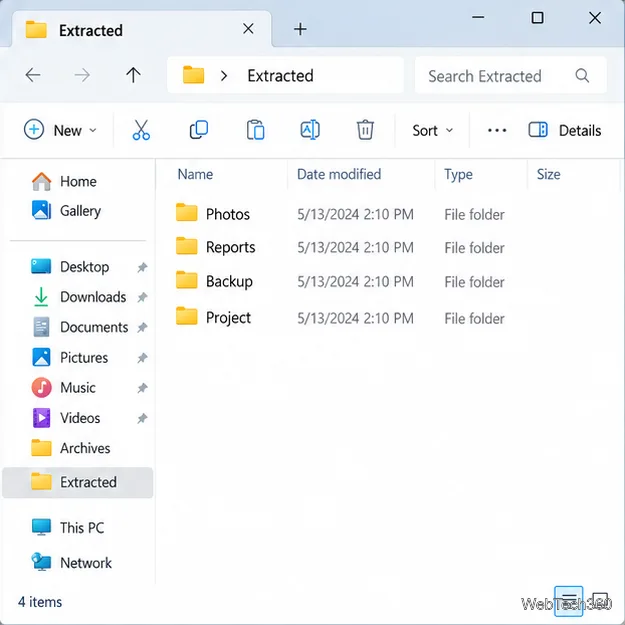
    Wait for the operation window to finish, then open the destination and check that each archive has its own folder and that representative files open correctly.

    The WinRAR FAQ describes the extraction dialog and its progress and diagnostic messages.
    File Explorer destination folder showing separate Photos, Reports, Backup, and Project folders.
    After extraction, each selected archive appears in its own destination subfolder.

Handle split RAR volumes separately

A multivolume archive is one archive divided among files such as backup.part001.rar, backup.part002.rar, and later parts. Keep all parts together in the same folder and start extraction from the first volume. Do not treat each part as an independent archive in your batch; WinRAR needs the full set to reconstruct the contents. If a prompt appears, choose the option to process all files in all volumes. RARLAB’s multivolume archive instructions explain that all volumes must be available and extraction should begin with the first.

Fix common extraction problems

  • Incorrect password: Check capitalization, punctuation, keyboard layout, and whether the archive belongs to another password group. Passwords are not interchangeable across archives just because the files are stored together.
  • A volume is missing: Confirm that every part is present and in the same folder. Ask the sender for the missing volume or a complete copy, then start from the first volume again.
  • CRC or corruption error: The archive or one of its parts may be incomplete or damaged. Download or copy it again from the original source, then retry extraction.
  • You do not know the password: Check your password manager or the message that came with the archive, or ask its creator. WinRAR says encrypted RAR files have no backdoor and that it cannot retrieve a lost password; third-party recovery tools are not supported by WinRAR. See its password recovery guidance. Do not assume that a dictionary-based utility will recover the files.

Once a batch completes without errors, compare the extracted folders with the archives you selected. Keeping the source RAR files until this check is complete gives you a clean way to retry if a password, volume, or download was wrong.

Leave a Comment

How to Edit an NVIDIA BIOS: Fast Checks Before Changing VBIOS
How to Edit an NVIDIA BIOS: Fast Checks Before Changing VBIOS

Learn whether an NVIDIA BIOS editor supports your GPU, how to back up a graphics-card VBIOS, and when to use safer tuning or vendor firmware tools.

How to Change the Title Bar in Command Prompt

How to Change the Title Bar in Command Prompt

Rename a Command Prompt window with the title command, set a reusable shortcut label, or keep a Windows Terminal tab title from resetting.

How to Update Device Drivers in Windows 7

How to Update Device Drivers in Windows 7

Find a compatible Windows 7 driver, install it through Device Manager or the manufacturer’s package, and roll back if a device stops working.

Diagnose and Repair a Seagate or Maxtor Drive With SeaTools

Diagnose and Repair a Seagate or Maxtor Drive With SeaTools

Use SeaTools to check a Seagate or Maxtor drive, run safe and long diagnostics, interpret results, and understand the data-loss risk before trying Fix All.

How to Use TinyTalk for Voice Chat on a Local Network or the Internet

How to Use TinyTalk for Voice Chat on a Local Network or the Internet

Learn TinyTalk’s direct-IP voice chat workflow, prepare your microphone, connect two PCs on a LAN, and understand why internet calls need extra care.

How to Batch Extract Password-Protected RAR Files in WinRAR

How to Batch Extract Password-Protected RAR Files in WinRAR

Extract multiple password-protected RAR archives in one batch, keep each archive in its own folder, and troubleshoot passwords and split volumes.

2 Free Tools to Delete Windows Temp Files Quickly

2 Free Tools to Delete Windows Temp Files Quickly

Compare Temp File Cleaner and Temp Cleaner, see what each one can remove, and learn safer checks to make before cleaning Windows temporary files.

Time Stopper for Trial Software: Risks, Limits, and Legal Options

Time Stopper for Trial Software: Risks, Limits, and Legal Options

Learn what Time Stopper was designed to do, why its old trial-extension instructions are unreliable, and how to manage software trials, billing, and project files safely.

Get Facebook Notifications on Your Desktop in Chrome or Edge

Get Facebook Notifications on Your Desktop in Chrome or Edge

Turn on Facebook desktop notifications in your browser, choose which alerts Facebook sends, and fix blocked alerts in Windows or macOS.

Check File Integrity in Windows with SHA-256

Check File Integrity in Windows with SHA-256

Use PowerShell or CertUtil to calculate a SHA-256 hash, compare it with the publisher’s checksum, and understand mismatches.