How to Edit an NVIDIA BIOS: Fast Checks Before Changing VBIOS
Learn whether an NVIDIA BIOS editor supports your GPU, how to back up a graphics-card VBIOS, and when to use safer tuning or vendor firmware tools.
To change a classic Command Prompt window’s title, type title Build Console and press Enter. To make a custom name appear whenever you open a particular shortcut, add /k title Build Console to that shortcut’s target. If Command Prompt opens as a tab in Windows Terminal, set a profile tab title there instead.
Open Command Prompt, enter the title command followed by the text you want, then press Enter:
title Build Console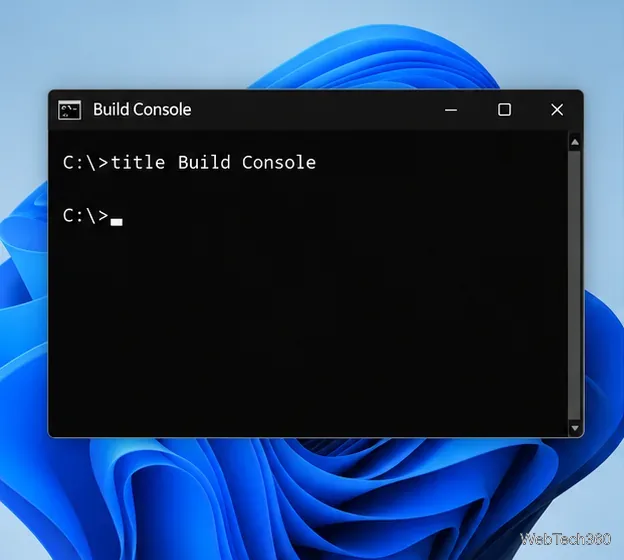
The title updates immediately and applies to that console window. You can use a short task name, project name, server label, or path. For example:
title C:\Projects\Widget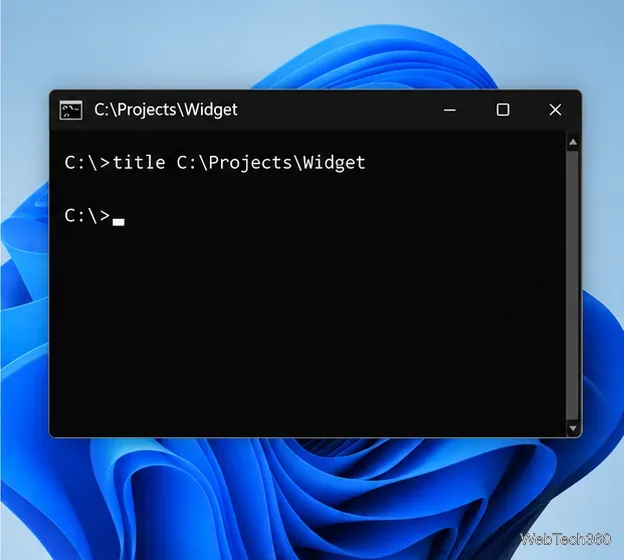
Microsoft documents title [string] as the command for setting the Command Prompt window title. The command changes the label only; it does not move the shell to that folder or change the prompt. If you use title %CD%, Command Prompt substitutes the current directory once when the command runs. The title will not keep following later cd commands automatically, so run it again when you want to refresh the path. See Microsoft’s title command reference.
For a window you launch repeatedly, put the title command in its shortcut. The /k option tells cmd.exe to run the command and leave Command Prompt open afterward.
cmd.exe /k title Build Console, then select Next.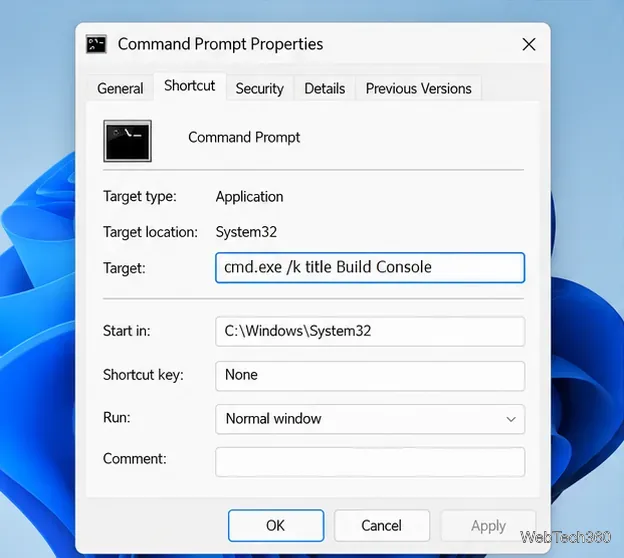
If you are editing an existing Command Prompt shortcut, open Properties and look on the Shortcut tab. Add /k title Build Console after the quoted path to cmd.exe in the Target field. For example: "C:\Windows\System32\cmd.exe" /k title Build Console. Keep the executable path inside its quotes and the options outside them. Microsoft explains that /k runs the supplied command and keeps the command processor running; /c runs it and then exits, which would close the window. See the cmd command reference.
The shortcut’s Start in field controls the initial working folder. Set it to a directory such as C:\Projects\Widget if you want the shell to open there. That setting is separate from the title: use the title text to label the window, and Start in to choose where commands begin. Renaming the shortcut itself only changes its desktop or Start menu label; it does not reliably rename the running console window.
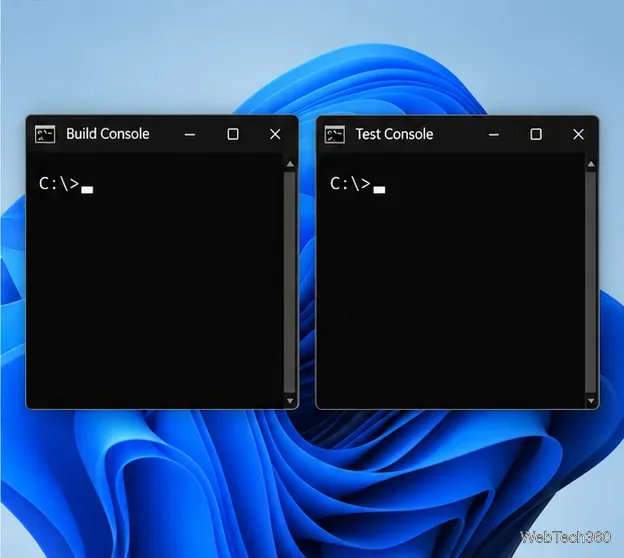
Create one shortcut per task and give each a different title, such as title API Server or title Test Console. This makes minimized windows easier to tell apart.
Windows Terminal displays Command Prompt in a tab, so the visible tab name can be controlled by the Terminal profile. Open Terminal Settings, select Open JSON file, and find the Command Prompt profile object in settings.json. Add these properties inside that profile, keeping the surrounding JSON commas and braces valid:
"tabTitle": "Build Console",
"suppressApplicationTitle": true
tabTitle supplies the tab’s label, while suppressApplicationTitle prevents the shell from replacing that visible title. These settings apply to the Windows Terminal tab, not to a separate classic console window. Microsoft’s Windows Terminal profile settings and tab title guide describe the options.
title Your Label, or use the Windows Terminal profile option above if you are working in a Terminal tab.title %CD% again after changing folders, or use a fixed project label./k, not /c, when you want the command window to stay open.Learn whether an NVIDIA BIOS editor supports your GPU, how to back up a graphics-card VBIOS, and when to use safer tuning or vendor firmware tools.
Rename a Command Prompt window with the title command, set a reusable shortcut label, or keep a Windows Terminal tab title from resetting.
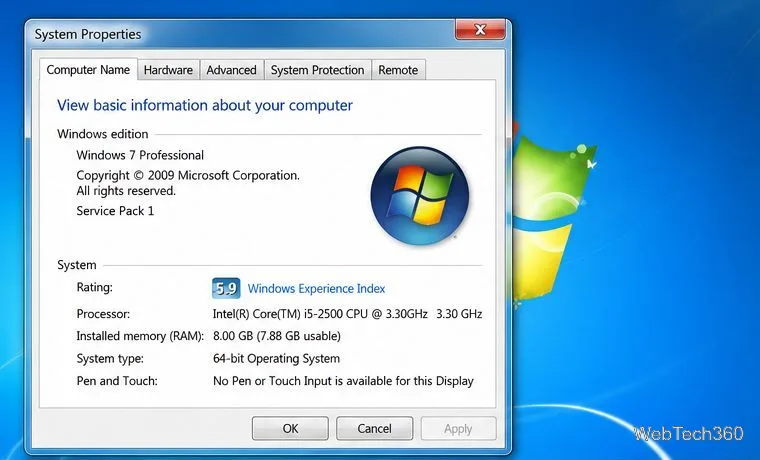
Find a compatible Windows 7 driver, install it through Device Manager or the manufacturer’s package, and roll back if a device stops working.
Use SeaTools to check a Seagate or Maxtor drive, run safe and long diagnostics, interpret results, and understand the data-loss risk before trying Fix All.
Learn TinyTalk’s direct-IP voice chat workflow, prepare your microphone, connect two PCs on a LAN, and understand why internet calls need extra care.
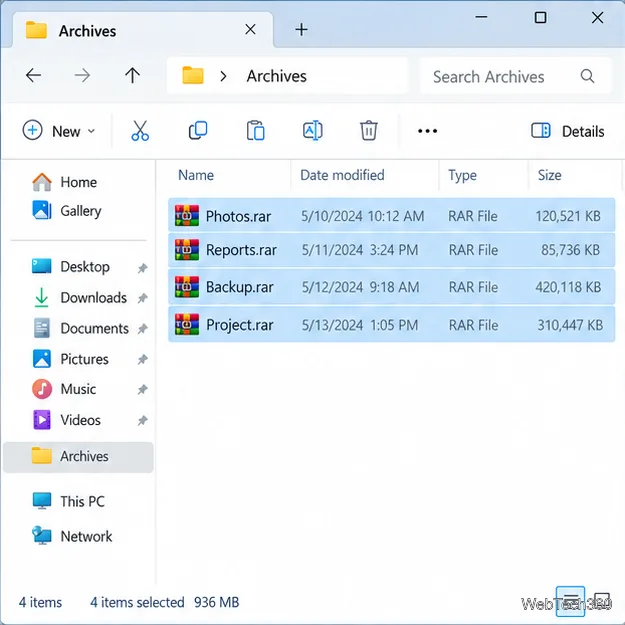
Extract multiple password-protected RAR archives in one batch, keep each archive in its own folder, and troubleshoot passwords and split volumes.
Compare Temp File Cleaner and Temp Cleaner, see what each one can remove, and learn safer checks to make before cleaning Windows temporary files.
Learn what Time Stopper was designed to do, why its old trial-extension instructions are unreliable, and how to manage software trials, billing, and project files safely.
Turn on Facebook desktop notifications in your browser, choose which alerts Facebook sends, and fix blocked alerts in Windows or macOS.
Use PowerShell or CertUtil to calculate a SHA-256 hash, compare it with the publisher’s checksum, and understand mismatches.