How to Edit an NVIDIA BIOS: Fast Checks Before Changing VBIOS
Learn whether an NVIDIA BIOS editor supports your GPU, how to back up a graphics-card VBIOS, and when to use safer tuning or vendor firmware tools.
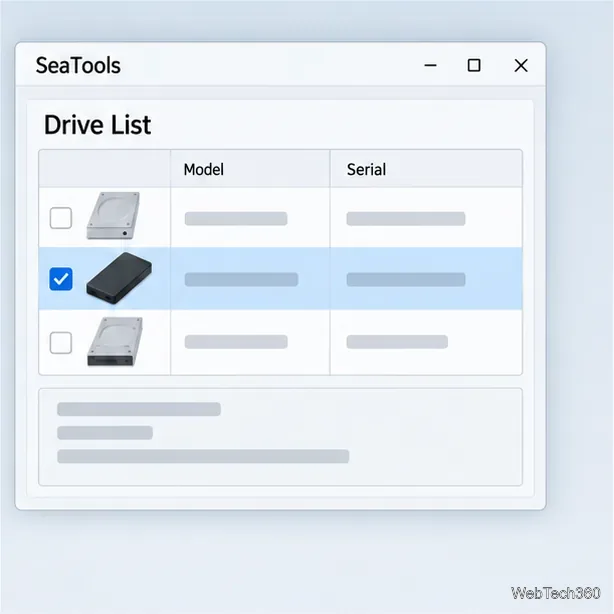
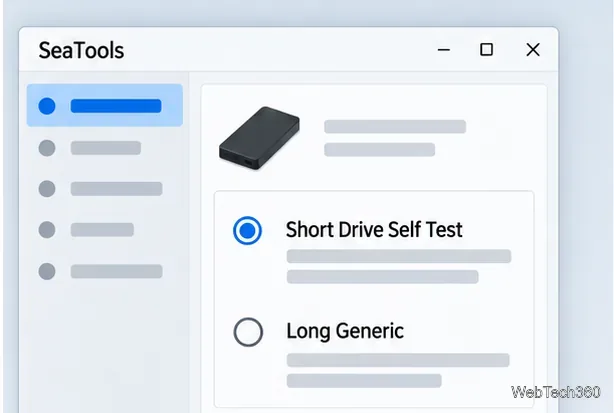
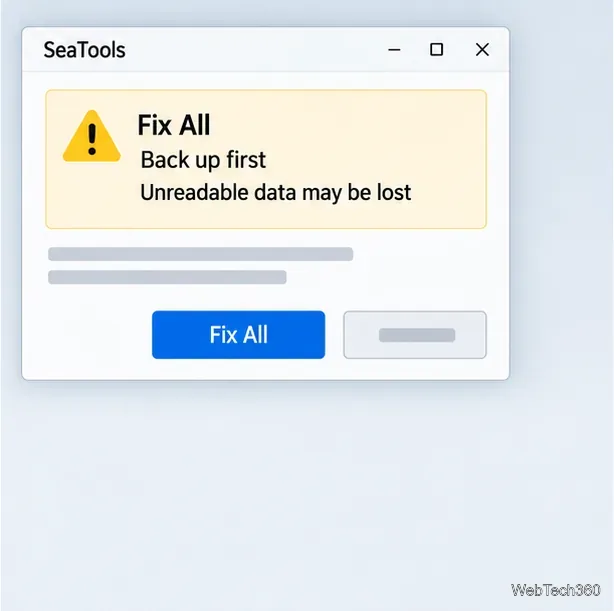
SeaTools can help diagnose a Seagate or Maxtor drive by checking its health and scanning for unreadable sectors. Download the current SeaTools release from Seagate, select the correct drive, and begin with a non-repair test such as SMART Check or Short Drive Self Test. Use a long scan only when you need a deeper check. If a test reports bad sectors, SeaTools may offer a Fix All repair, but data in an unreadable sector may already be lost, so copy important files before attempting it.
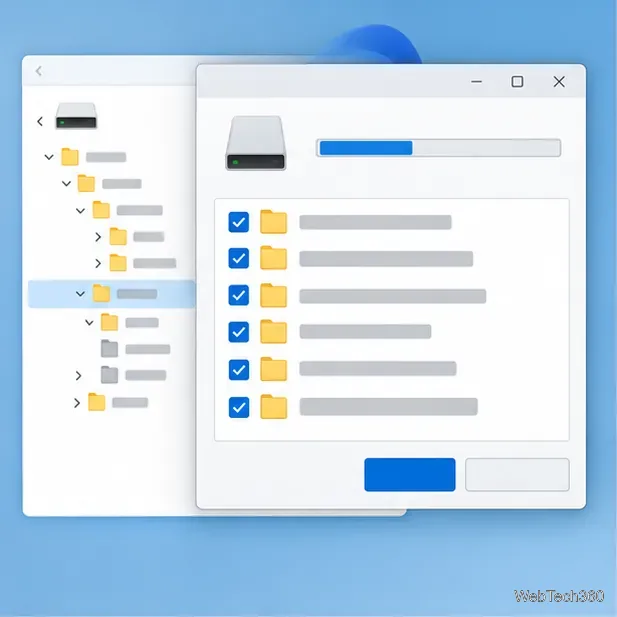
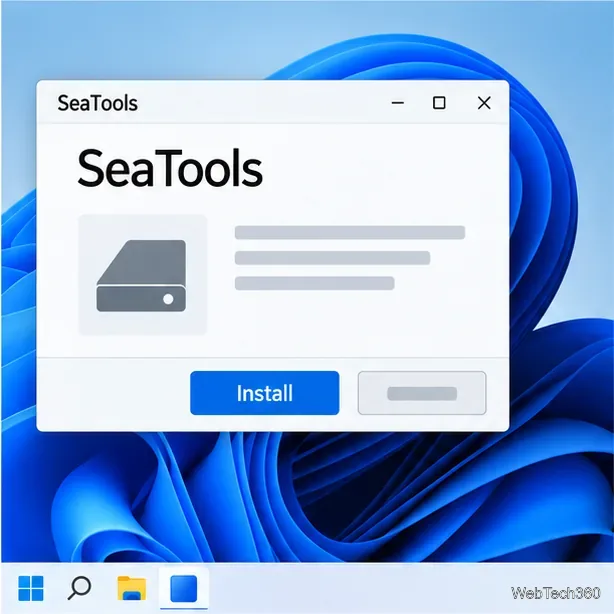
Seagate currently offers SeaTools 5 for Windows and Linux, as well as SeaTools Bootable for a USB drive. Its Windows guide includes Maxtor devices, though available tests can vary with the drive and its connection. The interface examples below are illustrative mockups rather than real screenshots.
If the drive still opens, copy irreplaceable files to a different, healthy device before running a long scan or repair. If the drive is clicking, repeatedly disconnecting, or contains data you cannot replace, stop and seek data-recovery advice instead of repeatedly scanning it. A diagnostic is not a backup, and a passing result cannot restore a damaged file system.
For a long test, connect an external drive directly to a reliable USB port and keep its power cable attached if it has one. Close programs that are using the drive, plug a laptop into AC power, and prevent the computer from sleeping until the scan finishes. A full-drive scan can take several hours depending on capacity and speed.
A pass means SeaTools did not find a fault in that particular test. It does not prove that every file is intact or rule out a cable, connection, or file-system problem. If the drive passes but Windows still reports errors, back up first and investigate the file system separately with Windows’ built-in error-checking tools.
A failed test is a reason to save the displayed result, serial number, and any SeaTools test code, then check the drive’s warranty or contact Seagate support. If a test was aborted, resolve any power, sleep, or connection interruption before deciding whether to rerun it. If Fix All completes, Seagate recommends another Long Generic scan to check the result. A repair attempt can fail; it does not guarantee that the drive is reliable for continued use.
Use the SeaTools for Windows instructions for the current test descriptions, and Seagate’s bad-sector guidance before attempting repair. For a USB-based test, see the SeaTools Bootable manual. Avoid erase or zero-fill features for routine troubleshooting: those operations delete data rather than simply diagnose the drive.
Learn whether an NVIDIA BIOS editor supports your GPU, how to back up a graphics-card VBIOS, and when to use safer tuning or vendor firmware tools.
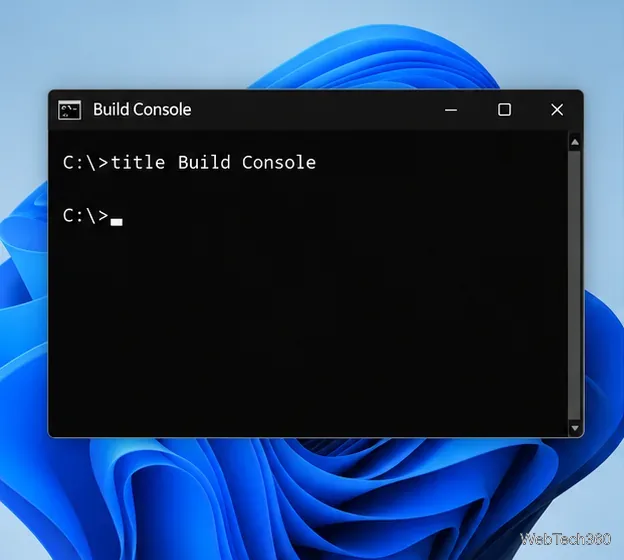
Rename a Command Prompt window with the title command, set a reusable shortcut label, or keep a Windows Terminal tab title from resetting.
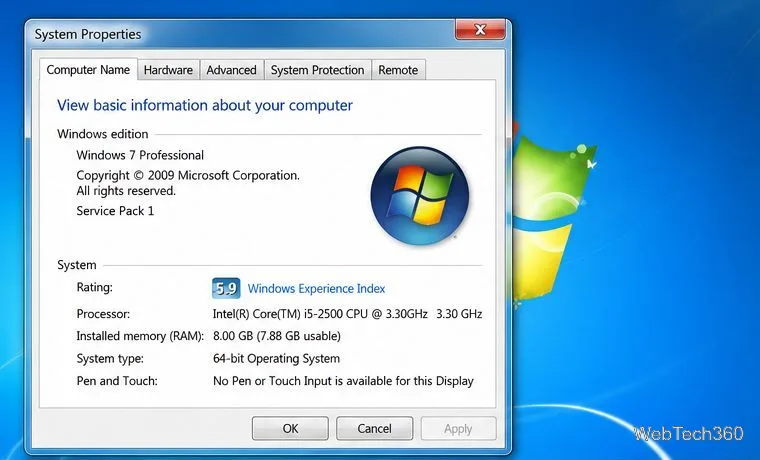
Find a compatible Windows 7 driver, install it through Device Manager or the manufacturer’s package, and roll back if a device stops working.
Use SeaTools to check a Seagate or Maxtor drive, run safe and long diagnostics, interpret results, and understand the data-loss risk before trying Fix All.
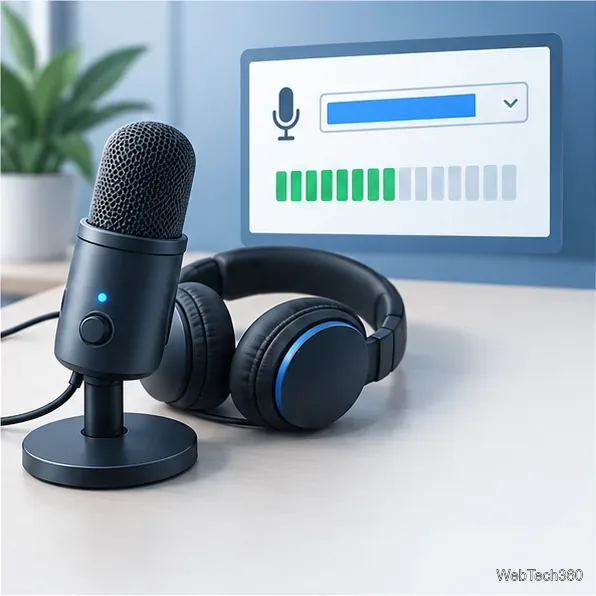
Learn TinyTalk’s direct-IP voice chat workflow, prepare your microphone, connect two PCs on a LAN, and understand why internet calls need extra care.
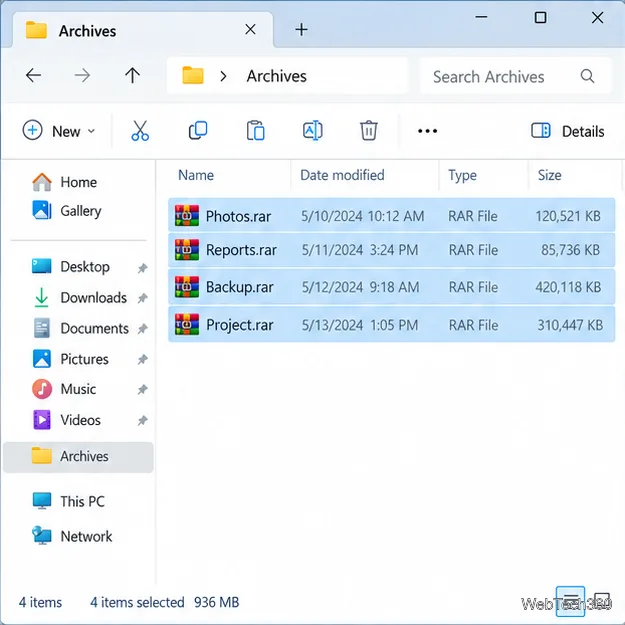
Extract multiple password-protected RAR archives in one batch, keep each archive in its own folder, and troubleshoot passwords and split volumes.
Compare Temp File Cleaner and Temp Cleaner, see what each one can remove, and learn safer checks to make before cleaning Windows temporary files.
Learn what Time Stopper was designed to do, why its old trial-extension instructions are unreliable, and how to manage software trials, billing, and project files safely.
Turn on Facebook desktop notifications in your browser, choose which alerts Facebook sends, and fix blocked alerts in Windows or macOS.
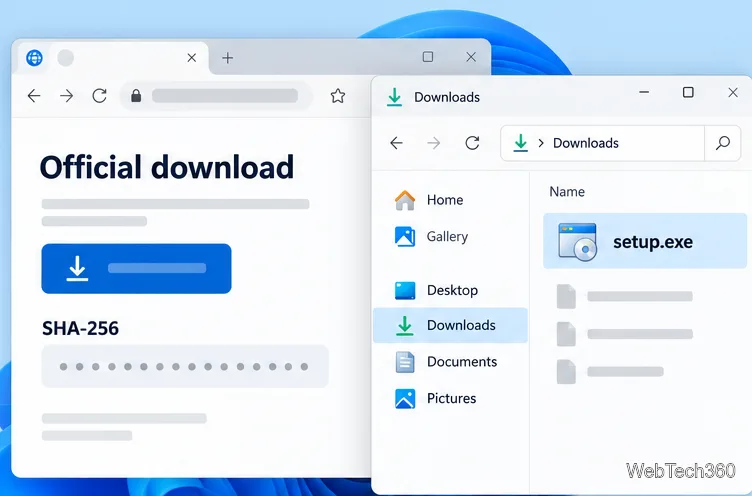
Use PowerShell or CertUtil to calculate a SHA-256 hash, compare it with the publisher’s checksum, and understand mismatches.