How to Edit an NVIDIA BIOS: Fast Checks Before Changing VBIOS
Learn whether an NVIDIA BIOS editor supports your GPU, how to back up a graphics-card VBIOS, and when to use safer tuning or vendor firmware tools.
To get Facebook notifications on your desktop, turn on the alert types you want in Facebook, allow facebook.com to send browser notifications, and make sure your computer is not silencing the browser. You do not need a separate Facebook notifier app. The old FBQuick recommendation in the source article is not part of Facebook’s current setup steps; use Facebook and your browser’s built-in permissions instead.
There are three controls involved. Facebook decides which activity can generate an alert, your browser grants or blocks permission for the website, and Windows or macOS decides whether the browser can show banners and sounds. All three need to allow notifications. A website notification is different from an advertising pop-up, so you do not need to enable pop-ups to receive Facebook alerts.
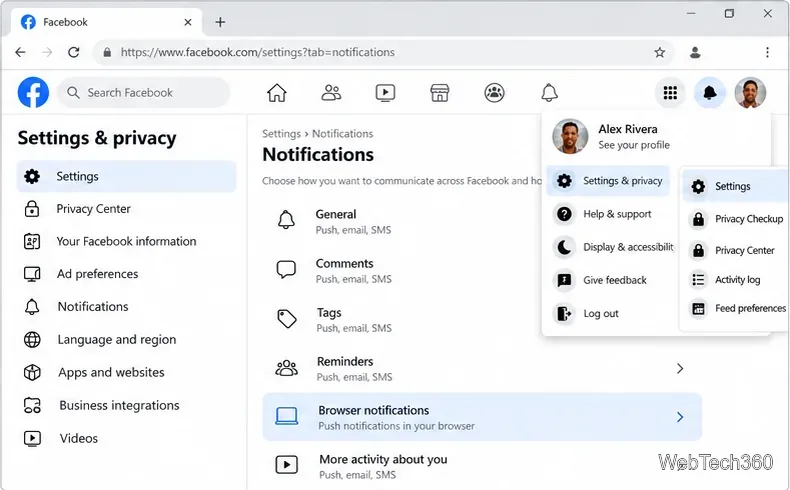
Start in a regular desktop browser window and sign in at facebook.com. Facebook’s notification options can vary by account and interface, and you can choose the kinds of activity you want to hear about in its notification settings.
Facebook’s categories are more useful than an “everything” setting: choose the alerts you actually want, such as comments, tags, reminders, or activity from people and Pages. If you do not see a Browser option, skip to your browser’s permission page and check whether facebook.com is allowed. Do not install an old utility just to expose a missing setting.
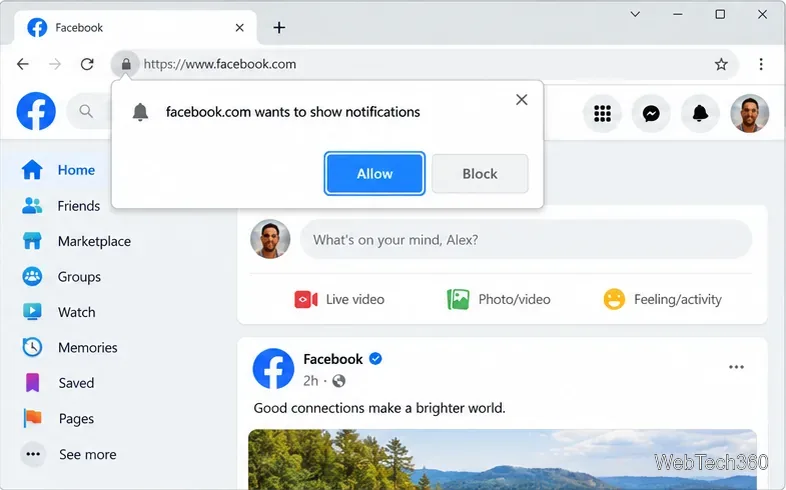
When Facebook asks whether it can show notifications, choose Allow. Confirm that the address bar shows facebook.com before granting permission. If you previously chose Block or dismissed the request, you can change the site permission in browser settings; the prompt may not appear again automatically.
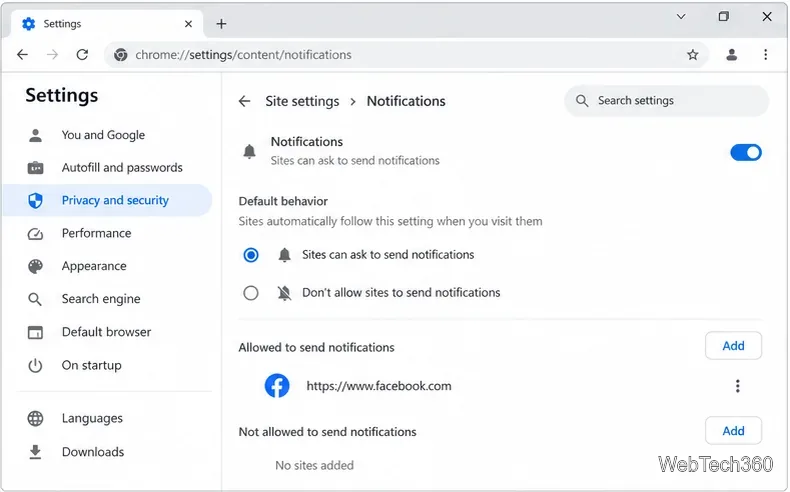
In Chrome: select the three-dot menu, then go to Settings > Privacy and security > Site settings > Notifications. Under allowed sites, add or enable facebook.com. If it is under sites that are not allowed, change that permission. You can also open Facebook, select the site-information icon beside the address, and turn Notifications on. Google documents these controls in its Chrome notification help.
In Edge: open Settings > Privacy, search, and services > Site permissions > All sites, choose facebook.com, and set Notifications to Allow. While on Facebook, you can also use the site-information icon to inspect the notification permission. See Microsoft’s Edge website-notification instructions if the labels differ.
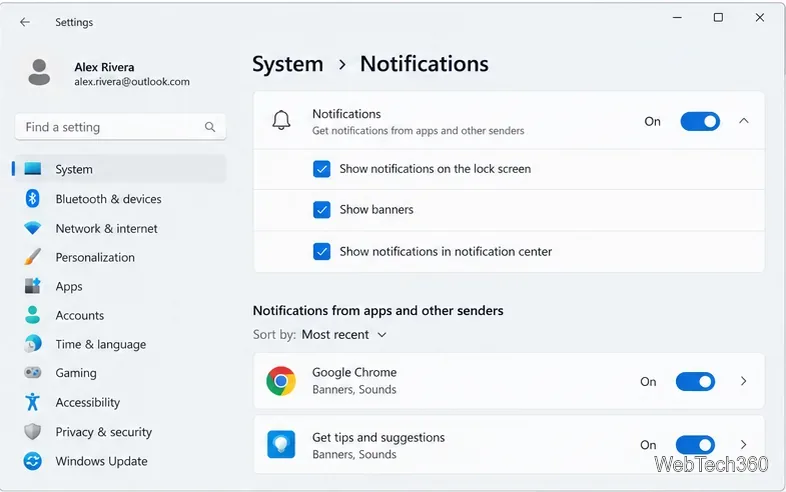
Windows 11: open Start > Settings > System > Notifications. Turn Notifications on, then select your browser under notifications from apps and other senders. Enable banners and notification-center entries as needed. Check that Do not disturb or an automatic Focus session is not hiding banners. Microsoft explains these controls in its Windows notification guide.
Mac: open Apple menu > System Settings > Notifications, then select the browser or Facebook website if it appears and enable notifications. In Safari, website permission is managed in Safari > Settings > Websites > Notifications; Apple’s Safari notification guide explains where website alerts appear and how to change them. On other desktop systems, allow notifications for your browser in the system’s notification settings.
Choose a small set of Facebook categories first, then add more only if you need them. Notification banners can reveal names or message details to anyone looking at your screen. If you use a shared computer, hide previews on the lock screen or turn off sounds and banners while keeping notifications in the notification center. To stop alerts later, turn off the Browser channel in Facebook, block notifications for facebook.com in your browser, or disable the browser’s notifications in system settings.
Learn whether an NVIDIA BIOS editor supports your GPU, how to back up a graphics-card VBIOS, and when to use safer tuning or vendor firmware tools.
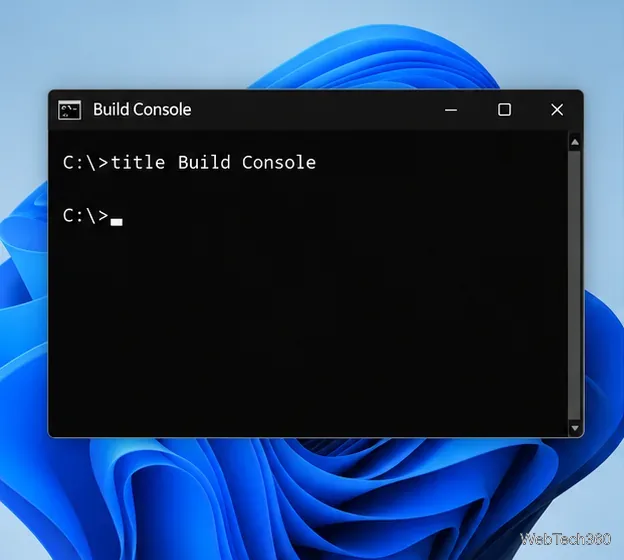
Rename a Command Prompt window with the title command, set a reusable shortcut label, or keep a Windows Terminal tab title from resetting.
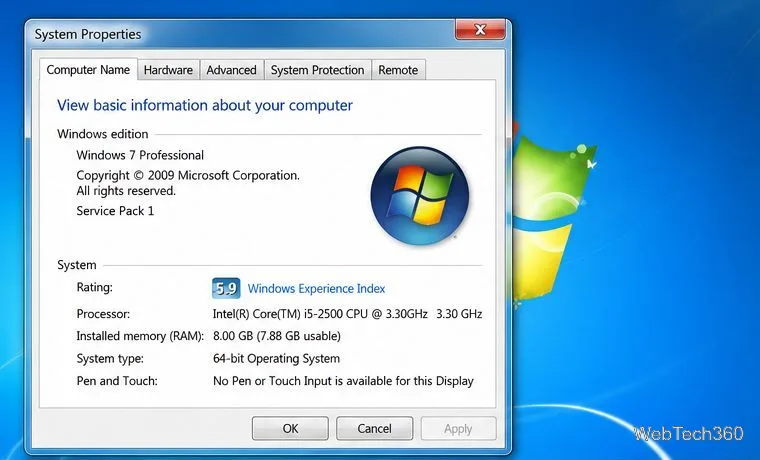
Find a compatible Windows 7 driver, install it through Device Manager or the manufacturer’s package, and roll back if a device stops working.
Use SeaTools to check a Seagate or Maxtor drive, run safe and long diagnostics, interpret results, and understand the data-loss risk before trying Fix All.
Learn TinyTalk’s direct-IP voice chat workflow, prepare your microphone, connect two PCs on a LAN, and understand why internet calls need extra care.
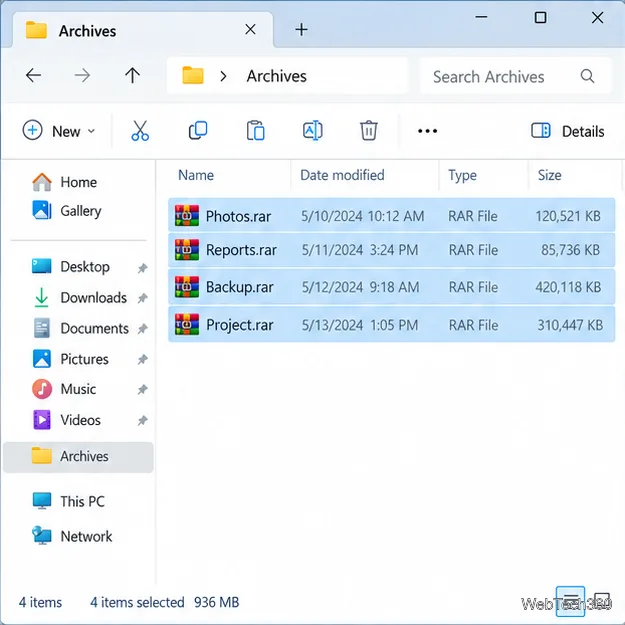
Extract multiple password-protected RAR archives in one batch, keep each archive in its own folder, and troubleshoot passwords and split volumes.
Compare Temp File Cleaner and Temp Cleaner, see what each one can remove, and learn safer checks to make before cleaning Windows temporary files.
Learn what Time Stopper was designed to do, why its old trial-extension instructions are unreliable, and how to manage software trials, billing, and project files safely.
Turn on Facebook desktop notifications in your browser, choose which alerts Facebook sends, and fix blocked alerts in Windows or macOS.
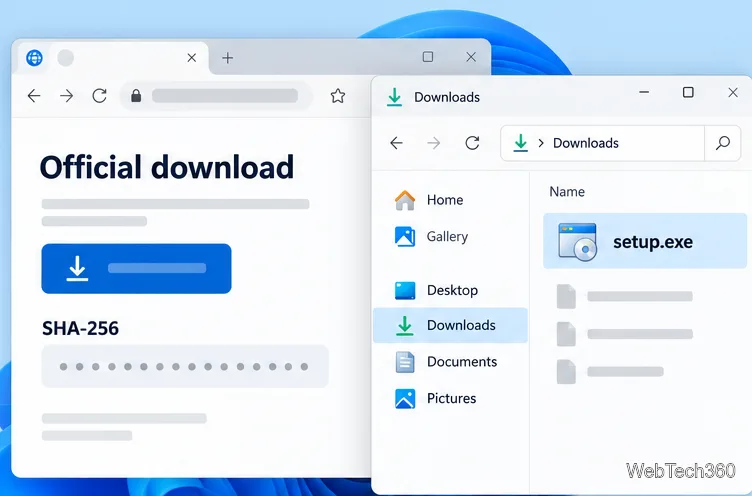
Use PowerShell or CertUtil to calculate a SHA-256 hash, compare it with the publisher’s checksum, and understand mismatches.