Home
» WINDOWS
»
20 Free ISO Tools to Create, Mount, Burn, Edit, and Extract Images
20 Free ISO Tools to Create, Mount, Burn, Edit, and Extract Images
Choosing an ISO tool depends on whether you need to open, create, burn, or extract an image. Windows has built-in mount and burn support. AnyBurn covers image creation and editing; 7-Zip or PeaZip extract files; Rufus and Ventoy prepare bootable USB media. Free editions may include ads or limit business use.
Choose the ISO task first
Mount: attach the image as a virtual drive so you can browse it without copying all its files or burning a disc.
Extract: copy some or all contents into an ordinary folder. Archive utilities are often enough.
Create or edit: assemble folders into a new image or change an existing image. Bootable images need extra boot data; editing files can break that setup.
Burn: write the image to a CD, DVD, or Blu-ray disc with an optical drive. This is different from copying the ISO file onto a disc as data.
Write to USB: prepare a flash drive to boot from an image. The selected drive may be erased, so check its name and back up its files first.
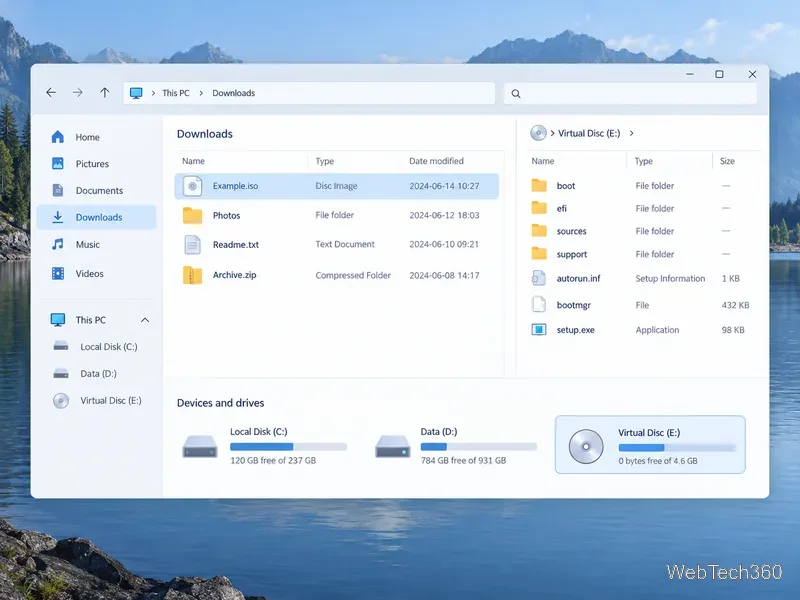
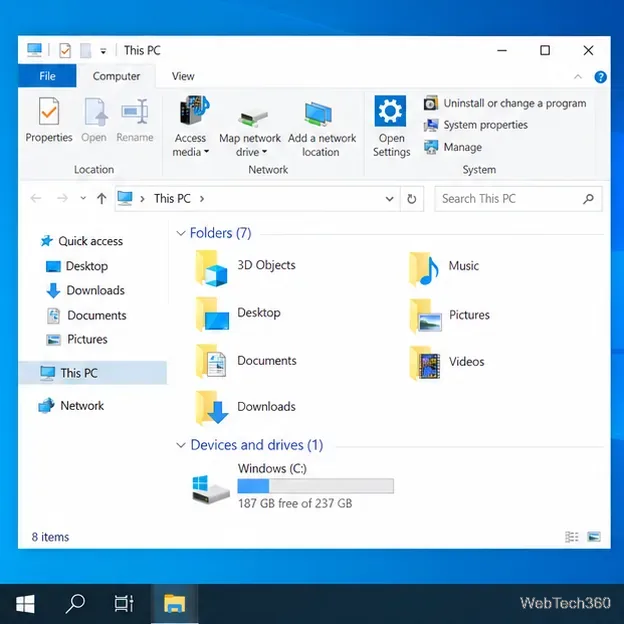
A mounted ISO appears as a virtual disc that you can browse in a file manager:
The ISO is open as a virtual disc, so its folders can be viewed without burning a physical disc.
20 free ISO tools, grouped by what they do
Built-in and Linux tools
Windows File Explorer — On supported Windows versions, mount an ISO from its context menu or burn it with the Disc Image Burner. It does not author an ISO from a folder.
Disk Utility and Finder (macOS) — Disk Utility creates disk images and Finder can burn supported images to optical media. Choose the image format deliberately; not every disk image it creates is an ISO.
GNOME Disks — A Linux option for restoring an image to a USB drive or other disk. Restoring writes to the destination; it is not a safe way to copy files onto a drive that contains data.
K3b — A graphical Linux disc-burning suite that can write existing ISO images and create disc projects. Availability depends on your distribution and desktop setup.
GNU xorriso — A command-line choice for creating, loading, manipulating, and writing ISO-9660 images. It suits users comfortable with terminal commands and image metadata.
Extract, inspect, or mount an image
7-Zip — Free, open-source software that can unpack ISO contents on Windows. It does not create or burn ISO images.
PeaZip — Opens, browses, and extracts ISO files across Windows and Linux; ISO support is read-only, so use another tool to edit or burn one.
Keka — A macOS archive utility that can extract ISO files. It is a reader, not an ISO authoring or disc-burning app.
WinCDEmu — An open-source Windows virtual-drive utility for mounting ISO and other optical-image formats from File Explorer.
OSFMount — Mounts ISO and other disk images as virtual drives in Windows; useful for browsing without writing to physical media.
Pismo File Mount — Mounts ISO contents as a virtual folder. The developer says it is free for personal and business use.
DAEMON Tools Lite — Mounts common disc images and can create some image types. Its free license is for noncommercial use and includes ads; some advanced features are paid.
Virtual CloneDrive — A freeware Windows virtual drive for mounting ISO and other common image formats. It does not burn or edit images.
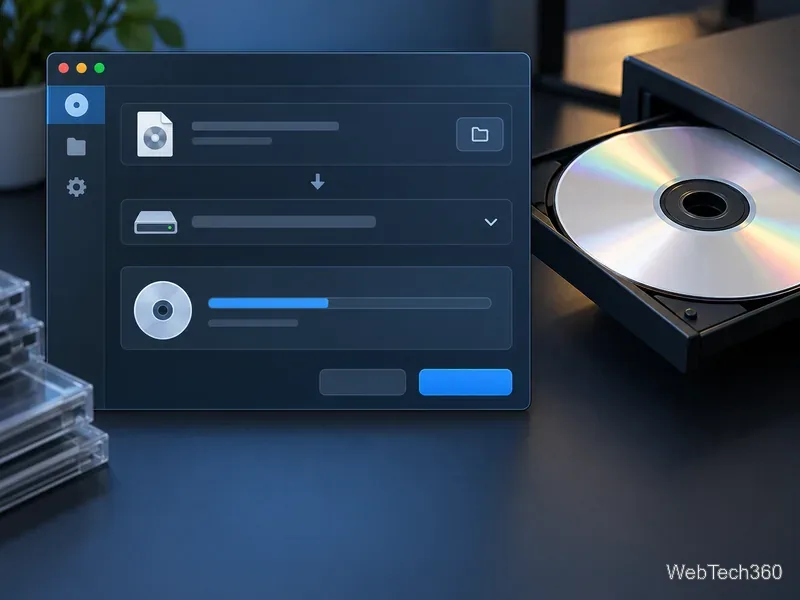
Burning an ISO means writing the image to a compatible physical disc through an optical drive.
Create, edit, or burn ISO files
AnyBurn — Its free edition covers disc burning and image-file creation and editing. Check the edition comparison for features reserved for Pro.
BurnAware Free — Creates and burns ISO images on Windows. The publisher offers separate Free, Premium, and Professional editions, so confirm the task is included in the free one.
CDBurnerXP — A Windows disc-burning app with ISO creation and burning. Treat it as a legacy choice and check current OS compatibility before installing.
ImgBurn — A free, older Windows utility for building image files and burning disc images. Its official download page lists legacy releases; avoid third-party download mirrors.
Make bootable USB media
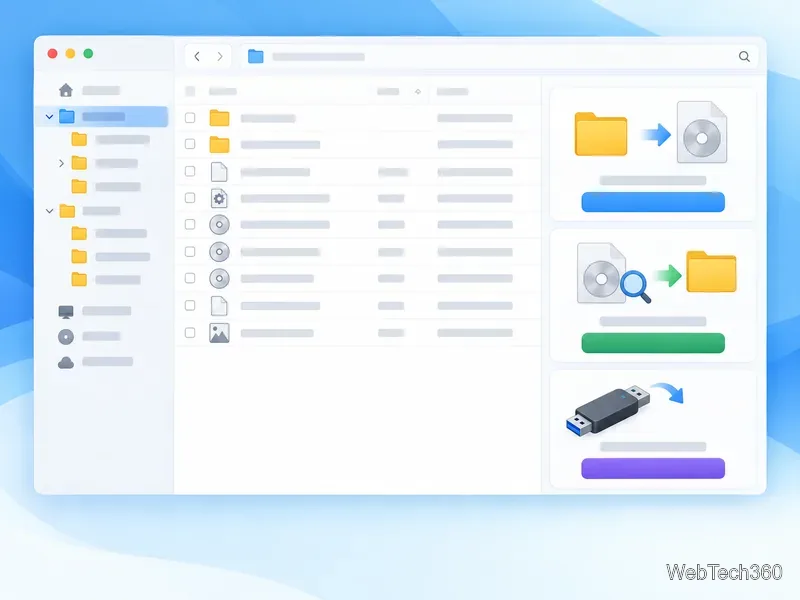
Creating an ISO, inspecting its contents, and writing it to USB are separate jobs that may need different tools.
Rufus — Creates bootable USB drives from supported ISO files on Windows. It formats the selected USB device, so verify the destination before starting.
balenaEtcher — A free, open-source image flasher for USB drives and SD cards, commonly used for operating-system images. It is not a general-purpose ISO editor or optical-disc burner.
Ventoy — Sets up a USB drive so you can copy compatible ISO files onto it and select one at boot. Installing Ventoy changes the USB drive’s layout; back up the drive first.
Which one should you use?
For a quick open on Windows, start with File Explorer; for simple extraction, use 7-Zip or PeaZip. Choose AnyBurn for a Windows image workflow that includes creating or editing, K3b for Linux optical-disc burning, and xorriso when you need command-line control. Use Rufus or Ventoy when your goal is starting a computer from a USB device.
Before using an ISO for installation, compare its checksum or signature with the publisher’s value when available. Save an original before editing; changing a bootable image can break its startup data. Download from official pages and review license terms, especially for ad-supported or personal-use editions.