Home
» WINDOWS
»
How to Access Windows Server Remotely with RDP
How to Access Windows Server Remotely with RDP
How to Access Windows Server Remotely with RDP
To access a Windows Server remotely, enable Remote Desktop (RDP), keep NLA on, and allow only required accounts. Connect by server name or private IP over its LAN or VPN. For managed internet access, use a Remote Desktop Gateway (RD Gateway); do not expose the server’s RDP port directly to the internet.
These steps assume Server Manager is installed and you have administrator rights. Basic RDP accesses a server; hosting separate user desktops or apps requires a planned Remote Desktop Services deployment and applicable licensing.
Enable Remote Desktop on Windows Server
Open the Local Server properties
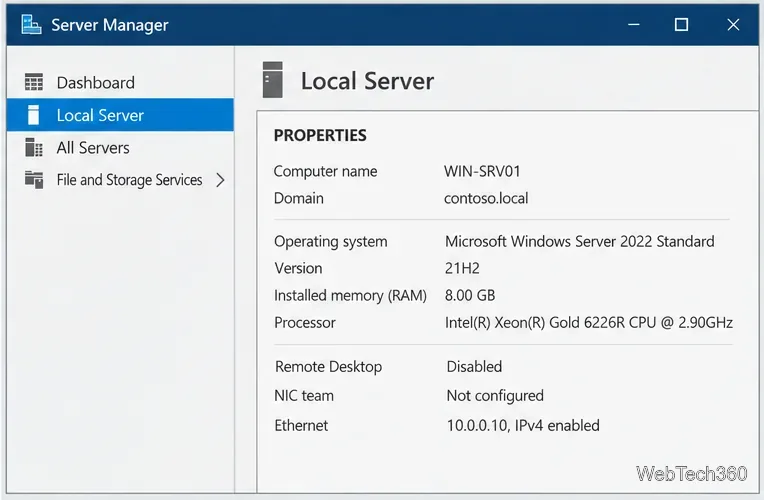
Open Server Manager, select Local Server, and find Remote Desktop in Properties. If it says Disabled, select it. Names can vary slightly by Server version.
Where to find Remote Desktop status in Server Manager.
Allow connections and retain NLA
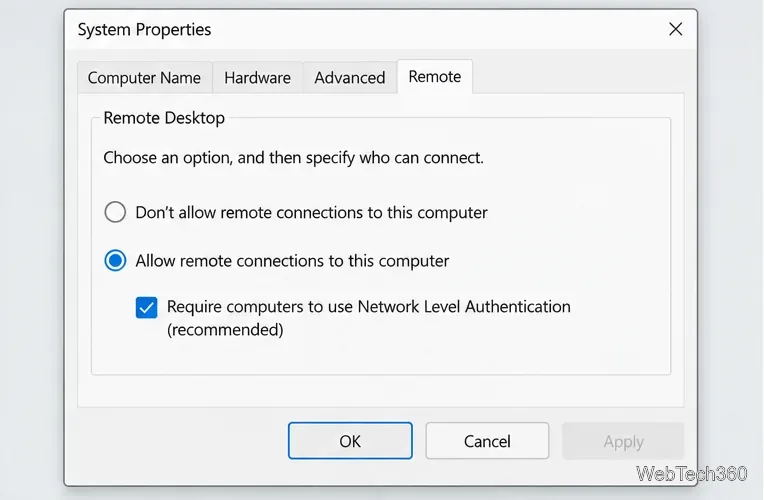
Select Allow remote connections to this computer. Keep Network Level Authentication (NLA) selected; it authenticates users before a session opens. Select Apply, then OK.
NLA remains selected in the standard setup.
Grant access to specific accounts
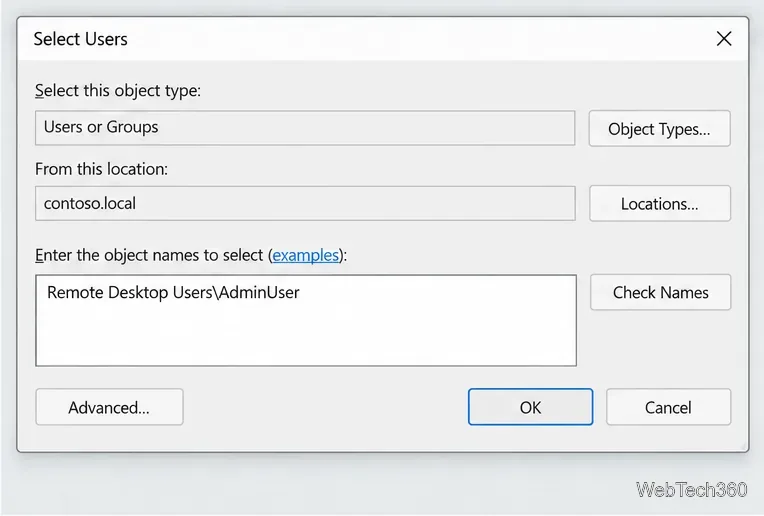
Select Select Users and add only users or groups that need access. Non-admins generally belong in Remote Desktop Users; local Administrators can connect by default. Use a separate least-privilege account for routine work and strong, unique passwords.
Add a specific account or approved group.
Check the firewall and network path
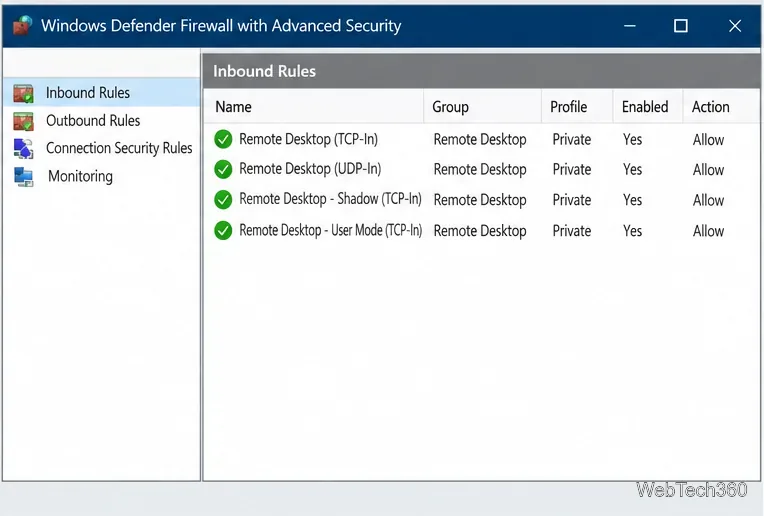
Allow the built-in Remote Desktop firewall rules only on the Domain or Private profile the server uses. Check VPN, router, cloud security group, and network firewall rules too; restrict them to the expected network or VPN range. Don’t open the Public profile simply to make RDP work.
Limit the firewall rule to trusted network profiles.
Connect from a Windows PC
On the server’s LAN or VPN, press Windows key + R, run mstsc, and enter the server name or private IP in Remote Desktop Connection. Select Show Options to enter a user name, then choose Connect and enter credentials. Use the account format your organization requires, such as DOMAIN\username.
Before accepting an identity or certificate warning, confirm the name matches the server you meant to reach. Don’t save credentials on shared devices. If the name fails, check DNS or use the private IP while on VPN.
Use an RD Gateway for managed off-site access
For one server, a VPN is often simpler. RD Gateway provides a managed path from the internet to internal RDP resources. It requires a trusted certificate and policies that restrict users and destination computers, so follow Microsoft’s deployment guide for production.
Install the RD Gateway role service
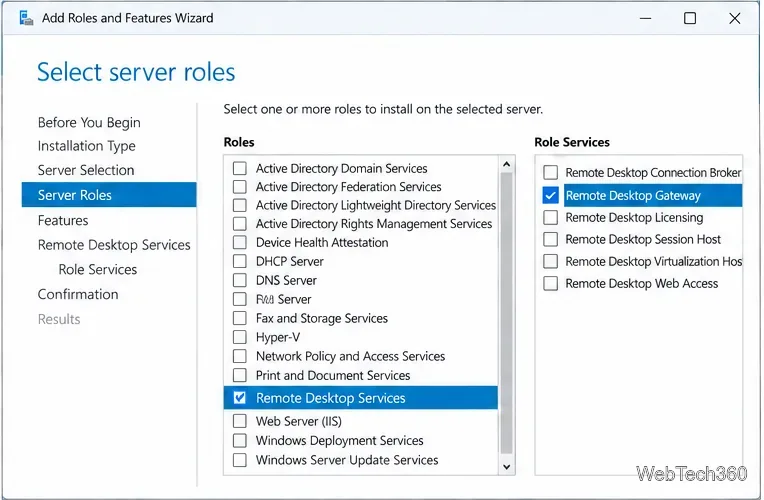
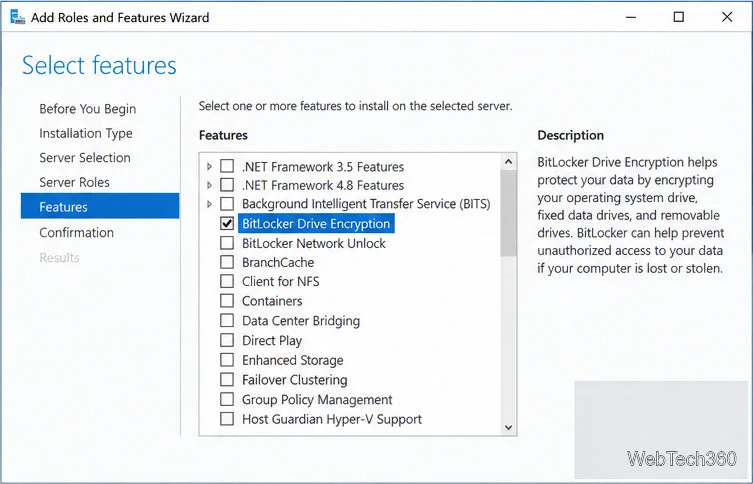
In Server Manager, select Manage > Add Roles and Features; choose the Remote Desktop Services role path and Remote Desktop Gateway under Role Services. Review Microsoft’s prerequisites before production installation.
Choose the RD Gateway role service.
Bind a certificate trusted by clients
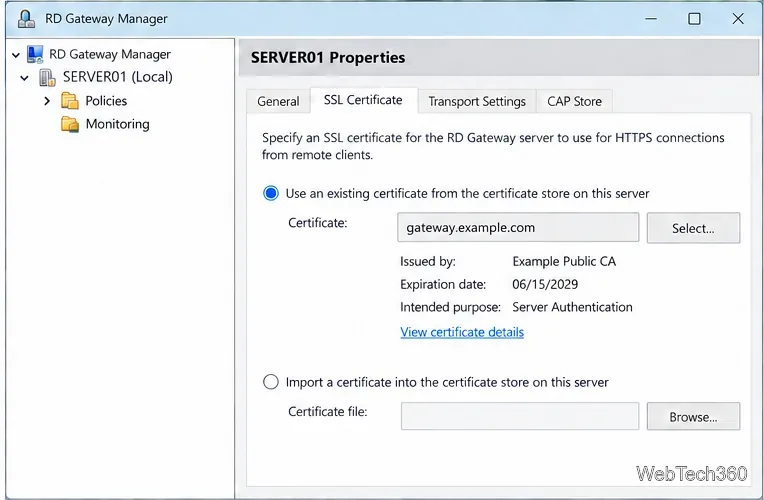
In Remote Desktop Gateway Manager, open server Properties and the SSL Certificate tab. Import or select a certificate for the public gateway hostname, and ensure clients trust its chain. Use a publicly issued certificate in production; Microsoft reserves self-signed certificates for tests.
Use a certificate clients trust for the gateway name.
Limit users and destination servers
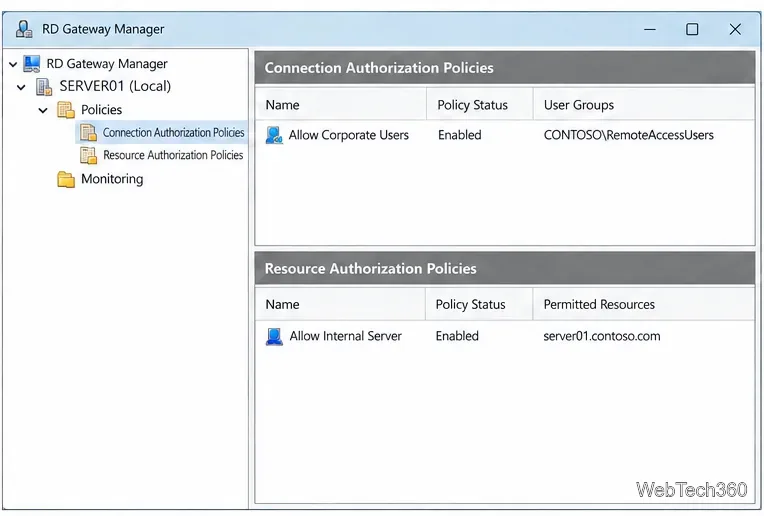
Create a Connection Authorization Policy (CAP) to specify who may use the gateway and a Resource Authorization Policy (RAP) to specify which internal computers they may reach. Restrict both to approved groups and targets; add a supported multifactor design where available.
CAP limits users; RAP limits destination servers.
Set the gateway in the client
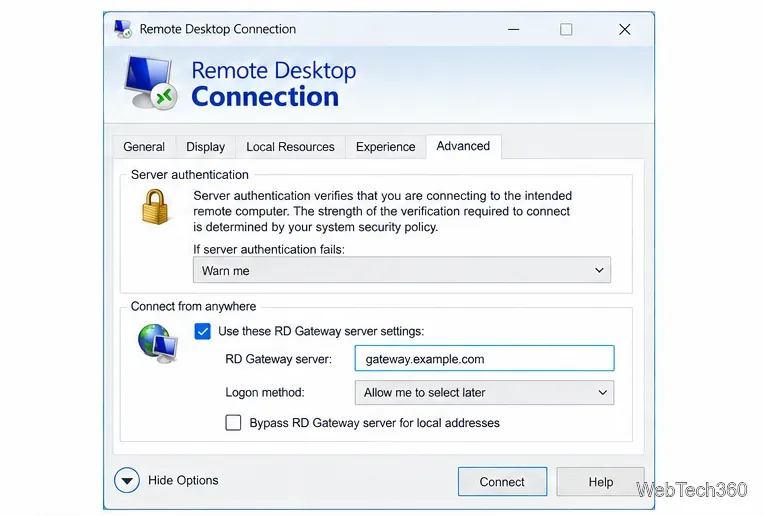
In Remote Desktop Connection, enter the target server on General. Under Advanced > Settings, select Use these RD Gateway server settings and enter the gateway’s DNS name. Microsoft lists TCP 443 for HTTPS and UDP 3391 for the RD Gateway listeners; keep direct internet access to the target server’s RDP port closed.
Enter the gateway host separately from the target server.
Quick troubleshooting checks
Connection times out: verify the server is on, RDP is enabled, and the client has a route through the LAN or VPN. Check both Windows Firewall and upstream network rules.
Access is denied: confirm the account is allowed for Remote Desktop, has the right domain or local account format, and is not blocked by a policy.
NLA or credential errors: check the password, account status, and client compatibility. Keep NLA enabled unless an administrator has a documented reason to change it.
Gateway access is denied: review the CAP and RAP, the certificate name and trust chain, and the RD Gateway operational logs.