How to Check for Open Ports on Windows Server
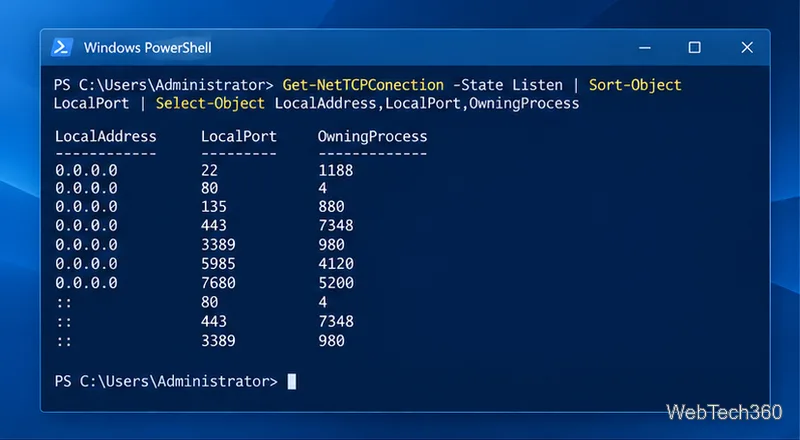
Find local TCP listeners, identify the process using a port, and test whether a Windows Server port is reachable with PowerShell, PortQry, or Nmap.
To output mic sound to speakers on Windows 10, open the microphone’s properties in the classic Sound control panel, select the Listen tab, turn on Listen to this device, and choose the speakers that should play the sound. This gives you local, live microphone monitoring. It does not send your voice to another computer or into a call, and speaker playback can feed back into the microphone.
Connect the microphone and speakers you plan to use. If the speakers are Bluetooth, pair them with Windows first; a short delay can make Bluetooth less comfortable for live voice monitoring. Start with the speaker volume low. A headset or headphones help prevent the microphone from picking up its own output.
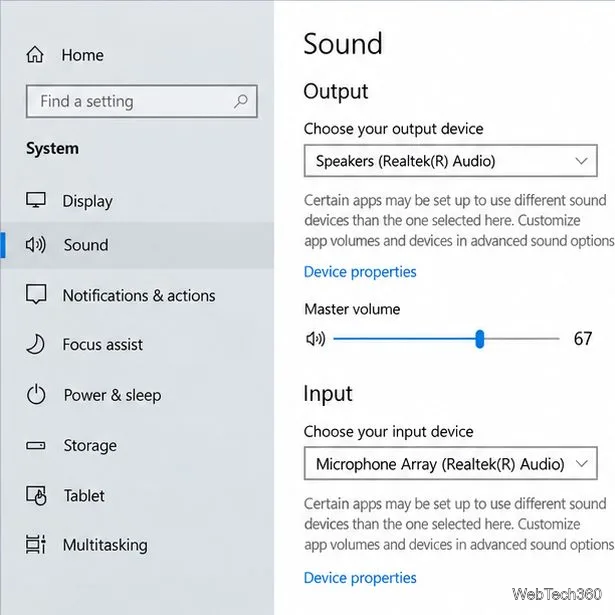
Select Start > Settings > System > Sound. Under Output, select the speakers you want to hear. Under Input, select the microphone you intend to use. If Windows does not list a Bluetooth microphone, choose Add device and follow the pairing prompts. Microsoft’s microphone setup and test guide uses this Sound page to find and test connected microphones.
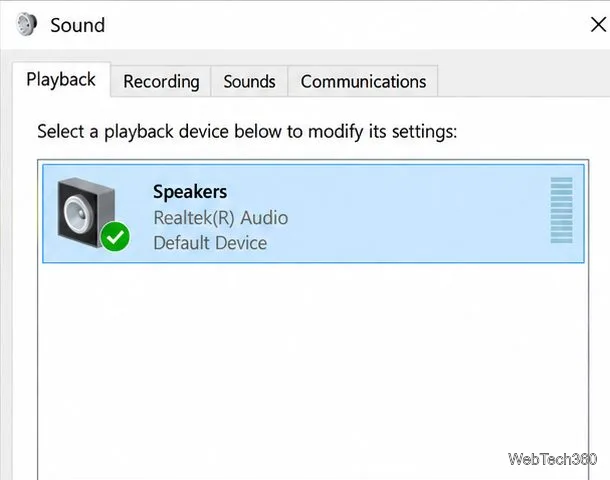
Right-click the speaker icon on the taskbar and select Sounds. In the classic Sound window, open Playback and locate your speakers. If you also want those speakers to become Windows’ normal output for music and other system audio, select them and choose Set Default. Otherwise, leave your current default alone; you can choose the mic-monitoring destination in a later step.
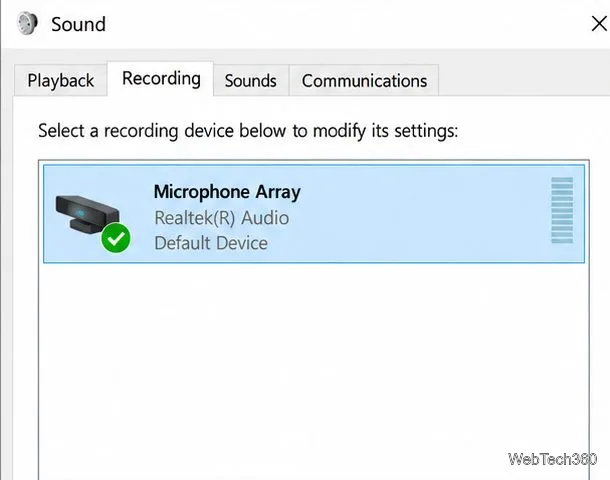
In the same Sound window, select Recording. Choose the microphone you selected in Sound settings, then click Properties. Common names include Microphone Array, USB Microphone, or a headset model. If you are unsure which entry is active, return to Settings > System > Sound > Input, select the microphone, and speak normally; Windows should show activity during its input test. See Microsoft’s microphone troubleshooting steps if Windows does not detect it.
In Microphone Properties, open the Listen tab. Check Listen to this device. In Playback through this device, choose the speaker output you want, then select Apply and OK. Speak into the mic at a normal distance. You should hear the input through the selected output. The setting applies to this microphone, so repeat the steps for another mic if needed.
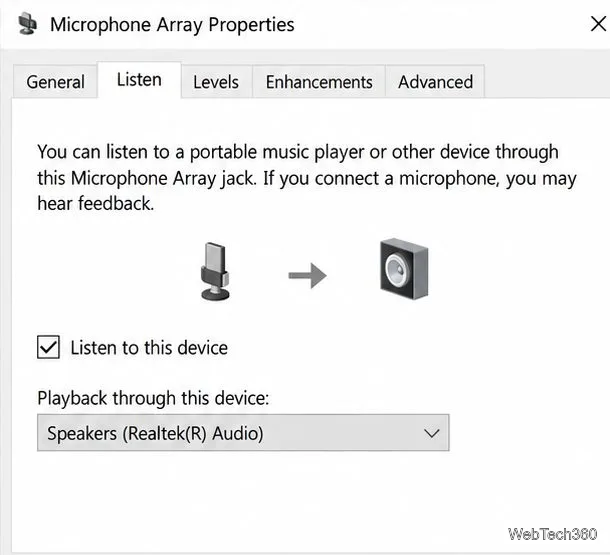
When a microphone and speakers are in the same room, the mic can pick up the voice coming from the speakers and send it back again. That creates an echo or a loud feedback squeal. Lower the volume before testing, move the microphone farther from the speakers, and point the mic away from them. Headphones are usually the simplest way to monitor your voice without an acoustic loop. If you hear a delayed version of your voice, use wired headphones or turn monitoring off; Bluetooth playback may add noticeable latency.
This Windows option is a direct monitor, not a sound-cleanup filter. It may reproduce room noise, keyboard sounds, and other audio the mic captures. If you need noise reduction, echo cancellation, or to send your voice to a livestream or meeting, configure those functions in the recording or communication app you are using.
To stop hearing yourself, return to the microphone’s Listen tab, clear Listen to this device, and select Apply. Windows 10 settings remain available on existing PCs, though Microsoft ended standard support for Windows 10 on October 14, 2025; check its current Windows 10 support information if you need security or update guidance.
Find local TCP listeners, identify the process using a port, and test whether a Windows Server port is reachable with PowerShell, PortQry, or Nmap.
Map a shared folder as a drive letter in Windows 10, reconnect it at sign-in, confirm access, and fix common path, credential, and network discovery issues.
Hear your microphone through Windows 10 speakers with the Listen to this device setting. Choose the right input and output, test the route, and prevent feedback.
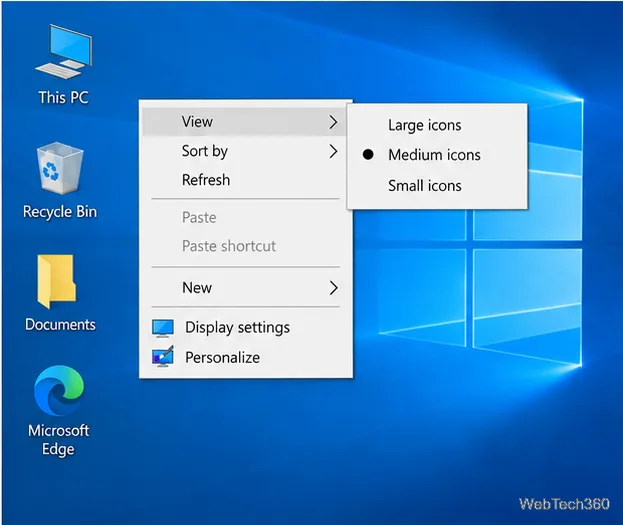
Change icon size on Windows 10 with desktop, taskbar, and File Explorer controls. Learn when display scaling helps and how to fix unexpected size changes.
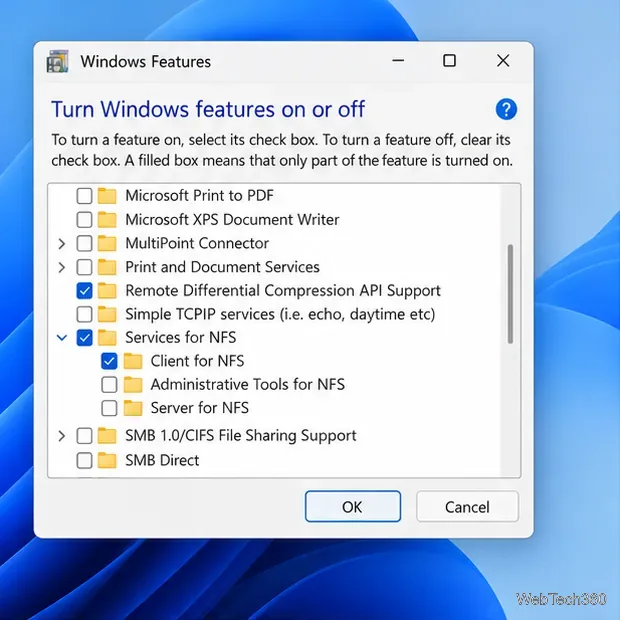
Map an NFS share to a Windows 11 drive letter with the built-in Client for NFS. Check protocol compatibility, mount the export, and troubleshoot access issues.
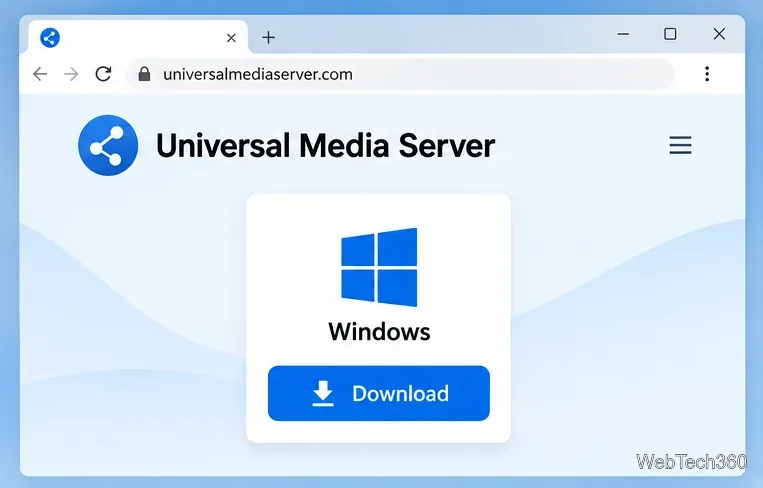
Install Universal Media Server on Windows Server, share selected folders, set LAN-only firewall access, and test DLNA playback from a TV or browser.
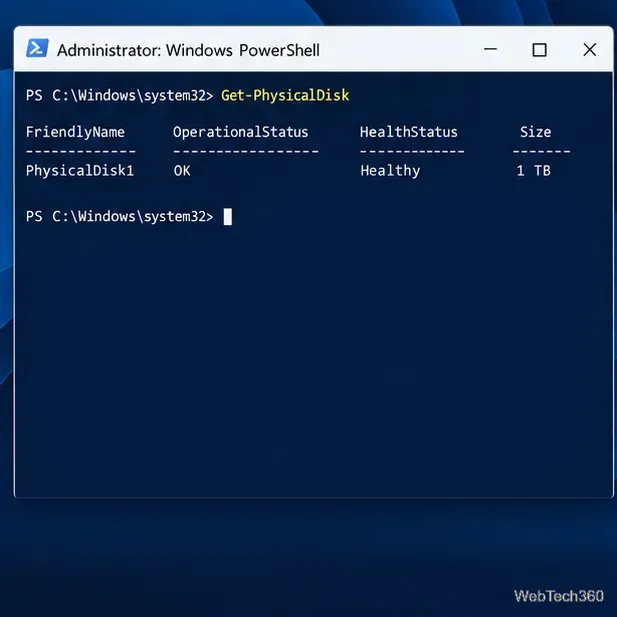
Check Windows Server disk status and reliability counters, verify SMART data when available, and separate hardware warnings from NTFS errors.
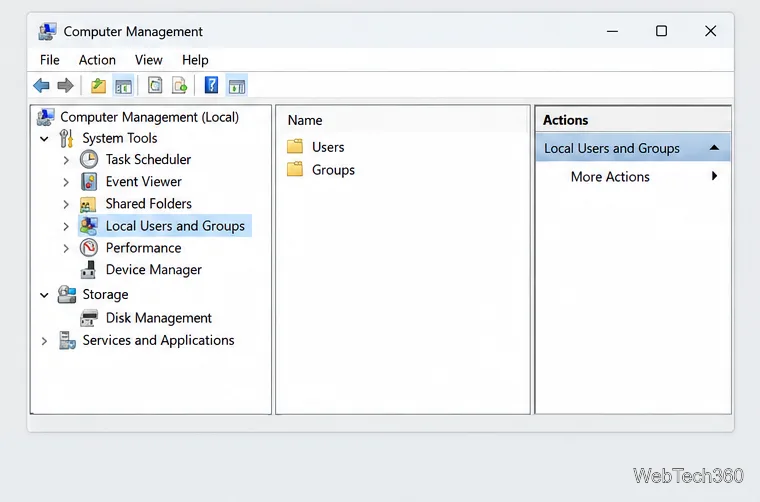
Create, grant admin rights to, disable, or remove local Windows Server users with Computer Management or PowerShell. Learn when to use Active Directory instead.
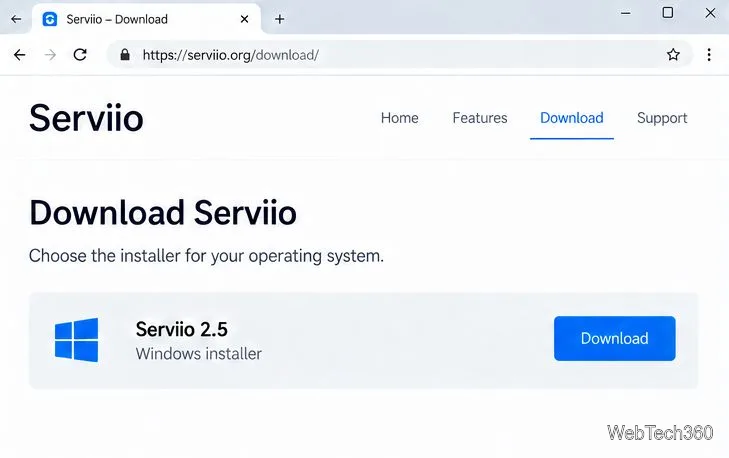
Install Serviio on Windows Server, share local or NAS media folders, and test DLNA playback. Learn how to check the Windows service, firewall, and Pro-only browser features.
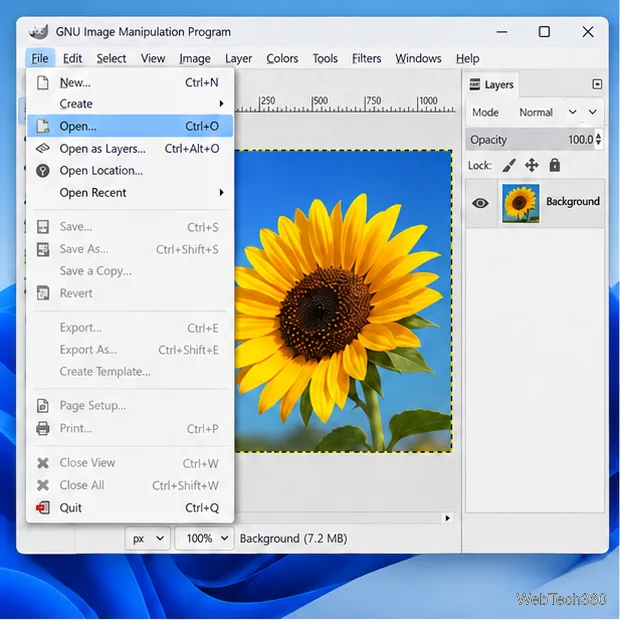
Convert PNG, JPG, or BMP files to Windows ICO with GIMP. Prepare a square image, keep transparency when needed, add standard sizes, and check the export.