How to Check for Open Ports on Windows Server
Find local TCP listeners, identify the process using a port, and test whether a Windows Server port is reachable with PowerShell, PortQry, or Nmap.
To check for open ports on a Windows Server, list its local listeners, then test from another computer to see whether clients can reach them. A listening port is not automatically reachable across the network: the service binding, Windows Firewall, network firewalls, routing, and NAT can all affect access. Scan only systems you own or are authorized to assess.
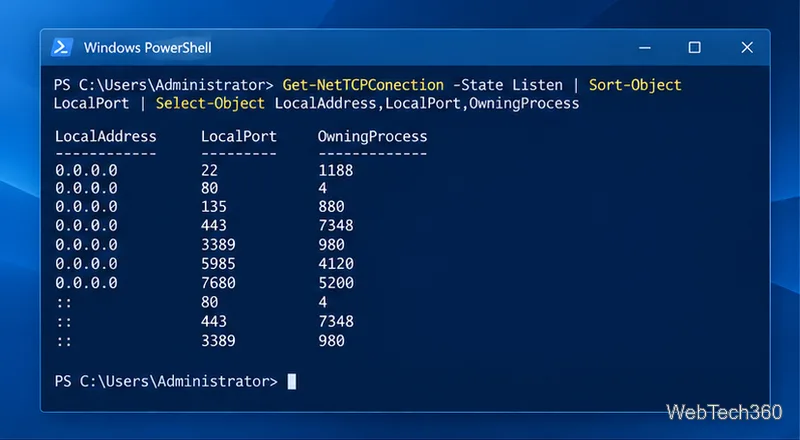
On the server, open PowerShell and run Get-NetTCPConnection with the Listen state. Sorting by port makes the list easier to review, while the selected columns show the address, port, and process ID.
Get-NetTCPConnection -State Listen | Sort-Object LocalPort | Select-Object LocalAddress,LocalPort,OwningProcessEach row is a TCP endpoint in the listening state. An address of 0.0.0.0 or :: means the listener is bound to all IPv4 or IPv6 interfaces, respectively. An address such as 127.0.0.1 or ::1 is loopback-only, so remote computers cannot connect to that listener through a network interface.
To inspect one port, add its number to the query:
Get-NetTCPConnection -State Listen -LocalPort 443 | Select-Object LocalAddress,LocalPort,OwningProcessUse the returned process ID to identify the owner, for example with Get-Process -Id 1234 (replace 1234 with the PID in your output). Microsoft documents the cmdlet's connection-state, local-port, and owning-process fields in its Get-NetTCPConnection reference.
netstat is a built-in alternative that works from Command Prompt or PowerShell. This command filters the output to listening TCP ports:
netstat -ano -p tcp | findstr LISTENING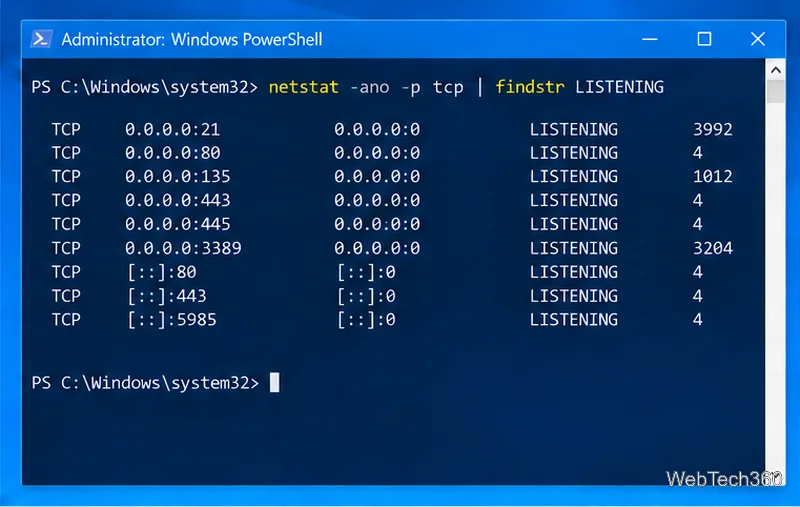
The switches mean: -a includes listeners, -n keeps addresses numeric, -o adds the PID, and -p tcp limits the view to TCP. Match a PID in Task Manager or use Get-Process -Id 1234. For UDP endpoints, run netstat -ano -p udp; UDP has no TCP-style LISTENING state. See Microsoft's netstat reference.
PortQry version 2 is Microsoft's separate utility for checking TCP and UDP ports. Download and extract it to a folder such as C:\Tools\PortQryV2, then open PowerShell there. To list active mappings on that computer, run:
.\PortQry.exe -localLocal mode lists active TCP and UDP mappings and can include process IDs; use it for inventory, not remote reachability. To query another server, specify its name or IP, protocol, and port:
.\PortQry.exe -n server01.example.com -p tcp -e 443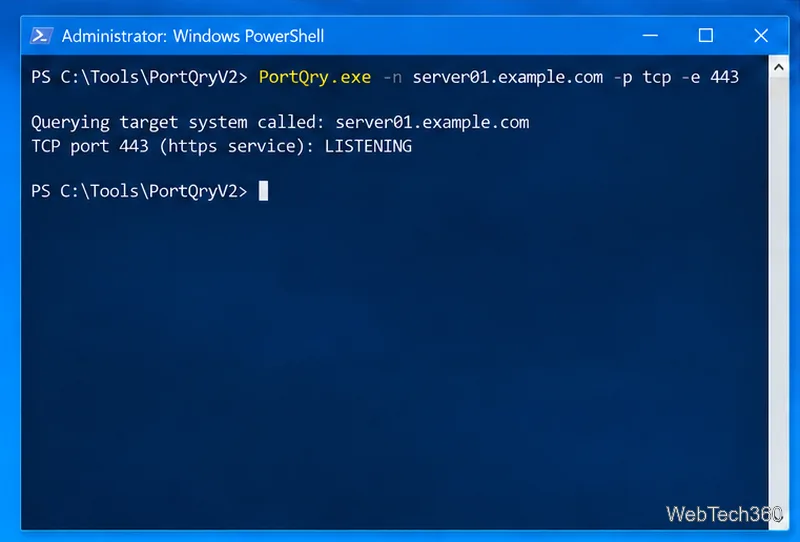
For a remote query, LISTENING means PortQry received a response; NOT LISTENING means it received a response indicating no listener. FILTERED means no response, so a firewall may be dropping traffic and a process may or may not be listening. UDP can be less conclusive because services may ignore unformatted probes. See Microsoft's PortQry guide.
A check run on the server cannot prove that a client on another network can connect. From a Windows client on the path you want to verify, run:
Test-NetConnection -ComputerName server01.example.com -Port 443 -InformationLevel DetailedReplace the hostname and port with your values. TcpTestSucceeded : True confirms a TCP connection from that client at that moment. False reports failure but does not identify whether the cause is a missing listener, firewall, routing, DNS, or upstream filter. See Microsoft's Test-NetConnection reference.
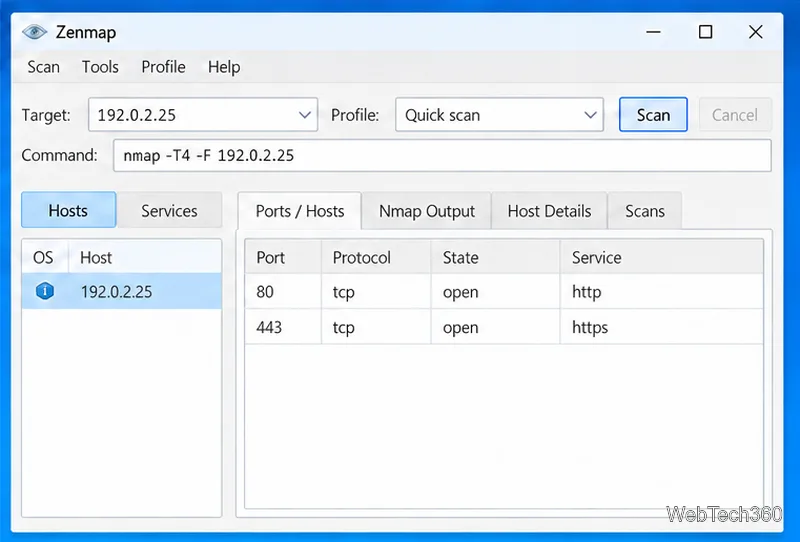
For a visual scan, install Nmap from its official download page; the Windows installer includes Zenmap. To check selected ports, run:
nmap -p 80,443 server01.example.comIn Zenmap, enter an authorized target, choose a profile, run the scan, and review Ports / Hosts. Nmap's basic target scan checks the 1,000 most common TCP ports; use -p to narrow it. The states describe what Nmap sees from that client: open means an application is accepting connections, closed means no application is listening, and filtered means an obstacle prevents Nmap from determining the state. See the Zenmap guide.
If PowerShell shows a listener but the client test fails, check the service's bound address, the matching inbound rule and its network profile, and any upstream firewall, security group, router, or NAT. An allow rule does not create a listener; a service must bind to the port.
For an unfamiliar listener, use its PID to identify the application and confirm whether it is needed before changing it. Restrict or remove unused services or inbound rules through your normal change process, then retest from the client path that matters. One scan shows reachability from that vantage point only.
Find local TCP listeners, identify the process using a port, and test whether a Windows Server port is reachable with PowerShell, PortQry, or Nmap.
Map a shared folder as a drive letter in Windows 10, reconnect it at sign-in, confirm access, and fix common path, credential, and network discovery issues.
Hear your microphone through Windows 10 speakers with the Listen to this device setting. Choose the right input and output, test the route, and prevent feedback.
Change icon size on Windows 10 with desktop, taskbar, and File Explorer controls. Learn when display scaling helps and how to fix unexpected size changes.
Map an NFS share to a Windows 11 drive letter with the built-in Client for NFS. Check protocol compatibility, mount the export, and troubleshoot access issues.
Install Universal Media Server on Windows Server, share selected folders, set LAN-only firewall access, and test DLNA playback from a TV or browser.
Check Windows Server disk status and reliability counters, verify SMART data when available, and separate hardware warnings from NTFS errors.
Create, grant admin rights to, disable, or remove local Windows Server users with Computer Management or PowerShell. Learn when to use Active Directory instead.
Install Serviio on Windows Server, share local or NAS media folders, and test DLNA playback. Learn how to check the Windows service, firewall, and Pro-only browser features.
Convert PNG, JPG, or BMP files to Windows ICO with GIMP. Prepare a square image, keep transparency when needed, add standard sizes, and check the export.