How to Check Hard Drive Health in Windows Server
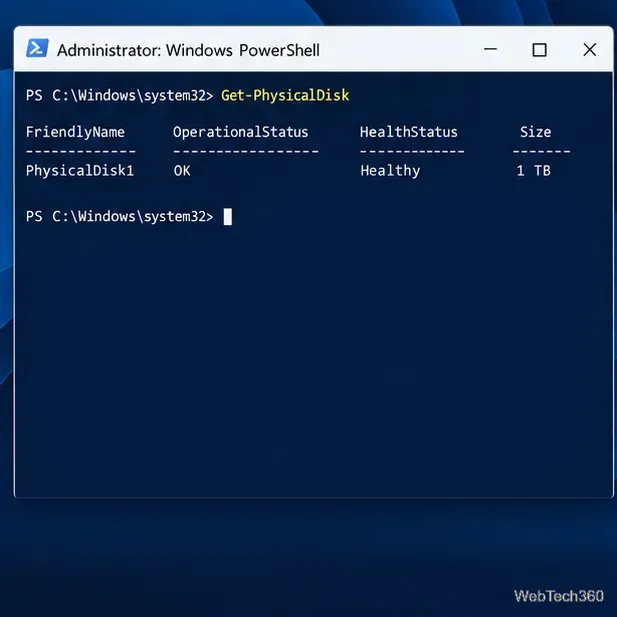
Check Windows Server disk status and reliability counters, verify SMART data when available, and separate hardware warnings from NTFS errors.
On a Windows Server installation with Desktop Experience, create or remove a local user in Computer Management: open compmgmt.msc, then go to System Tools > Local Users and Groups > Users. Use New User to add an account or right-click an existing account and choose Delete. These steps affect only that server. If you mean a domain account, use Active Directory Users and Computers instead.
This guide covers local accounts on a standalone server or a domain-joined member server. A local account has permissions on that computer only. On a domain controller, Local Users and Groups is not used to manage the domain's accounts. See Microsoft's local accounts guidance and Active Directory user account instructions for the distinction.
compmgmt.msc, and press Enter. Approve the administrator prompt if Windows asks.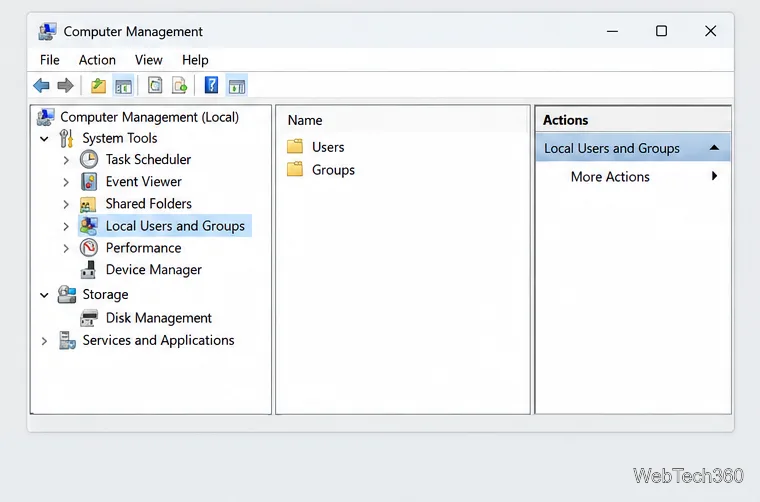
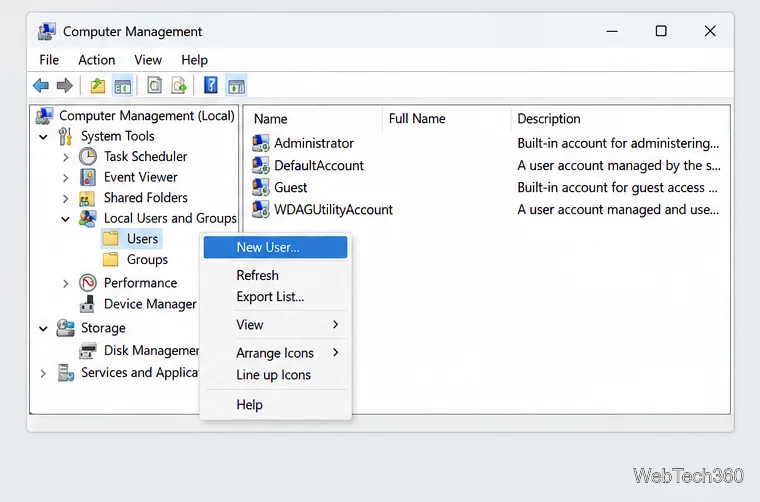
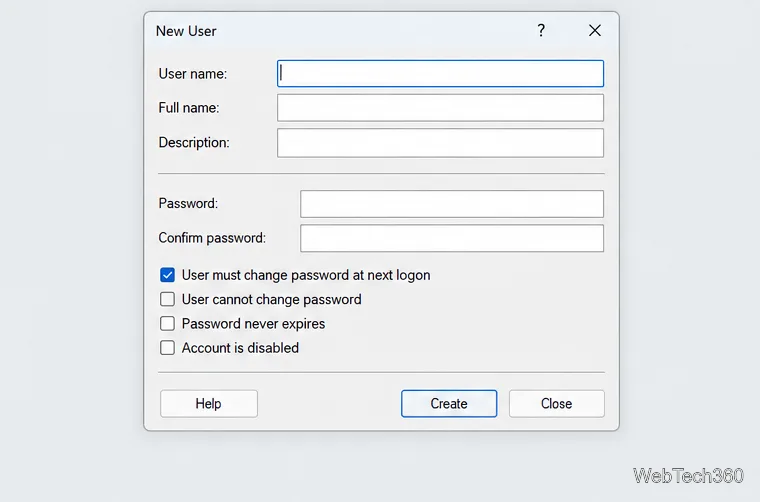
A regular local user is the safer default. Membership in the local Administrators group grants broad control over that server, so give it only to accounts that need to perform administrative work.
Administrators, and select Check Names. Confirm the resolved group, select OK, then apply the change.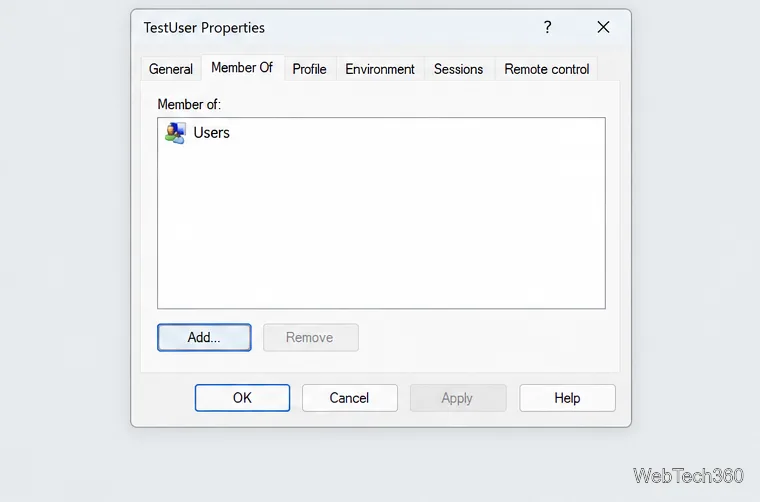
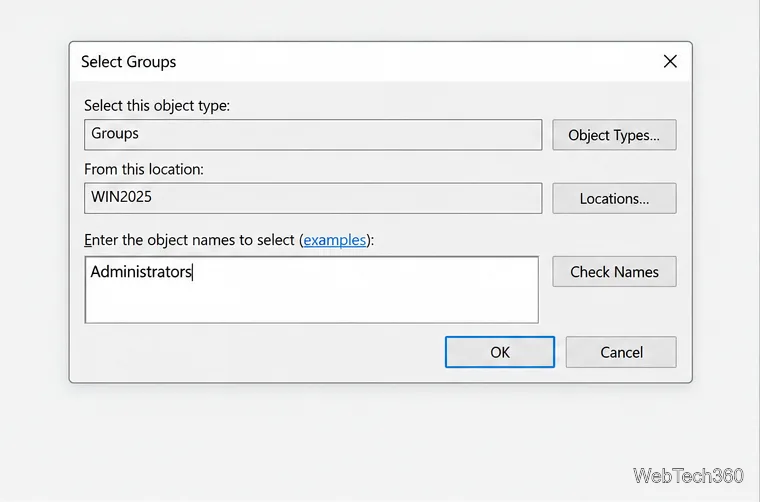
Have the user sign out and back in before relying on changed group permissions. Microsoft recommends limiting the number of local Administrators because that group has full control of the device.
If access should stop temporarily, disable the account instead of deleting it. Disabling is reversible and prevents that account from signing in; you can clear the same checkbox later to enable it again.
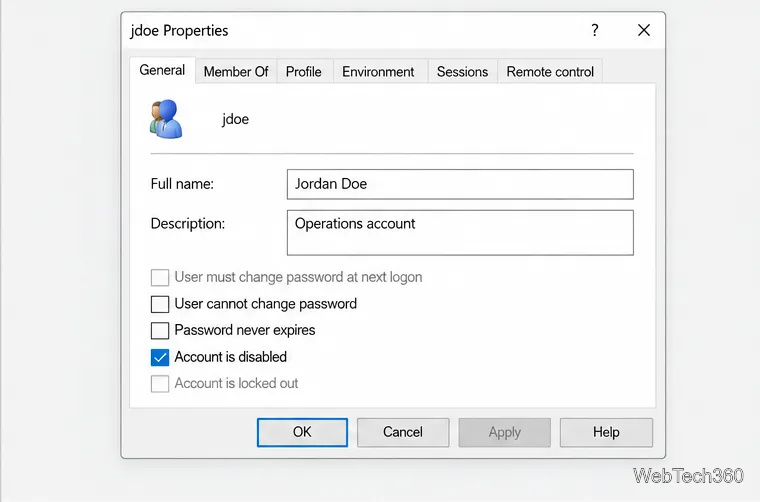
Before permanent removal, confirm the account is no longer needed by a service, scheduled task, remote access workflow, or file permission. Back up or transfer any files the person needs. Deleting the account does not replace the separate task of reviewing and removing its local profile; use Microsoft's Windows Server profile removal guidance if profile cleanup is also required.
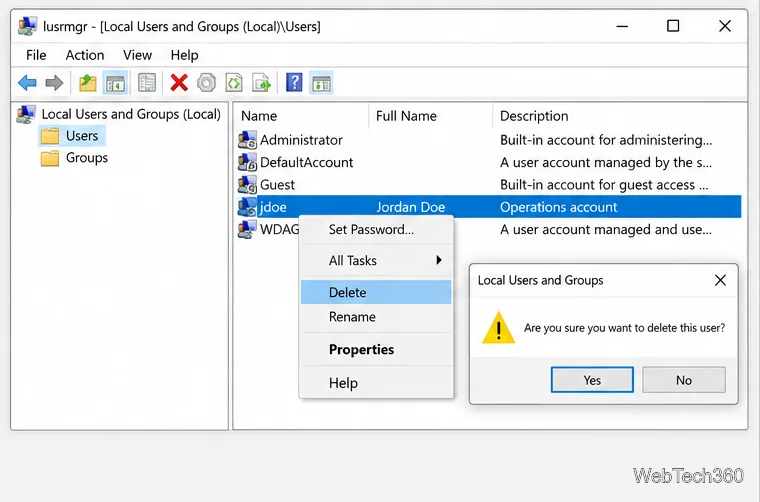
Do not try to delete built-in accounts such as Administrator or Guest. Windows does not allow default local user accounts to be deleted. Guest is disabled by default, and Microsoft recommends leaving it disabled unless a specific need has been reviewed.
When the graphical console is unavailable, open an elevated PowerShell session. The LocalAccounts module provides commands for creating, disabling, and removing local users and for adding them to local groups. This example prompts for a password as a secure string rather than putting a password in the command line:
$password = Read-Host -AsSecureString "Temporary password"
New-LocalUser -Name "jdoe" -FullName "Jordan Doe" -Description "Operations account" -Password $password
Run only the action you need. These examples add administrator rights, disable an account, or permanently remove it:
Add-LocalGroupMember -Group "Administrators" -Member "jdoe"
Disable-LocalUser -Name "jdoe"
Remove-LocalUser -Name "jdoe"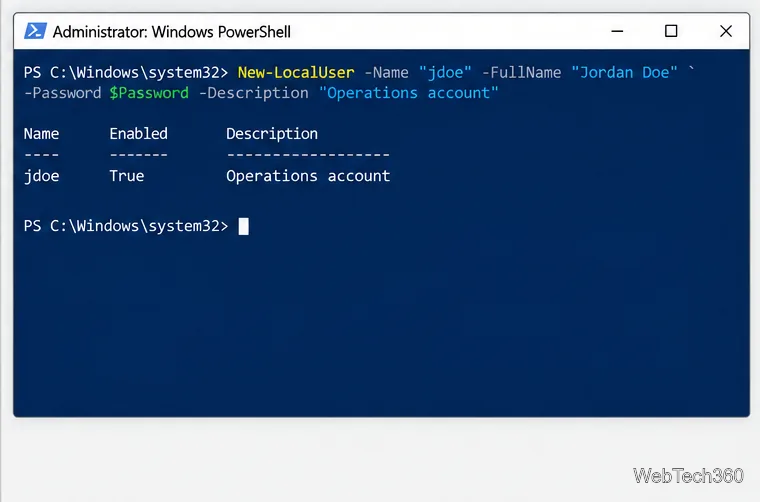
For syntax and version notes, see Microsoft's New-LocalUser, Add-LocalGroupMember, Disable-LocalUser, and Remove-LocalUser documentation. Use Active Directory tools and domain permissions for domain accounts; local-user commands do not create domain users.
Check Windows Server disk status and reliability counters, verify SMART data when available, and separate hardware warnings from NTFS errors.
Create, grant admin rights to, disable, or remove local Windows Server users with Computer Management or PowerShell. Learn when to use Active Directory instead.
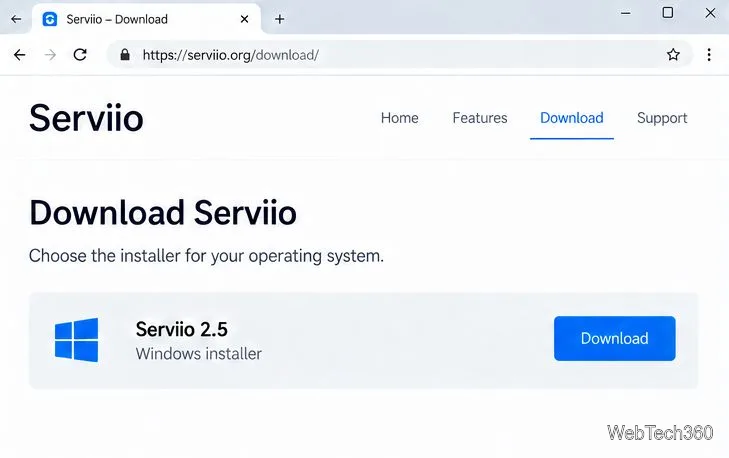
Install Serviio on Windows Server, share local or NAS media folders, and test DLNA playback. Learn how to check the Windows service, firewall, and Pro-only browser features.
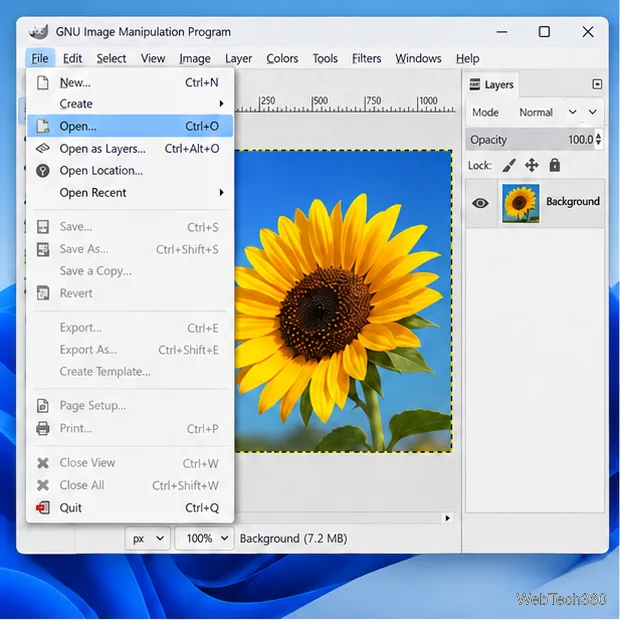
Convert PNG, JPG, or BMP files to Windows ICO with GIMP. Prepare a square image, keep transparency when needed, add standard sizes, and check the export.
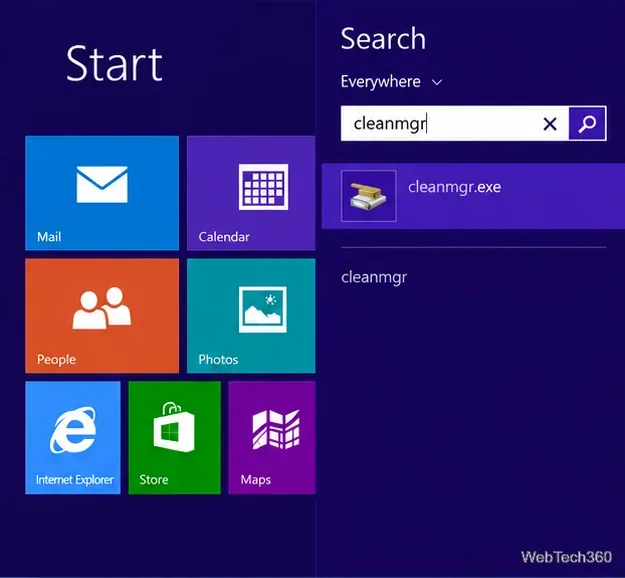
Clear thumbnail, DNS, Internet Explorer, Microsoft Store, Search, and Live Tile data with Windows 8’s built-in tools, and learn what each cleanup removes.
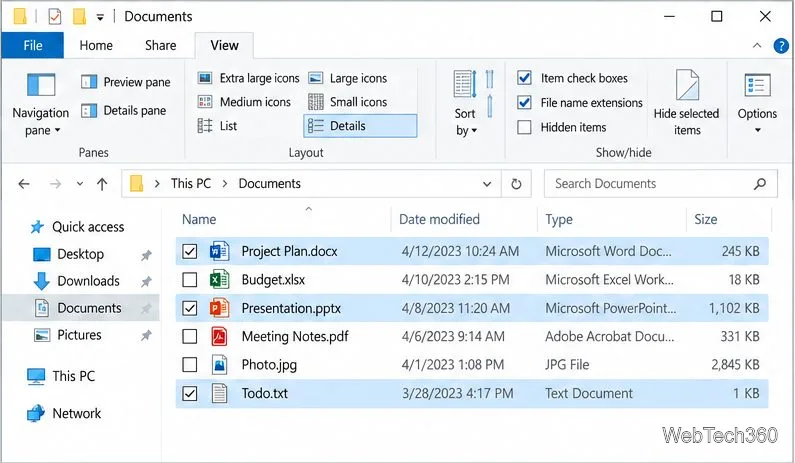
Turn off Windows 10 item check boxes in File Explorer with the View ribbon, or use Folder Options if the toggle is missing. See what changes and how to select multiple files without boxes.
Install VMware Workstation Pro on a compatible Windows Server host, from checking support and downloading the right build to creating your first VM.
Browse and copy Ext2, Ext3, or Ext4 files on Windows with a read-only workflow. See what Linux Reader’s free edition supports and when WSL fits.
Install Caddy’s native Windows binary, serve a test site, enable automatic HTTPS for a domain, and run Caddy as a Windows Server service.
Run Linux Docker containers alongside Windows Server by creating an Ubuntu Hyper-V VM, installing Docker Engine, and publishing a test service safely.