How to Check Hard Drive Health in Windows Server
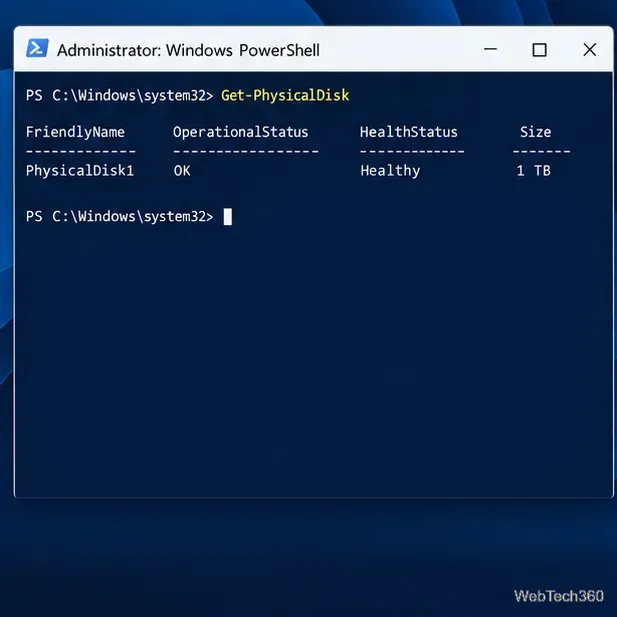
Check Windows Server disk status and reliability counters, verify SMART data when available, and separate hardware warnings from NTFS errors.
File Explorer cannot open an Ext4 partition like an NTFS drive. DiskInternals Linux Reader’s free edition browses, previews, and copies Ext2, Ext3, and Ext4 files while leaving the source read-only. It does not convert or format the partition.
This guide covers copying files from a Linux installation or a separate Linux-formatted drive; it does not make the volume writable in Windows.
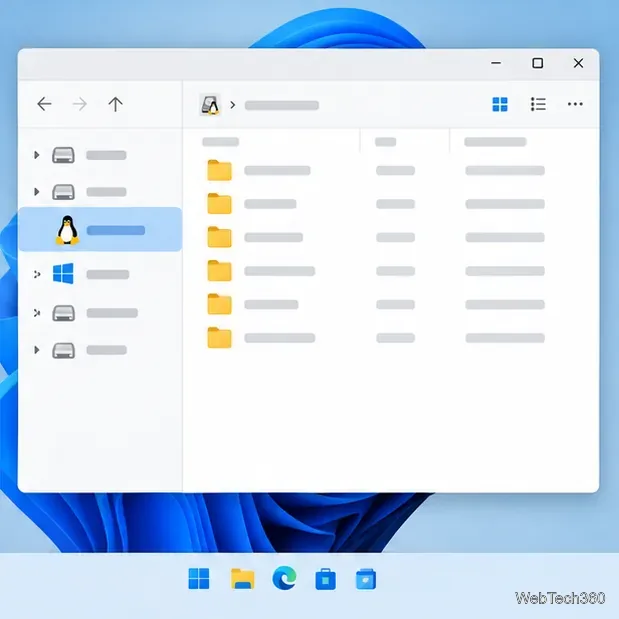
Back up important files first. Linux Reader opens the source read-only, but a backup is still prudent. If Windows asks to initialize, format, or repair the Linux disk, cancel; those operations can make data harder to recover.
Identify the correct physical drive by comparing its capacity and partition layout with what you know from Linux. Do not assume the first listed volume is the right one.
Download Linux Reader from its publisher. Open the official Linux Reader page and choose the free Windows download. Avoid third-party download sites so you get the current installer from DiskInternals.
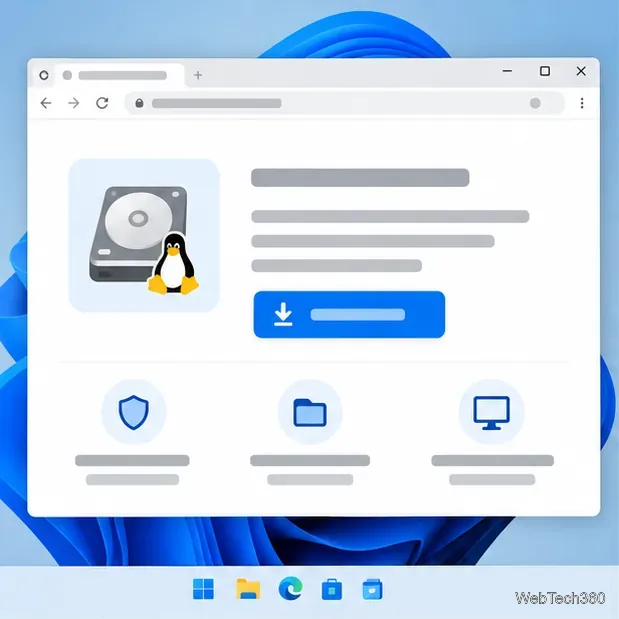
Install the program. Open the downloaded installer and follow its setup prompts. The default options are sufficient for this task. For current screen-by-screen guidance, see the publisher’s illustrated Linux Reader guide.
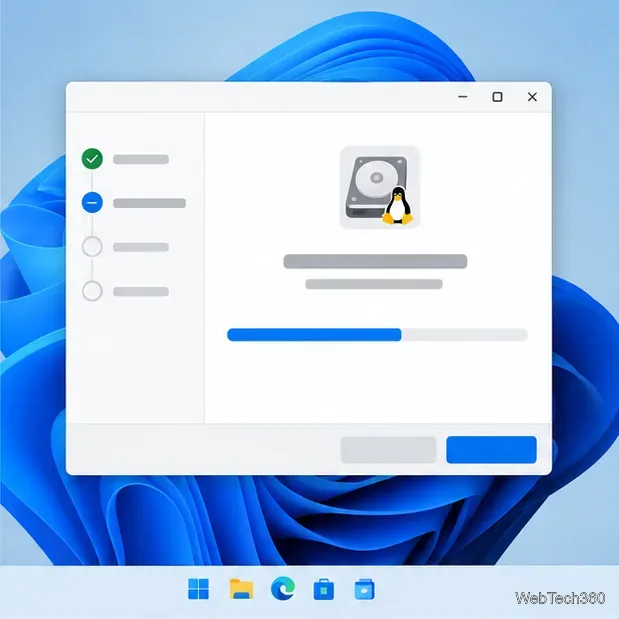
Launch Linux Reader. Open DiskInternals Linux Reader from Start. If Windows shows a User Account Control prompt, verify the app name before approving it.
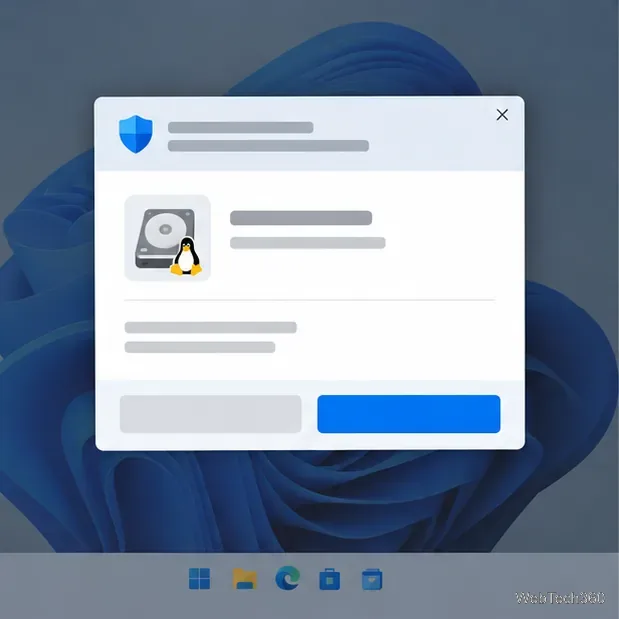
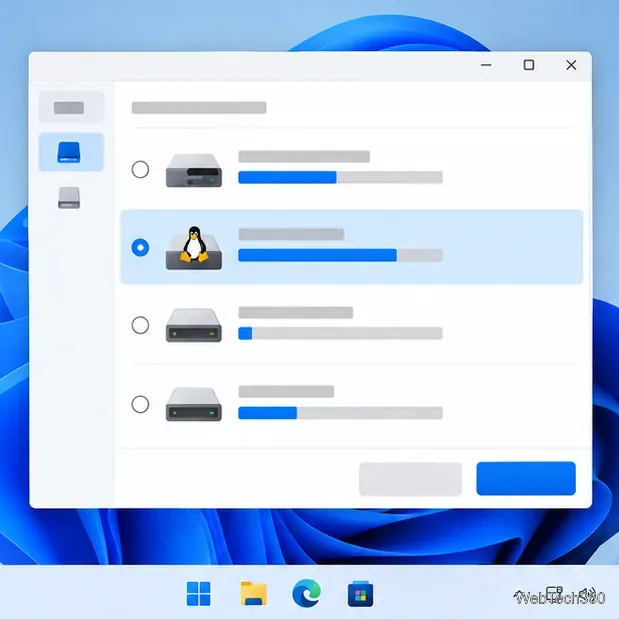
Choose the Linux volume. Wait for the scan, then select the Linux partition by its disk and size. A drive may contain several partitions; choose the data volume rather than a small boot or recovery partition.
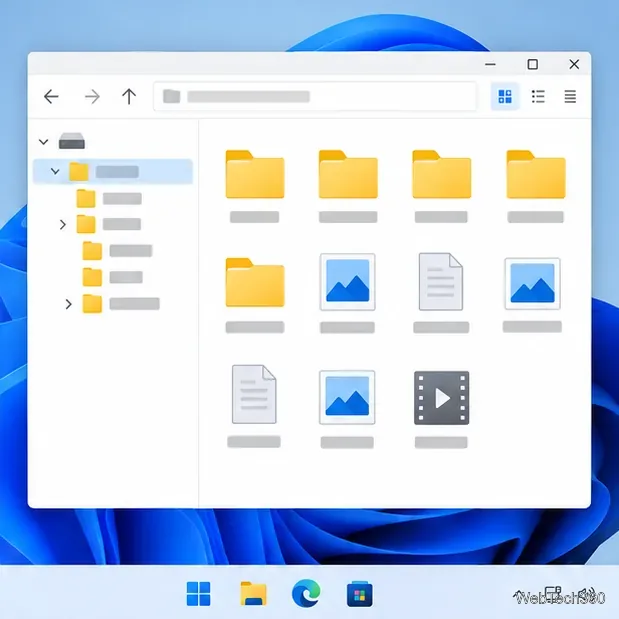
Browse the folders. Open the volume and browse its folders. Personal files are commonly under /home; system files may be in /etc or /var. The layout varies by distribution.
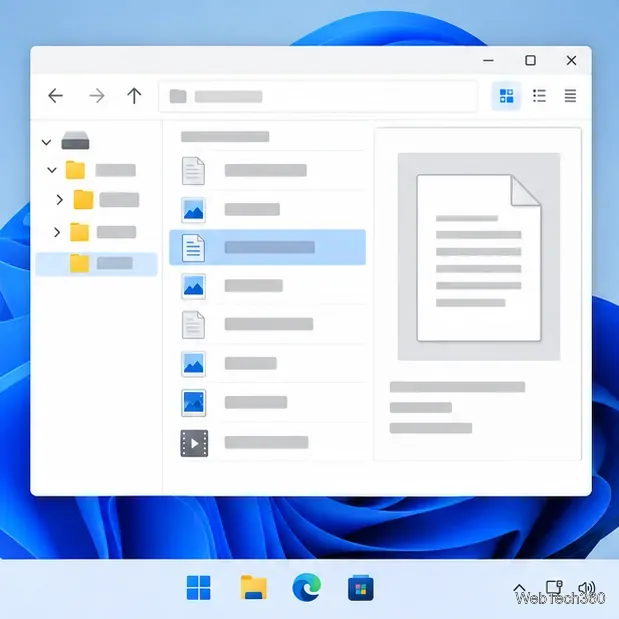
Preview a file if needed. Select a document or image and use the preview command, if available. DiskInternals lists preview as free; checking a file first helps confirm you chose the right item.
Export files to Windows. Select files or folders and choose Save or export. In the wizard, choose a folder on a Windows-readable disk, such as your NTFS drive. Do not save to the Linux source.
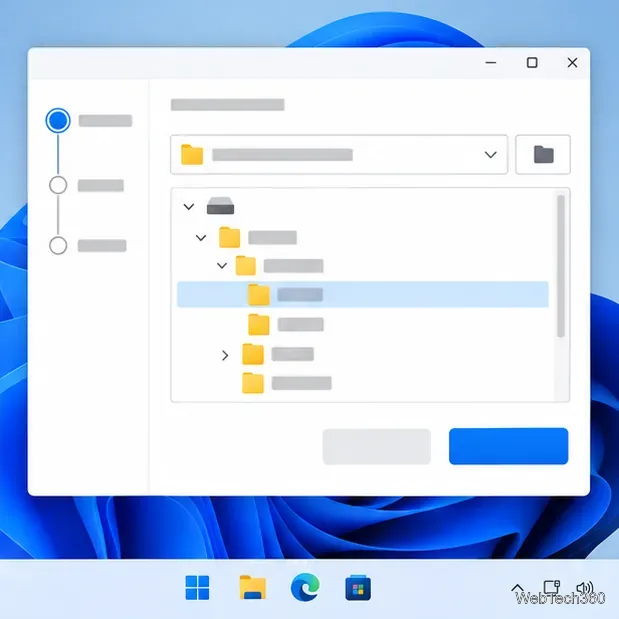
Verify the copy. Open the destination in File Explorer and confirm the files are there. Check a few important files before relying on the copy. For removable drives, close the reader and safely eject the disk before disconnecting it.
DiskInternals’ feature chart lists Ext2, Ext3, and Ext4 as readable and exportable in the free edition. Mapping a partition to a Windows drive letter is a Pro feature; the free version uses its own browser and export wizard.
For Btrfs, XFS, and ZFS, the publisher lists preview-only support in Free and read-and-save support in Pro. Check the current chart for other formats.
WSL 2 can mount a separate Linux disk for command-line work. Microsoft’s mounting guide requires admin access and Windows 11 or the Microsoft Store version of WSL. WSL attaches the whole disk and cannot use a disk that Windows is using, including the Windows installation disk. It is therefore unsuitable for an Ext4 partition on the same physical disk as a running Windows installation.
WSL is command-line based, not a normal Explorer drive. For a graphical copy-only task, Linux Reader is simpler. If you use WSL on an offline disk, read the kernel’s Ext4 mount notes: even a read-only Ext4 mount can replay its journal and write to disk. ro,noload prevents that replay, but may show an inconsistent file system if it was not cleanly shut down.
Check Windows Server disk status and reliability counters, verify SMART data when available, and separate hardware warnings from NTFS errors.
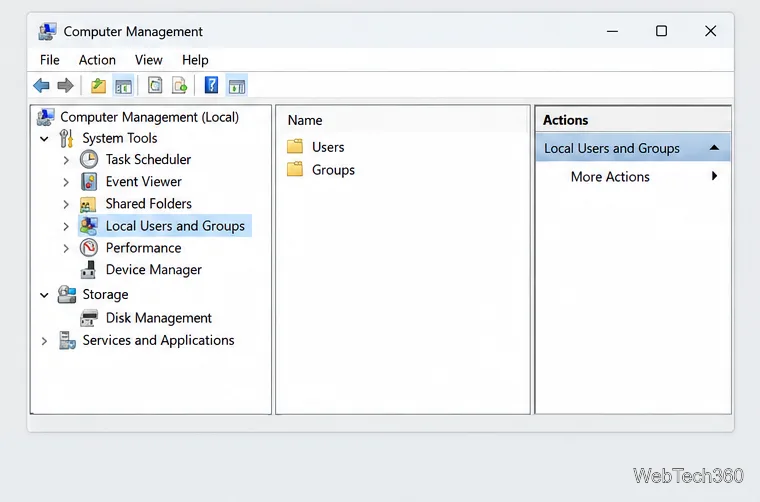
Create, grant admin rights to, disable, or remove local Windows Server users with Computer Management or PowerShell. Learn when to use Active Directory instead.
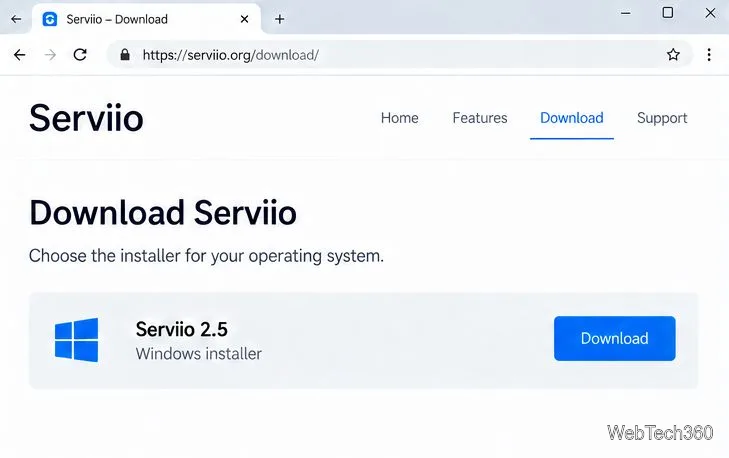
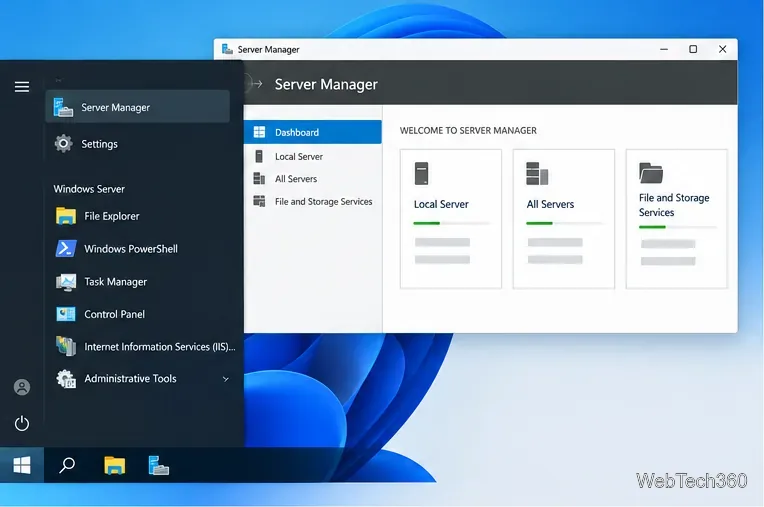
Install Serviio on Windows Server, share local or NAS media folders, and test DLNA playback. Learn how to check the Windows service, firewall, and Pro-only browser features.
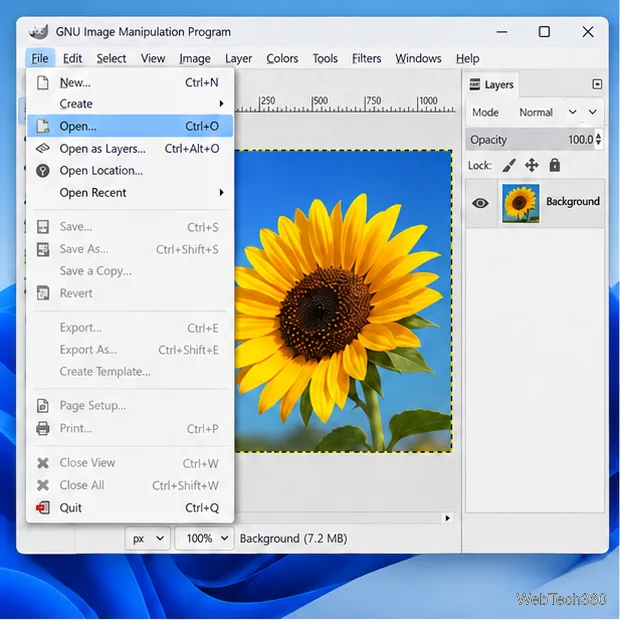
Convert PNG, JPG, or BMP files to Windows ICO with GIMP. Prepare a square image, keep transparency when needed, add standard sizes, and check the export.
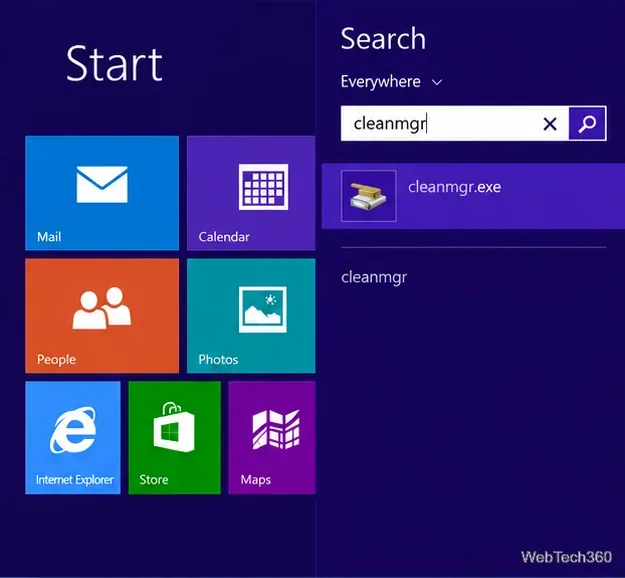
Clear thumbnail, DNS, Internet Explorer, Microsoft Store, Search, and Live Tile data with Windows 8’s built-in tools, and learn what each cleanup removes.
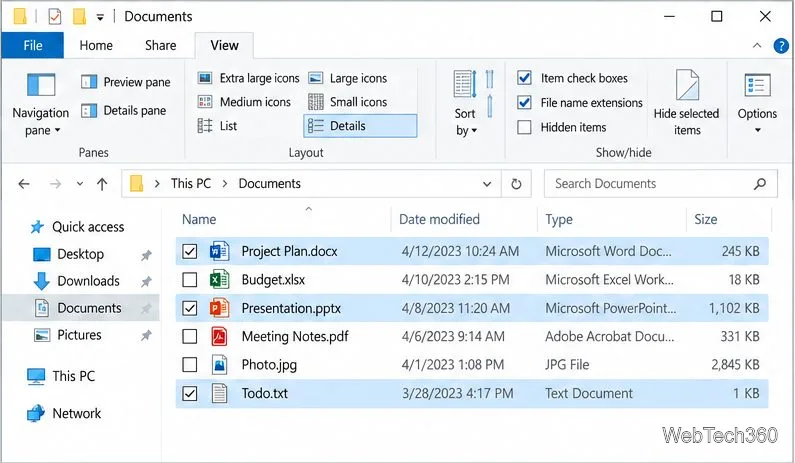
Turn off Windows 10 item check boxes in File Explorer with the View ribbon, or use Folder Options if the toggle is missing. See what changes and how to select multiple files without boxes.
Install VMware Workstation Pro on a compatible Windows Server host, from checking support and downloading the right build to creating your first VM.
Browse and copy Ext2, Ext3, or Ext4 files on Windows with a read-only workflow. See what Linux Reader’s free edition supports and when WSL fits.
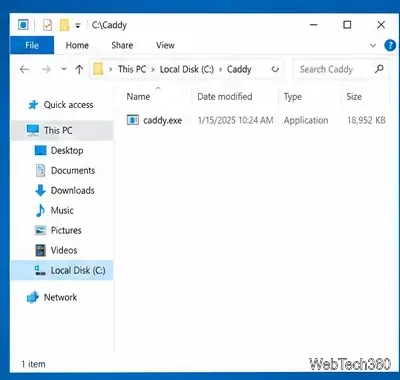
Install Caddy’s native Windows binary, serve a test site, enable automatic HTTPS for a domain, and run Caddy as a Windows Server service.
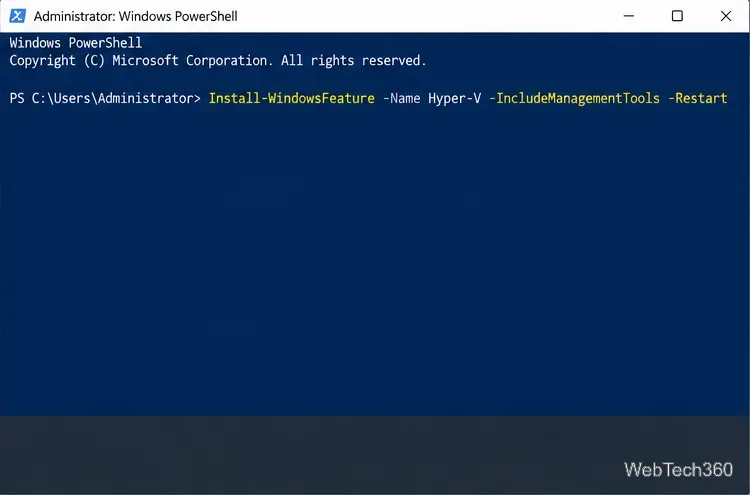
Run Linux Docker containers alongside Windows Server by creating an Ubuntu Hyper-V VM, installing Docker Engine, and publishing a test service safely.