How to Check Hard Drive Health in Windows Server
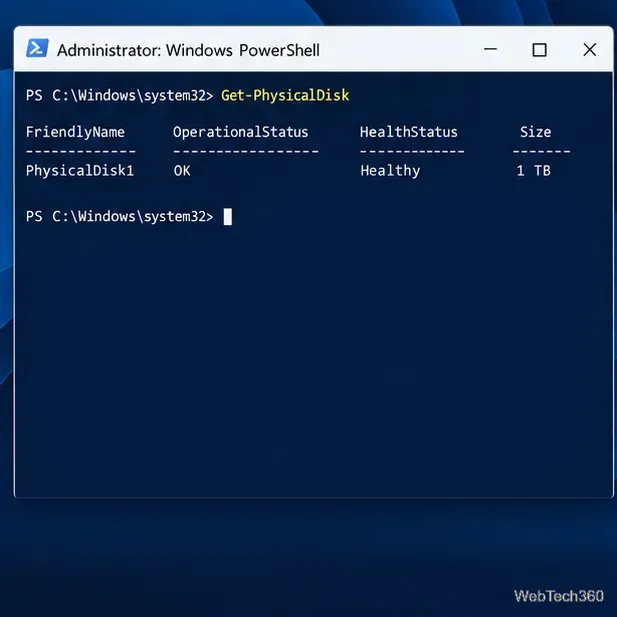
Check Windows Server disk status and reliability counters, verify SMART data when available, and separate hardware warnings from NTFS errors.
Serviio can turn a Windows Server PC into a media server for compatible TVs and DLNA players. Install its Windows package, open the Console, add media folders, and test playback on the same network. The official download page currently lists Serviio 2.5 as its latest release.
The Windows installer bundles Java and registers Serviio as a service that starts with Windows. It begins a 15-day Pro evaluation, then reverts to Free. Both editions support DLNA; MediaBrowser and per-user access controls require Pro.
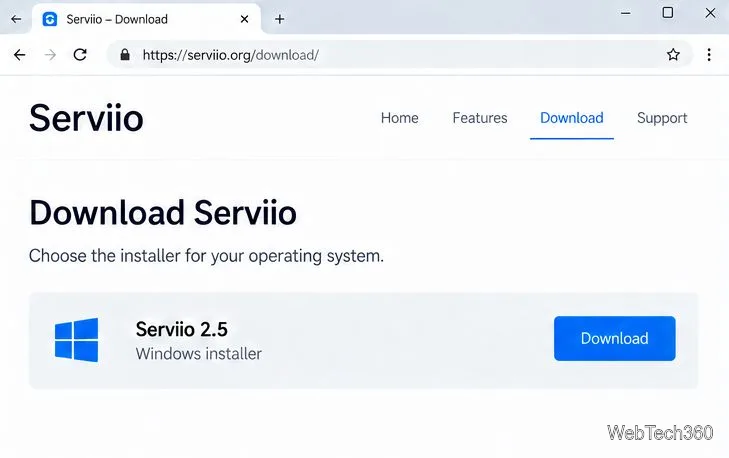
Open the official Serviio download page and choose the Windows installer. The site lists version 2.5 as the latest release at the time of writing. Download the installer from Serviio, then right-click it and select Run as administrator. Follow the setup wizard and keep the default installation folder unless your server layout requires another location.
Serviio adds a Windows service during installation and configures Windows Firewall for its standard DLNA traffic: TCP port 8895 and UDP port 1900. If the server uses a third-party firewall, create equivalent inbound rules for the trusted local network. These ports support device discovery and streaming; they are not a reason to expose the server to the public internet.
Launch Serviio Console from the Start menu. You can also open the local Console in a browser at http://localhost:23423/console. To manage it from another computer, replace localhost with the server’s LAN IP address, for example http://192.168.1.20:23423/console. That remote connection requires the server firewall to allow TCP 23423, so limit it to a trusted management network and do not forward the Console port through your router.
If the Console cannot connect, open services.msc, find the Serviio service, and check that it is running. You can start or restart it there. On a server with multiple network adapters, choose the correct interface in the Console’s Bound IP address setting if devices cannot discover Serviio.
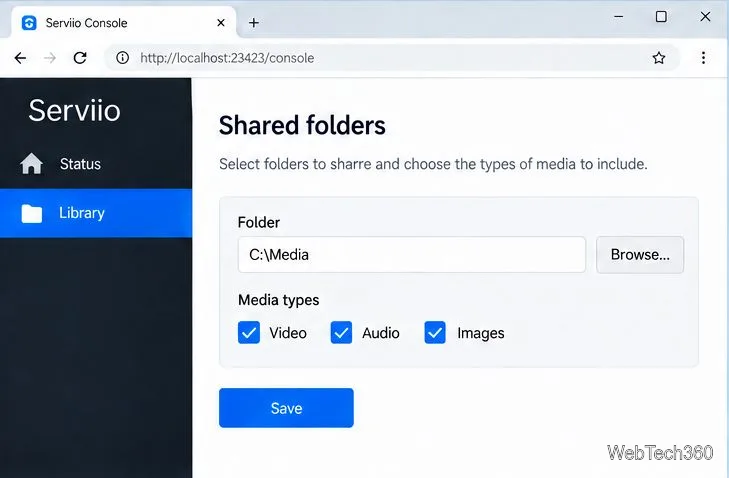
An initial scan can take time when a folder contains many files, especially if Serviio is retrieving descriptive metadata. If you add files later and they do not appear, use Force refresh in the library settings.
For a NAS, enter a UNC path such as \fileserver\media\Movies. A mapped drive like Z:\Movies may be invisible to the background service. Give the Serviio service account read access to the share and files; if needed, change it under the service’s Log On tab in services.msc, then restart the service. See Serviio’s official FAQ for remote-folder requirements.
Do not expect to create separate viewer accounts in the Free edition: Serviio’s user-based access controls are a Pro feature. You can still share folders over DLNA in the Free edition; the Pro controls are for restricting which devices or users can see particular content.
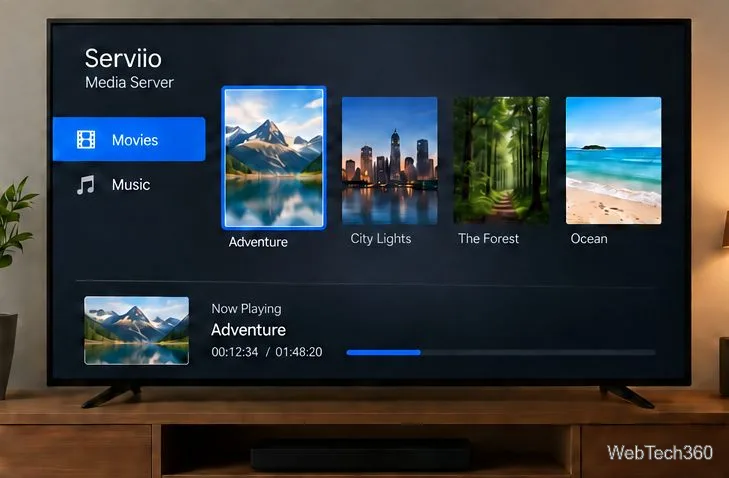
On a smart TV, streaming box, or DLNA-capable player connected to the same local network, open its media-server or DLNA browser and select Serviio. Browse to a known video, song, or picture and test it. The Free edition includes Serviio’s DLNA server and supports local streaming, so a browser player is not required for this setup.
If Serviio is missing from the device list, check that both devices share a network, TCP 8895 and UDP 1900 are allowed, and the Console uses the correct adapter. If the device sees files but cannot play NAS content, recheck service-account permissions. For format or profile issues, see the official getting-started guide.
If you specifically want browser playback, Serviio’s MediaBrowser is a Pro feature. First create its password on the Console’s Remote tab, then visit http://<server-IP>:23424/mediabrowser from your network. Internet access needs separate router and firewall configuration; keep remote sharing intentional and use a strong password.
Check Windows Server disk status and reliability counters, verify SMART data when available, and separate hardware warnings from NTFS errors.
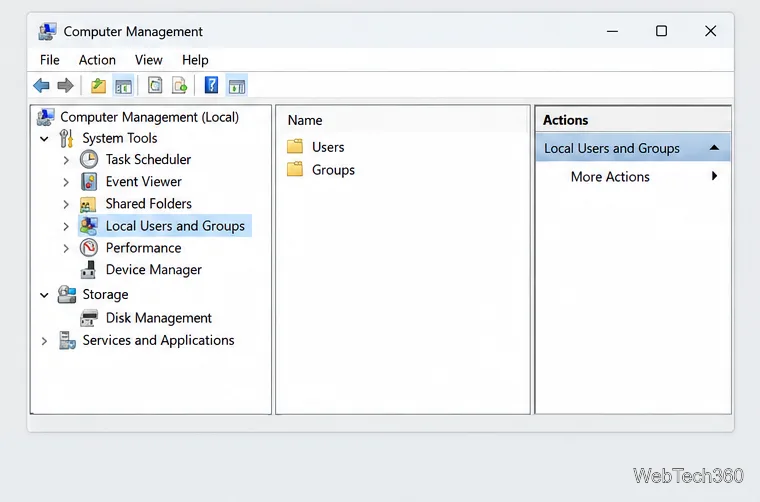
Create, grant admin rights to, disable, or remove local Windows Server users with Computer Management or PowerShell. Learn when to use Active Directory instead.
Install Serviio on Windows Server, share local or NAS media folders, and test DLNA playback. Learn how to check the Windows service, firewall, and Pro-only browser features.
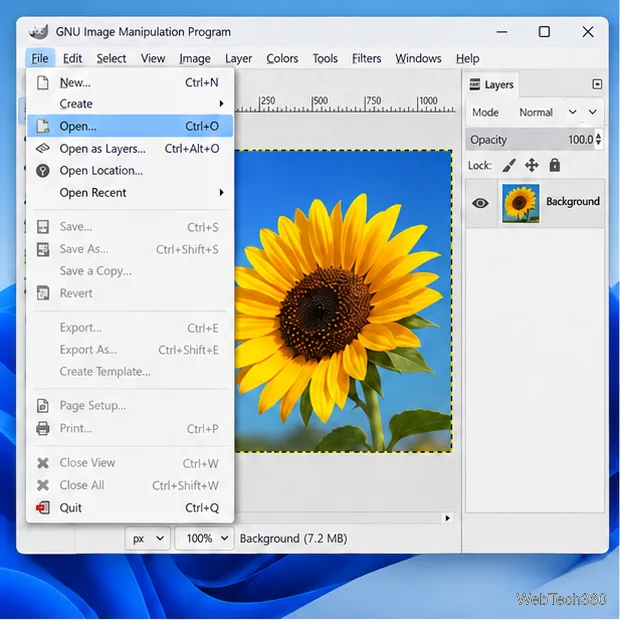
Convert PNG, JPG, or BMP files to Windows ICO with GIMP. Prepare a square image, keep transparency when needed, add standard sizes, and check the export.
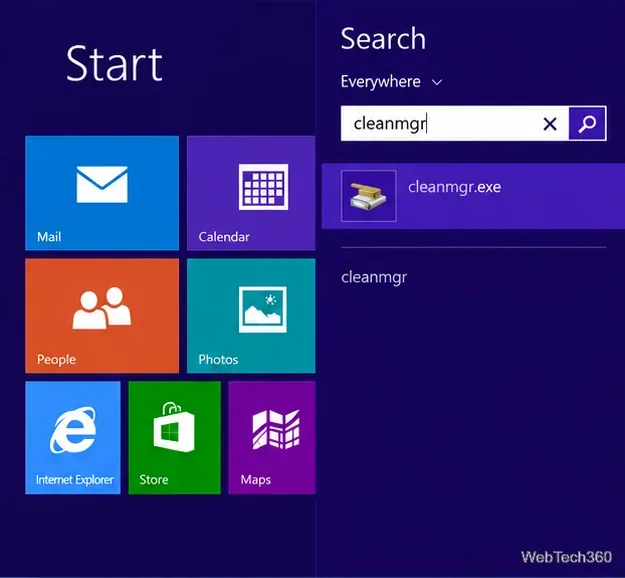
Clear thumbnail, DNS, Internet Explorer, Microsoft Store, Search, and Live Tile data with Windows 8’s built-in tools, and learn what each cleanup removes.
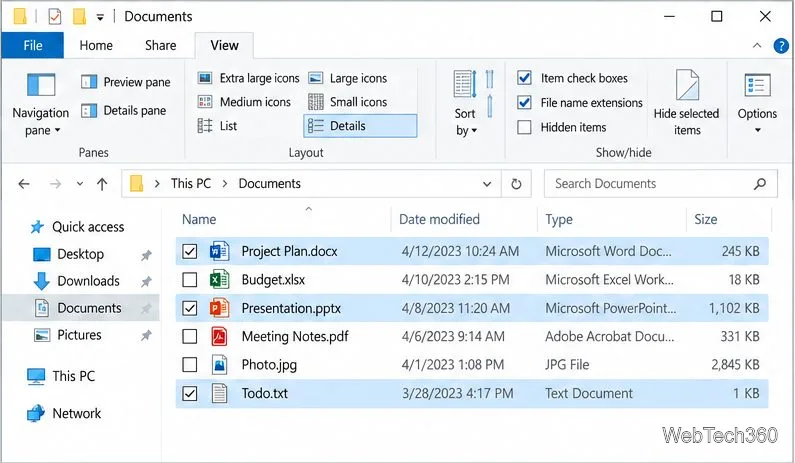
Turn off Windows 10 item check boxes in File Explorer with the View ribbon, or use Folder Options if the toggle is missing. See what changes and how to select multiple files without boxes.
Install VMware Workstation Pro on a compatible Windows Server host, from checking support and downloading the right build to creating your first VM.
Browse and copy Ext2, Ext3, or Ext4 files on Windows with a read-only workflow. See what Linux Reader’s free edition supports and when WSL fits.
Install Caddy’s native Windows binary, serve a test site, enable automatic HTTPS for a domain, and run Caddy as a Windows Server service.
Run Linux Docker containers alongside Windows Server by creating an Ubuntu Hyper-V VM, installing Docker Engine, and publishing a test service safely.