How to Check Hard Drive Health in Windows Server
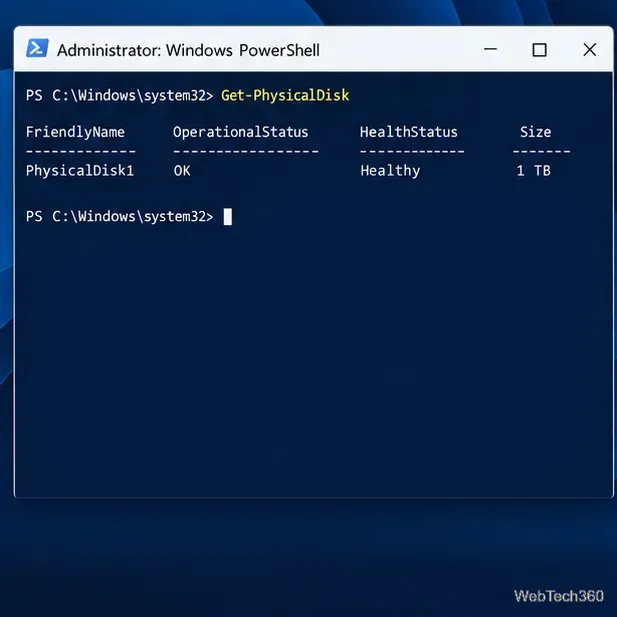
Check Windows Server disk status and reliability counters, verify SMART data when available, and separate hardware warnings from NTFS errors.
Run Linux Docker containers on Windows Server by running Docker Engine inside Ubuntu on Hyper-V. The VM provides the Linux kernel containers need while Windows Server remains the host. Docker Desktop for Windows is not supported on Windows Server, so older instructions to install it do not apply. This guide uses Ubuntu Server 24.04 LTS and Docker’s apt repository.
Microsoft documents WSL on Windows Server 2022 and 2025, but this tutorial uses a separate Linux VM. Ubuntu guests are supported on Hyper-V, and Docker lists Ubuntu 24.04 LTS for Engine. See Docker’s Windows requirements, Microsoft’s WSL on Server notes, and the supported Ubuntu guest list.
Prepare administrator access, hardware virtualization, spare CPU, memory and disk capacity, and an Ubuntu Server 24.04 LTS ISO. If Windows Server is itself a VM, its hypervisor must expose nested virtualization. For network access, plan an external Hyper-V switch so the guest can receive an address on the physical network.
If Hyper-V is not installed, run this in administrator PowerShell. It may restart the host, so schedule the reboot on a production server. See Microsoft’s Hyper-V installation guide.
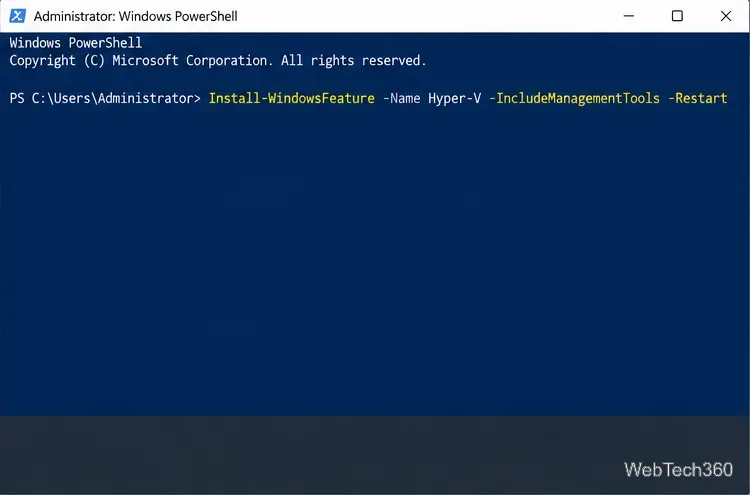 PowerShell adds the Hyper-V role.
Install-WindowsFeature -Name Hyper-V -IncludeManagementTools -RestartIn Hyper-V Manager, open Virtual Switch Manager, create an External switch, and select the physical adapter for VM traffic. Choose whether the Windows management OS shares that adapter. Check the network and VLAN plan first because creating an external switch can affect host connectivity. Follow Microsoft’s virtual switch instructions.
In Hyper-V Manager, choose New > Virtual Machine. Create a Generation 2 VM, assign CPU and memory while reserving capacity for the host, connect the external switch, and create a VHDX with room for the OS, images, and data. Attach the Ubuntu ISO as installation media. Microsoft’s VM creation guide explains the wizard.
Start the VM, connect through Virtual Machine Connection, and install Ubuntu Server. Create an administrator account, configure networking, and apply updates. After sign-in, confirm the release with Add Docker’s signing key and apt repository, then install Engine, the CLI, containerd, Buildx, and Compose. This follows Docker’s current Ubuntu instructions; use a supported release listed there.
Enable Docker at startup, then run the test image. It prints a confirmation and exits when the installation works. Keep Start NGINX in the background and map container port 80 to port 8080 on the VM: From a device that can reach the VM, open A published port listens on all VM interfaces by default. Restrict inbound access; for a local-only test, use Check errors with 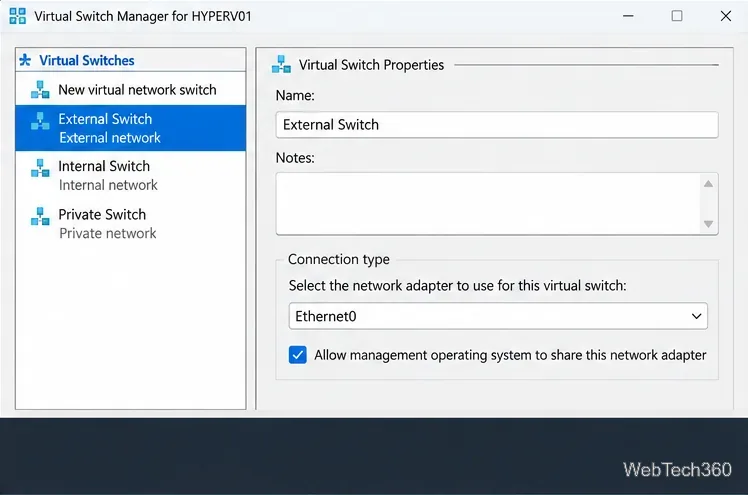 An external switch connects the VM to a physical adapter.
3. Create the Linux virtual machine
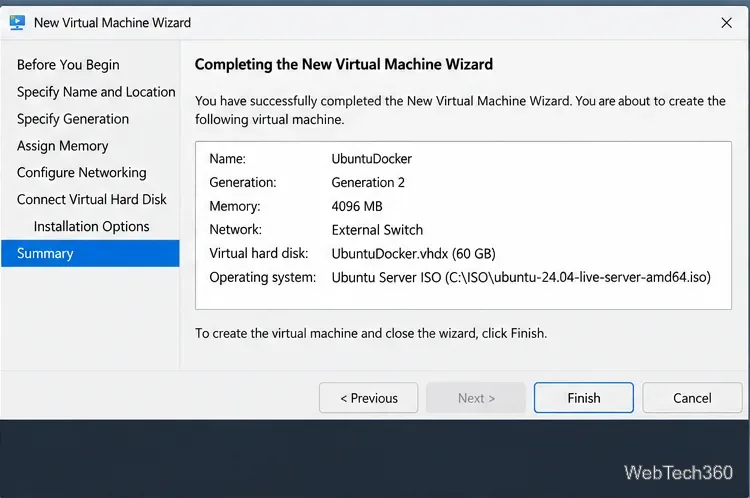 The wizard summary shows the Ubuntu VM and its switch.
4. Install Ubuntu Server
lsb_release -a. Store Docker data on the Linux virtual disk.A terminal confirms Ubuntu 24.04 LTS.
5. Add Docker’s official apt repository and install Engine
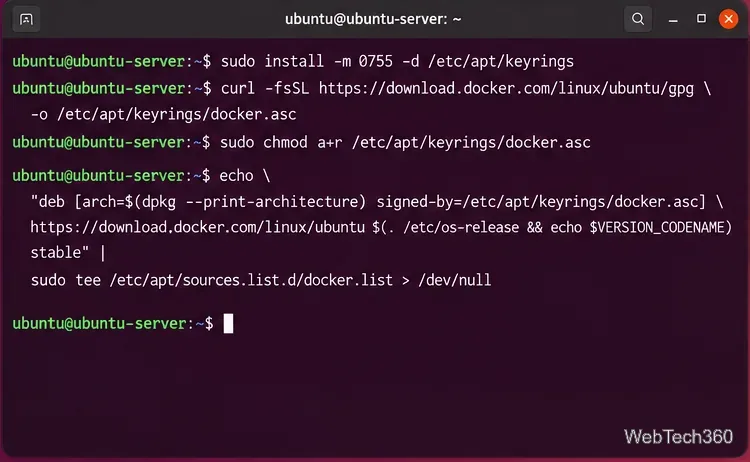 The terminal adds Docker’s key and apt source.
sudo apt update
sudo apt install ca-certificates curl
sudo install -m 0755 -d /etc/apt/keyrings
sudo curl -fsSL https://download.docker.com/linux/ubuntu/gpg -o /etc/apt/keyrings/docker.asc
sudo chmod a+r /etc/apt/keyrings/docker.asc
sudo tee /etc/apt/sources.list.d/docker.sources <<EOF
Types: deb
URIs: https://download.docker.com/linux/ubuntu
Suites: $(. /etc/os-release && echo " ${ubuntu_codename:-$version_codename}") components: stable architectures: $(dpkg --print-architecture) signed-by: etc apt keyrings docker.asc eof sudo apt update sudo apt install docker-ce docker-ce-cli containerd.io docker-buildx-plugin>
6. Start Docker and verify the installation
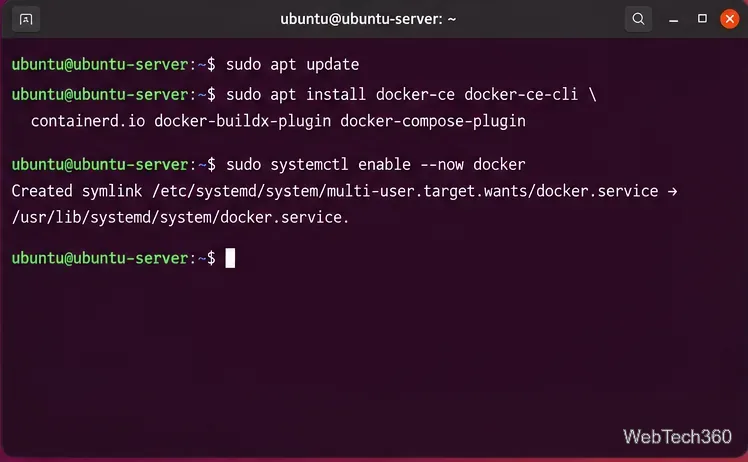 Docker packages install and the service starts.
sudo systemctl enable --now docker
sudo docker run hello-worldsudo for this test. Docker group membership grants root-equivalent control; review the post-installation guidance before changing permissions.
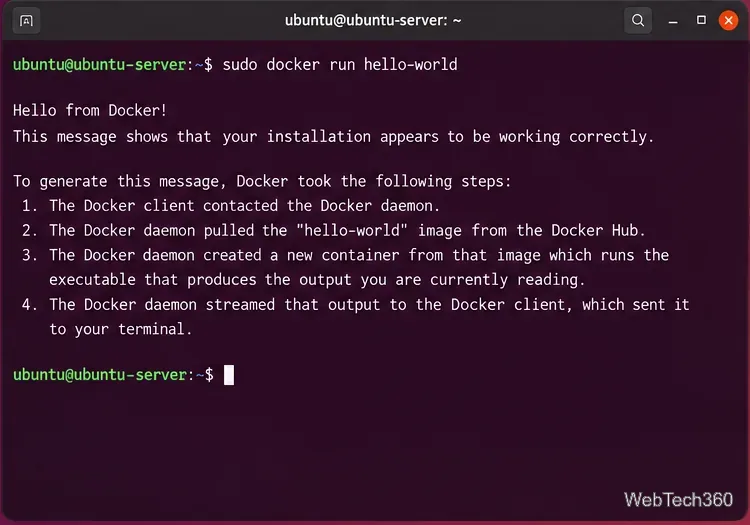 The hello-world output confirms Docker can run containers.
Run a Linux container and reach it over the network
7. Start a sample web container
sudo docker run -d --name web --restart unless-stopped -p 8080:80 nginx
sudo docker ps
hostname -Idocker ps should show 8080->80/tcp; hostname -I prints the VM address. Docker’s port publishing guide explains the mapping.
8. Open the VM address and check access
http://VM-IP:8080, replacing VM-IP with its address. The NGINX page confirms the route to the container. This is the Ubuntu VM’s address; port publishing does not automatically expose the service on the Windows host’s IP.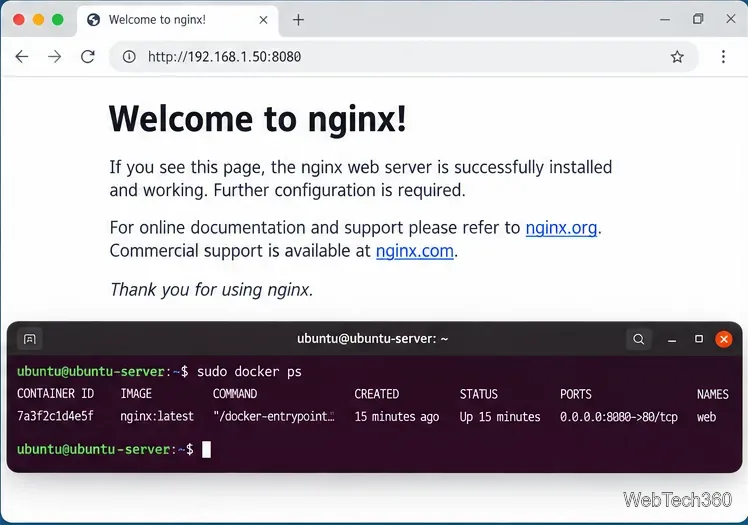 NGINX responds through the VM’s published port.
-p 127.0.0.1:8080:80. If the page fails, verify the VM address, switch, Docker mapping, and TCP 8080 policy. Review Docker’s firewall guidance before relying on UFW alone.
Manage the test container
sudo docker logs web; clean up with sudo docker stop web and sudo docker rm web. For applications, use a named volume or planned Linux directory for persistent data, keep Ubuntu and Docker updated, and manage multi-container services with Compose.
Check Windows Server disk status and reliability counters, verify SMART data when available, and separate hardware warnings from NTFS errors.
Create, grant admin rights to, disable, or remove local Windows Server users with Computer Management or PowerShell. Learn when to use Active Directory instead.
Install Serviio on Windows Server, share local or NAS media folders, and test DLNA playback. Learn how to check the Windows service, firewall, and Pro-only browser features.
Convert PNG, JPG, or BMP files to Windows ICO with GIMP. Prepare a square image, keep transparency when needed, add standard sizes, and check the export.
Clear thumbnail, DNS, Internet Explorer, Microsoft Store, Search, and Live Tile data with Windows 8’s built-in tools, and learn what each cleanup removes.
Turn off Windows 10 item check boxes in File Explorer with the View ribbon, or use Folder Options if the toggle is missing. See what changes and how to select multiple files without boxes.
Install VMware Workstation Pro on a compatible Windows Server host, from checking support and downloading the right build to creating your first VM.
Browse and copy Ext2, Ext3, or Ext4 files on Windows with a read-only workflow. See what Linux Reader’s free edition supports and when WSL fits.
Install Caddy’s native Windows binary, serve a test site, enable automatic HTTPS for a domain, and run Caddy as a Windows Server service.
Run Linux Docker containers alongside Windows Server by creating an Ubuntu Hyper-V VM, installing Docker Engine, and publishing a test service safely.