How to Check Hard Drive Health in Windows Server
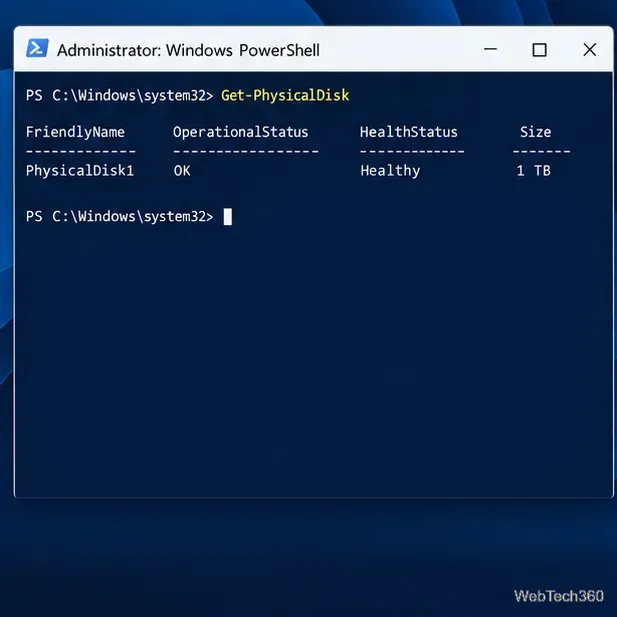
Check Windows Server disk status and reliability counters, verify SMART data when available, and separate hardware warnings from NTFS errors.
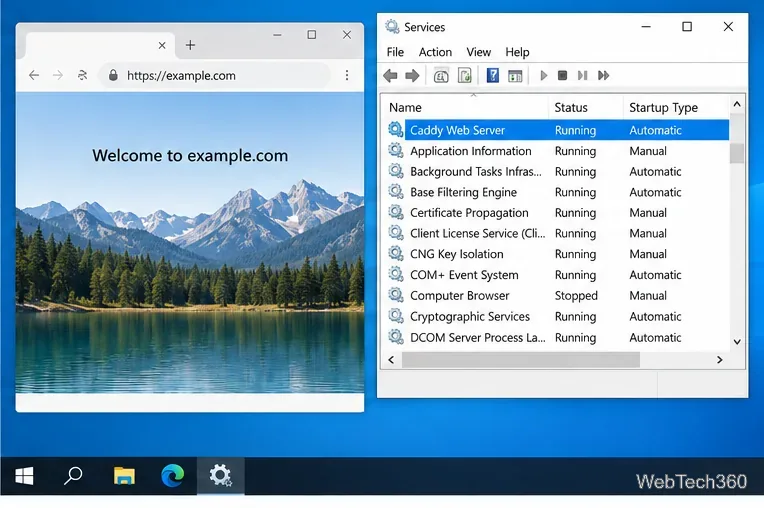
To run Caddy on Windows Server, install its native Windows executable, point a Caddyfile at your website folder, and register Caddy as a Windows service. This setup serves static files and can obtain and renew HTTPS certificates automatically for a public domain. Docker is optional; the steps below do not require a container runtime.
The commands use C:\Caddy and a placeholder domain. Run PowerShell as an administrator when creating firewall rules or installing the service.
Open the official Caddy download page and select the Windows build for your server’s architecture. If you use the GitHub release instead, choose the matching Windows asset. Extract or copy caddy.exe into C:\Caddy. The Caddy installation guide also describes static binaries and signature verification.
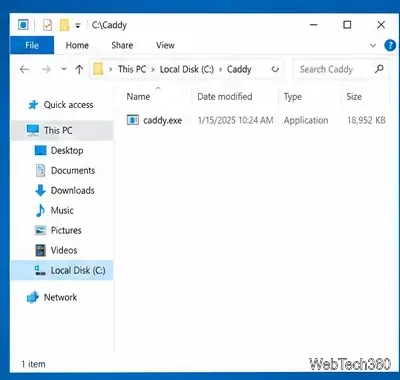
In PowerShell, create a document root and a small test page. Replace this test file with your site’s files when you are ready:
New-Item -ItemType Directory -Force C:\Caddy\site | Out-Null
Set-Content -Path C:\Caddy\site\index.html -Value '<h1>Hello from Caddy</h1>' -Encoding utf8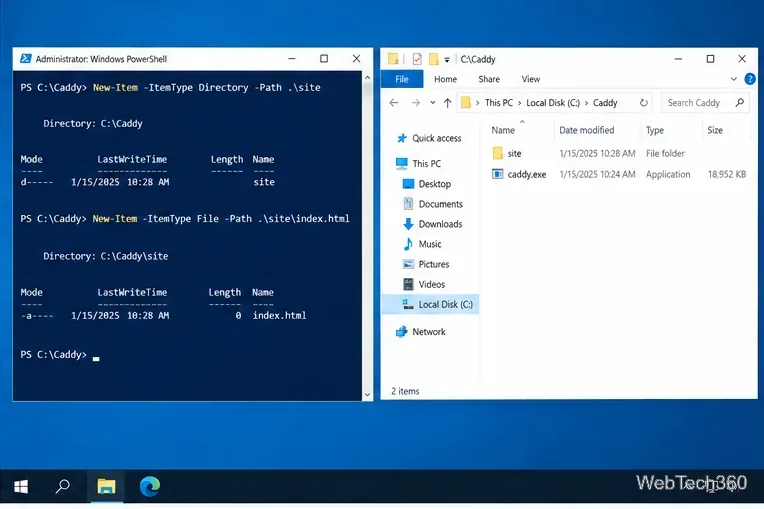
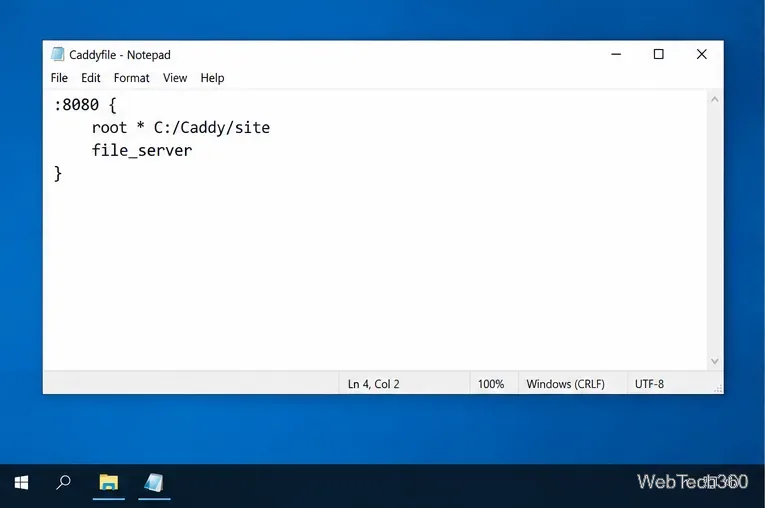
Open Notepad with notepad C:\Caddy\Caddyfile. If prompted to create a file, choose Yes. Enter this configuration, then save it as Caddyfile without a .txt extension:
:8080 {
    root * C:/Caddy/site
    file_server
}
The root directive sets the directory and file_server serves its files. The high local port makes it easy to test before switching to public HTTP and HTTPS ports. See the official root and file_server references.
In PowerShell, change to the Caddy folder, validate the configuration, and start Caddy in the foreground:
Set-Location C:\Caddy
.\caddy.exe validate --config .\Caddyfile
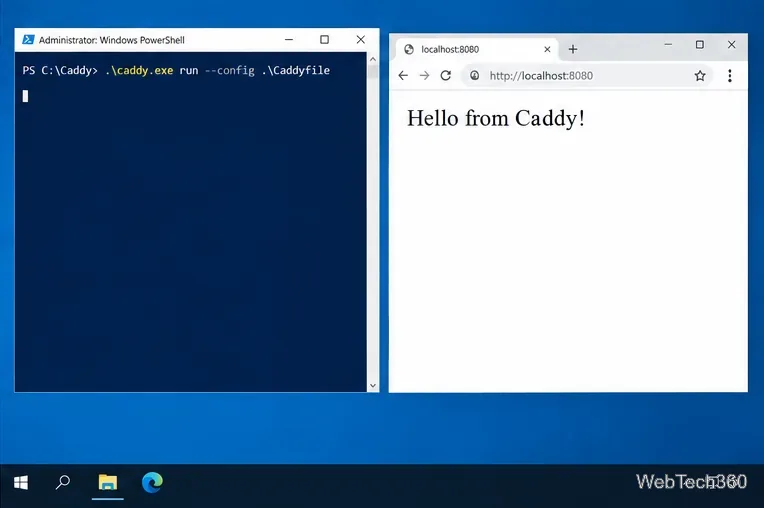
.\caddy.exe run --config .\Caddyfile
While that window stays open, browse to http://localhost:8080 on the server. You should see the test heading. This local check uses HTTP on purpose; stop the foreground process with Ctrl+C before changing the file for your public domain.
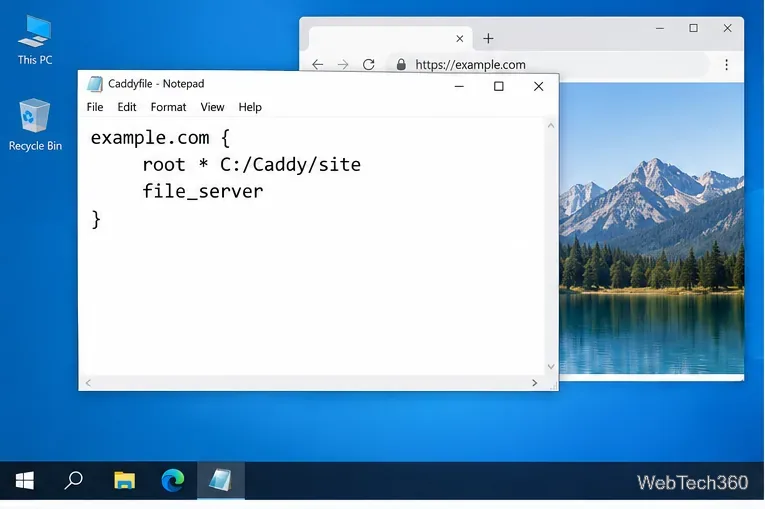
Edit C:\Caddy\Caddyfile and replace the test configuration with your own domain and document root:
www.example.com {
    root * C:/Caddy/site
    file_server
}
Replace www.example.com with a domain you control. With a hostname in the site address, Caddy can manage public TLS certificates and redirect HTTP to HTTPS. Automatic issuance requires the hostname to resolve to this server and the relevant challenge traffic to reach it. Review Caddy’s Automatic HTTPS requirements before going live.
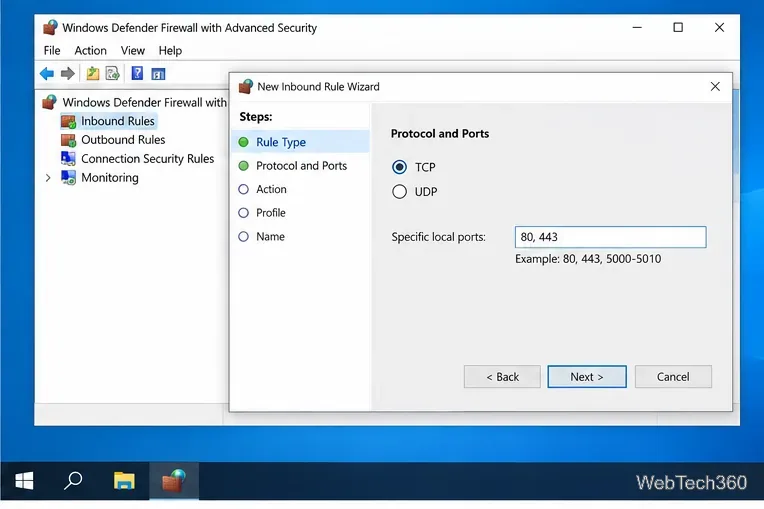
Create DNS A and, if your server supports IPv6, AAAA records that point your domain to the server’s public address. In an elevated PowerShell window, add an inbound Windows Firewall rule for TCP ports 80 and 443:
New-NetFirewallRule -DisplayName "Caddy HTTP and HTTPS" -Direction Inbound -Action Allow -Protocol TCP -LocalPort 80,443Also allow those ports through any cloud firewall, router, or network security group in front of the server. Caddy uses port 80 for HTTP handling and common ACME validation, and port 443 for HTTPS. UDP 443 is optional for HTTP/3. Microsoft documents the New-NetFirewallRule cmdlet.
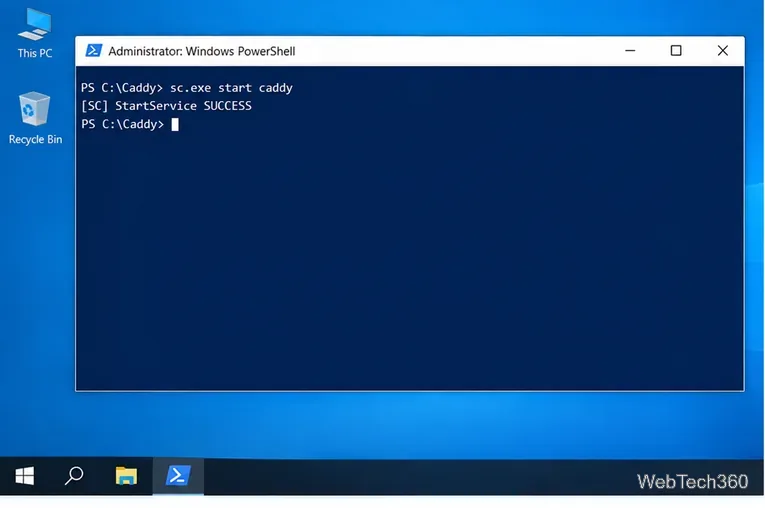
Keep the domain configuration in place, then open an elevated PowerShell window. The official Caddy service guide supports sc.exe or WinSW. For a direct service, register the executable with the explicit configuration path and start it:
sc.exe create caddy start= auto binPath= '"C:\Caddy\caddy.exe" run --config C:\Caddy\Caddyfile'
sc.exe start caddy
Windows services run under a service account. Make sure that account can read the site and configuration files and can write to Caddy’s persistent data directory, which stores managed certificate material. Do not treat that directory as disposable; see Caddy’s directory conventions and Windows service instructions.
Check the service state with sc.exe query caddy, then open https://www.example.com using your actual hostname. If the site does not load, check the DNS records, the Windows and network firewalls, and whether another program already owns ports 80 or 443. You can inspect listeners with:
Get-NetTCPConnection -State Listen -LocalPort 80,443If Caddy reports a certificate or challenge error, confirm that public DNS points to this server and that inbound TCP 80 and 443 reach it. For configuration edits, validate the file again, then reload Caddy with C:\Caddy\caddy.exe reload --config C:\Caddy\Caddyfile. The Caddy getting-started guide and troubleshooting guide cover additional configurations and errors.
Check Windows Server disk status and reliability counters, verify SMART data when available, and separate hardware warnings from NTFS errors.
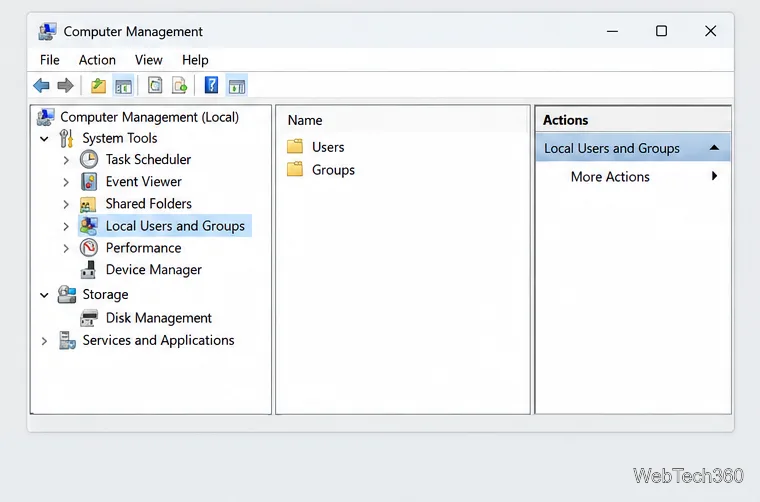
Create, grant admin rights to, disable, or remove local Windows Server users with Computer Management or PowerShell. Learn when to use Active Directory instead.
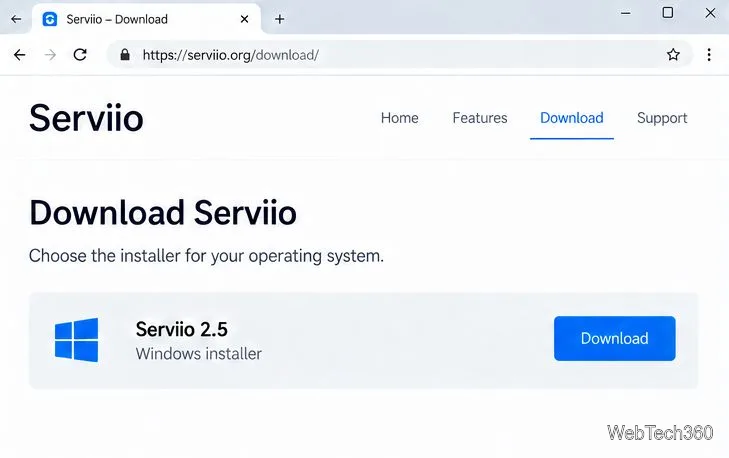
Install Serviio on Windows Server, share local or NAS media folders, and test DLNA playback. Learn how to check the Windows service, firewall, and Pro-only browser features.
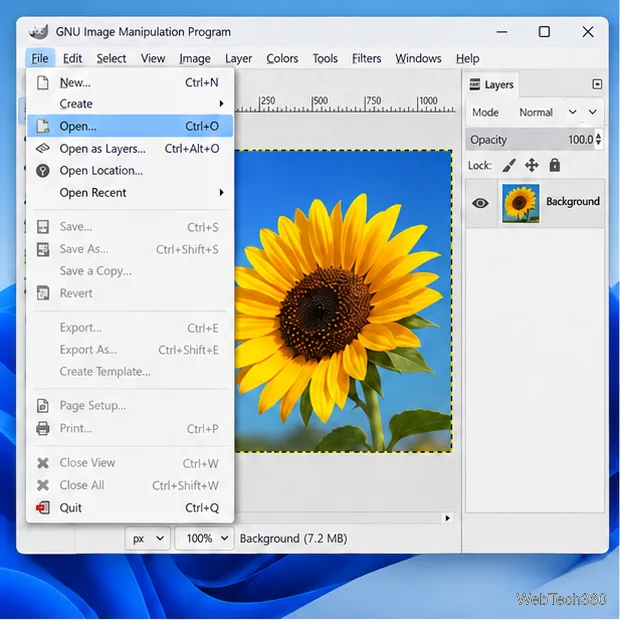
Convert PNG, JPG, or BMP files to Windows ICO with GIMP. Prepare a square image, keep transparency when needed, add standard sizes, and check the export.
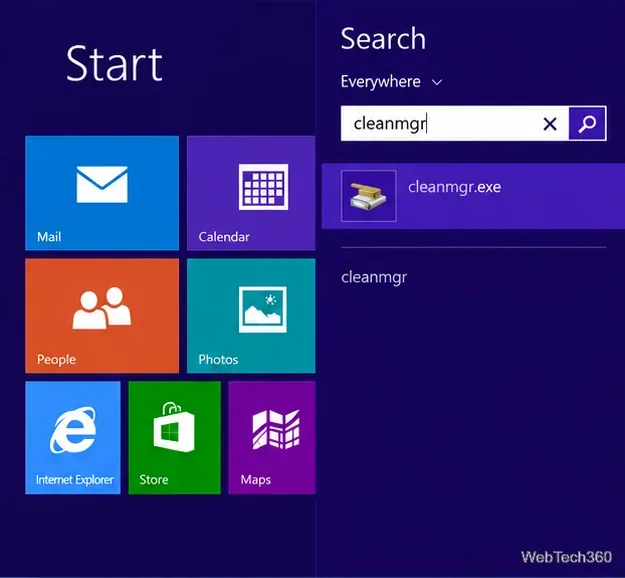
Clear thumbnail, DNS, Internet Explorer, Microsoft Store, Search, and Live Tile data with Windows 8’s built-in tools, and learn what each cleanup removes.
Turn off Windows 10 item check boxes in File Explorer with the View ribbon, or use Folder Options if the toggle is missing. See what changes and how to select multiple files without boxes.
Install VMware Workstation Pro on a compatible Windows Server host, from checking support and downloading the right build to creating your first VM.
Browse and copy Ext2, Ext3, or Ext4 files on Windows with a read-only workflow. See what Linux Reader’s free edition supports and when WSL fits.
Install Caddy’s native Windows binary, serve a test site, enable automatic HTTPS for a domain, and run Caddy as a Windows Server service.
Run Linux Docker containers alongside Windows Server by creating an Ubuntu Hyper-V VM, installing Docker Engine, and publishing a test service safely.