How to Check Hard Drive Health in Windows Server
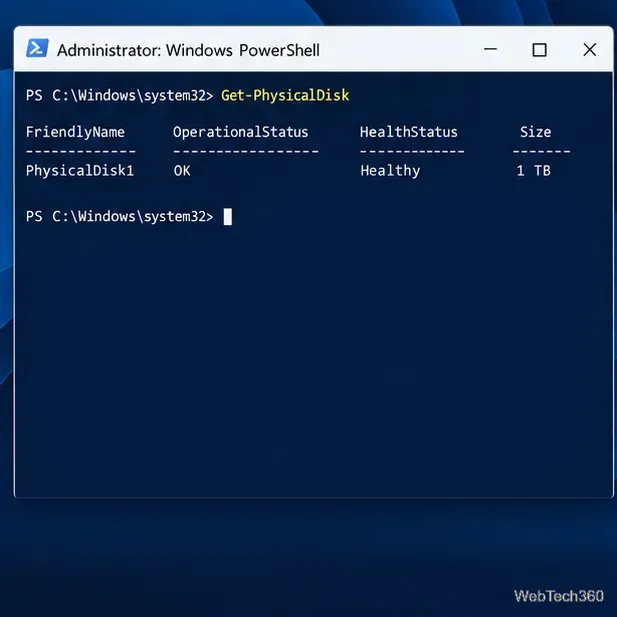
Check Windows Server disk status and reliability counters, verify SMART data when available, and separate hardware warnings from NTFS errors.
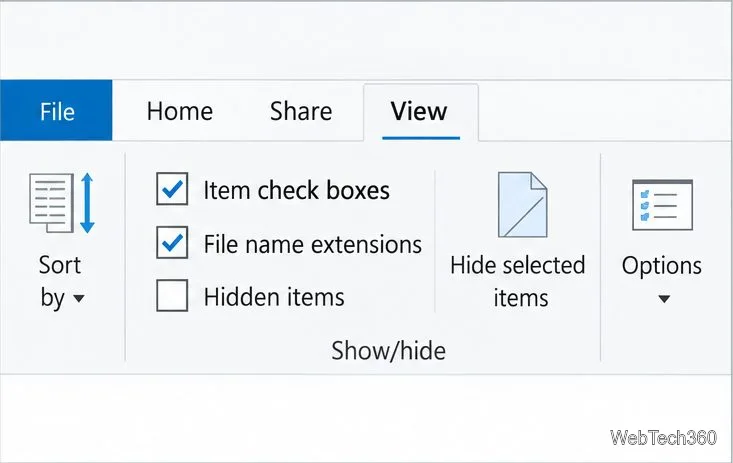
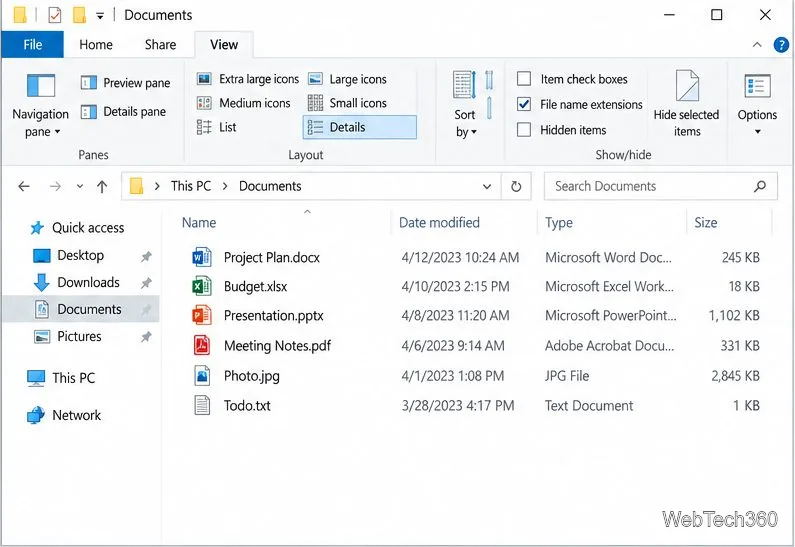
If Windows 10 displays small selection squares beside files or folders, turn off Item check boxes in File Explorer. Open a folder, select View on the ribbon, then clear Item check boxes in the Show/hide group. The squares disappear while regular file selection still works. If the ribbon control is missing or squares also appear on desktop icons, use the classic Folder Options setting below.
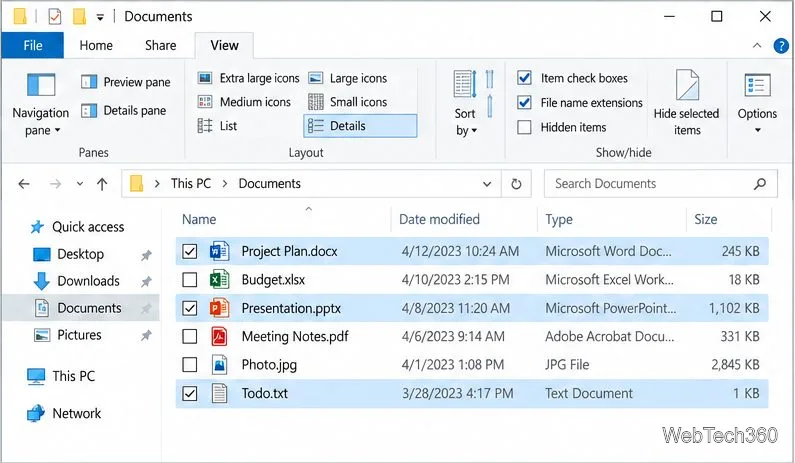
Windows item check boxes are optional selection controls. Clicking the small square beside a file or folder adds that item to a selection, which can help when choosing several items at once. Turning the feature off changes how selection is shown; it does not delete files, move folders, or change what is stored on the PC.
A colored highlight around a file is the normal selected state, not an item check box. Microsoft describes the check boxes as controls for selecting files and folders in its File Explorer guide.
Use these steps when the squares appear beside items in a File Explorer window:
The ribbon control is a toggle: a check mark means the feature is enabled. You do not need to restart Windows or change folder contents.
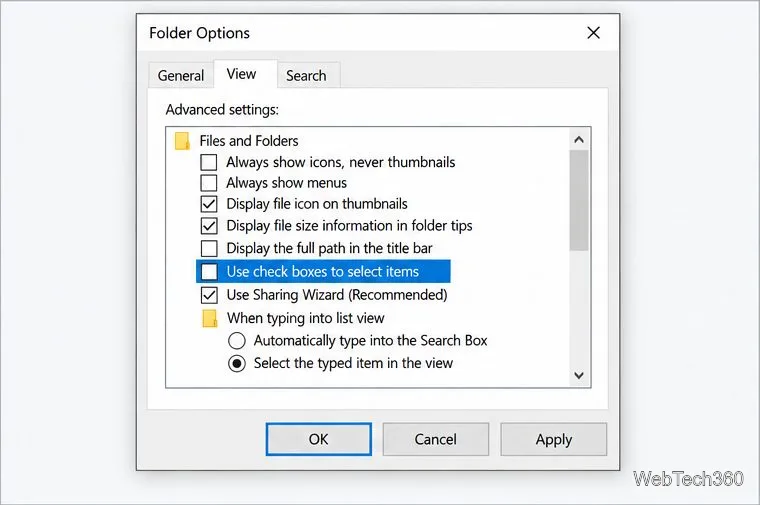
The classic Folder Options control is the better route if the boxes appear in more than one Windows view. A manufacturer support guide also documents item check boxes on desktop icons, not only in file lists. If the small squares appear on the desktop, turn off the Folder Options setting and then check the desktop again.
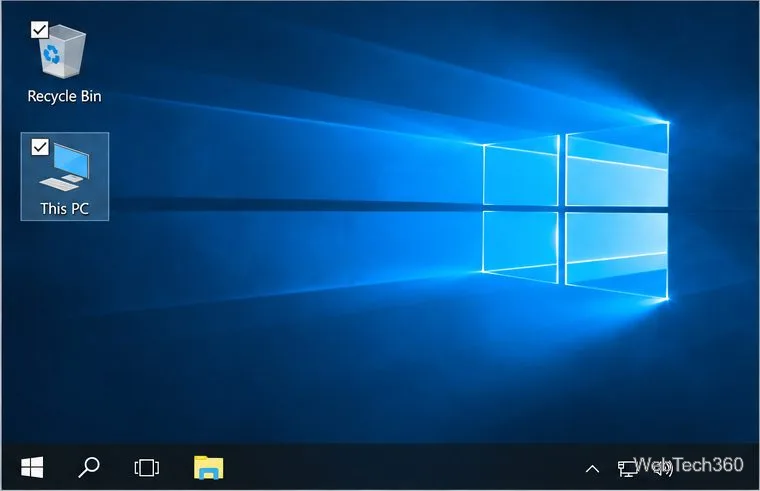
Microsoft’s File Explorer instructions list the View-tab option for Windows 10. This classic setting also gives you a clear place to confirm that the feature is off.
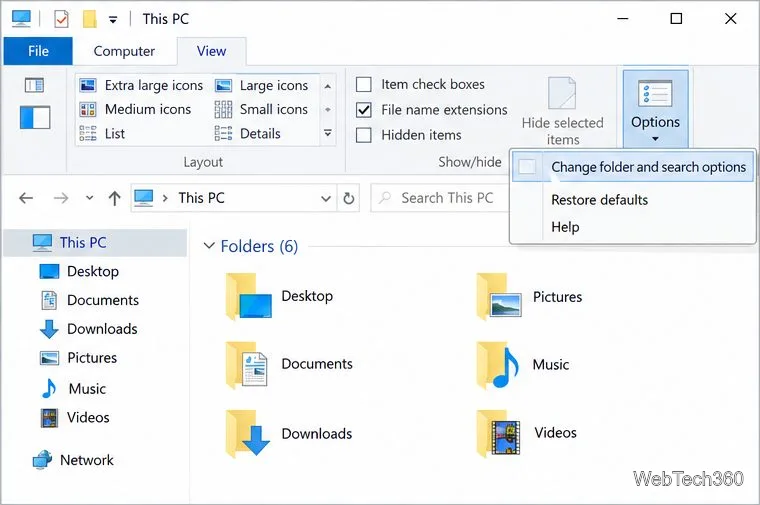
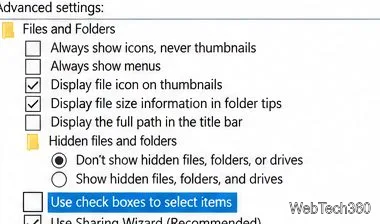
Check what kind of mark you are seeing. An item check box is a small square next to a file or folder that can be checked to select it. A colored row highlight simply shows which item has focus. A sync badge, shortcut arrow, or another icon overlay is a different indicator, so turning off Item check boxes will not remove it.
If the item-selection boxes return after you change the setting, reopen Folder Options and confirm that Use check boxes to select items remains cleared. On a work-managed PC, a policy or profile setting may restore a preference; ask the device administrator if the option repeatedly changes back instead of editing the registry.
You can still select several items without check boxes: hold Ctrl while selecting separate files, or select the first item and hold Shift while selecting the last item in a range. The standard selection highlight remains available after the check boxes are disabled.
These steps apply to Windows 10 installations that still have File Explorer. Microsoft ended Windows 10 support on October 14, 2025, so general technical assistance, feature updates, and security updates are no longer provided through standard support. See Microsoft’s Windows 10 end-of-support notice for current options.
Check Windows Server disk status and reliability counters, verify SMART data when available, and separate hardware warnings from NTFS errors.
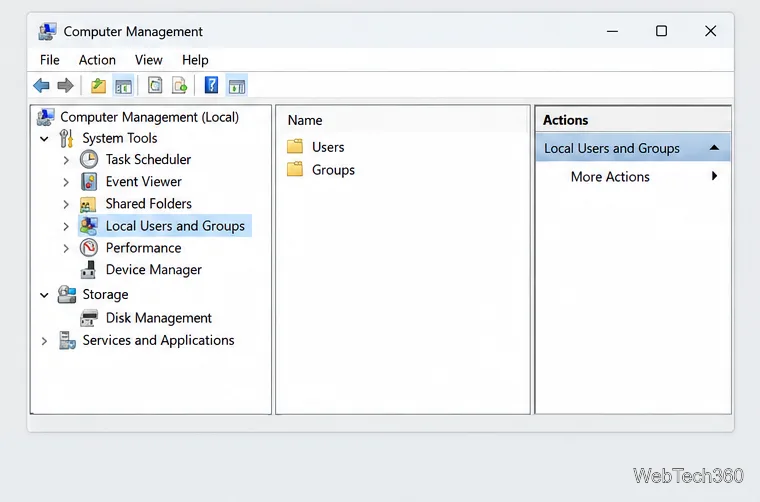
Create, grant admin rights to, disable, or remove local Windows Server users with Computer Management or PowerShell. Learn when to use Active Directory instead.
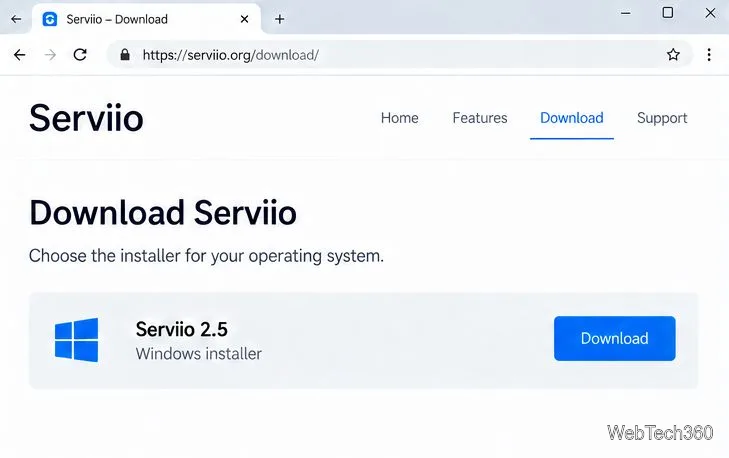
Install Serviio on Windows Server, share local or NAS media folders, and test DLNA playback. Learn how to check the Windows service, firewall, and Pro-only browser features.
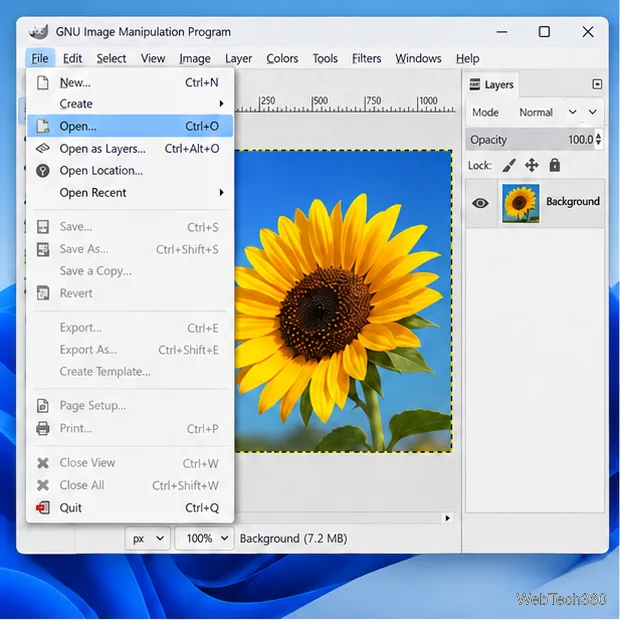
Convert PNG, JPG, or BMP files to Windows ICO with GIMP. Prepare a square image, keep transparency when needed, add standard sizes, and check the export.
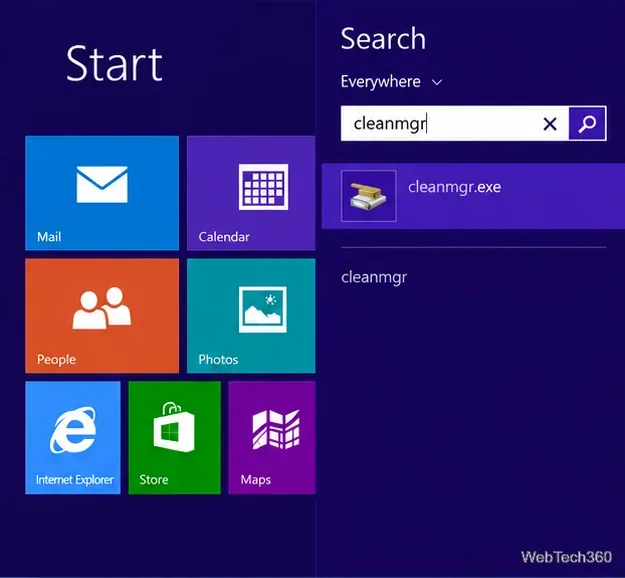
Clear thumbnail, DNS, Internet Explorer, Microsoft Store, Search, and Live Tile data with Windows 8’s built-in tools, and learn what each cleanup removes.
Turn off Windows 10 item check boxes in File Explorer with the View ribbon, or use Folder Options if the toggle is missing. See what changes and how to select multiple files without boxes.
Install VMware Workstation Pro on a compatible Windows Server host, from checking support and downloading the right build to creating your first VM.
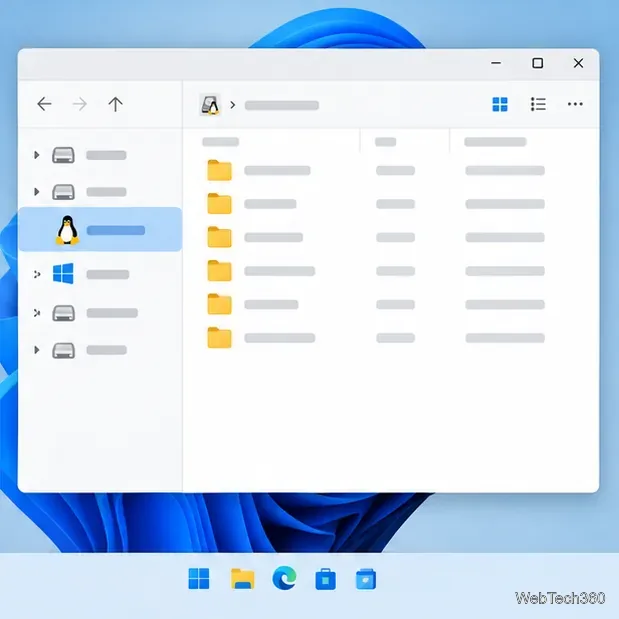
Browse and copy Ext2, Ext3, or Ext4 files on Windows with a read-only workflow. See what Linux Reader’s free edition supports and when WSL fits.
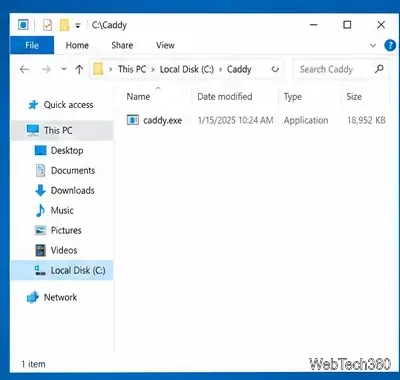
Install Caddy’s native Windows binary, serve a test site, enable automatic HTTPS for a domain, and run Caddy as a Windows Server service.
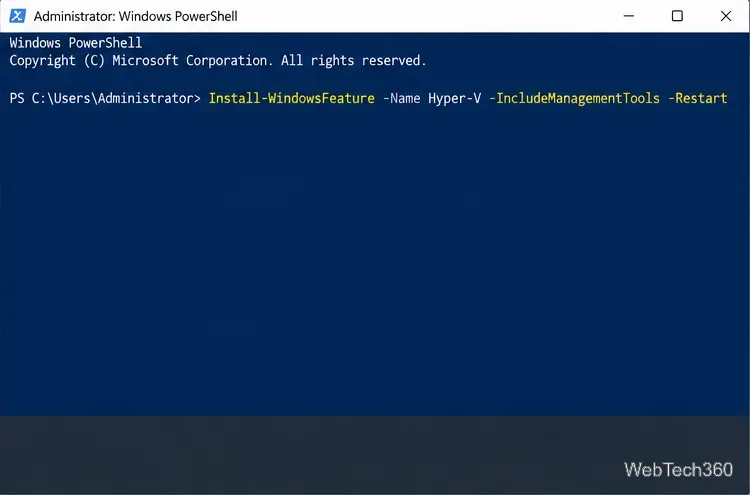
Run Linux Docker containers alongside Windows Server by creating an Ubuntu Hyper-V VM, installing Docker Engine, and publishing a test service safely.