How to Check Hard Drive Health in Windows Server
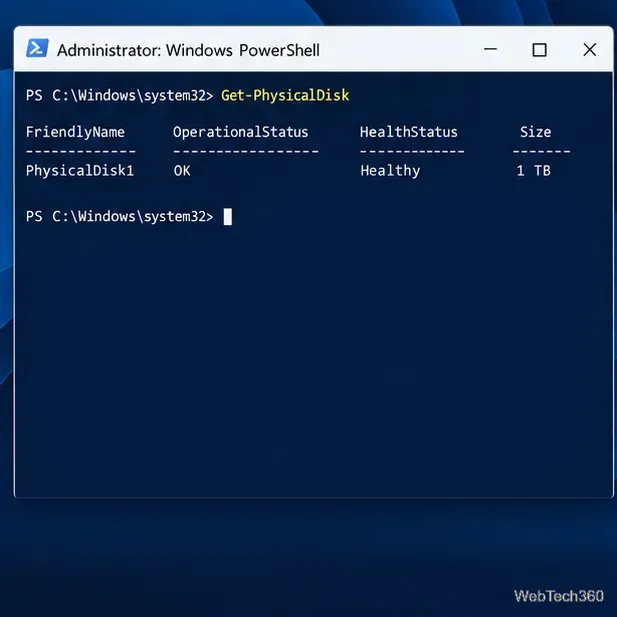
Check Windows Server disk status and reliability counters, verify SMART data when available, and separate hardware warnings from NTFS errors.
Yes. VMware Workstation Pro can run on a compatible Windows Server host with the graphical Desktop Experience. The current Broadcom host matrix lists Windows Server 2025 and 2022 for Workstation 26H1 updates; older server versions need an older compatible Workstation release. This guide covers host checks, installation, free-use setup, and creating a VM from an ISO.
Use Server with Desktop Experience for this graphical application. Server Core omits the standard Windows interface, and Microsoft says switching from Core to Desktop Experience requires a clean installation. See Microsoft’s Windows Server installation options.
Broadcom’s support matrix lists these latest supported columns:
| Windows Server host | Workstation releases marked supported |
|---|---|
| 2025 | 26H1 and 26H1u1 |
| 2022 | 26H1 and 26H1u1 |
| 2019 | 17.6 (not 25H2 or 26H1) |
| 2016 | 17.5 (not later columns) |
Check your exact host in the Broadcom compatibility matrix before choosing an installer. The host also needs a supported 64-bit Intel or AMD processor with VT-x or AMD-V available, plus enough free memory and disk space for Windows Server and the guest VMs.
If Hyper-V or VBS is enabled, Workstation may use Windows Hypervisor Platform, and nested virtualization can be limited. Don’t disable server security features by default; review Broadcom’s Hyper-V and Workstation notes if a guest needs nested virtualization.
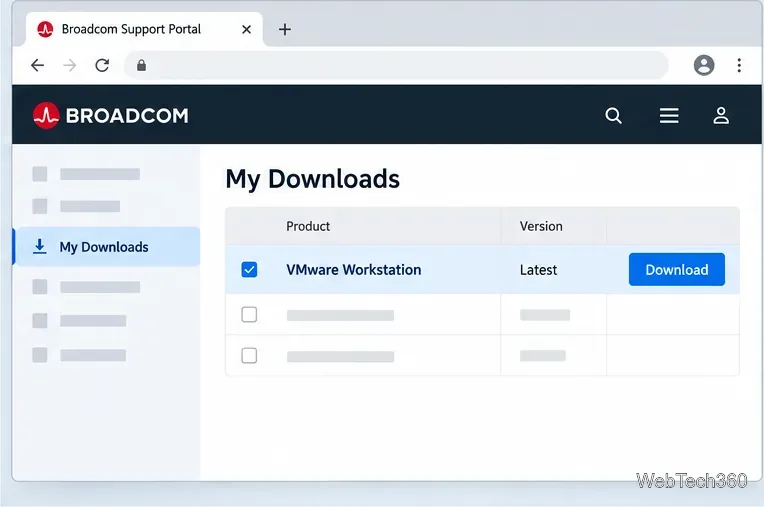
Sign in to or register for a basic account at the Broadcom Support Portal. Open My Downloads, choose the free software downloads area, search for VMware Workstation, and download the newest Windows installer supported by your server version. Complete your profile and trade-compliance details accurately; Broadcom may require approval before downloads are available. See its download instructions.
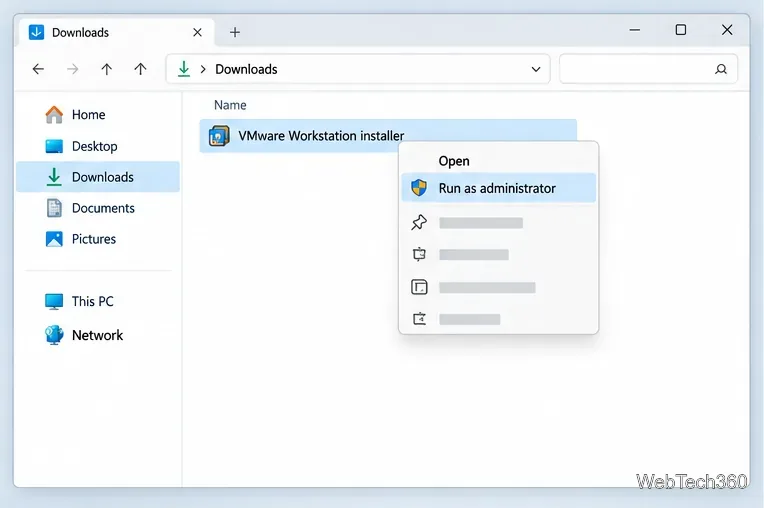
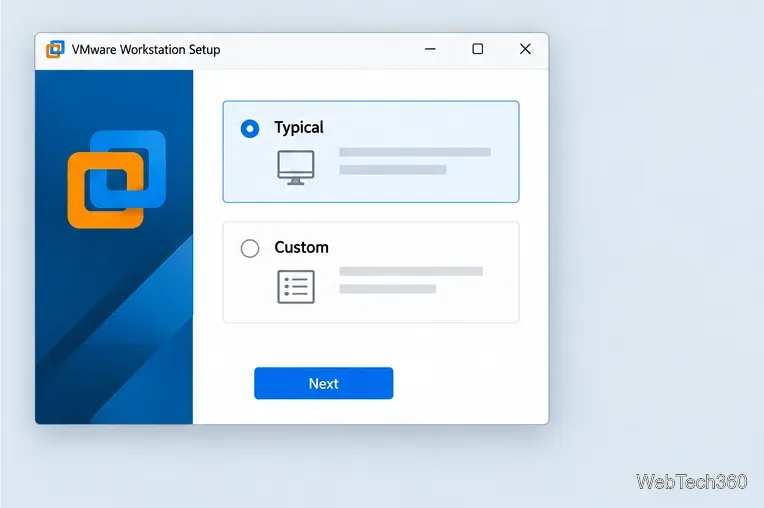
Sign in to Windows Server as a local administrator. In File Explorer, right-click the downloaded installer and choose Run as administrator. Select Typical for the standard setup. Choose Custom only if you need to change install features, the shared VM folder, server port, or keyboard driver. Finish the wizard and restart when prompted, following Broadcom’s Windows installation steps.
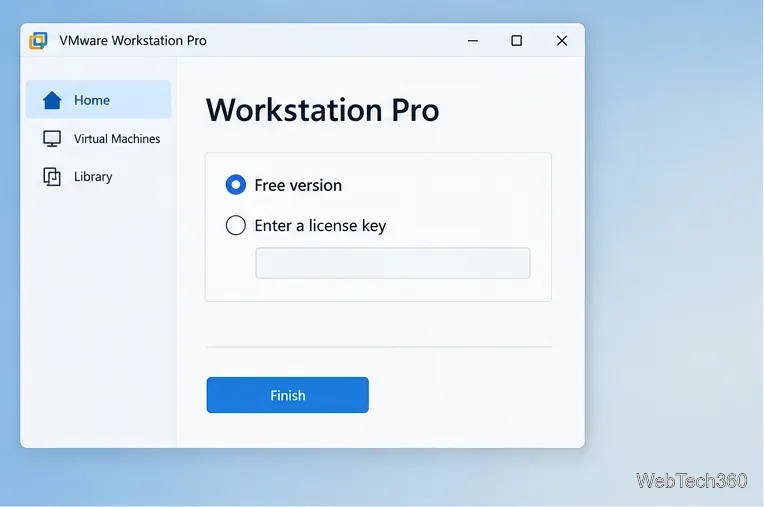
Launch Workstation from the Start menu. On first use, select the free version and choose Finish; no key is required for the free version. Broadcom makes Workstation Pro available at no cost for personal, educational, and commercial use. The old 30-day trial and purchase instructions are outdated. See Broadcom’s licensing guidance.
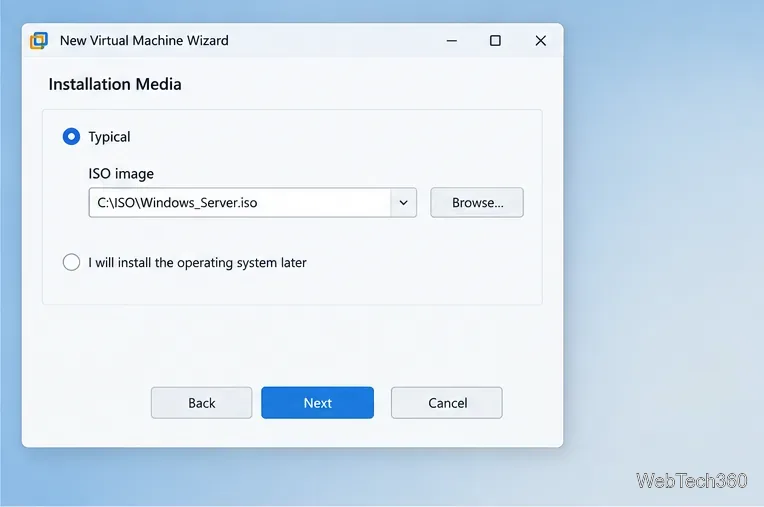
Choose Create a New Virtual Machine, select Typical, and browse to the guest operating system’s ISO file. If you want to run the guest installer manually later, choose the option to install the operating system later. Use installation media from the OS publisher or another authorized source, and confirm Workstation detects the correct guest type.
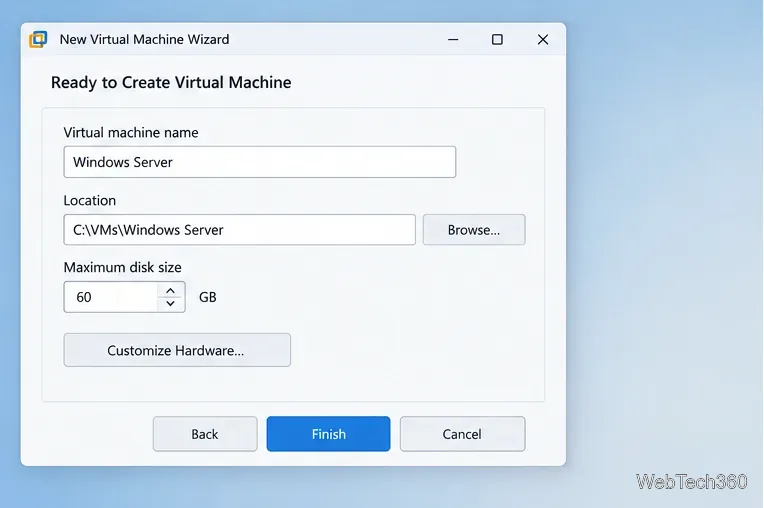
Choose a VM name and storage location, then set the virtual disk’s maximum capacity to suit the guest OS and workload. Select Customize Hardware to adjust memory, processor cores, or networking before finishing. Leave enough host resources for Windows Server and other running VMs. NAT is a simple default for outbound access; use bridged networking only when the VM must join the LAN and network policy allows it.
Review the summary, click Finish, then power on the VM. Follow the guest OS installer and provide any license or activation details it requires. Once its desktop is ready, use the Workstation VM menu to install VMware Tools for guest drivers and integration features; Broadcom’s Tools guide has the general steps.
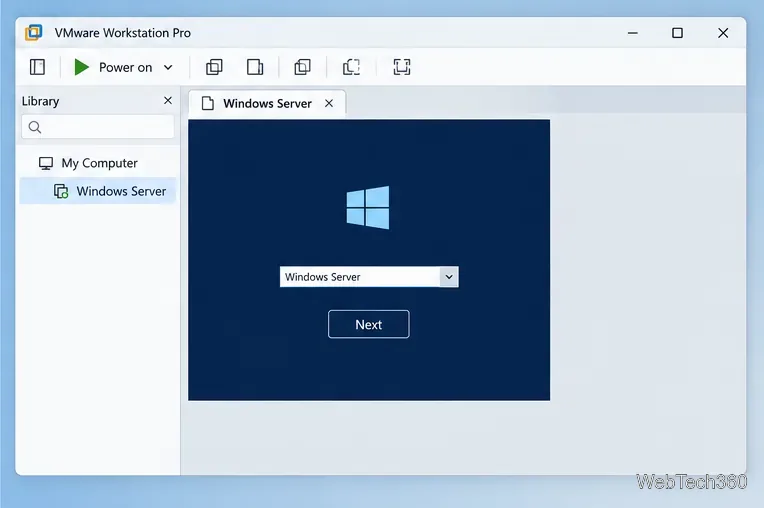
After installation, keep the host and guest updated and back up important VM files before major changes. The interface illustrations above are not exact screenshots; screens vary by Workstation and Windows Server release.
Check Windows Server disk status and reliability counters, verify SMART data when available, and separate hardware warnings from NTFS errors.
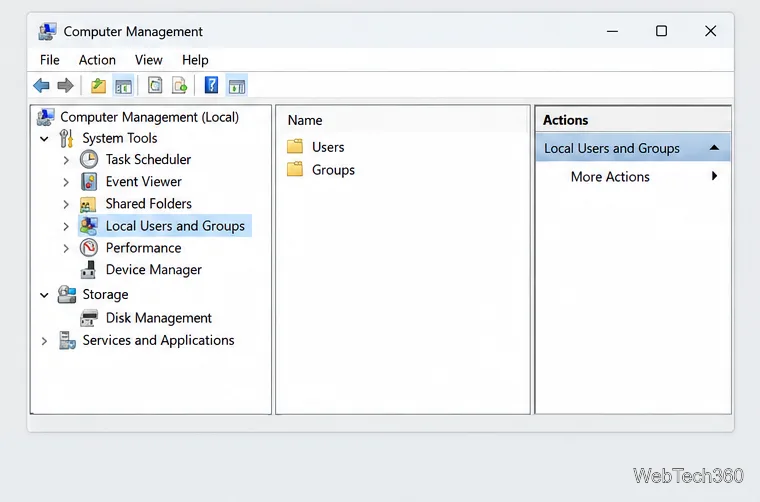
Create, grant admin rights to, disable, or remove local Windows Server users with Computer Management or PowerShell. Learn when to use Active Directory instead.
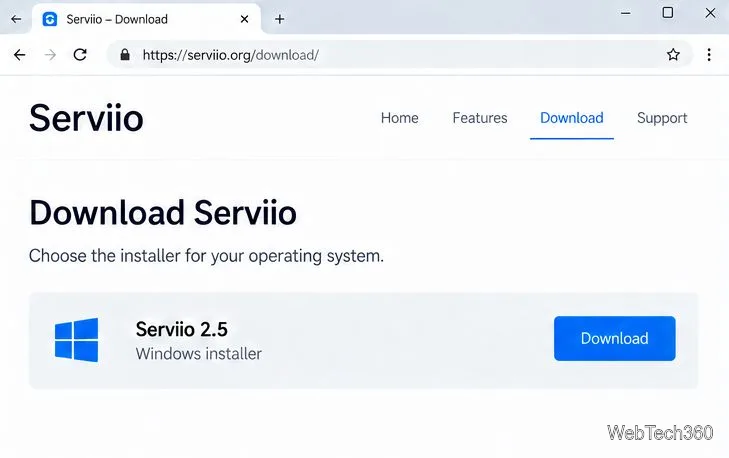
Install Serviio on Windows Server, share local or NAS media folders, and test DLNA playback. Learn how to check the Windows service, firewall, and Pro-only browser features.
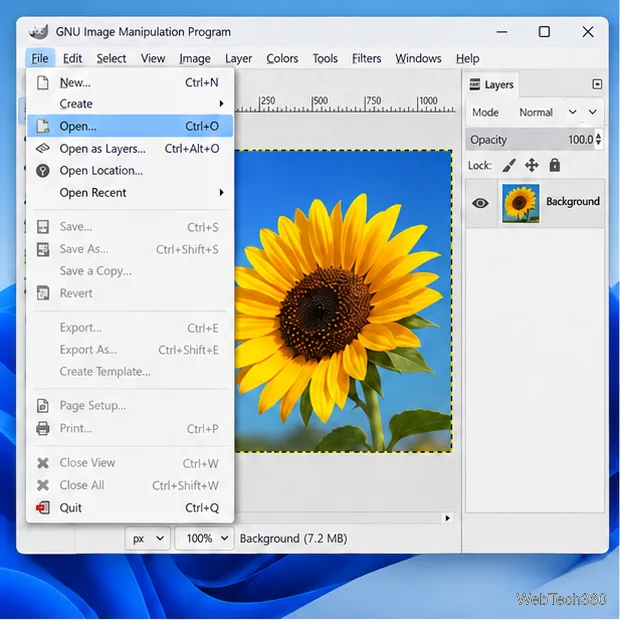
Convert PNG, JPG, or BMP files to Windows ICO with GIMP. Prepare a square image, keep transparency when needed, add standard sizes, and check the export.
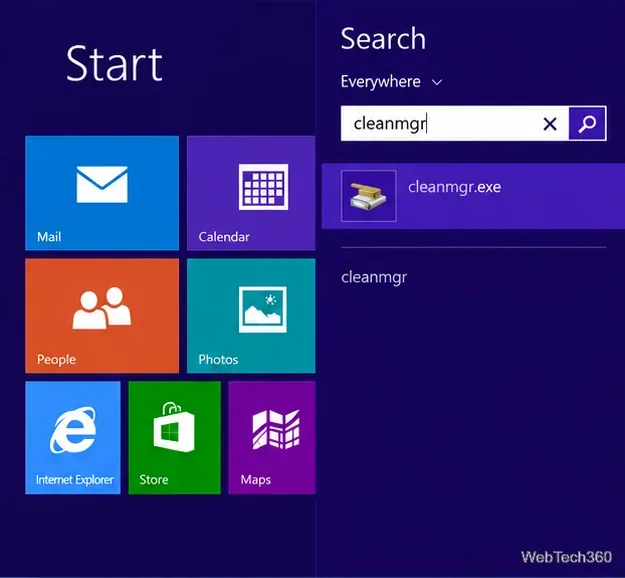
Clear thumbnail, DNS, Internet Explorer, Microsoft Store, Search, and Live Tile data with Windows 8’s built-in tools, and learn what each cleanup removes.
Turn off Windows 10 item check boxes in File Explorer with the View ribbon, or use Folder Options if the toggle is missing. See what changes and how to select multiple files without boxes.
Install VMware Workstation Pro on a compatible Windows Server host, from checking support and downloading the right build to creating your first VM.
Browse and copy Ext2, Ext3, or Ext4 files on Windows with a read-only workflow. See what Linux Reader’s free edition supports and when WSL fits.
Install Caddy’s native Windows binary, serve a test site, enable automatic HTTPS for a domain, and run Caddy as a Windows Server service.
Run Linux Docker containers alongside Windows Server by creating an Ubuntu Hyper-V VM, installing Docker Engine, and publishing a test service safely.