How to Check Hard Drive Health in Windows Server
Check Windows Server disk status and reliability counters, verify SMART data when available, and separate hardware warnings from NTFS errors.
To check hard drive health in Windows Server, start with an elevated PowerShell session and review physical-disk status. Then inspect reliability counters and, when the hardware exposes them, SMART data. Use chkdsk separately for file-system errors; it is not a hardware health test.
Disk Management helps identify disks, partitions, and volumes. A volume marked “Healthy” does not confirm that its physical drive passed SMART diagnostics. See Microsoft’s Disk Management overview.
If you hear new clicking or grinding, see repeated I/O errors, or notice a sudden slowdown, verify that a recent backup is usable before repairs or extended tests. Record the drive model, serial number, bay, and dependent volumes so you can identify the right device.
RAID controllers, HBAs, virtual machines, and some drivers can hide physical disks or SMART data. A virtual machine may see only a virtual disk. Check the server or controller management utility, or the hypervisor host, alongside Windows. Microsoft’s Windows Server storage troubleshooting guidance recommends checking storage drivers and firmware with the hardware vendor.
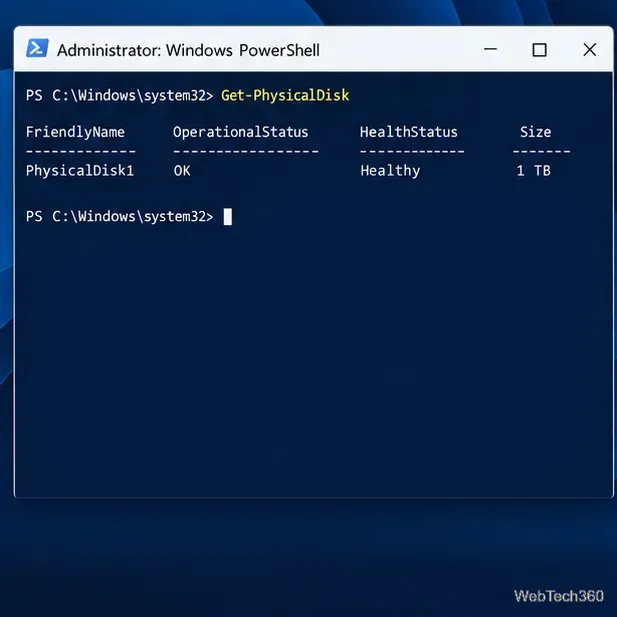
Open PowerShell as an administrator and run this read-only command:
Get-PhysicalDisk | Format-Table FriendlyName, SerialNumber, MediaType, Size, OperationalStatus, HealthStatus -AutoSizeGet-PhysicalDisk lists disk objects visible to available Storage Management Providers. Match the model or serial number to the drive you intend to inspect. HealthStatus can be Healthy, Warning, Unhealthy, or Unknown; OperationalStatus reports its current operating state. These provider-reported signals cannot guarantee a drive will not fail. Investigate warnings, missing disks, or unexpected states, especially in a RAID set or Storage Spaces pool.
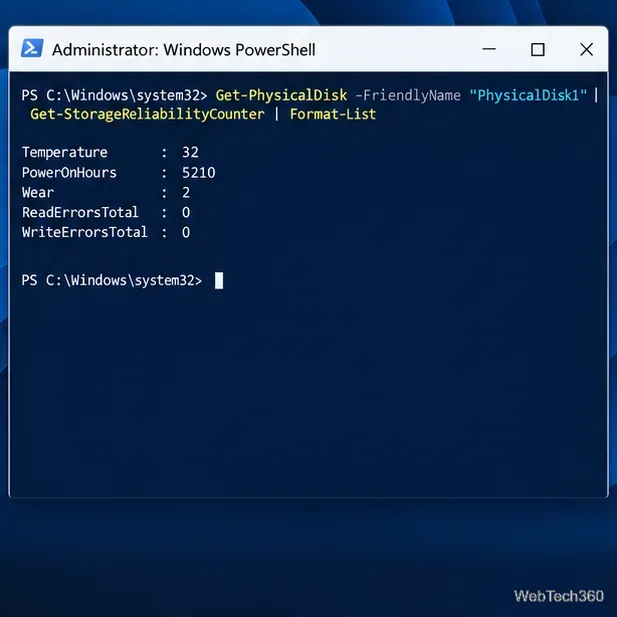
Replace PhysicalDisk8 below with the friendly name shown on your server:
Get-PhysicalDisk -FriendlyName "PhysicalDisk8" | Get-StorageReliabilityCounter | Format-ListGet-StorageReliabilityCounter can return temperature, power-on hours, wear, and corrected or uncorrected read/write errors. Some fields may be blank because the device, driver, or controller does not expose them; blank does not mean there is no problem.
Compare trends with the drive or server manufacturer’s guidance. There is no universal temperature, wear, or error-count cutoff for every model. If warnings appear, errors rise, or an expected drive is missing, protect the data and inspect the vendor or controller diagnostics.
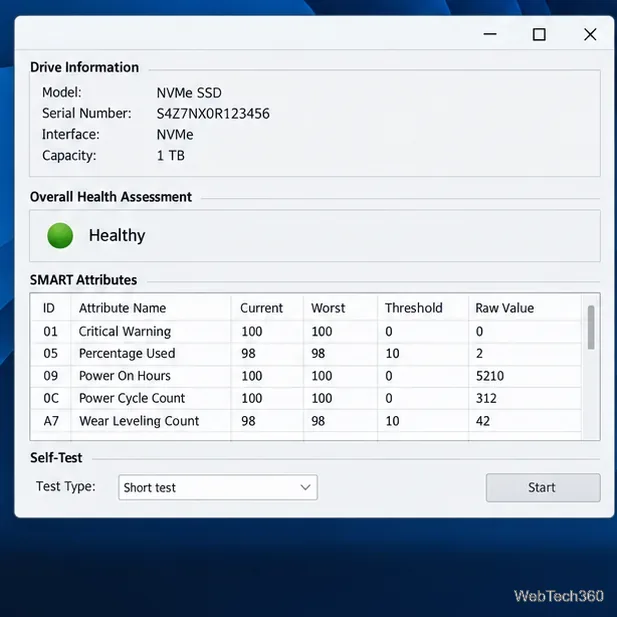
For a graphical SMART view, download GSmartControl from its official downloads page. It is a graphical interface for smartctl that can display SMART attributes and offer self-tests for supported drives. The project lists SATA, PATA, and NVMe devices, plus some drives behind USB bridges or RAID controllers. Confirm compatibility with your Windows Server edition and software policy before installing it on a production server.
Select the intended drive and review its identity, overall assessment, and attributes. A passing summary cannot guarantee that a drive will not fail. If a controller hides SMART data, use the server or controller vendor’s approved diagnostics. Run a self-test only when appropriate for your hardware and maintenance window.
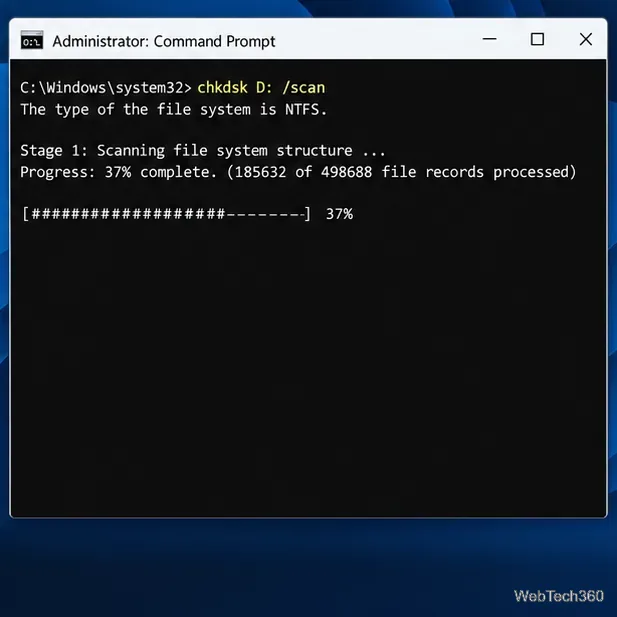
To scan a local NTFS volume online, open an administrator Command Prompt and replace D: with the correct volume letter:
chkdsk D: /scanMicrosoft documents /scan as an online NTFS scan. It checks file-system structures and metadata, not SMART health or the drive’s mechanical or electronic condition. If it finds corruption, back up the volume and plan a repair. Options such as /f and /r make changes and can require the volume to be locked or checked during restart; review the CHKDSK command reference before scheduling repairs on a production server.
For a production server, compare Windows’ report with the vendor or controller view. Confirm backups and redundancy before replacing a drive, then monitor the system after repair or replacement.
Check Windows Server disk status and reliability counters, verify SMART data when available, and separate hardware warnings from NTFS errors.
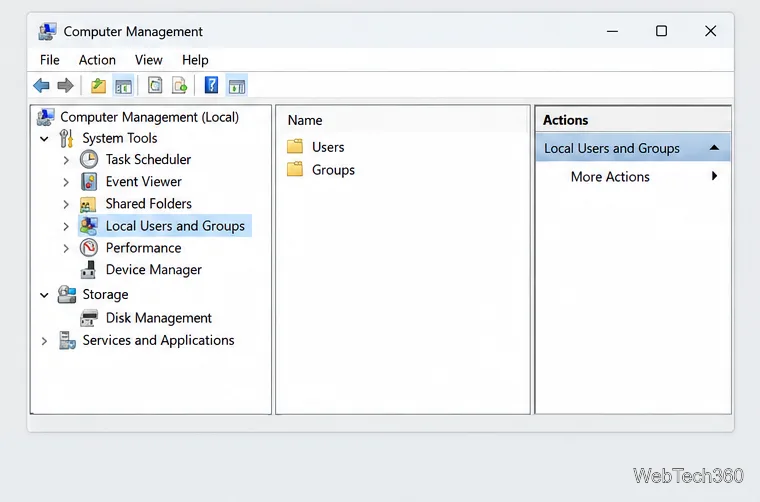
Create, grant admin rights to, disable, or remove local Windows Server users with Computer Management or PowerShell. Learn when to use Active Directory instead.
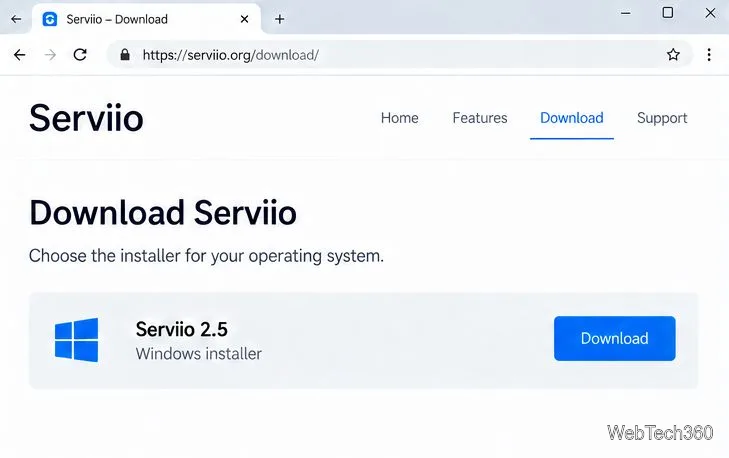
Install Serviio on Windows Server, share local or NAS media folders, and test DLNA playback. Learn how to check the Windows service, firewall, and Pro-only browser features.
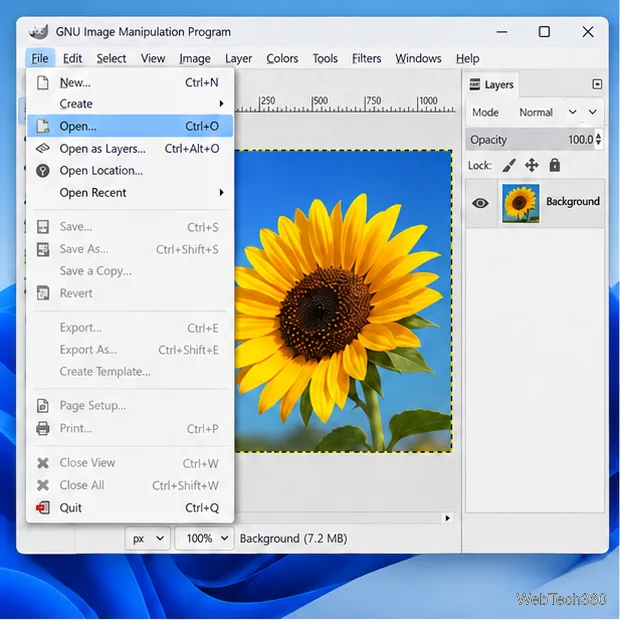
Convert PNG, JPG, or BMP files to Windows ICO with GIMP. Prepare a square image, keep transparency when needed, add standard sizes, and check the export.
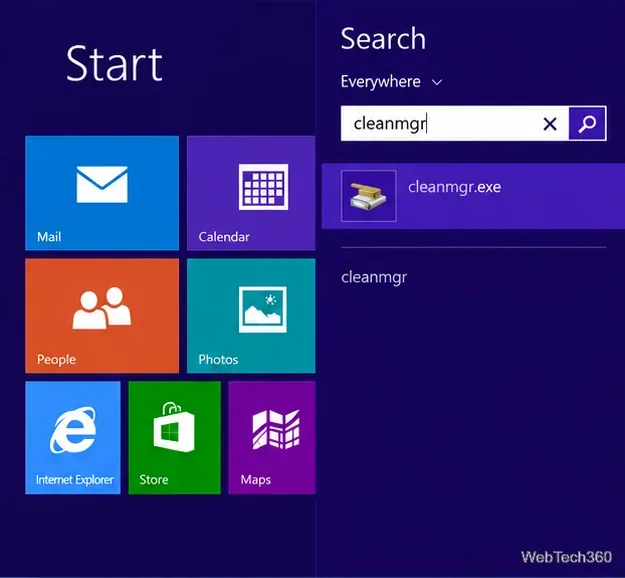
Clear thumbnail, DNS, Internet Explorer, Microsoft Store, Search, and Live Tile data with Windows 8’s built-in tools, and learn what each cleanup removes.
Turn off Windows 10 item check boxes in File Explorer with the View ribbon, or use Folder Options if the toggle is missing. See what changes and how to select multiple files without boxes.
Install VMware Workstation Pro on a compatible Windows Server host, from checking support and downloading the right build to creating your first VM.
Browse and copy Ext2, Ext3, or Ext4 files on Windows with a read-only workflow. See what Linux Reader’s free edition supports and when WSL fits.
Install Caddy’s native Windows binary, serve a test site, enable automatic HTTPS for a domain, and run Caddy as a Windows Server service.
Run Linux Docker containers alongside Windows Server by creating an Ubuntu Hyper-V VM, installing Docker Engine, and publishing a test service safely.