How to Check Hard Drive Health in Windows Server
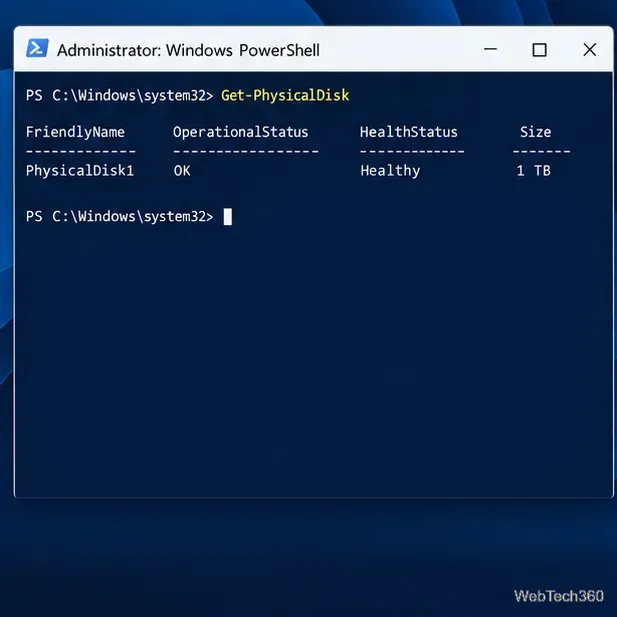
Check Windows Server disk status and reliability counters, verify SMART data when available, and separate hardware warnings from NTFS errors.
Windows 8 has no single switch that clears every cache. Use Disk Cleanup for thumbnail files, ipconfig /flushdns for stale DNS lookups, and the relevant app settings for Internet Explorer, Microsoft Store, Search, or Live Tiles. Choose the item tied to your problem: clearing every history or cookie can remove saved browsing information without improving PC speed.
Before you start: Windows 8 support ended January 12, 2016, and Windows 8.1 support ended January 10, 2023. These steps are for maintaining an older installation; move to a supported Windows release when your hardware allows. See Microsoft’s Windows 8 lifecycle page and Windows 8.1 lifecycle page.
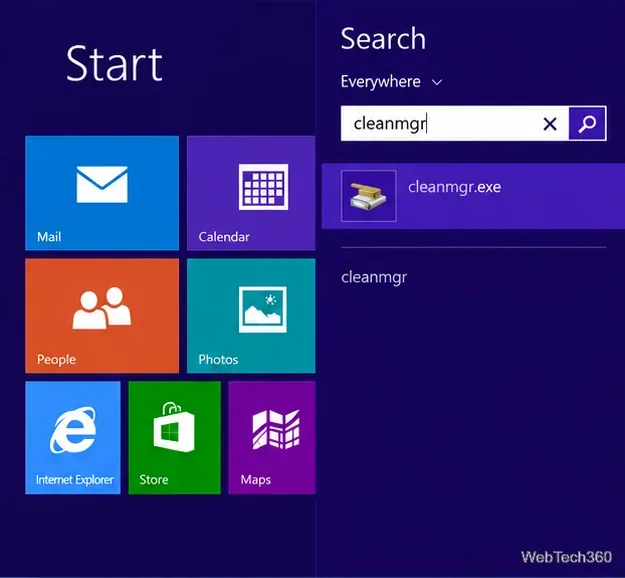
From the Start screen, type cleanmgr and open cleanmgr.exe (Disk Cleanup). If search does not show it, press Windows key + R, enter cleanmgr.exe, and press Enter. Select the Windows drive if asked, then let the tool scan it.
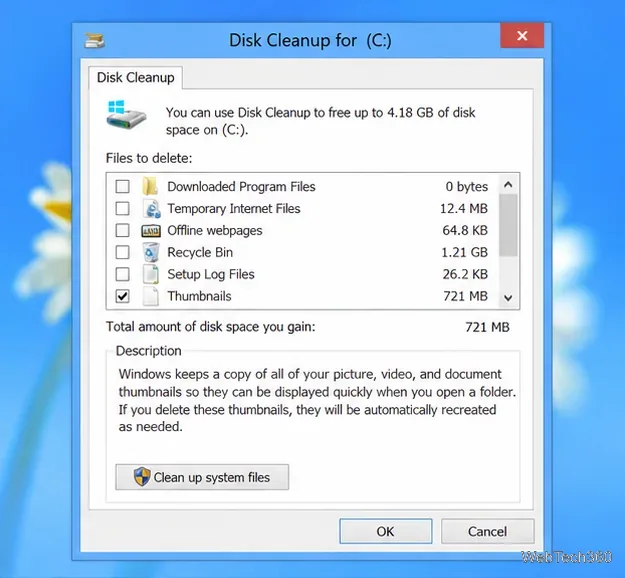
In the results, check Thumbnails, select OK, then confirm Delete Files. Leave other boxes unchecked unless you know you want those file types removed. Windows rebuilds thumbnails as you browse folders, so previews may take longer to appear the next time. The amount of disk space recovered depends on the PC. Microsoft’s Disk Cleanup guidance explains how to review file categories before deleting them.
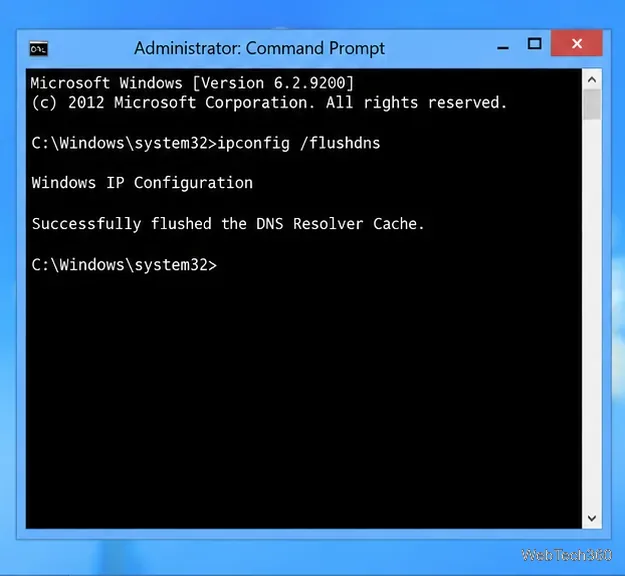
Use this when a website fails to resolve or still points to an old address even though the connection works. On Start, type Command Prompt and open it. Run:
ipconfig /flushdnsPress Enter. Windows should report that it successfully flushed the DNS Resolver Cache. This clears saved name lookups on this PC; it does not clear browser files or fix a router, internet outage, or every website problem. See Microsoft Learn’s ipconfig command reference.
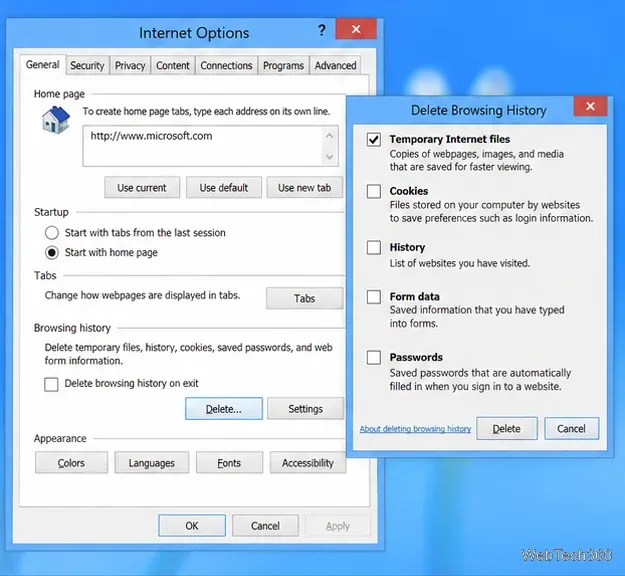
If you still use Internet Explorer on the desktop, open it and select the gear icon, then Internet Options > General > Delete under Browsing history. Select Temporary Internet files to remove cached page files. Select cookies or history only if you also want to delete them; removing cookies can sign you out of websites. Choose Delete to confirm.
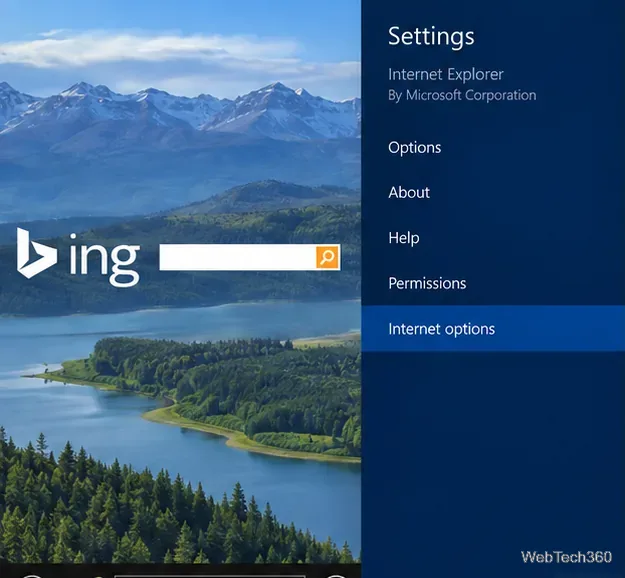
For the full-screen Internet Explorer app, open it from Start, bring up the Charms bar by swiping in from the right or pointing to the lower-right corner, and choose Settings > Internet options. Under Delete Browsing History, select Delete. This is the app’s route to Internet Options; it is useful when the Start-screen browser is the one showing stale pages. As with desktop IE, removing cookies or history affects saved browsing information.
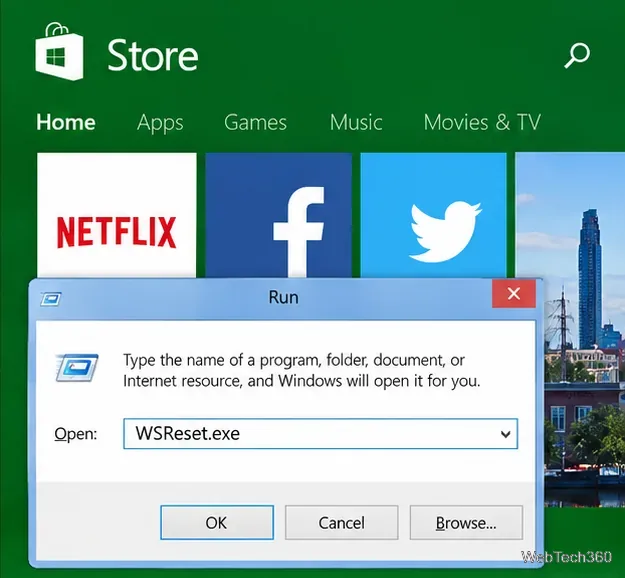
Press Windows key + R, type WSReset.exe, and press Enter. A blank Command Prompt window may appear briefly; wait for it to close and the Store to open. This resets the Store cache, which can help with Store loading issues. It is not a general Windows cleanup. Microsoft documents the same command in its Microsoft Store troubleshooting guide.
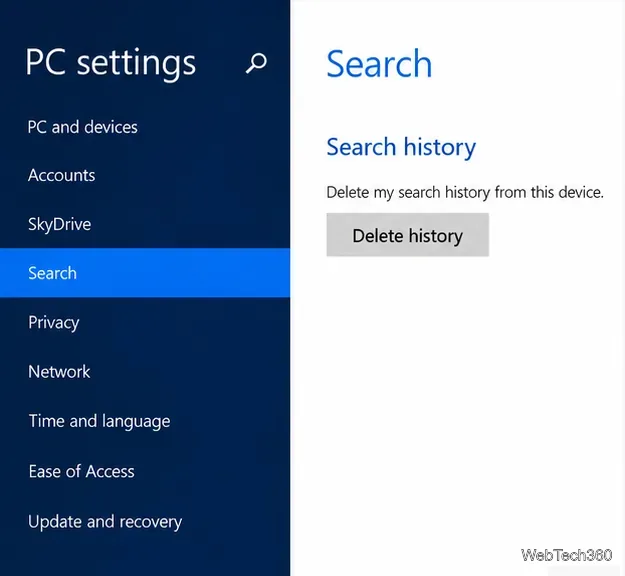
To remove recent searches from the Windows 8 Search charm, press Windows key + C, select Settings > Change PC settings, then open Search and choose Delete history. This is an optional privacy cleanup, not a way to reclaim meaningful disk space. It affects the Windows Search history shown on the device, not your browser’s separate history.
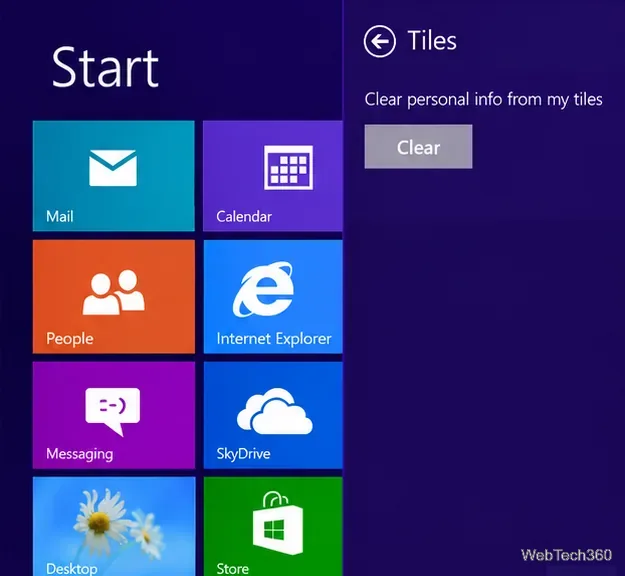
If Start-screen tiles are showing stale personal information, open the Charms bar and choose Settings > Tiles. Under Clear personal info from my tiles, select Clear. This removes the personal tile information stored for display; apps can refresh their tiles afterward. It does not clear browser or system caches.
ipconfig /flushdns.WSReset.exe.Windows recreates many caches as needed. Clearing them can fix a specific stale-data issue or recover some space, but it is not a guaranteed performance boost. Avoid deleting folders inside AppData or Store package folders by hand; use the built-in controls above.
Check Windows Server disk status and reliability counters, verify SMART data when available, and separate hardware warnings from NTFS errors.
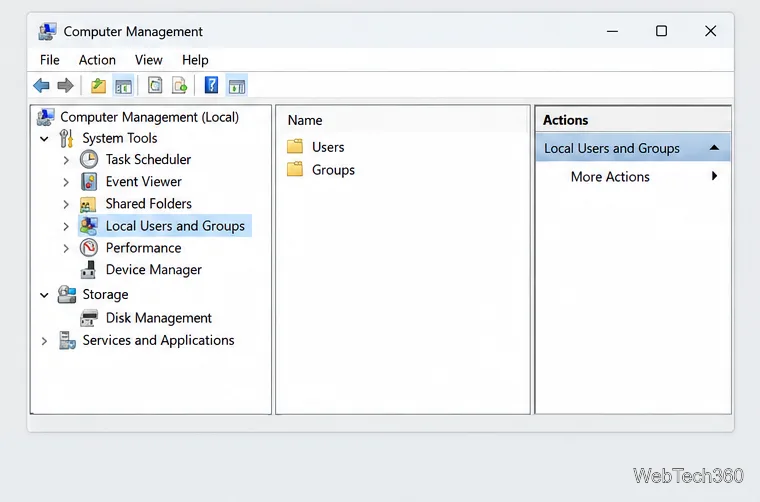
Create, grant admin rights to, disable, or remove local Windows Server users with Computer Management or PowerShell. Learn when to use Active Directory instead.
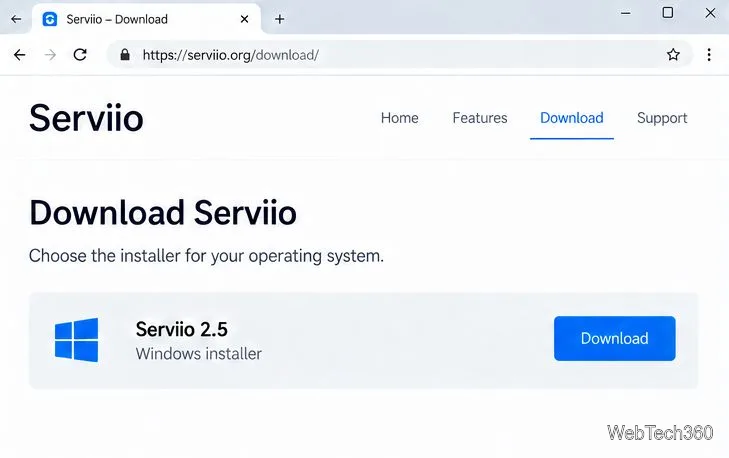
Install Serviio on Windows Server, share local or NAS media folders, and test DLNA playback. Learn how to check the Windows service, firewall, and Pro-only browser features.
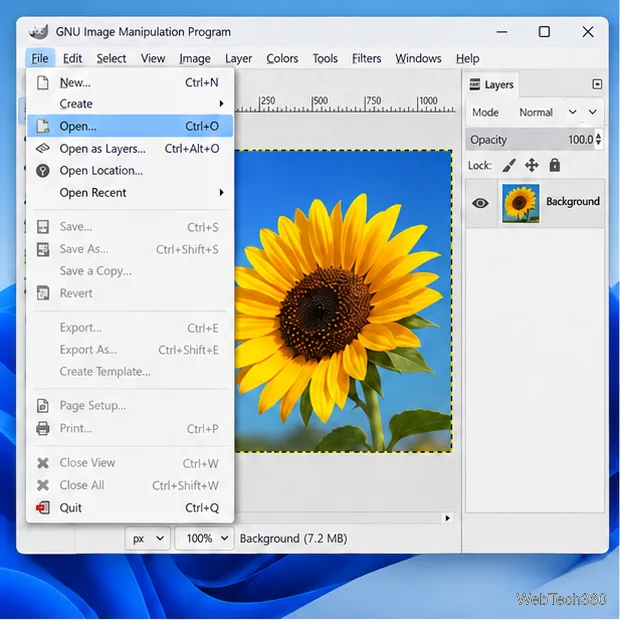
Convert PNG, JPG, or BMP files to Windows ICO with GIMP. Prepare a square image, keep transparency when needed, add standard sizes, and check the export.
Clear thumbnail, DNS, Internet Explorer, Microsoft Store, Search, and Live Tile data with Windows 8’s built-in tools, and learn what each cleanup removes.
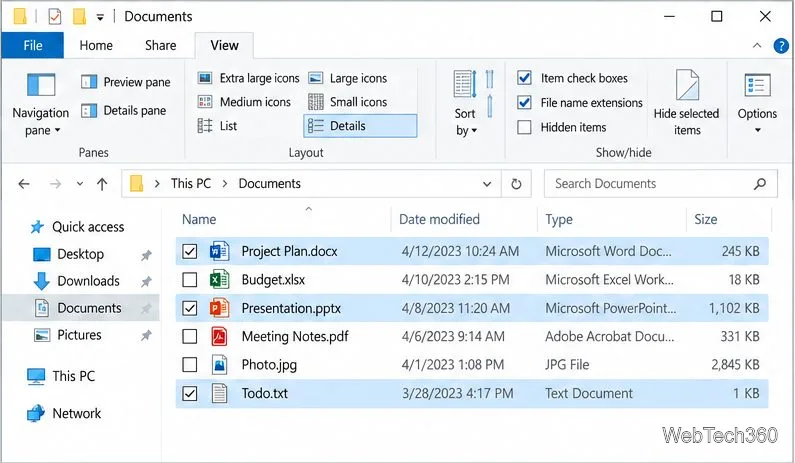
Turn off Windows 10 item check boxes in File Explorer with the View ribbon, or use Folder Options if the toggle is missing. See what changes and how to select multiple files without boxes.
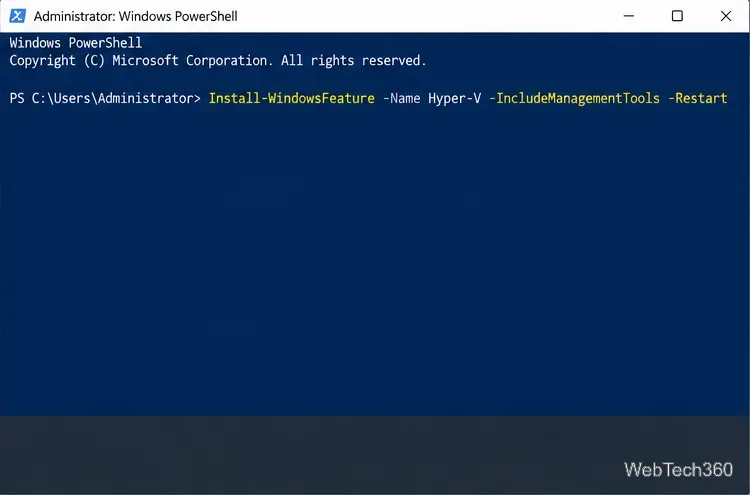
Install VMware Workstation Pro on a compatible Windows Server host, from checking support and downloading the right build to creating your first VM.
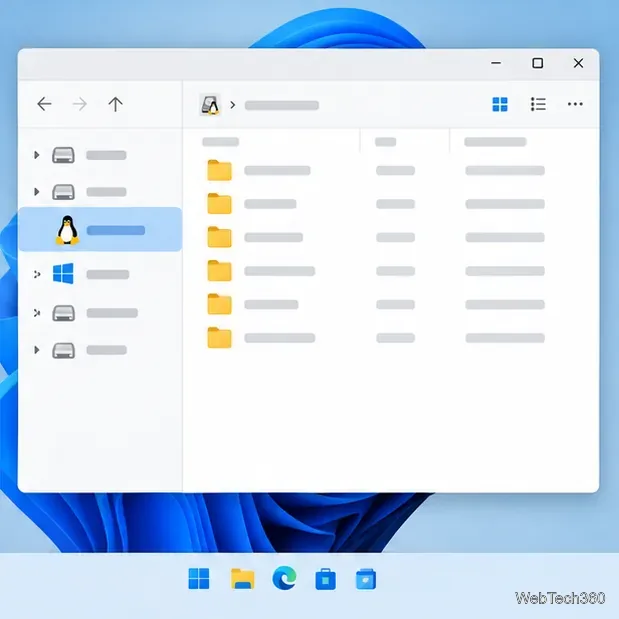
Browse and copy Ext2, Ext3, or Ext4 files on Windows with a read-only workflow. See what Linux Reader’s free edition supports and when WSL fits.
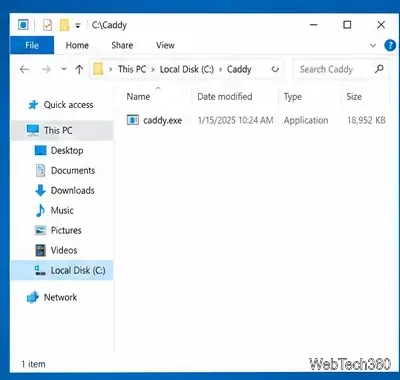
Install Caddy’s native Windows binary, serve a test site, enable automatic HTTPS for a domain, and run Caddy as a Windows Server service.
Run Linux Docker containers alongside Windows Server by creating an Ubuntu Hyper-V VM, installing Docker Engine, and publishing a test service safely.