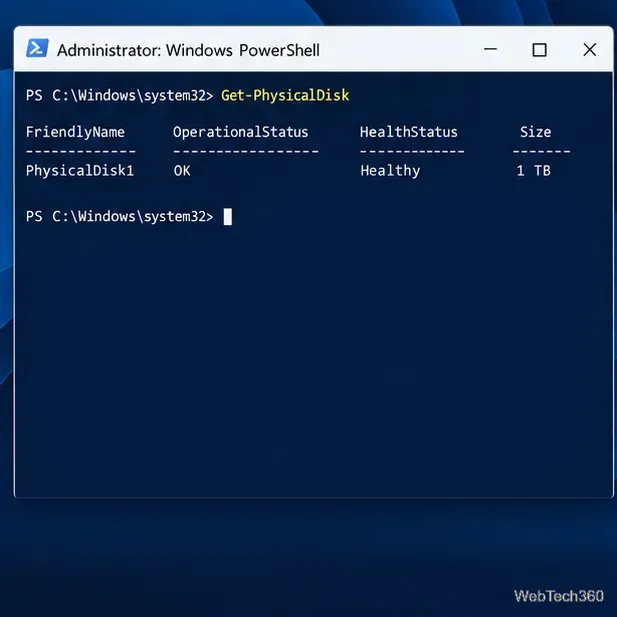
How to Check for Open Ports on Windows Server
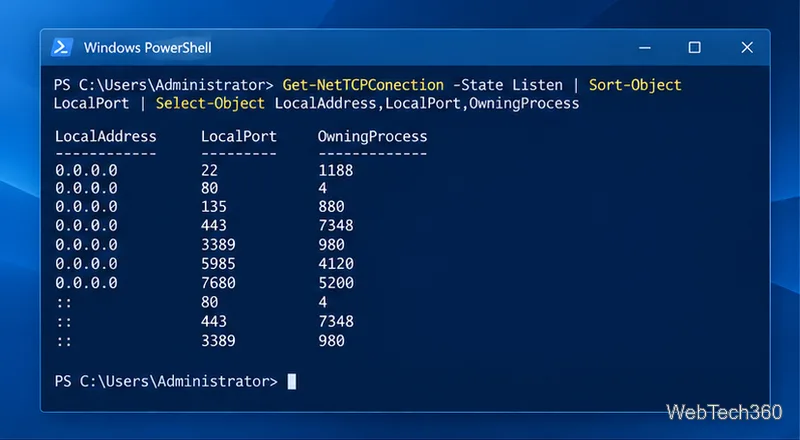
Find local TCP listeners, identify the process using a port, and test whether a Windows Server port is reachable with PowerShell, PortQry, or Nmap.
You can host a DLNA server on Windows Server with Universal Media Server (UMS), a free media server for DLNA/UPnP playback and browser streaming. Install the Windows build, share selected folders, allow local network traffic, and find UMS from a compatible TV or player. This guide assumes Windows Server with Desktop Experience.
This graphical walkthrough does not cover Server Core.
Open the official Universal Media Server website and choose the current Windows package from its download section. Use the project site or its linked release page, not an unrelated mirror.
Run the setup file, follow the installer, and launch UMS when it finishes. Keep the default destination unless you need another. The project’s Windows installation notes describe the process. Approve an administrator prompt only after confirming the installer came from the official project.
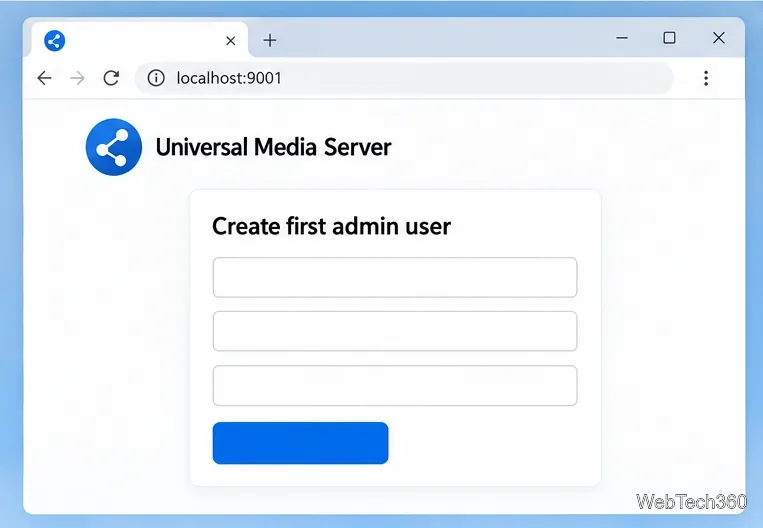
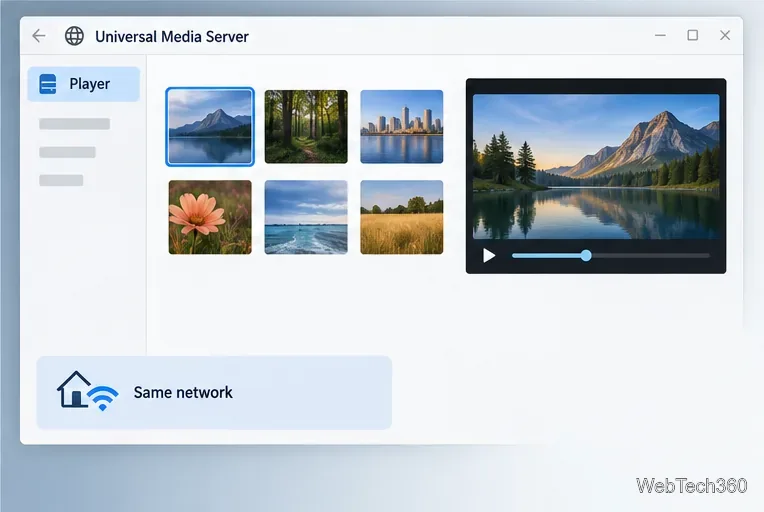
On the server, open http://localhost:9001. UMS uses port 9001 for the web interface by default, but this can be changed. If prompted on first access, create a local UMS administrator account; it is separate from your UMS website account. Use a strong password and leave authentication enabled. UMS v15 separates the browser interface into Player and Settings areas, as described in the official v15 documentation.
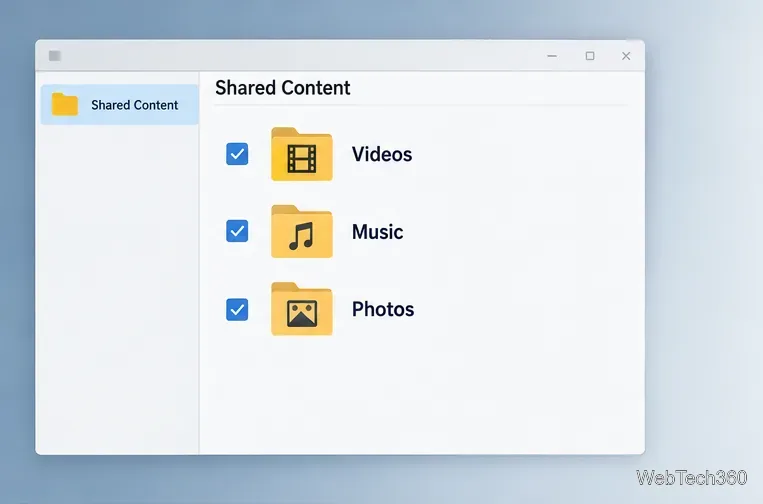
Open Settings, then Shared Content, and choose Add new shared content. Select a folder containing video, music, or photos and confirm. Add only the directories you want to serve, then save changes. Review the existing list and remove any location you do not want available to devices.
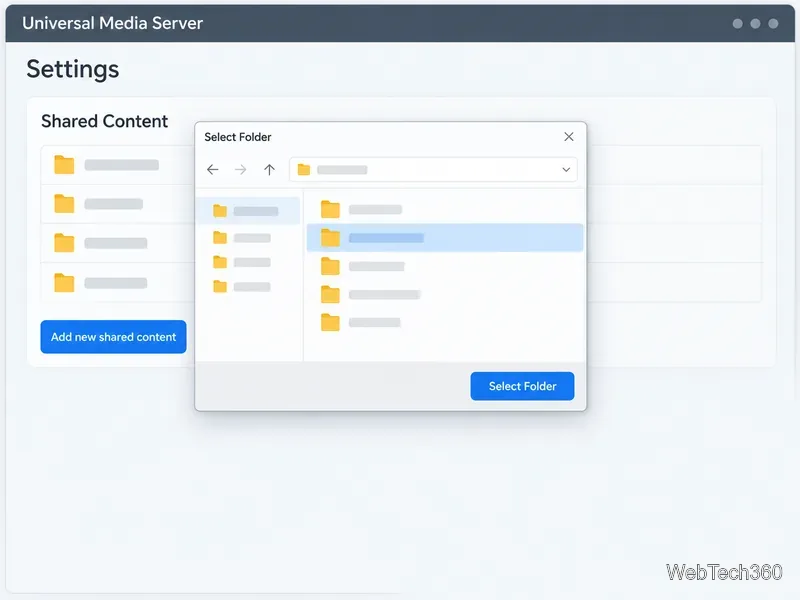
UMS can allow or block network devices, link devices to users, and restrict shared content to groups. Use those controls if different TVs or household members should see different libraries. The UMS security guide explains the options. Treat each permitted DLNA device as able to browse its authorized shares.
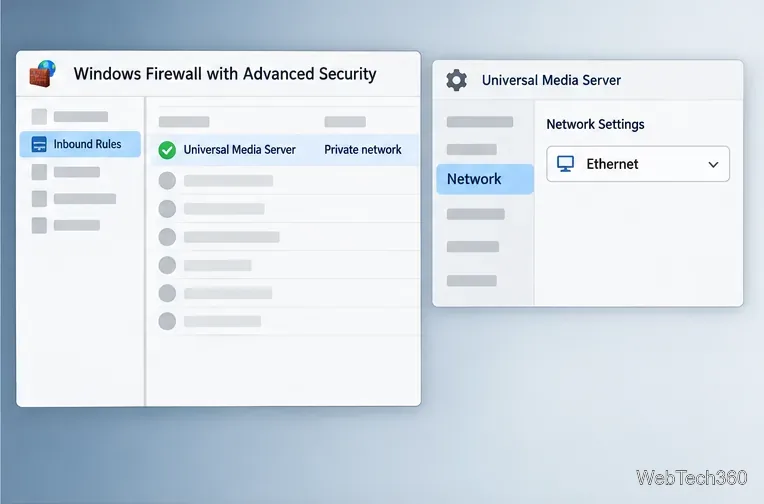
Run wf.msc to open Windows Firewall with Advanced Security. Allow UMS on the profile for your trusted LAN, or create inbound rules limited to the server’s local network. UMS’s official FAQ lists port 1900 for UPnP and default TCP ports 5001 for media and 9001 for the web interface; configured ports can differ. Check UMS settings before adding port rules. Do not forward these ports from the internet. See Microsoft’s inbound firewall guidance.
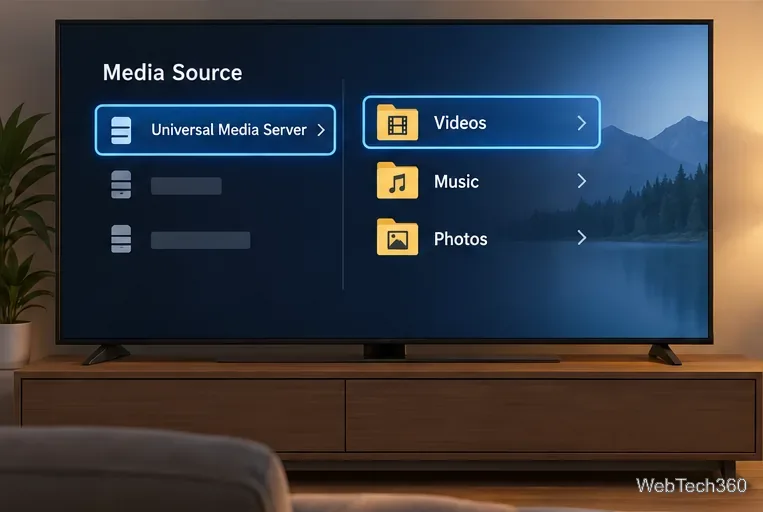
Open the TV’s media, network, or DLNA source list and select Universal Media Server. The label varies by device. Browse to a shared folder and choose a file. UMS’s playback guide also explains browsing and playing media in its interface.
Try a short video, then an audio or photo file. From another LAN browser, open http://<server-ip>:9001, sign in, and test the Player view. If the TV cannot find UMS, check that both devices share a subnet, Windows Firewall allows UMS, and UMS is using the interface connected to the TV. Router client isolation or blocked multicast discovery can also prevent devices from seeing one another; see the UMS connection guide. If UMS appears but a file will not play, try another format or check the player’s transcoding support.
For unattended use, confirm UMS starts after a reboot. If you run it as a Windows service, give the service account read access to each shared folder and apply the firewall rule to that process. Test again after changing the run mode.
Find local TCP listeners, identify the process using a port, and test whether a Windows Server port is reachable with PowerShell, PortQry, or Nmap.
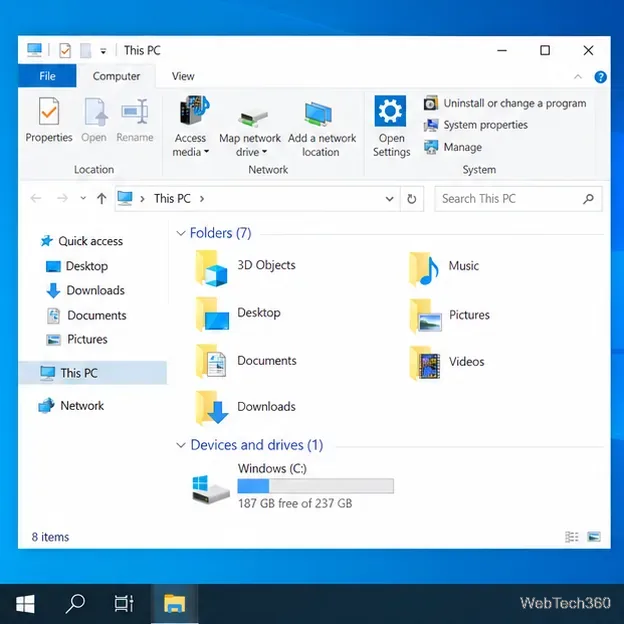
Map a shared folder as a drive letter in Windows 10, reconnect it at sign-in, confirm access, and fix common path, credential, and network discovery issues.
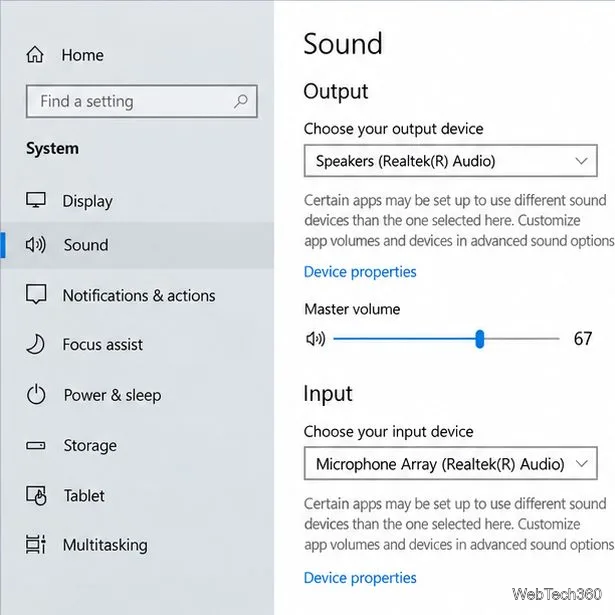
Hear your microphone through Windows 10 speakers with the Listen to this device setting. Choose the right input and output, test the route, and prevent feedback.
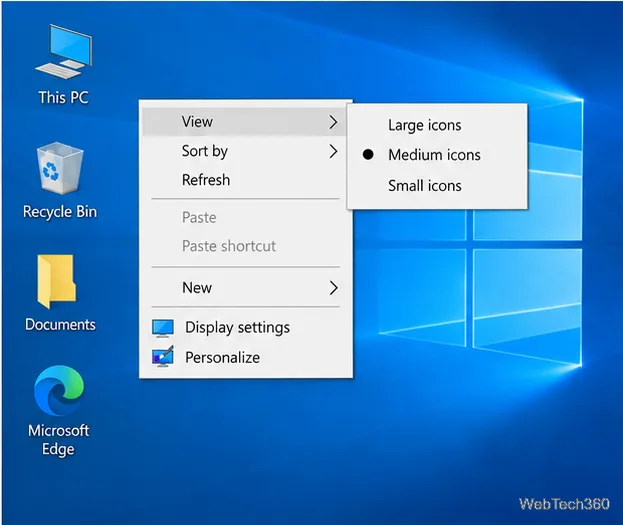
Change icon size on Windows 10 with desktop, taskbar, and File Explorer controls. Learn when display scaling helps and how to fix unexpected size changes.
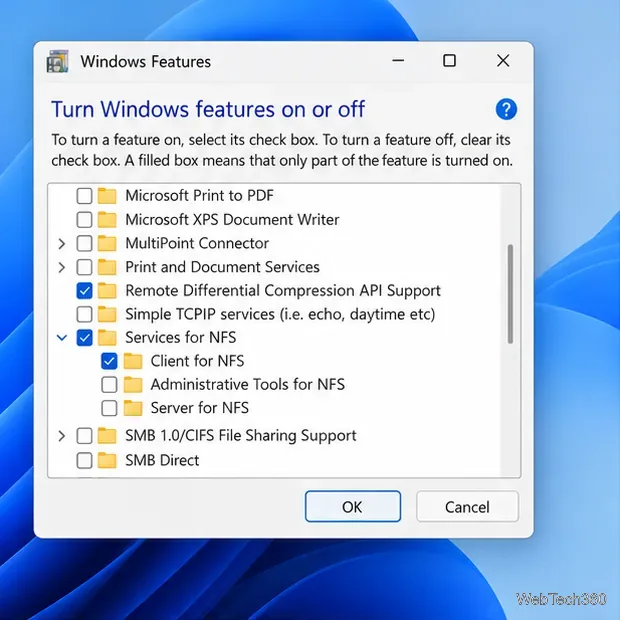
Map an NFS share to a Windows 11 drive letter with the built-in Client for NFS. Check protocol compatibility, mount the export, and troubleshoot access issues.
Install Universal Media Server on Windows Server, share selected folders, set LAN-only firewall access, and test DLNA playback from a TV or browser.
Check Windows Server disk status and reliability counters, verify SMART data when available, and separate hardware warnings from NTFS errors.
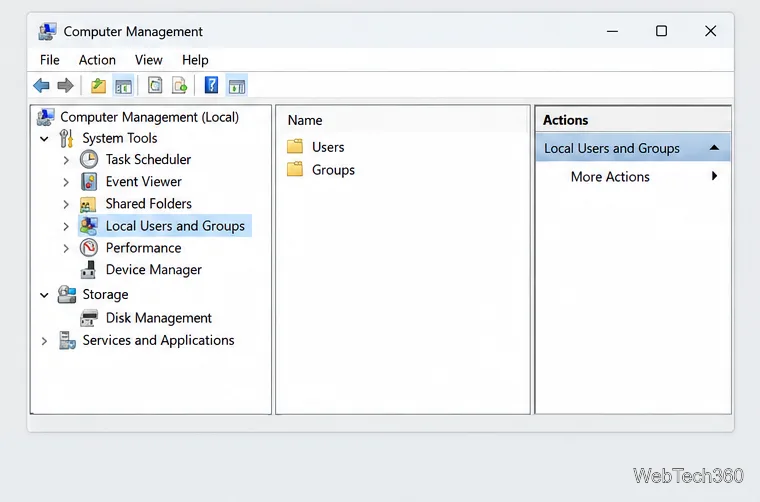
Create, grant admin rights to, disable, or remove local Windows Server users with Computer Management or PowerShell. Learn when to use Active Directory instead.
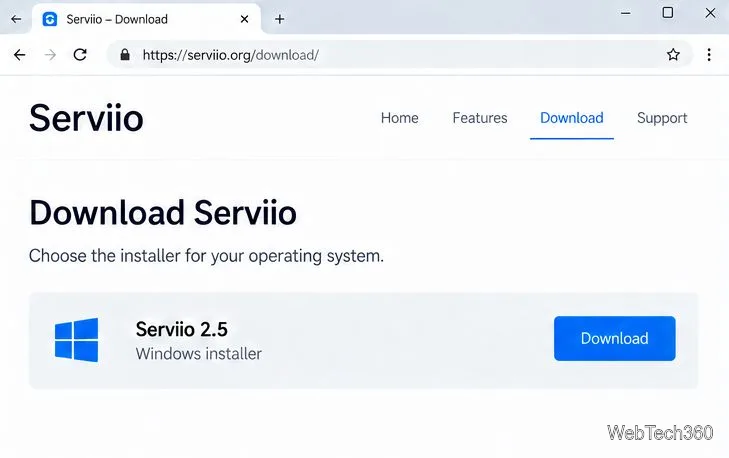
Install Serviio on Windows Server, share local or NAS media folders, and test DLNA playback. Learn how to check the Windows service, firewall, and Pro-only browser features.
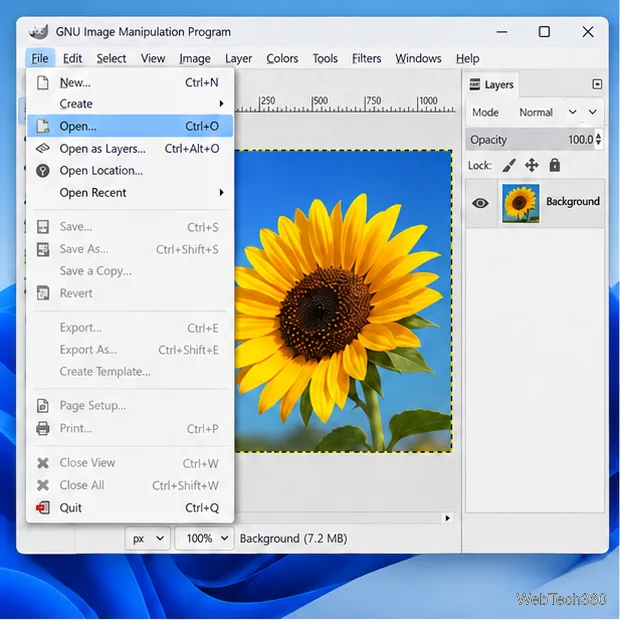
Convert PNG, JPG, or BMP files to Windows ICO with GIMP. Prepare a square image, keep transparency when needed, add standard sizes, and check the export.