How to Check for Open Ports on Windows Server
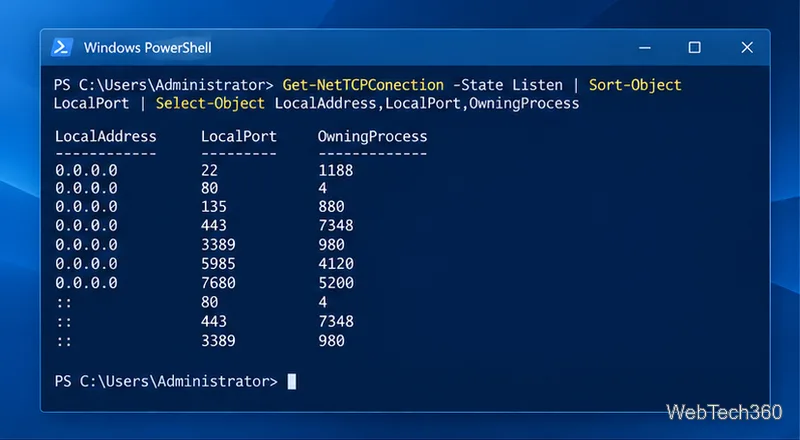
Find local TCP listeners, identify the process using a port, and test whether a Windows Server port is reachable with PowerShell, PortQry, or Nmap.
To map a network drive in Windows 10, assign a drive letter to a shared folder’s network path in File Explorer. The folder then appears under This PC so you can reopen it without typing the path each time. Mapping creates a connection to the shared folder; it does not copy the files to your computer.
Before you start, get the exact shared-folder path and access details from the person or organization that manages it. A UNC path usually looks like \\server\share. The server must be reachable on your work or home network, and you need permission to open the share. If your organization requires a VPN, connect to it first.
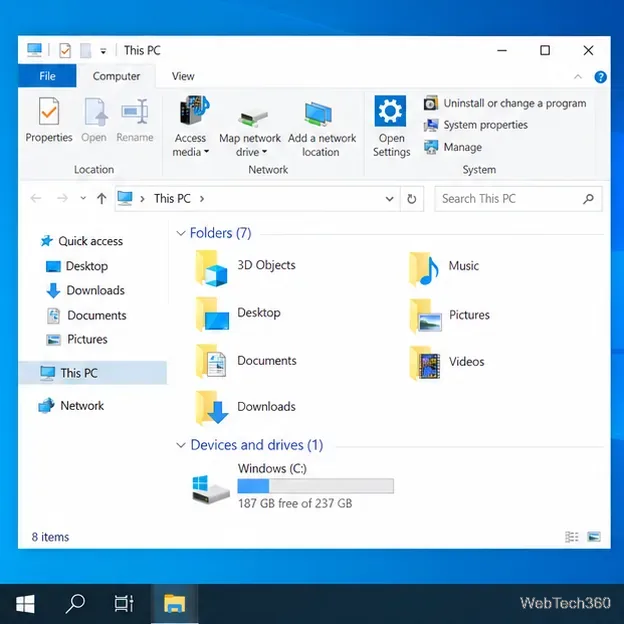
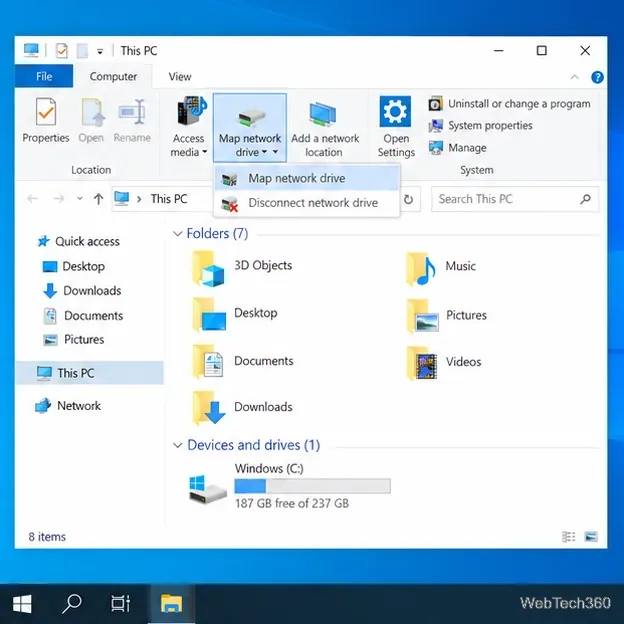
\\fileserver\shared—or select Browse to look for the shared folder. Replace the example with the exact path you were given.DOMAIN\username. Do not guess credentials or use another person’s account.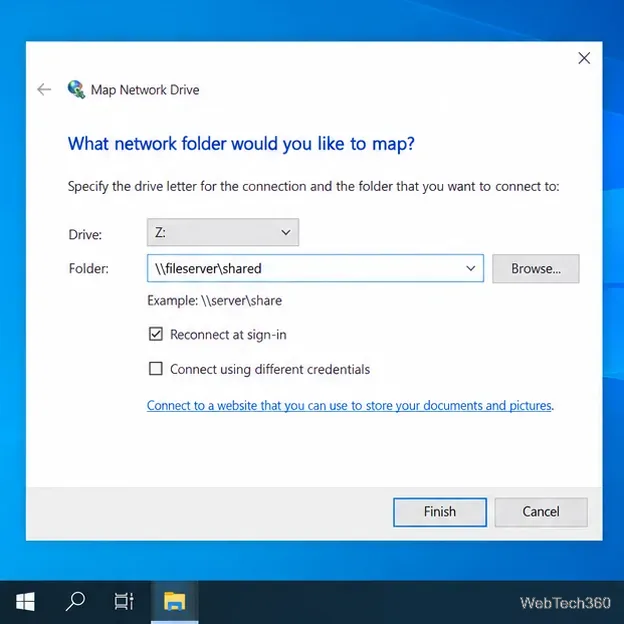
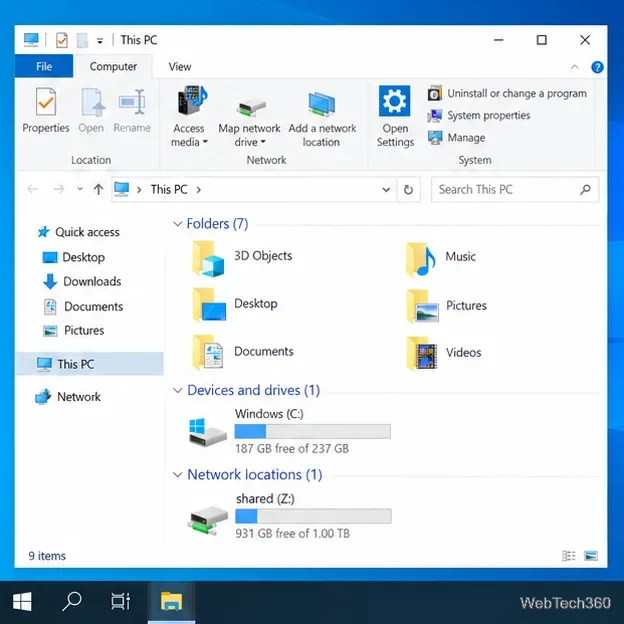
To check the connection, return to This PC and open the mapped drive under Network locations. You can also select the drive letter in an app’s Open or Save dialog. If it does not appear immediately, refresh File Explorer or close and reopen the window.
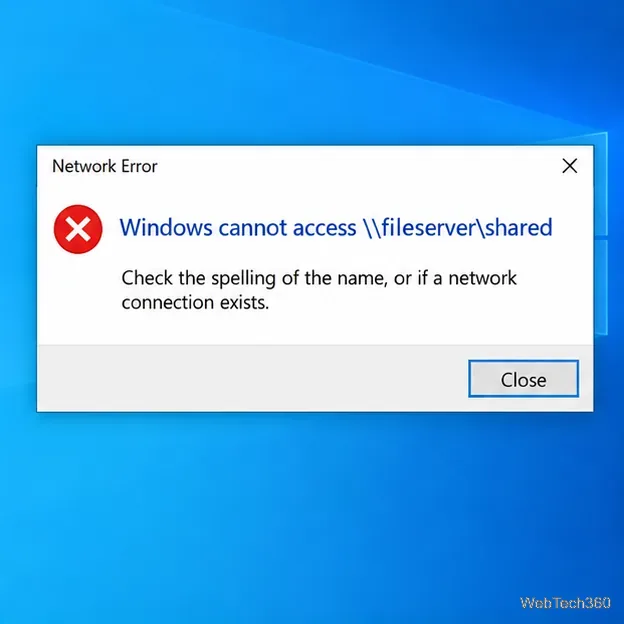
Check the spelling and punctuation of the UNC path, including the two leading backslashes. Confirm the server is on and that your PC is connected to the right network or VPN. A known UNC path can often be mapped directly even when the server does not appear in Browse. If Windows reports that you lack permission, ask the share owner or administrator to confirm that your account is allowed to use it.
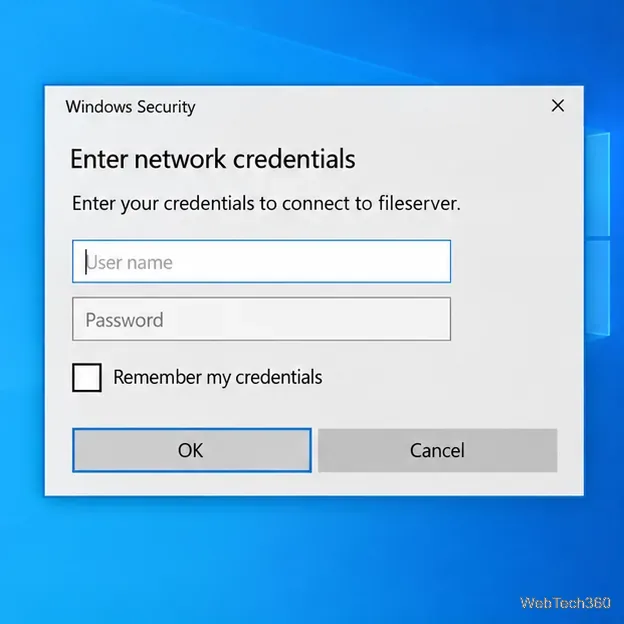
If Windows rejects your sign-in, select Connect using different credentials and use the account provided for the share. The credential prompt may offer to remember the sign-in; only save it on a computer you control and when your organization permits it.
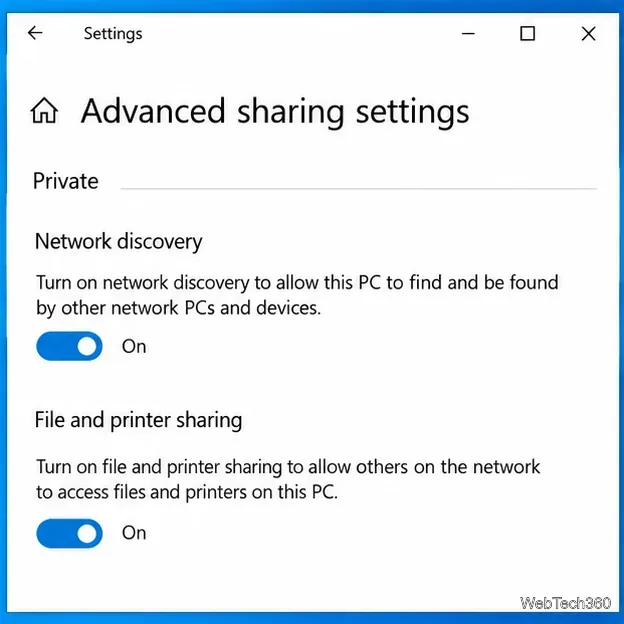
Network Discovery helps a Windows PC find and be found by other devices on a local network. It is not a permission setting, and turning it on will not fix an incorrect path or grant access to a folder. If you need to browse for computers on a trusted private network, open Start and search for Manage advanced sharing settings; under Private networks, turn on Network Discovery as needed. Do not enable discovery on a public network just to map a known share.
The network, server, or required VPN may not be ready when Windows first tries to reconnect. Connect to the network and open the drive again. If the problem occurs on a managed work PC, ask IT to check sign-in timing and share access. Microsoft documented a separate mapped-drive reconnect issue for the legacy Windows 10 version 1809; its workaround is specific to that build and should not be applied blindly to other systems.
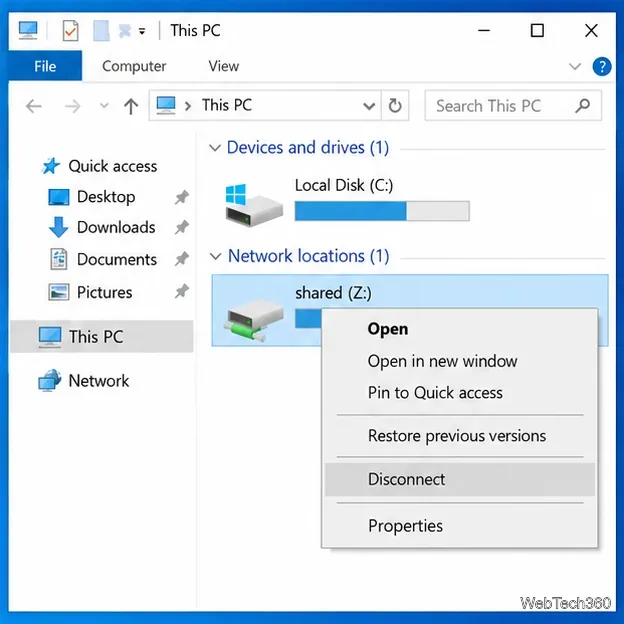
In File Explorer, open This PC, right-click the mapped drive, and select Disconnect. You can also use Computer > Map network drive > Disconnect network drive when that command is available. Disconnecting removes the shortcut from your PC; it does not delete files stored in the shared folder.
Windows 10 reached end of support on October 14, 2025. It still runs, but standard support and security updates have ended. If this PC is still in use, review Microsoft’s current support options and move to a supported Windows version or an applicable Extended Security Updates program.
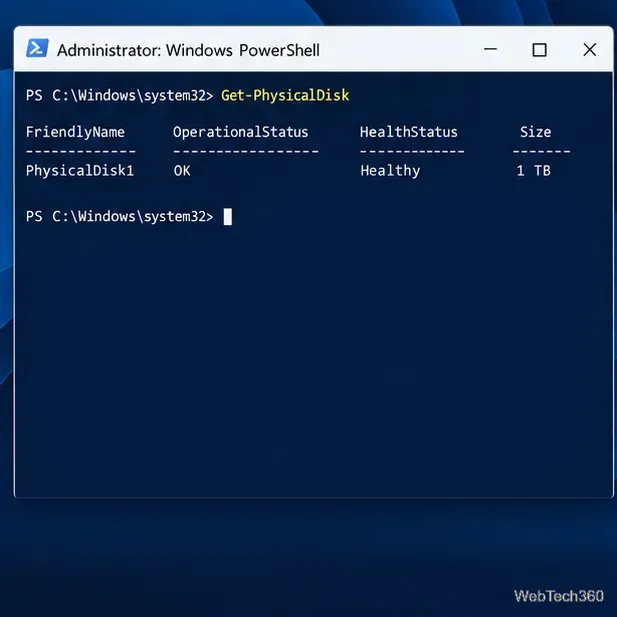
Find local TCP listeners, identify the process using a port, and test whether a Windows Server port is reachable with PowerShell, PortQry, or Nmap.
Map a shared folder as a drive letter in Windows 10, reconnect it at sign-in, confirm access, and fix common path, credential, and network discovery issues.
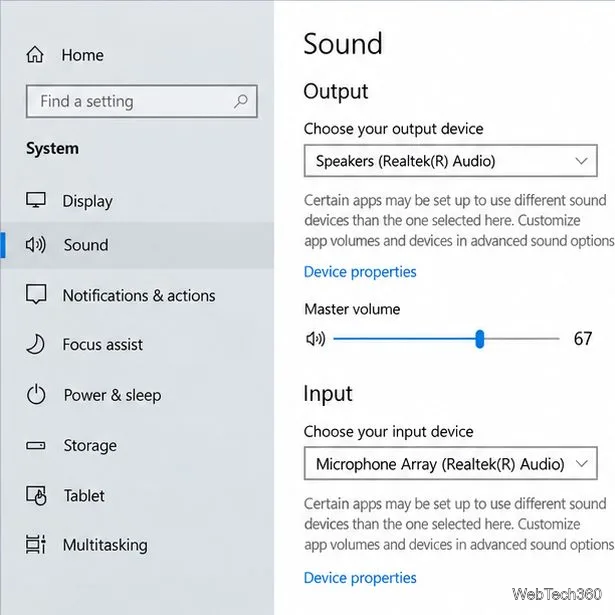
Hear your microphone through Windows 10 speakers with the Listen to this device setting. Choose the right input and output, test the route, and prevent feedback.
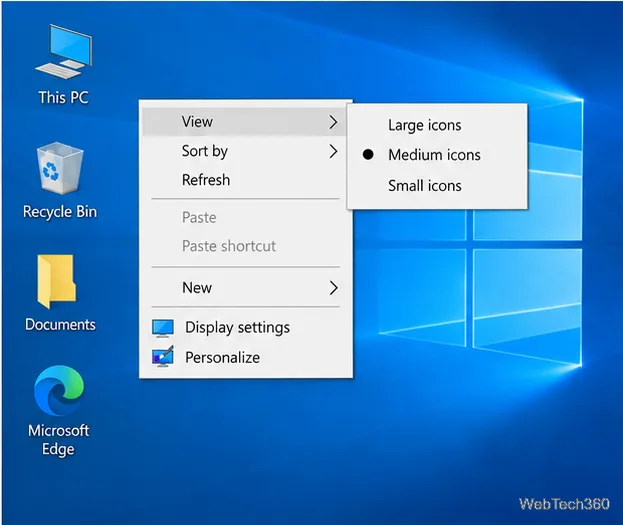
Change icon size on Windows 10 with desktop, taskbar, and File Explorer controls. Learn when display scaling helps and how to fix unexpected size changes.
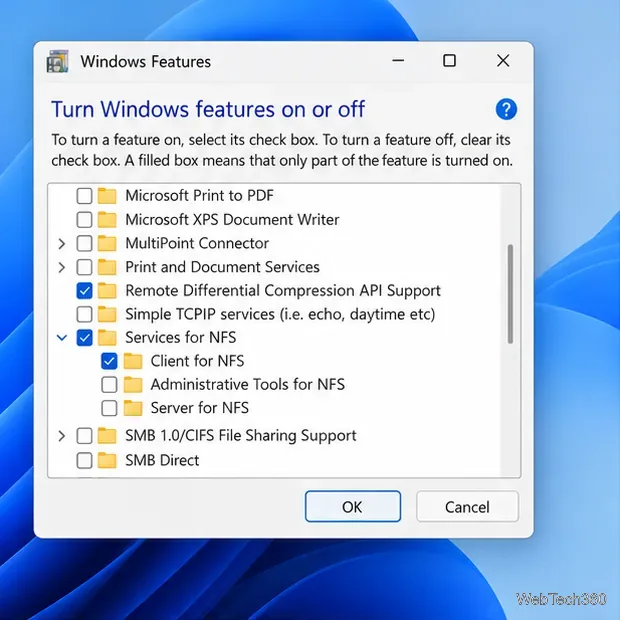
Map an NFS share to a Windows 11 drive letter with the built-in Client for NFS. Check protocol compatibility, mount the export, and troubleshoot access issues.
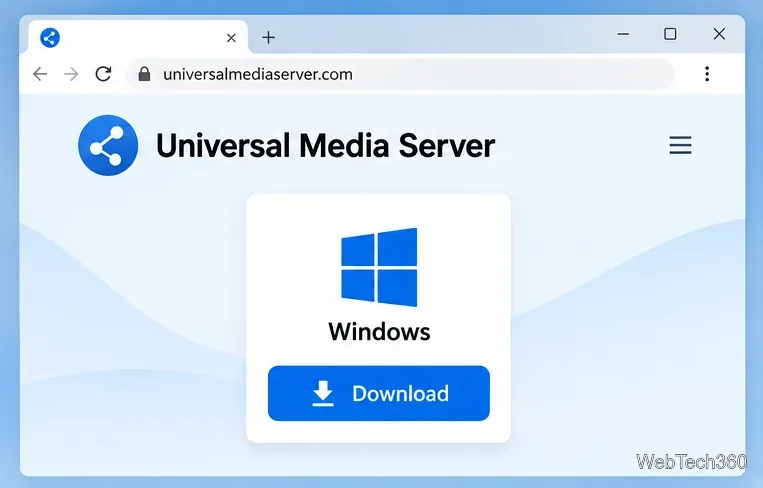
Install Universal Media Server on Windows Server, share selected folders, set LAN-only firewall access, and test DLNA playback from a TV or browser.
Check Windows Server disk status and reliability counters, verify SMART data when available, and separate hardware warnings from NTFS errors.
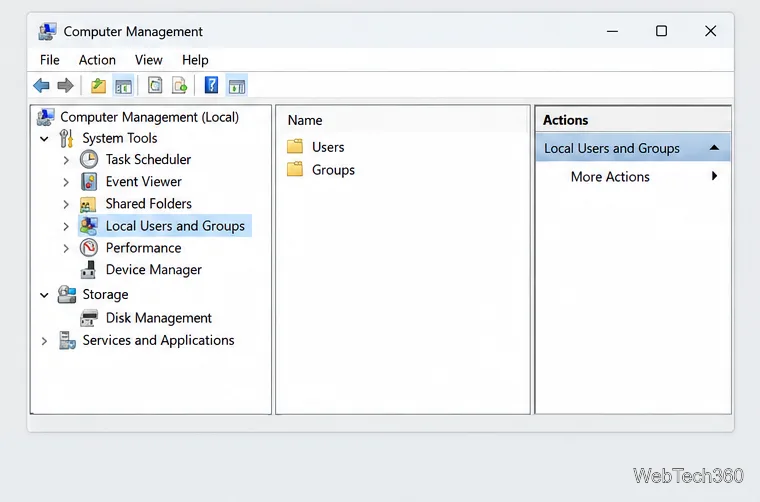
Create, grant admin rights to, disable, or remove local Windows Server users with Computer Management or PowerShell. Learn when to use Active Directory instead.
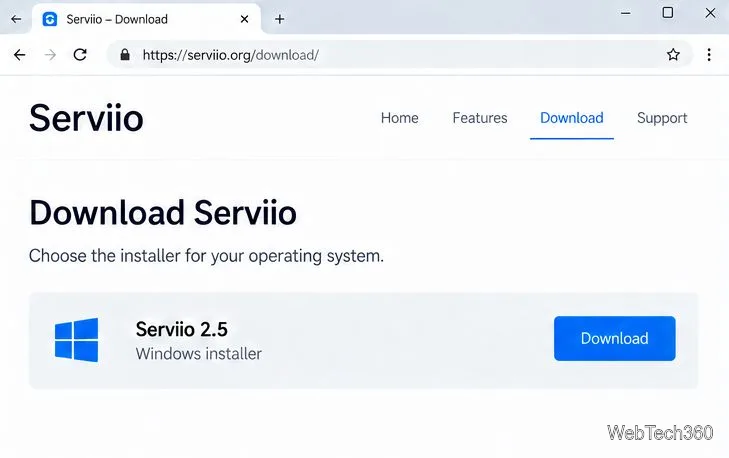
Install Serviio on Windows Server, share local or NAS media folders, and test DLNA playback. Learn how to check the Windows service, firewall, and Pro-only browser features.
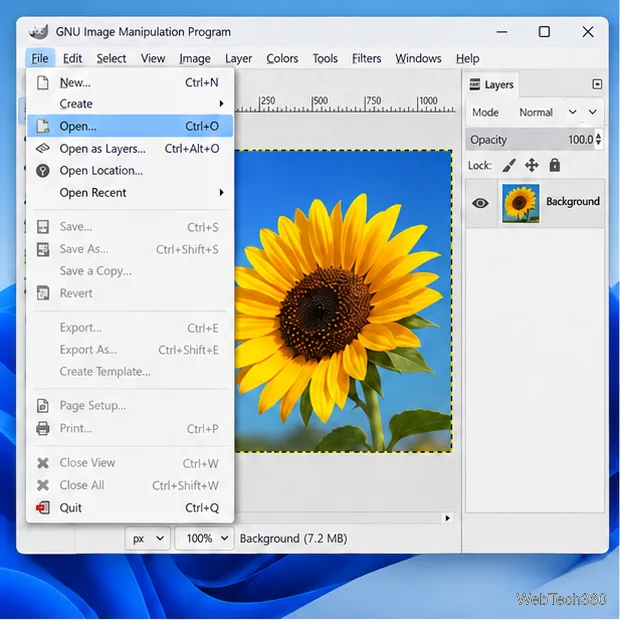
Convert PNG, JPG, or BMP files to Windows ICO with GIMP. Prepare a square image, keep transparency when needed, add standard sizes, and check the export.