How to Check for Open Ports on Windows Server
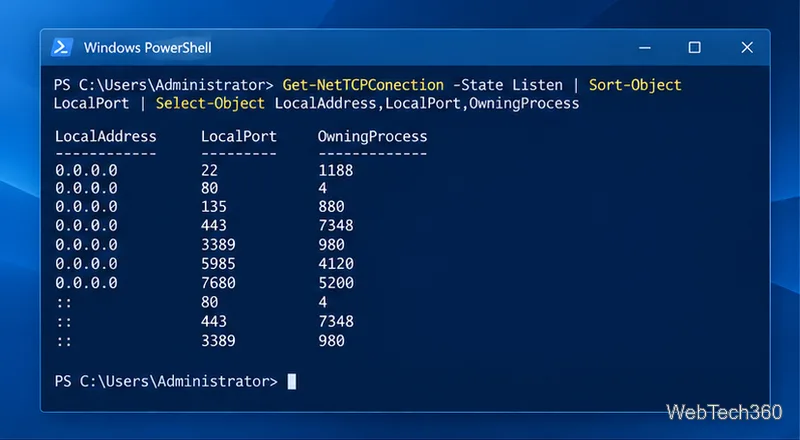
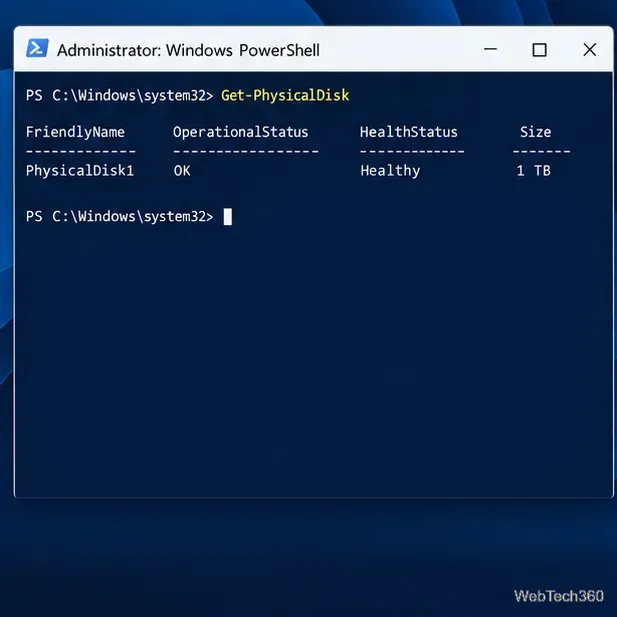
Find local TCP listeners, identify the process using a port, and test whether a Windows Server port is reachable with PowerShell, PortQry, or Nmap.
To change desktop icon size in Windows 10, right-click an empty area of the desktop, point to View, and choose Large icons, Medium icons, or Small icons. For a size between those presets, hold Ctrl and scroll the mouse wheel while the pointer is over the desktop. The taskbar and File Explorer have their own size controls, so you can adjust one area without resizing everything.
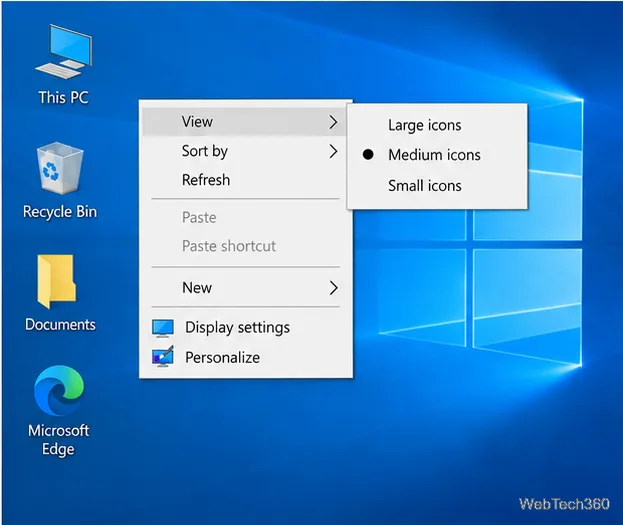
This is the quickest way to make shortcuts and folders on the desktop easier to see or to fit more of them on screen:
The three menu choices are presets. If they feel too far apart, use the mouse-wheel shortcut: click the desktop, hold Ctrl, and roll the wheel up to enlarge icons or down to shrink them. The exact result depends on your display settings, but this gives you more size steps than the menu. Microsoft documents both methods in its desktop icon instructions.
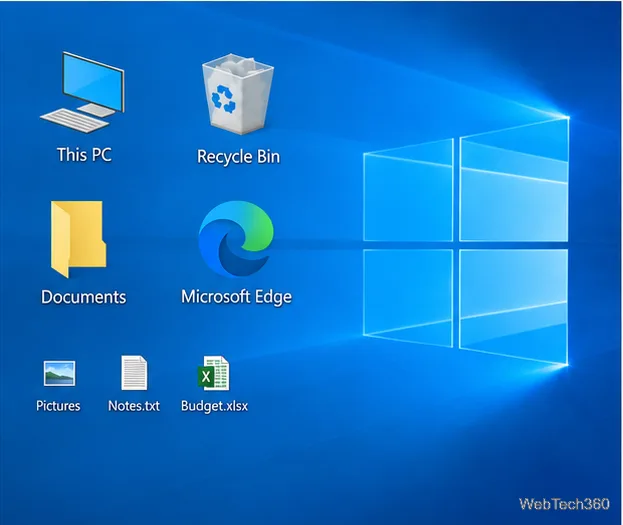
Changing icon size does not change the icon artwork or the size of text and apps elsewhere. If you only want the desktop icons bigger, use the desktop controls above instead of changing display scaling.
Windows 10 uses a separate setting for taskbar buttons. It offers a small-button option; turning it off returns the buttons to their standard size. To change it:
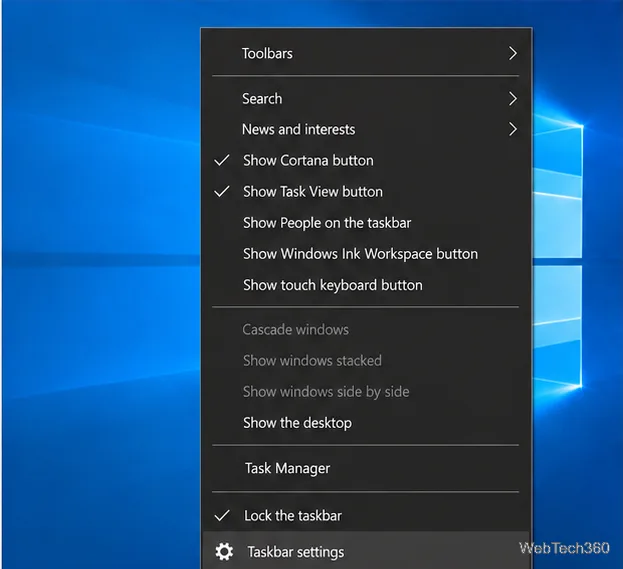
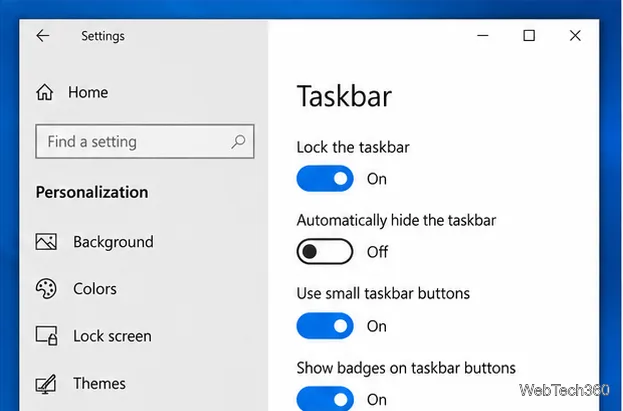
Small buttons can make room for more open apps. Microsoft notes that badges are not shown on small taskbar buttons, so turn the option off if you rely on those number indicators. See Microsoft’s taskbar customization guide for the related controls.
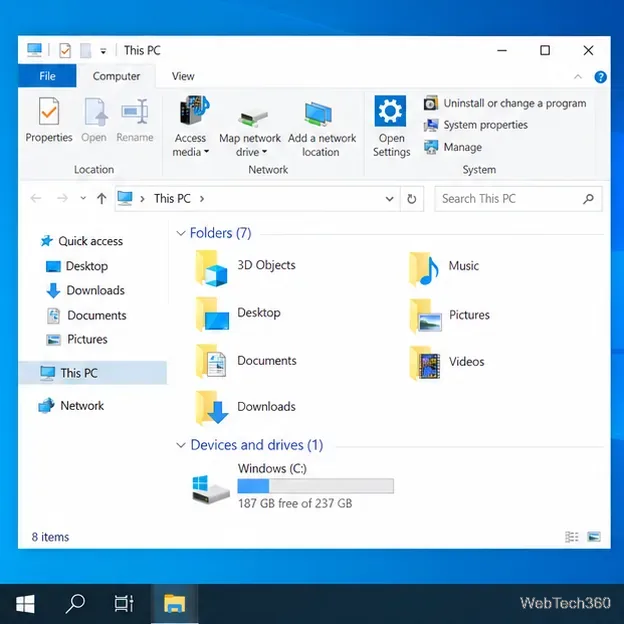
File Explorer controls the icons and thumbnails inside folders. Open a folder, then either hold Ctrl and scroll the mouse wheel to change the view size, or select a layout from the View tab. The ribbon includes options such as Extra large icons, Large icons, Medium icons, and Small icons; choose Details or List when you want compact rows instead of thumbnails.
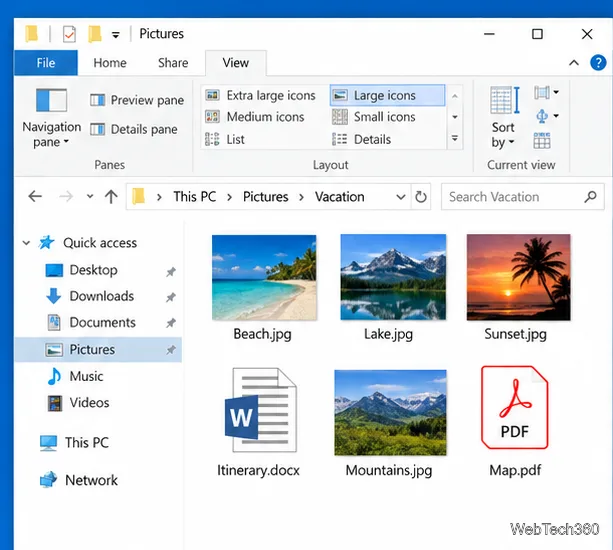
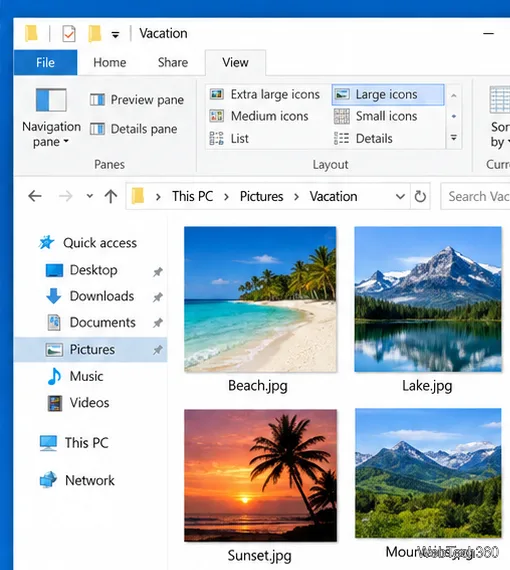
The Explorer shortcut is the same key-and-wheel combination listed in Microsoft’s Windows keyboard shortcuts reference. It changes the folder view, not desktop icons or taskbar buttons.
If icons, text, and app controls all look too small, display scaling may be a better fit. It affects more than icons, including text and apps, so use it only when you want the overall interface to grow or shrink.
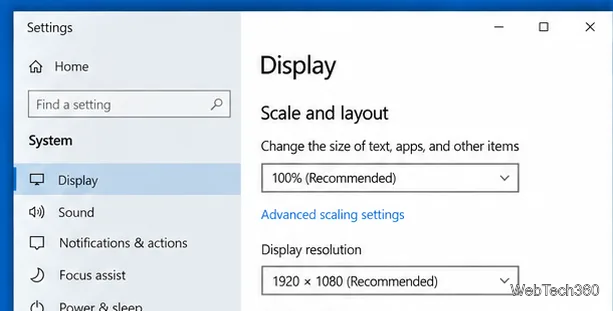
If you use more than one monitor, select the numbered display you want to adjust at the top of the Display page before changing scale. Each screen can have different recommended settings. Keep Display resolution at the option marked Recommended unless you have a specific reason to change it; a non-native resolution can make text look soft or leave borders around the picture. Microsoft’s resolution and layout guide covers these settings.
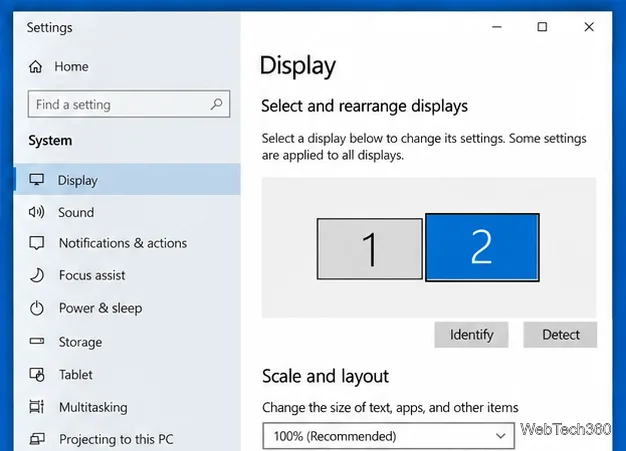
Windows 10 reached end of support on October 14, 2025. These display controls may still be available on your PC, but Microsoft no longer provides free Windows Update software updates, technical assistance, or security fixes for Windows 10. The support notice appears on Microsoft’s current Windows display settings page.
Find local TCP listeners, identify the process using a port, and test whether a Windows Server port is reachable with PowerShell, PortQry, or Nmap.
Map a shared folder as a drive letter in Windows 10, reconnect it at sign-in, confirm access, and fix common path, credential, and network discovery issues.
Hear your microphone through Windows 10 speakers with the Listen to this device setting. Choose the right input and output, test the route, and prevent feedback.
Change icon size on Windows 10 with desktop, taskbar, and File Explorer controls. Learn when display scaling helps and how to fix unexpected size changes.
Map an NFS share to a Windows 11 drive letter with the built-in Client for NFS. Check protocol compatibility, mount the export, and troubleshoot access issues.
Install Universal Media Server on Windows Server, share selected folders, set LAN-only firewall access, and test DLNA playback from a TV or browser.
Check Windows Server disk status and reliability counters, verify SMART data when available, and separate hardware warnings from NTFS errors.
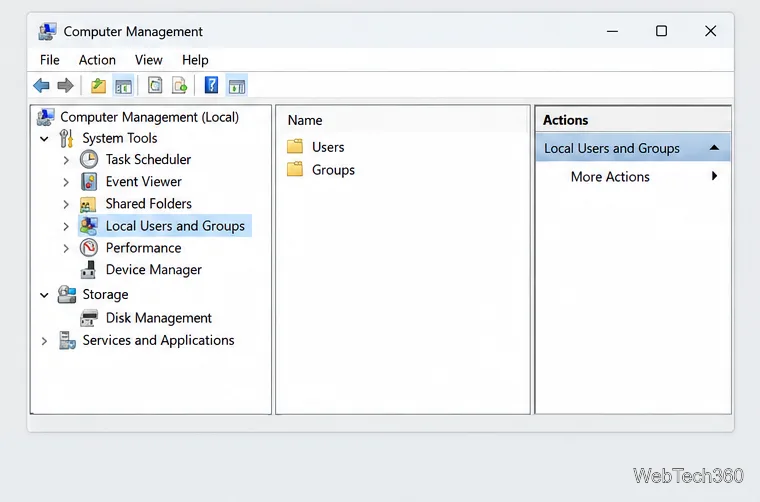
Create, grant admin rights to, disable, or remove local Windows Server users with Computer Management or PowerShell. Learn when to use Active Directory instead.
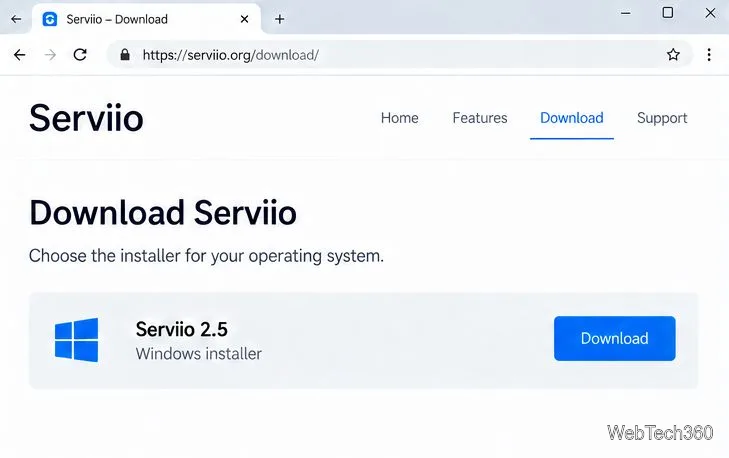
Install Serviio on Windows Server, share local or NAS media folders, and test DLNA playback. Learn how to check the Windows service, firewall, and Pro-only browser features.
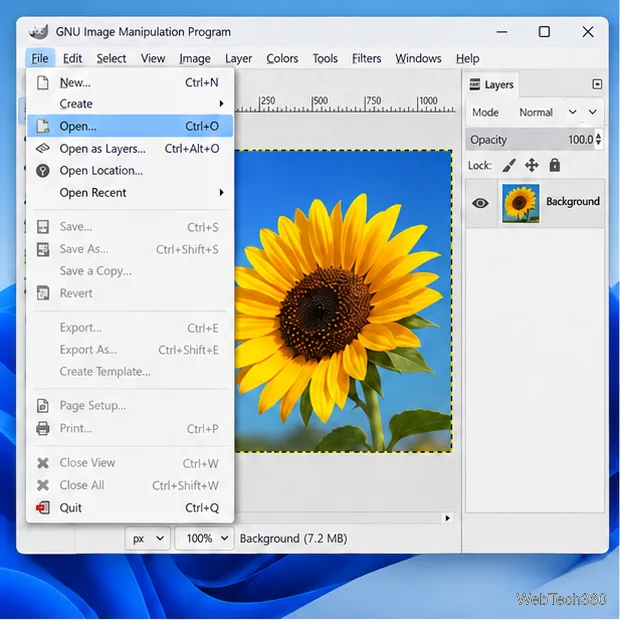
Convert PNG, JPG, or BMP files to Windows ICO with GIMP. Prepare a square image, keep transparency when needed, add standard sizes, and check the export.