How to Check for Open Ports on Windows Server
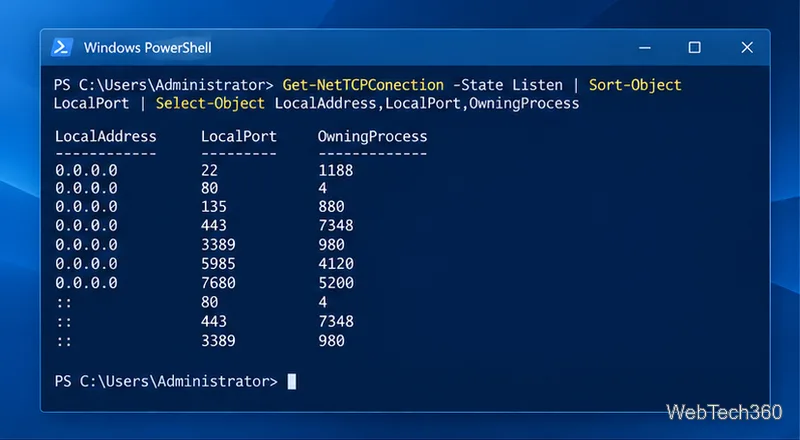
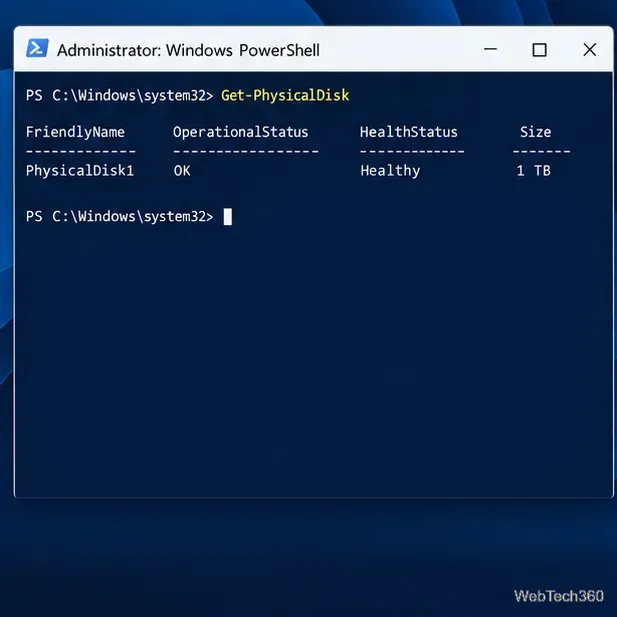
Find local TCP listeners, identify the process using a port, and test whether a Windows Server port is reachable with PowerShell, PortQry, or Nmap.
Windows 11 can map an NFS export to a drive letter with its built-in Client for NFS feature and the mount command. Install the client, then mount the server’s exact export path to an unused letter such as Z:. Windows client editions support NFSv2 and NFSv3; the built-in client does not support NFSv4.1, so check the server’s protocol before you begin. See Microsoft’s NFS version overview.
Get the NFS server’s DNS name or IP address, the exact exported directory, and the access method from the server administrator or NAS documentation. Confirm that the server allows your Windows PC’s address and that the export supports NFSv2 or NFSv3. A Windows NFS mount is different from an SMB share: Explorer’s “Map network drive” wizard is not the setup method.
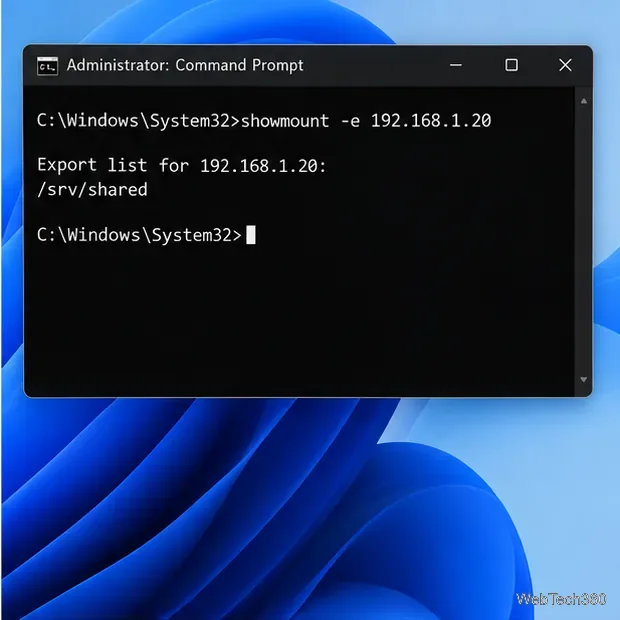
On many NFSv3 servers, you can ask the server to list exports with showmount -e SERVER. For example, showmount -e 192.168.1.20 might return /srv/shared. This query depends on the server’s NFS/RPC configuration; an empty result or timeout does not prove that no export exists. Use the path supplied by the server if discovery is unavailable. Microsoft documents the showmount command.
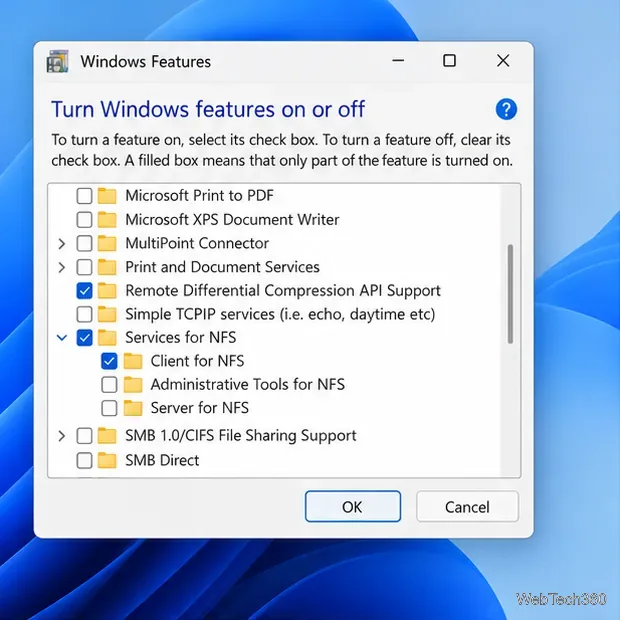
Open Start and search for Turn Windows features on or off. In the Windows Features dialog, expand Services for NFS, select Client for NFS, and choose OK. Approve the administrator prompt if Windows asks, and restart if prompted. The feature may take a few minutes to install. If you cannot find it, check your Windows edition and whether an administrator policy hides optional features.
Microsoft’s Windows feature instructions explain how to add or remove optional features; select the NFS client in the Windows Features dialog. Keep the client updated through Windows servicing rather than installing an unrelated third-party NFS program.
Open Command Prompt as administrator. Replace the sample server, export, and drive letter below with values from your setup. Choose a letter that is not already assigned:
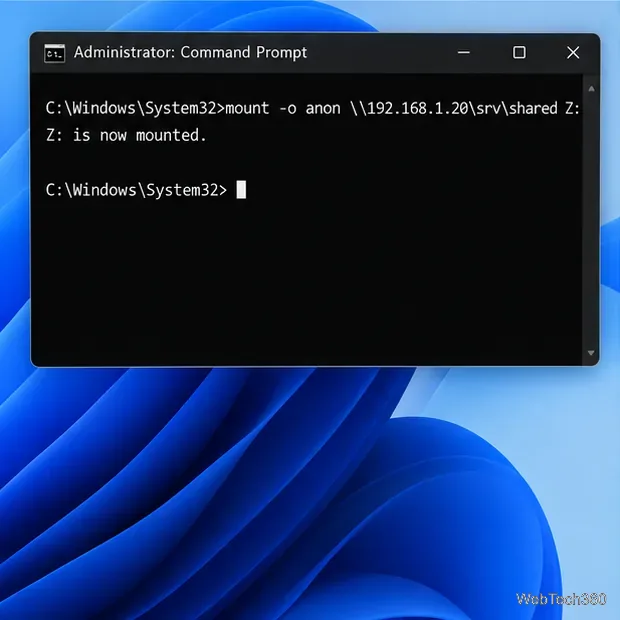
mount -o anon 192.168.1.20:/srv/shared Z:The -o anon option requests an anonymous mount, so use it only when the NFS server is configured to allow anonymous access. For a server that requires a Unix identity, use the username and authentication method provided by its administrator; Microsoft’s syntax supports -u:username and -p:* to prompt for a password. Do not assume that Windows credentials automatically match a Unix UID/GID, and do not loosen server permissions to make a mount work.
Microsoft documents both server:/share and \\server\share path forms, along with the available mount options and examples. If your server provides a different path format, use that exact export name. A successful command should report the assigned drive. If mount is not recognized, verify that Client for NFS finished installing.
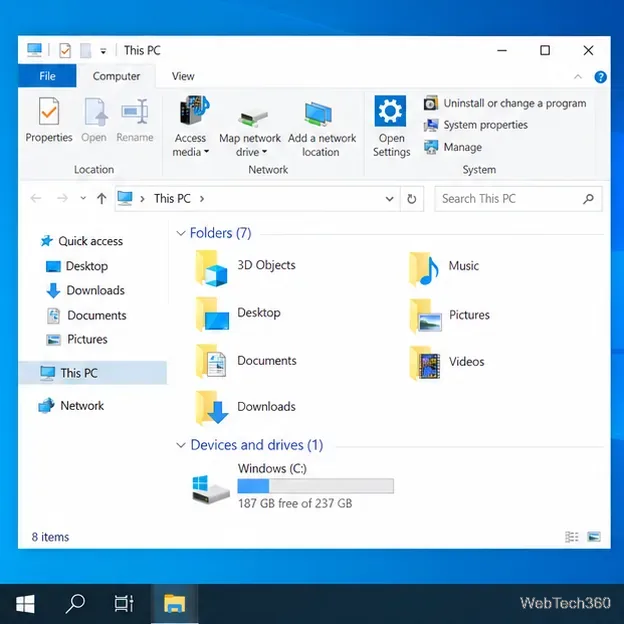
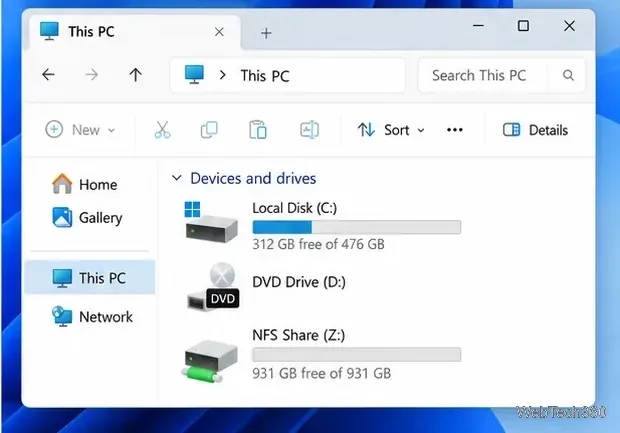
Open File Explorer, select This PC, and look under Devices and drives for the NFS drive letter. Open it to browse the exported folders. You can also run mount without arguments in Command Prompt to display the NFS file systems currently mounted on the computer.
Access is still governed by the server’s export rules and file permissions. If you can read but not write, the server may have exported the directory read-only or may map your Windows request to a Unix identity without write permission. Ask the server administrator to check the client allowlist, identity mapping, and directory permissions.
-o anon only when anonymous access is intentionally enabled.Close files and applications using the share before removing the mount. Some Windows installations include the NFS umount utility; when present, umount Z: disconnects that drive. Microsoft’s archived umount reference documents this syntax for older Windows releases, while the current Windows 11 command index does not list the utility. Check whether it exists on your build before relying on it, and follow your organization’s current NFS-client instructions if it is unavailable.
Find local TCP listeners, identify the process using a port, and test whether a Windows Server port is reachable with PowerShell, PortQry, or Nmap.
Map a shared folder as a drive letter in Windows 10, reconnect it at sign-in, confirm access, and fix common path, credential, and network discovery issues.
Hear your microphone through Windows 10 speakers with the Listen to this device setting. Choose the right input and output, test the route, and prevent feedback.
Change icon size on Windows 10 with desktop, taskbar, and File Explorer controls. Learn when display scaling helps and how to fix unexpected size changes.
Map an NFS share to a Windows 11 drive letter with the built-in Client for NFS. Check protocol compatibility, mount the export, and troubleshoot access issues.
Install Universal Media Server on Windows Server, share selected folders, set LAN-only firewall access, and test DLNA playback from a TV or browser.
Check Windows Server disk status and reliability counters, verify SMART data when available, and separate hardware warnings from NTFS errors.
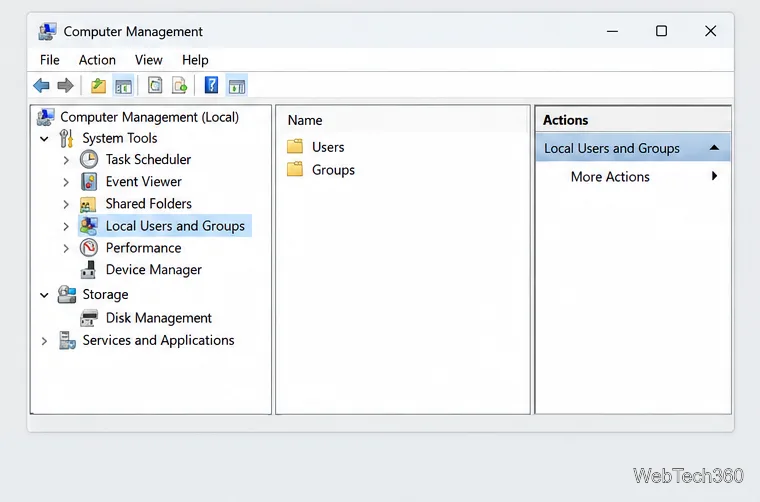
Create, grant admin rights to, disable, or remove local Windows Server users with Computer Management or PowerShell. Learn when to use Active Directory instead.
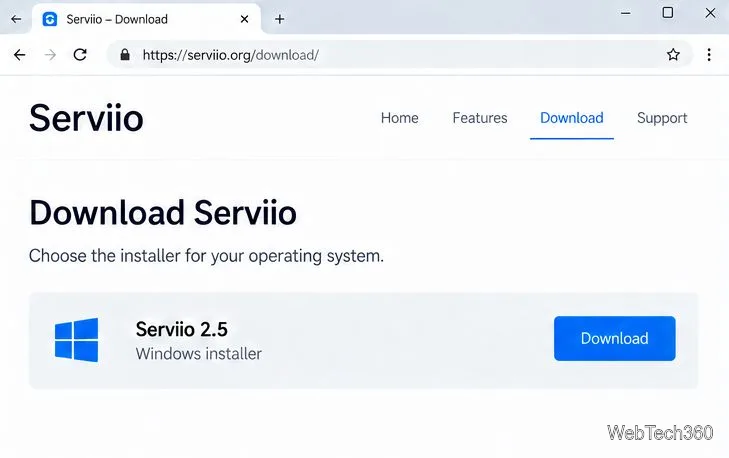
Install Serviio on Windows Server, share local or NAS media folders, and test DLNA playback. Learn how to check the Windows service, firewall, and Pro-only browser features.
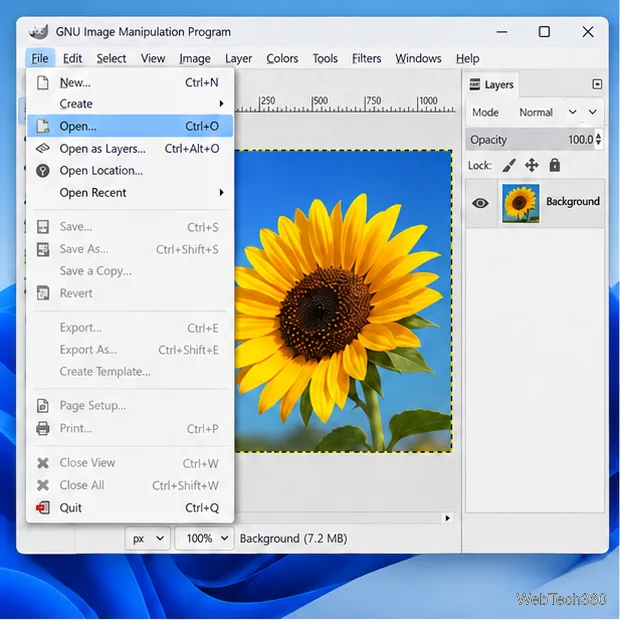
Convert PNG, JPG, or BMP files to Windows ICO with GIMP. Prepare a square image, keep transparency when needed, add standard sizes, and check the export.