Home
» WINDOWS
»
How to Check Whether a Website or Network Host Is Down with EasyNetMonitor
How to Check Whether a Website or Network Host Is Down with EasyNetMonitor
EasyNetMonitor is a small Windows utility for checking whether a computer or internet host responds to a network probe. Add a hostname or IP address, then read its status in the system-tray menu: green means it responded, while red means the check got no reply. It is useful for a short list of home or office devices. For website uptime, a ping result alone does not prove that the web page works.
The developer describes EasyNetMonitor as a portable download and documents its editions on the official EasyNetMonitor page.
What EasyNetMonitor checks
The program can send an ICMP echo request using Windows’ built-in ping support and wait for an echo reply. Microsoft describes ping as an IP-level connectivity check. A reply shows that the target answered from your network path; it does not confirm that a login page, API, database, or every part of a website is healthy.
A red status means the configured check got no expected response. The host may be offline, but a firewall can block ICMP, the hostname may point to an unexpected address, or a VPN or route may be unavailable. EasyNetMonitor’s own documentation warns that systems with ping disabled cannot be checked this way. Compare a website result with a browser visit or HTTP check before calling it an outage.
Status
Meaning
Next step
Green
The probe received a response.
Open the service if you need to confirm that its page or app works.
Red
The probe got no response.
Retry and check the target, route, and firewall.
Set up a host to monitor
Download the free version from the developer. Use the Download or portable-archive link on the official page, extract the archive if needed, and run the program. The publisher lists Microsoft .NET Framework 4.7.1 as a requirement and says Windows 10 and 11 include it. Check the product page for other Windows versions.
Open the tray menu and choose Add. EasyNetMonitor runs in the Windows notification area. If its icon is hidden, check the taskbar’s hidden-icons menu.
Illustrative tray view: choose Add to begin monitoring a host.
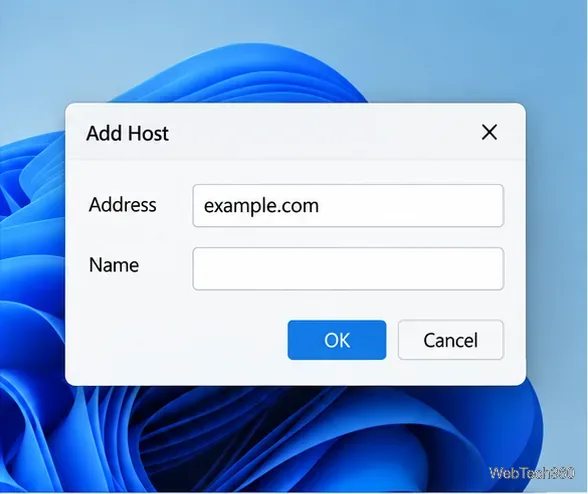
Enter a hostname or IP address and a recognizable name. Use example.com for a public host or an address such as 192.168.1.20 for a device on your network. A label such as “Office printer” makes the list easier to scan. You do not need to look up a website’s IP first when its hostname is accepted.
Illustrative host-entry form with a hostname and a separate label field.
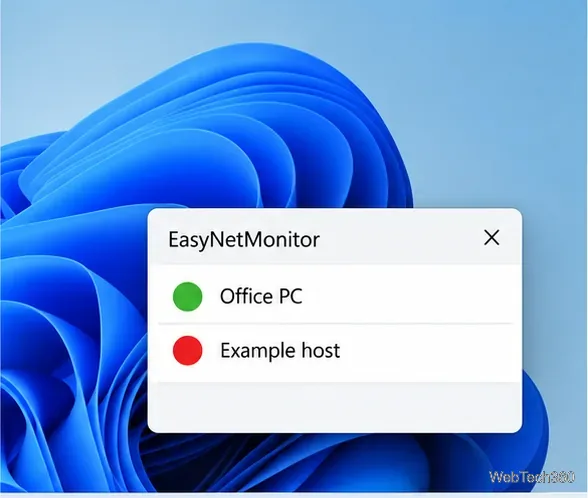
Read the host’s color in the popup menu. Green indicates a response; red means the selected probe received none. The free edition supports up to 10 hosts according to the developer’s FAQ, so remove entries you no longer need.
Illustrative host list: green and red represent different probe results.
Check a website, not just its host
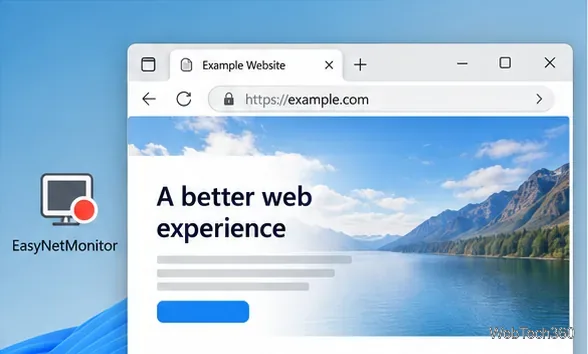
Many web servers and firewalls do not answer ping even while a site loads normally. The reverse is also possible: a server can answer ping while its HTTPS page is broken. This distinction matters when you are monitoring a public website.
A page may load in a browser even when its host does not answer an ICMP ping.
The developer lists HTTP options in EasyNetMonitor Pro. Its FAQ recommends separate http:// and https:// entries to compare those paths, using the HEAD request method. Choose a URL and method that match the service you need to verify. With the free edition, use EasyNetMonitor for host reachability and confirm web availability in a browser or HTTP monitoring service.
Troubleshoot a red result
Check your own connection. If several unrelated hosts turn red, verify Wi-Fi or Ethernet, VPN access, and internet connectivity first.
Confirm the address and route. Check that the host is powered on and reachable from your current network. A private office device may require the right LAN or VPN.
Check ICMP filtering. A target firewall may block echo requests. If you administer that Windows computer and policy allows ping, create a narrow inbound ICMP Echo Request rule for the appropriate profile. See Microsoft’s guide to configuring Windows Firewall rules; do not turn off the firewall as a general fix.
Verify the service separately. Open the site or make an HTTP request. If the page loads while EasyNetMonitor stays red, the host may filter ping. If ping is green but the page fails, investigate DNS, TLS, or the web service.
Limits and useful settings
EasyNetMonitor is a desktop monitor, not an external uptime service; it can only check while the Windows PC is awake and connected. The developer lists event logging, sound alerts, and email notifications in the free edition. Pro adds HTTP options and per-host statistics, while SE runs as a Windows service. Check the product page for current edition details.
The developer says its NiceKit digital signature is not verified by Microsoft, so Windows may show an “Unknown Publisher” prompt. Microsoft notes that reputation checks can warn about files or publishers with little or unknown reputation. Confirm the download came from the developer’s site and scan it with Microsoft Defender; do not disable Windows security just to run it. See Microsoft’s SmartScreen reputation guidance.
Use EasyNetMonitor’s colors as a reachability signal. When the question is whether a website or application is actually working, confirm with an HTTP or browser check.