Home
» WINDOWS
»
How to Install MariaDB on Windows Server with the MSI Installer
How to Install MariaDB on Windows Server with the MSI Installer
To install MariaDB on Windows Server, download the current 64-bit Community Server MSI, run the wizard as an administrator, select a database instance, set a root password, and install it as a Windows service. Then verify the connection from the MariaDB command-line client. HeidiSQL can help import a SQL dump or create a database.
This is a fresh-install guide. If the server already has MariaDB or MySQL data, back it up and review the upgrade path before running the installer.
Before you begin
Use an account that can install software and create Windows services. Check that your Windows Server release is supported by the selected MariaDB package; current versions may not support older Windows releases. Download the MSI from the official MariaDB Community Server page. See the Windows MSI installation guide for platform details and the Windows upgrade guide for existing instances.
1. Download the Windows MSI
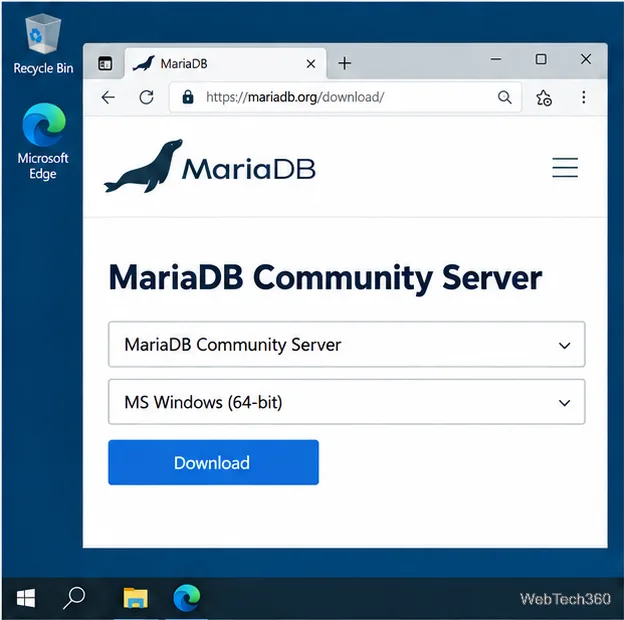
Choose MariaDB Community Server, a stable release compatible with your server, and the 64-bit Windows package. Download the .msi installer and note its version for maintenance records.
Choose the Windows 64-bit MSI package on the MariaDB Community Server download page.
2. Run the installer and accept the license
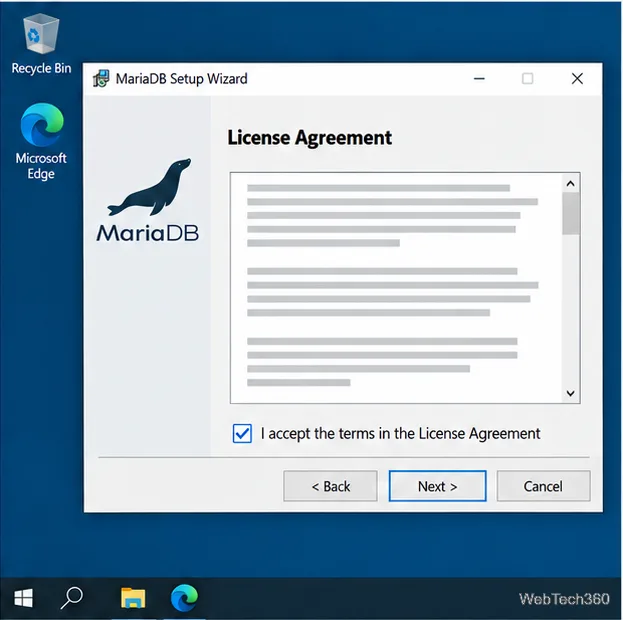
Open the MSI and approve the Windows permission prompt. Read and accept the license terms. If the wizard finds an existing database instance, pause and verify your backup and upgrade plan before continuing.
Accept the license terms in the MariaDB MSI Setup Wizard to continue.
3. Select the server features
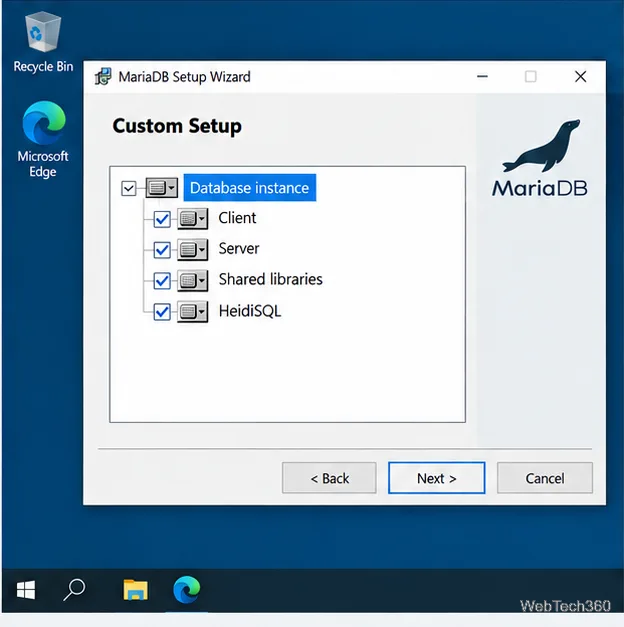
In Custom Setup, make sure Database instance and the server feature are selected. The default feature set includes the instance, client tools, shared libraries, development components, and HeidiSQL; debug symbols are excluded by default. For a standard installation, the defaults are suitable. Choose a data directory with enough space if you need to move it from the installation folder.
Confirm that Database instance is selected; the MSI can also install client tools and HeidiSQL.
4. Set the root password
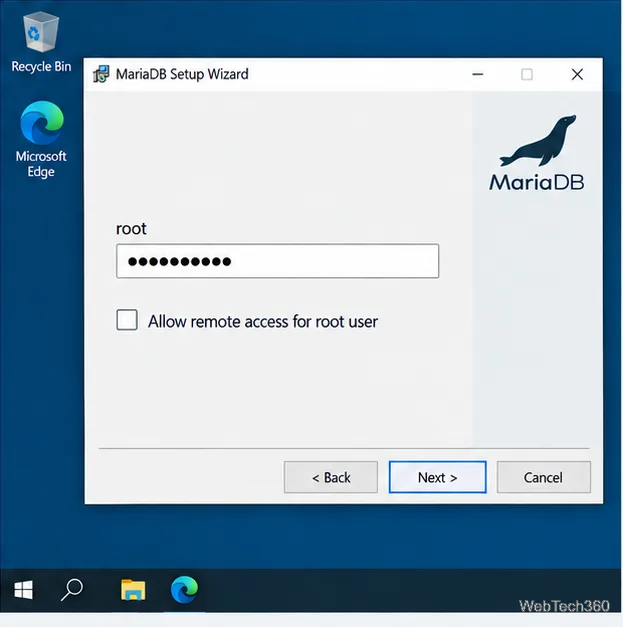
Enter a unique, strong password for the root database account and store it securely. Do not leave root without a password. Keep remote root access unchecked and anonymous accounts disabled unless you have a specific, secured need; routine applications should use a separate account with limited permissions.
Set a strong root password and leave remote root access disabled.
5. Configure the Windows service and networking
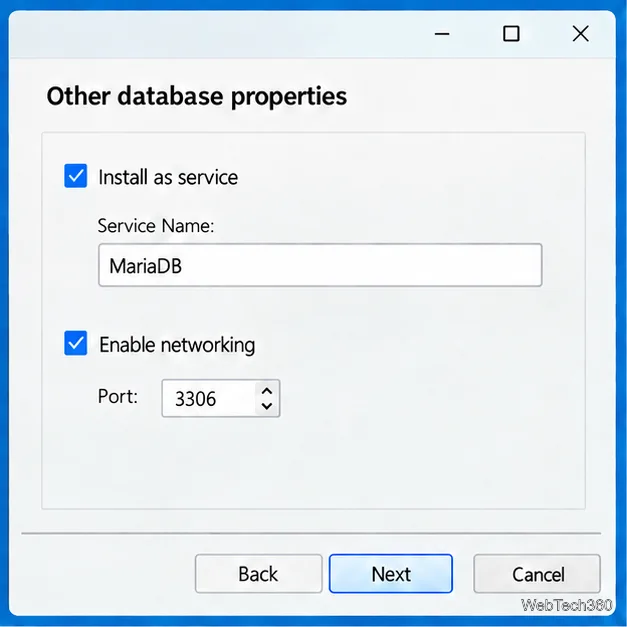
Keep Install as service selected for a typical server deployment. The MSI’s default service name is MariaDB. If TCP/IP networking is enabled, the default port is 3306; check for a conflict and record any changed port.
For remote clients, restrict MariaDB’s listening address and the Windows Firewall rule to the required private network or client IPs. Do not expose port 3306 to the public internet or enable remote root access as a shortcut.
The Windows service and TCP/IP networking settings in the MariaDB installer.
6. Install and verify MariaDB
Review the settings, click Install, wait for setup to finish, and select Finish. If the wizard created a database instance as a service, MariaDB’s documentation says that service is running after installation.
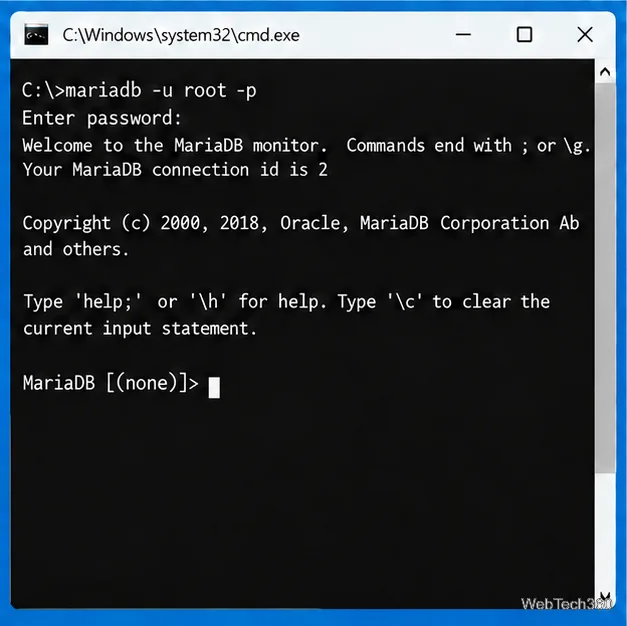
Open the MariaDB Command Prompt shortcut from the Start menu and sign in:
mariadb -u root -p
Enter the password when prompted. Reaching the MariaDB prompt confirms a connection. To check the server version, run SELECT VERSION();. The Start menu command prompt adds MariaDB’s bin directory to the path; you can also check the service in Windows Services.
A successful command-line login ends at the MariaDB prompt, ready for SQL.
7. Import a SQL file with HeidiSQL
HeidiSQL is an optional MSI feature. If it is absent, download it from the official HeidiSQL page. Create a session for 127.0.0.1 on port 3306 (or your configured port) and connect with an authorized account.
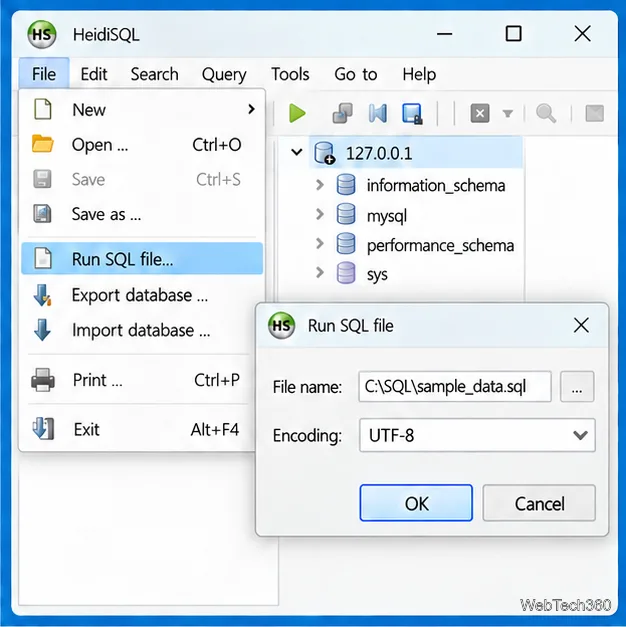
Select the destination database, then choose File > Run SQL file, browse to the .sql file, and select its actual encoding. Use UTF-8 only if that matches the dump. Confirm the target first: HeidiSQL executes the file when you confirm, and a dump may contain its own CREATE DATABASE or USE statement. See the HeidiSQL import help for details.
Choose the SQL dump and its known encoding; UTF-8 is shown as an example.
8. Create a database
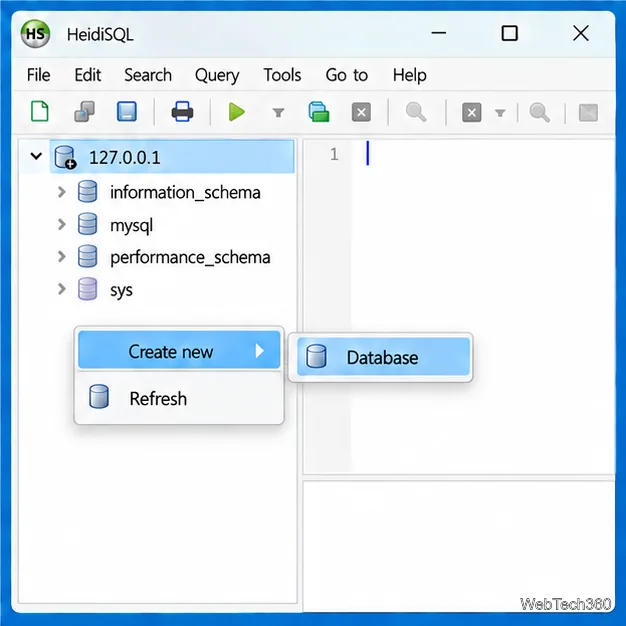
In HeidiSQL, right-click the connected server node in the left tree, choose Create new > Database, enter a name, and confirm. Or run this in a query tab:
CREATE DATABASE appdb;
Replace appdb with your preferred name, then refresh the tree or run SHOW DATABASES;. The account needs the CREATE privilege; MariaDB documents the statement in its CREATE DATABASE reference.
Create a database from the connected server node in HeidiSQL’s left-hand tree.
Quick troubleshooting
Connection refused: check that the MariaDB service is running and that the client uses the configured port.
Remote timeout: verify TCP/IP, the bind address, a scoped firewall rule, and the database account’s allowed host.
Import errors: confirm the selected database and file encoding; inspect the first error before rerunning a dump.
Existing data: never remove a data directory during upgrade or uninstall until you have verified a restorable backup.
Once the service starts and a client can authenticate, MariaDB is ready for application setup. Use a least-privilege account for applications and reserve root for administration.