Home
» WINDOWS
»
Encrypting Data on Windows Server: BitLocker and EFS
Encrypting Data on Windows Server: BitLocker and EFS
On Windows Server, use BitLocker to protect a whole volume or EFS to protect selected NTFS files with a user certificate. BitLocker protects a locked or offline drive; EFS limits file access to authorized certificate holders. Neither replaces permissions, tested backups, or network encryption.
Tool
Scope
Recovery
BitLocker
Whole volume
Unlock method plus a separate recovery key
EFS
Selected NTFS files
User’s EFS private key or recovery agent
Prepare recovery before enabling encryption
Plan recovery before switching encryption on. For a domain-managed server, configure the fixed-drive policy to escrow BitLocker recovery information in AD DS and require successful backup; verify an authorized administrator can retrieve it. For a standalone server, store the recovery password in an approved vault or offline location separate from the machine, and restrict access. See Microsoft’s BitLocker recovery overview. EFS uses a different key: preserve the user’s private key in a password-protected PFX stored separately. Back up the data too, and test restoring a copy.
BitLocker protects data while a volume is locked, but the running server can read an unlocked drive. Keep NTFS and share permissions appropriate for the workload, and secure the system that controls access to the volume.
Encrypt a Windows Server volume with BitLocker
1. Install the BitLocker feature
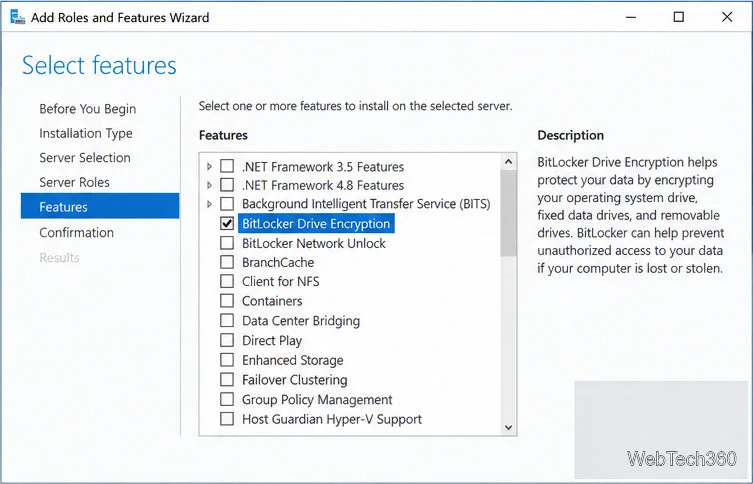
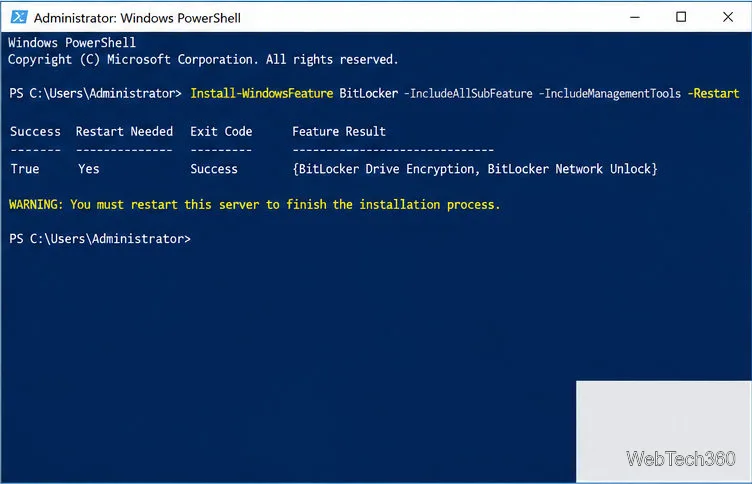
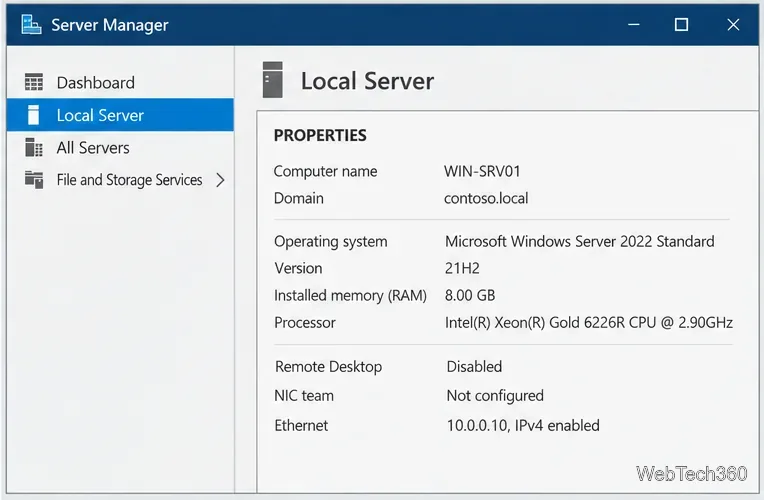
In Server Manager, open Manage > Add Roles and Features, select the target server, skip Server Roles, check BitLocker Drive Encryption under Features, then install. Or run this in elevated PowerShell on Server Core or for automation:
Installation requires a restart, so schedule downtime. See Microsoft’s BitLocker installation guide. On Desktop Experience, the Control Panel applet is also available; Server Core uses PowerShell or manage-bde.
Server Manager with BitLocker selected.Install BitLocker and restart the server.
2. Add unlock and recovery protectors
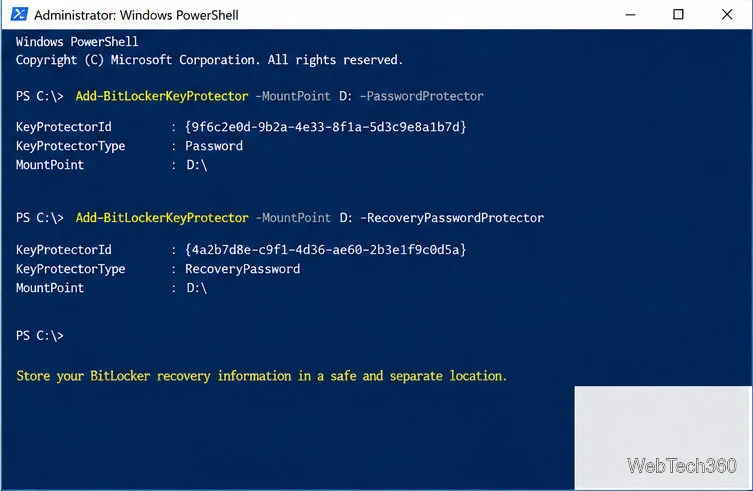
Confirm the drive letter before changing anything. This example uses D: as a fixed data volume; substitute the correct volume on your server. Add a password protector for routine unlocking and a separate recovery-password protector:
Before encryption, verify the recovery password was escrowed by policy or saved in your approved vault; never leave it only on the encrypted server. Microsoft recommends a primary unlock method plus a recovery protector for data volumes; see the BitLocker operations guide.
Add everyday and recovery unlock methods.
3. Start encryption and check progress
-UsedSpaceOnly is faster for a new volume but leaves deleted sectors untouched. Omit it for a drive that previously held sensitive data.
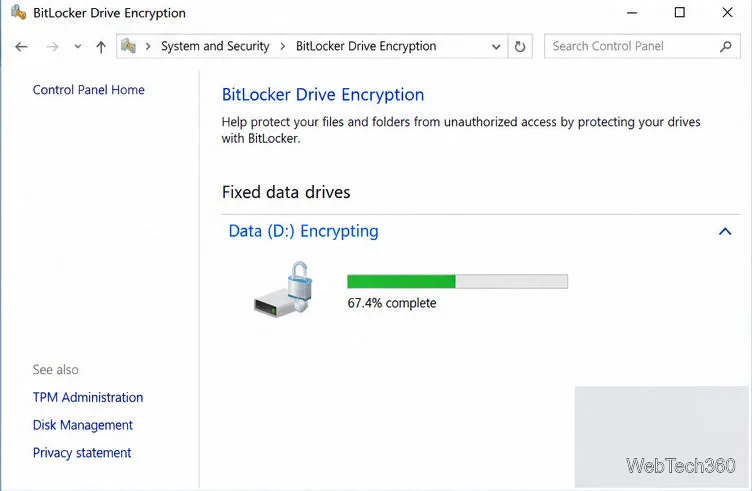
Check VolumeStatus, EncryptionPercentage, and ProtectionStatus with Get-BitLockerVolume; wait for completion. See Microsoft’s Enable-BitLocker and Get-BitLockerVolume references.
Monitor encryption until D: completes.
Encrypt selected files with EFS
EFS protects individual files and folders on NTFS, often when different users need separate access. It cannot encrypt compressed files, system files or directories, or a volume’s root. See Microsoft’s EFS file-encryption overview.
1. Make sure NTFS encryption is enabled
In an elevated Command Prompt, check the setting:
fsutil behavior query disableencryption
0 means enabled; 1 means disabled. If disabled, run:
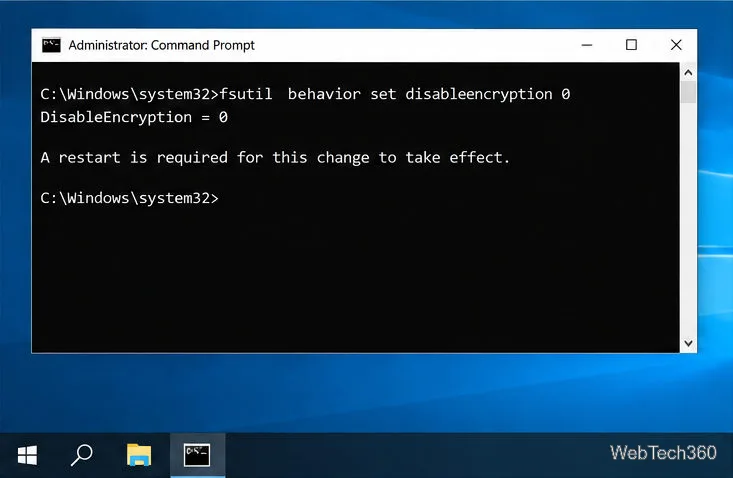
fsutil behavior set disableencryption 0
If you changed the setting, restart during a maintenance window. See Microsoft’s fsutil behavior reference.
Enable NTFS encryption, then restart.
2. Encrypt a file or folder
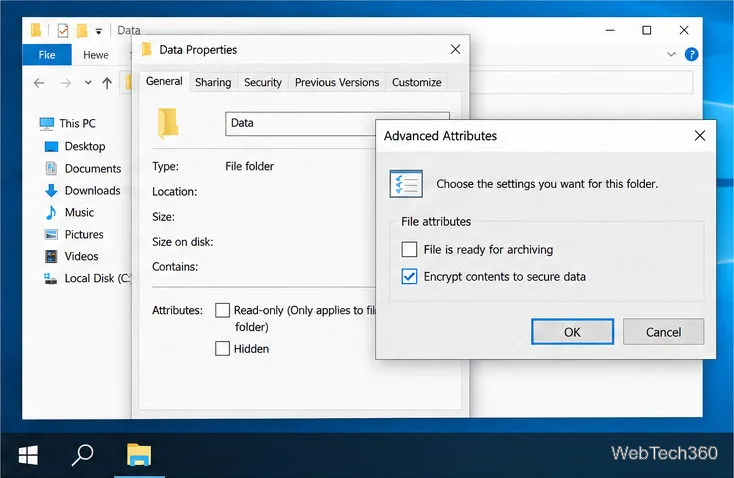
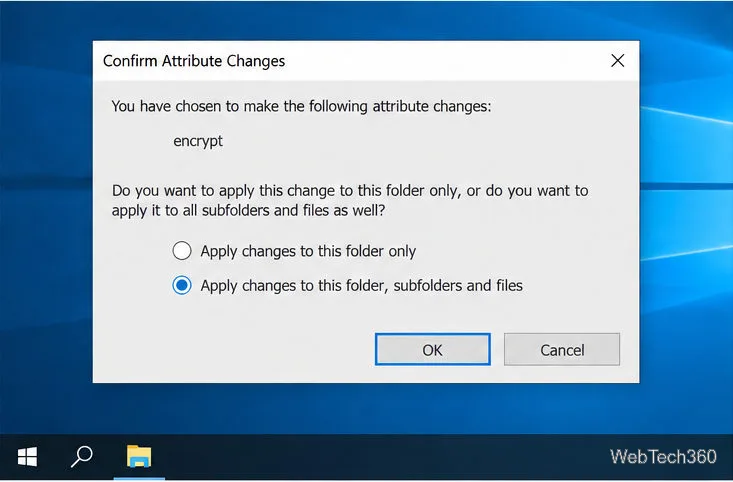
In File Explorer, open the item’s Properties > General > Advanced. Check Encrypt contents to secure data, choose OK, then Apply. At the scope prompt, choose folder only or include existing subfolders and files. Encrypt a file’s parent directory too so later changes do not leave the file unencrypted. The cipher command reference explains how to check EFS status.
Select EFS in Advanced Attributes.Apply EFS to the folder and contents.
3. Back up the EFS certificate
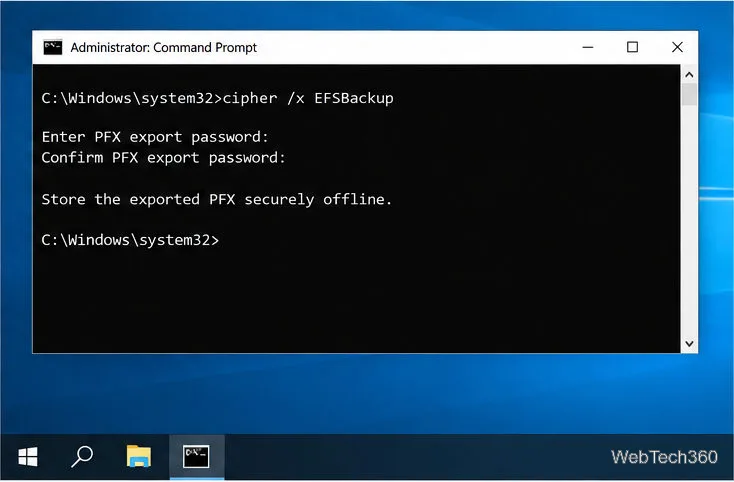
While signed in as the EFS user, run cipher /x EFSBackup and set a password for the exported PFX. Store it separately from the server and data. This exports the user’s EFS certificate and key, not a recovery-agent policy. Back up a domain Data Recovery Agent certificate separately if one is configured. See Microsoft’s cipher reference.
Export and securely store the EFS PFX.
Which option should you use?
Use BitLocker for whole-volume protection while a server is locked or offline; use EFS for selected NTFS files with per-user access. Test recovery of both keys and data before relying on either method.