How to Play Minecraft Offline on Windows 10: Java and Bedrock

Prepare Java or Bedrock on Windows 10 for offline single-player, enable the right Xbox setting, and back up your local Minecraft worlds.
If Adobe Acrobat Reader DC shows “Not Responding,” first close the frozen process and check whether the problem affects one PDF or every PDF. If Reader freezes with different files, update it and use Adobe’s built-in repair before reinstalling. The old “DC” label may still appear on a computer; Adobe’s current help pages call the desktop app Acrobat Reader or Adobe Acrobat Reader.
Save any form entries or comments you can before forcing the app to close. If the window is already frozen, unsaved work in that session may be lost. Work through the checks below in order, and stop when Reader works normally.
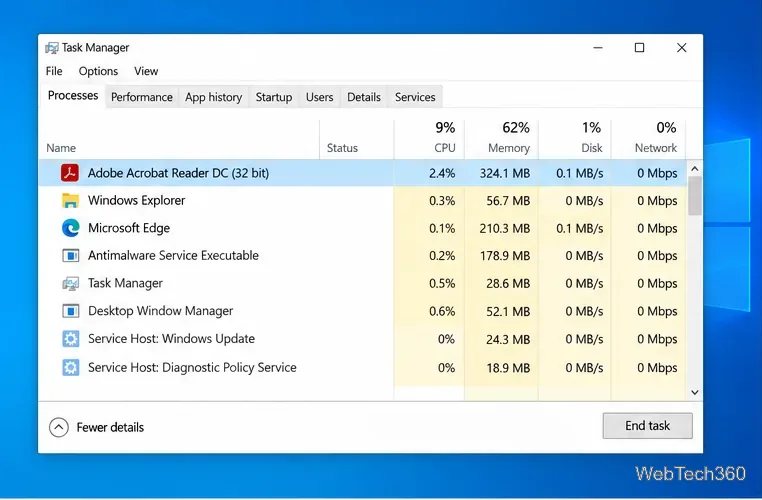
Press Ctrl + Shift + Esc to open Task Manager. Select Adobe Acrobat Reader (the older version may be listed as Adobe Acrobat Reader DC), choose End task, then open Reader again from the Start menu. If Windows still shows Reader as running, restart the computer before testing again. Avoid repeatedly double-clicking the PDF while the first instance is stuck; that can queue more launch attempts without fixing the hang.
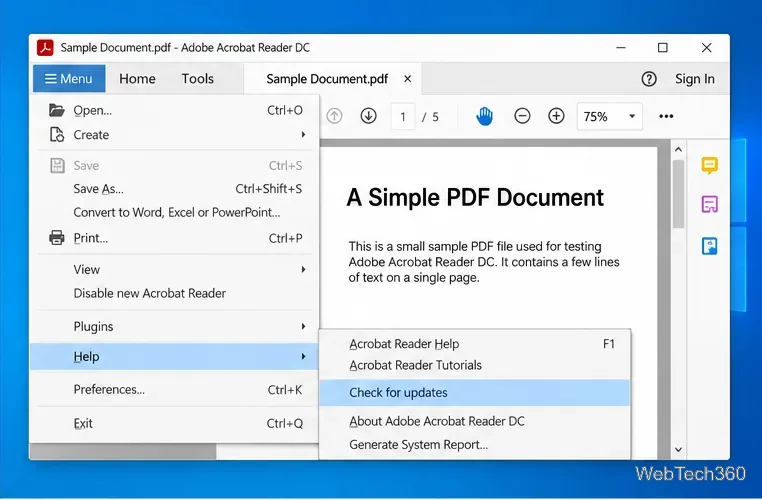
An older build can have bugs that are already fixed in an update. In Reader, open Menu > Help > Check for updates. In the classic interface, choose Help > Check for updates. Install any offered update and restart Reader. If it freezes before you can reach the menu, skip this step for now and continue to repair or reinstall. Adobe’s manual update instructions show the current menu path.
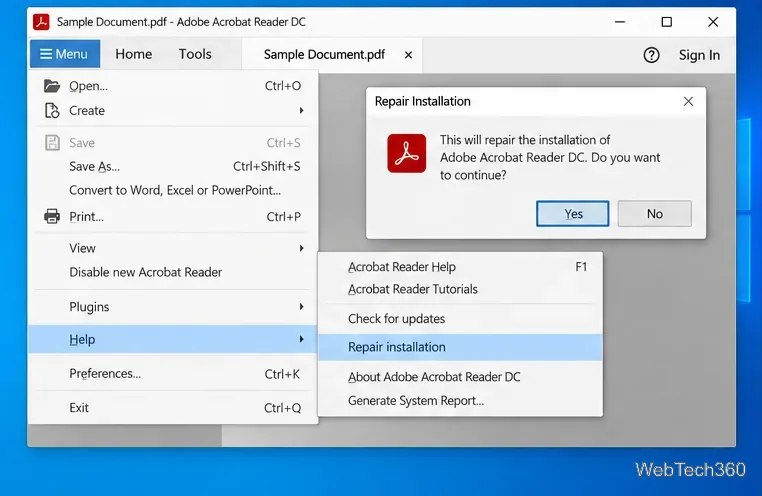
Use Adobe’s repair command to replace damaged or missing application components without removing Reader. Open Menu > Help > Repair installation, confirm the repair, and follow the prompts. When it finishes, restart the computer and test a PDF. If the new menu is unavailable, Adobe also documents repair from the Windows Control Panel under Programs and Features; the available route depends on the installed version. See Adobe’s Acrobat crash troubleshooting steps.
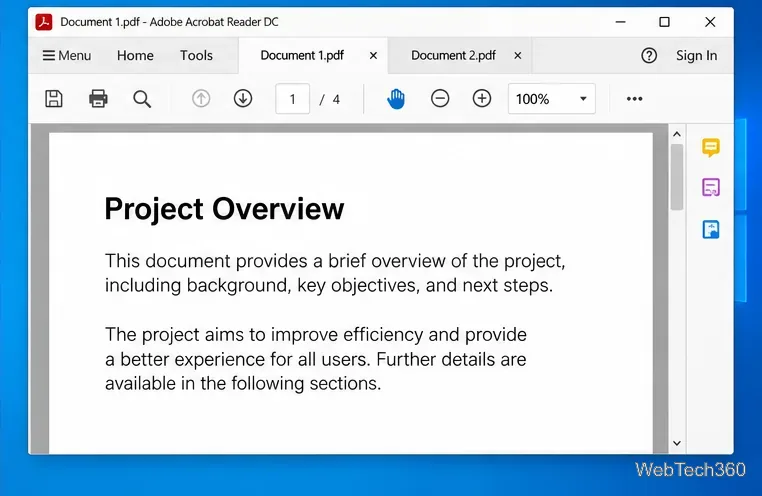
Open a different, small PDF saved on the computer, rather than a file still loading from a network share, email attachment, or cloud-synced folder. If that file opens and scrolls normally but one document keeps freezing, Reader may not be the problem. Download a fresh copy from the original trusted source or ask the sender to export the PDF again. If several unrelated PDFs cause the same freeze, continue below. Adobe’s guide to PDFs that will not open also recommends distinguishing document issues from Reader installation issues.
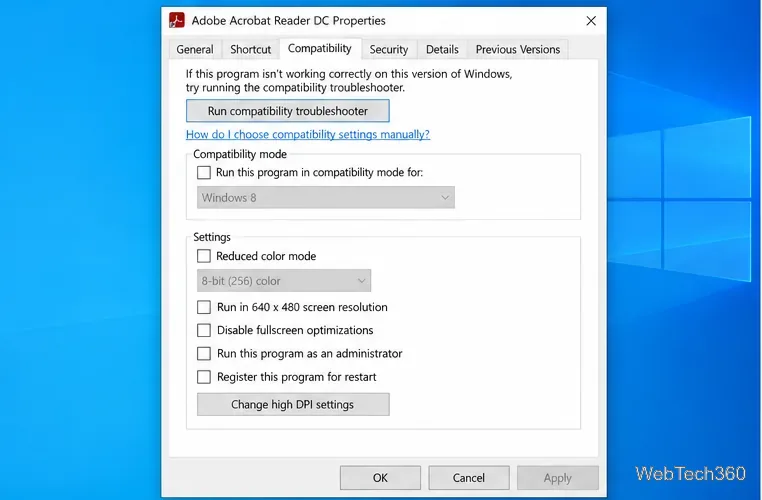
A compatibility setting left over from an older Windows installation can interfere with launch behavior. Close Reader, right-click its shortcut, and choose Properties > Compatibility. If Run this program in compatibility mode for is checked, clear it, select Apply, and reopen Reader. Do not turn compatibility mode on as a general performance fix. Adobe’s Windows launch guidance specifically recommends checking that Acrobat is not running in compatibility mode.
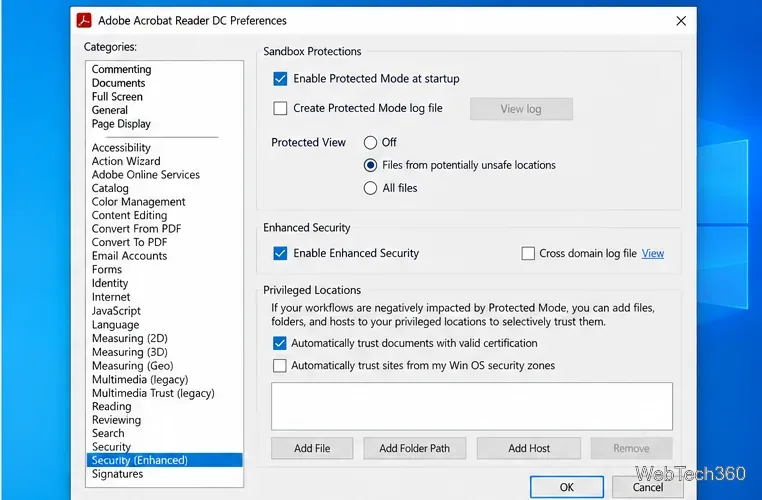
Protected Mode isolates PDFs from the rest of Windows and should normally stay on. If the earlier fixes fail, you can briefly test whether a security-software conflict is involved: open Menu > Preferences (or Edit > Preferences in the classic interface), select Security (Enhanced), and clear Enable Protected Mode at startup. Restart Reader and test only a PDF you trust. Then turn Protected Mode back on and restart again, whether or not the test helps. Do not leave it off or use this test with unknown PDFs. Adobe describes this setting in its Protected Mode guide and says disabling it is for short-term troubleshooting only in its security troubleshooting guidance.
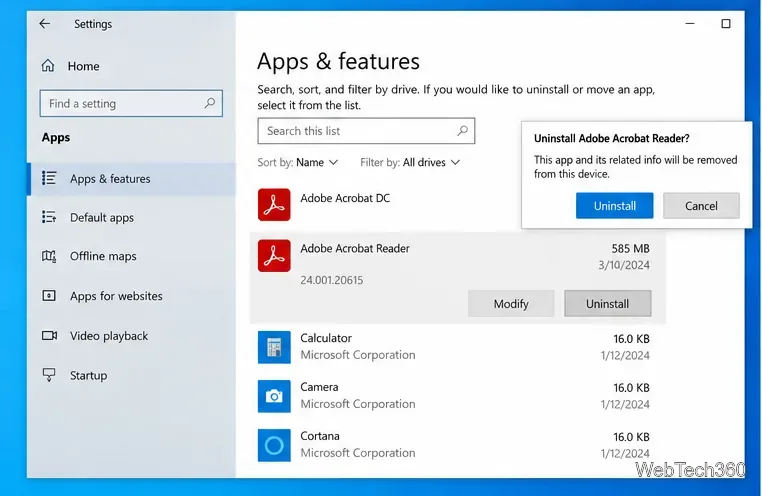
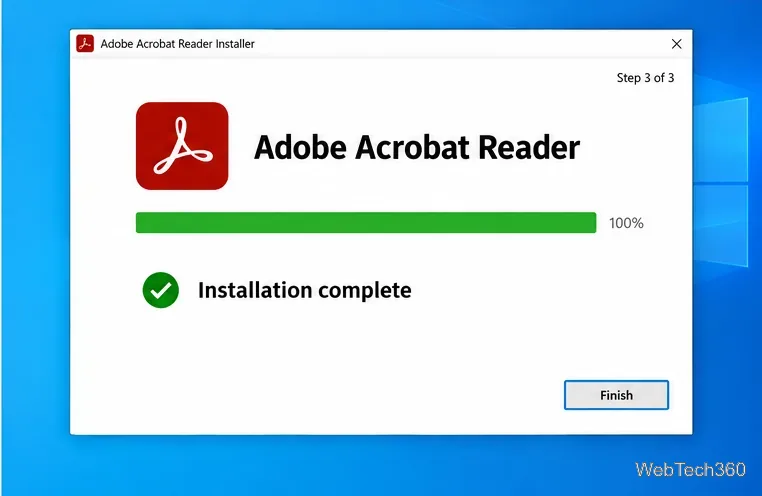
If Reader still freezes after repair, uninstall and install a fresh copy. Close Reader, then open Settings > Apps > Apps & features, select Adobe Acrobat Reader, and choose Uninstall. If you do not see it there, use Control Panel > Programs and Features. Restart Windows, download the free installer from Adobe’s Acrobat Reader download page, and follow the installation prompts. Back up important PDFs before uninstalling, especially if you keep working files in unusual locations; do not download an installer from a third-party site. Adobe’s Reader installation instructions cover the current setup process.
Note whether the freeze happens at launch, while opening a particular file, or during scrolling, and whether it affects local PDFs as well as network files. If the problem continues after reinstalling, test with a different Windows user account or ask your workplace administrator to check for plug-ins, security software conflicts, or restricted permissions. Avoid deleting Adobe folders or changing security policies by hand. Adobe’s guide to collecting logs for crashes and freezes explains what information support may need.
Prepare Java or Bedrock on Windows 10 for offline single-player, enable the right Xbox setting, and back up your local Minecraft worlds.
Change a file type icon in Windows 10 while keeping its current default app. Follow the FileTypesMan steps, handle icon picker issues, and restore the original setting.
Set PhysX in NVIDIA Control Panel on Windows 10, understand Auto-select vs. CPU or GPU, and learn when to use Windows Graphics settings instead.
Compare six free office suites for documents, spreadsheets, and presentations, including browser-based collaboration and offline desktop options.
Turn on Notepad’s Status Bar to see the current line and column in Windows 10, troubleshoot a disabled option, and learn when you need a line-number gutter.
Display a custom Windows dialog with a short PowerShell command, Command Prompt, or a reusable .bat or .ps1 file, including a title, icon, and buttons.
Fix Windows 10 update error 0x80071160 with Microsoft’s troubleshooter, a safe update-cache reset, DISM and SFC repairs, and a careful manual-install check.
Create a Windows 10 UEFI installer with Microsoft’s Media Creation Tool or Rufus, then boot and install safely without wiping the wrong drive.
Stop individual Edge tabs from crowding the Windows 10 Alt+Tab switcher. Change one Multitasking setting, limit recent tabs, and check why the option may be missing.
Enable Adobe’s PDF thumbnail handler, correct File Explorer’s icon settings, rebuild the thumbnail cache, and check OneDrive files that are not stored locally.








