How to Get Line Numbers in Notepad on Windows 10

To see the current line number in Notepad on Windows 10, turn on the Status Bar from the View menu, then place the text cursor on the line you want to check. Notepad shows the cursor’s position at the bottom of the window as “Ln” and “Col.” It does not put a numbered gutter beside every line, so the number appears only for the line where the cursor is positioned.

Show the current line number in Notepad

  1. Open your text file in Notepad. To start a blank file, select Start, type Notepad, and open the app. Microsoft’s Notepad help page also documents how to open the app from Start.
  2. Open View and select Status Bar. If there is a check mark beside Status Bar, it is already enabled. If there is no check mark, click the item once. A narrow information strip should appear along the bottom edge of the Notepad window.
The classic Windows 10 Notepad View menu with Status Bar checked.
In the View menu, a check mark beside Status Bar means the line and column readout is enabled.
  1. Click in the line you want to inspect. The cursor must be inside the document. You can click near the start or end of a line; the status display updates as the cursor moves.
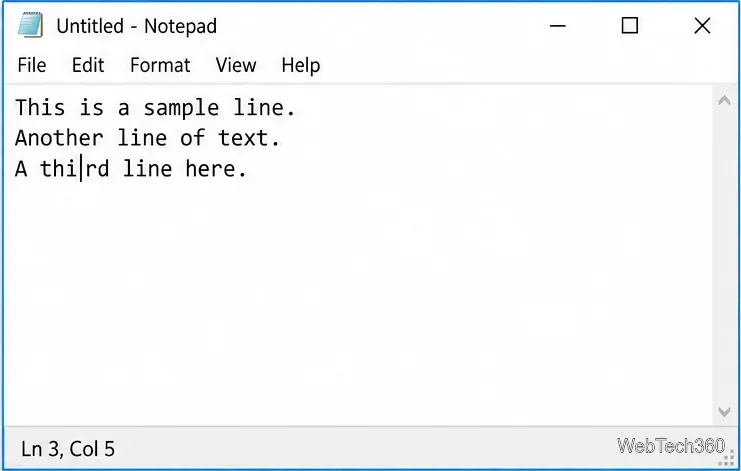
  2. Read the Ln value at the bottom. For example, “Ln 3, Col 5” means the cursor is on line 3 and column 5. “Col” is the cursor’s position across that line.
Notepad with the insertion cursor on the third text line and the status bar reading Ln 3, Col 5.
The status bar reports the logical line and column at the cursor.

What Notepad’s line number tells you

The status bar is a position indicator, not a permanent numbering feature. It does not insert digits into your text or display a separate number next to every line. Move the cursor to another line and the “Ln” value changes; leave it on the first line and it will continue to show line 1 even when the document contains many more lines.

A logical line is a line separated from the next one by pressing Enter. A long line may wrap onto two or more visible rows when Word Wrap is enabled, but those extra screen rows are not new lines in the text. The line number continues to identify the original logical line. Microsoft notes that Notepad can show line and column numbers with word wrapping enabled in its Windows 10 Notepad release notes.

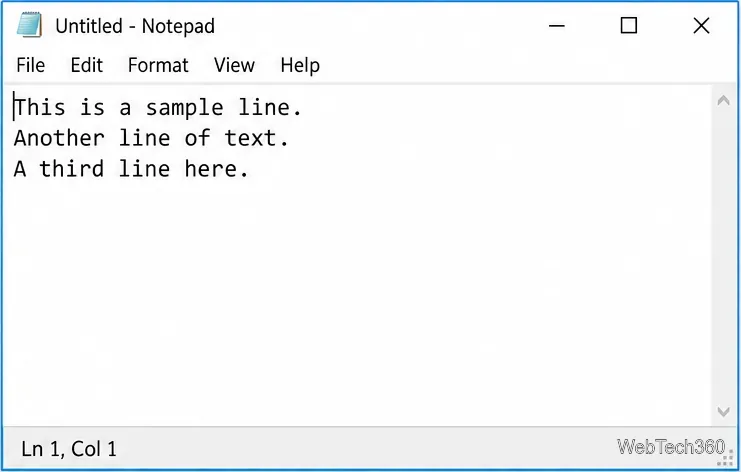
Classic Notepad showing three separate text lines and a status bar at the bottom.
Each press of Enter creates another logical line; the status bar starts at the current cursor position.

If Status Bar is missing or unavailable

Notepad’s menus and behavior can differ by Windows 10 and Notepad revision. Try these checks in order:

  • Check the menu state. Open View and click Status Bar if it is not checked. If the menu item is already checked but the strip is not visible, close and reopen the Notepad window.
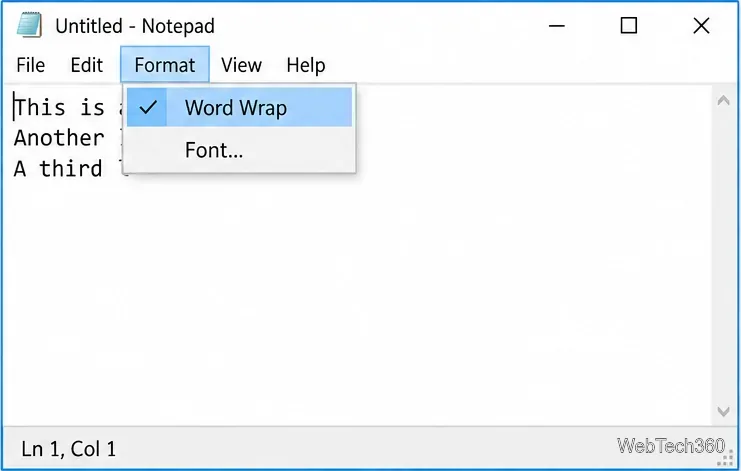
  • Check Word Wrap on an older revision. Open Format and look at Word Wrap. On some older Notepad builds, enabling Word Wrap disables the Status Bar option. If Status Bar is gray, click Word Wrap to turn wrapping off, then open View and enable Status Bar. This changes how long lines are displayed; it does not remove text.
  • On a newer Notepad revision, keep wrapping if you prefer it. Microsoft added line and column reporting while Word Wrap is enabled, and made the Status Bar visible by default in a Windows 10 Notepad update. If your menu differs from these steps, use the Word Wrap check above as a compatibility fallback.
  • Confirm the document has focus. Click in the editing area before reading the status display. The line number follows the insertion cursor, not the mouse pointer resting over the window.
The Format menu in classic Windows 10 Notepad with Word Wrap checked.
On some older revisions, turn off Word Wrap if it keeps Status Bar unavailable.

Need numbers beside every line?

If you need to scan all line numbers at once, refer to a specific numbered line in a review, or work with code, Notepad’s status bar is not enough. Use an editor with a line-number gutter. For example, Visual Studio Code can show or hide line numbers in the editor margin; see Microsoft’s VS Code user interface documentation. You can still keep Notepad for quick notes and plain-text edits.

For a quick check in Notepad, the short version is: select View > Status Bar, click the target line, and read Ln at the bottom. If you need a numbered margin that stays visible for the whole document, choose a different text editor.

Leave a Comment

How to Play Minecraft Offline on Windows 10: Java and Bedrock

How to Play Minecraft Offline on Windows 10: Java and Bedrock

Prepare Java or Bedrock on Windows 10 for offline single-player, enable the right Xbox setting, and back up your local Minecraft worlds.

How to Change a File Type Icon in Windows 10

How to Change a File Type Icon in Windows 10

Change a file type icon in Windows 10 while keeping its current default app. Follow the FileTypesMan steps, handle icon picker issues, and restore the original setting.

How to Set PhysX Configuration in NVIDIA Control Panel on Windows 10

How to Set PhysX Configuration in NVIDIA Control Panel on Windows 10

Set PhysX in NVIDIA Control Panel on Windows 10, understand Auto-select vs. CPU or GPU, and learn when to use Windows Graphics settings instead.

Best Free Office Software: 6 Alternatives to Word, Excel, and PowerPoint

Best Free Office Software: 6 Alternatives to Word, Excel, and PowerPoint

Compare six free office suites for documents, spreadsheets, and presentations, including browser-based collaboration and offline desktop options.

How to Get Line Numbers in Notepad on Windows 10

How to Get Line Numbers in Notepad on Windows 10

Turn on Notepad’s Status Bar to see the current line and column in Windows 10, troubleshoot a disabled option, and learn when you need a line-number gutter.

How to Show a Message Box on Windows 10 (PowerShell and Batch)

How to Show a Message Box on Windows 10 (PowerShell and Batch)

Display a custom Windows dialog with a short PowerShell command, Command Prompt, or a reusable .bat or .ps1 file, including a title, icon, and buttons.

How to Fix Windows 10 Update Error 0x80071160

How to Fix Windows 10 Update Error 0x80071160

Fix Windows 10 update error 0x80071160 with Microsoft’s troubleshooter, a safe update-cache reset, DISM and SFC repairs, and a careful manual-install check.

How to Install Windows 10 From a UEFI Bootable USB

How to Install Windows 10 From a UEFI Bootable USB

Create a Windows 10 UEFI installer with Microsoft’s Media Creation Tool or Rufus, then boot and install safely without wiping the wrong drive.

How to Hide Microsoft Edge Tabs from Alt+Tab in Windows 10

How to Hide Microsoft Edge Tabs from Alt+Tab in Windows 10

Stop individual Edge tabs from crowding the Windows 10 Alt+Tab switcher. Change one Multitasking setting, limit recent tabs, and check why the option may be missing.

How to Fix PDF Thumbnails Not Showing in Windows 10

How to Fix PDF Thumbnails Not Showing in Windows 10

Enable Adobe’s PDF thumbnail handler, correct File Explorer’s icon settings, rebuild the thumbnail cache, and check OneDrive files that are not stored locally.