How to Play Minecraft Offline on Windows 10: Java and Bedrock

Prepare Java or Bedrock on Windows 10 for offline single-player, enable the right Xbox setting, and back up your local Minecraft worlds.
If Windows 10 reports update error 0x80071160, first confirm that the failed update still applies to your device. Then run the Windows Update troubleshooter, retry the update, and clear the update cache if it fails again. If the error remains, repair Windows system files with DISM and System File Checker (SFC), then consider installing the exact update package manually.
Check eligibility before troubleshooting: Windows 10 reached the end of support on October 14, 2025. As of October 2026, standard Windows 10 devices no longer receive free security updates. A PC enrolled in the consumer Extended Security Updates (ESU) program can receive eligible security updates through October 12, 2027; business and special-edition devices can follow different servicing terms. Confirm that your device is eligible for the update you are trying to install. Microsoft’s Windows 10 support and ESU information explains the available paths.
Open Start > Settings > Update & Security > Windows Update > View update history. Record the KB number beside the failed item. You can also type winver in Start to check your Windows version. Compare the KB number and version with Microsoft’s Windows release information so you do not try to install an update meant for another release. Restart the computer once, check that the date and time are correct, and confirm you have a working internet connection before trying again.

Microsoft currently recommends the automated Windows Update troubleshooter in the Get Help app for Windows 10. Open Get Help from Start, search for “Windows Update troubleshooter,” and follow the prompts. Allow the app to apply any repairs it offers, then restart Windows if requested. The troubleshooter can diagnose common update problems, but it may not resolve every error.
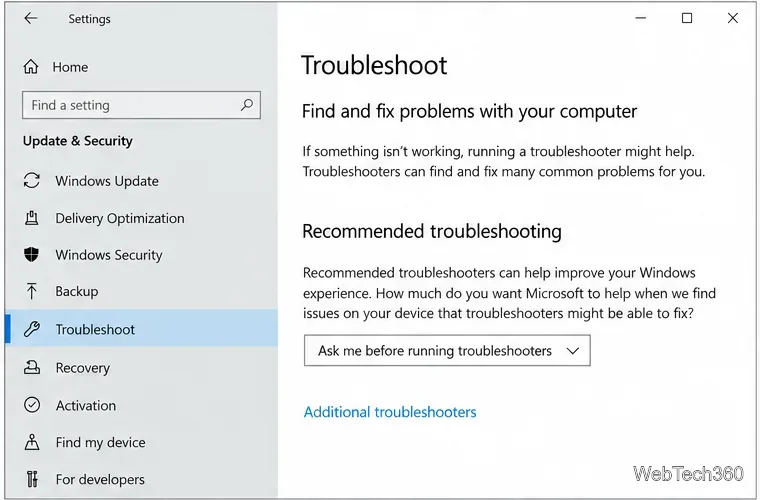
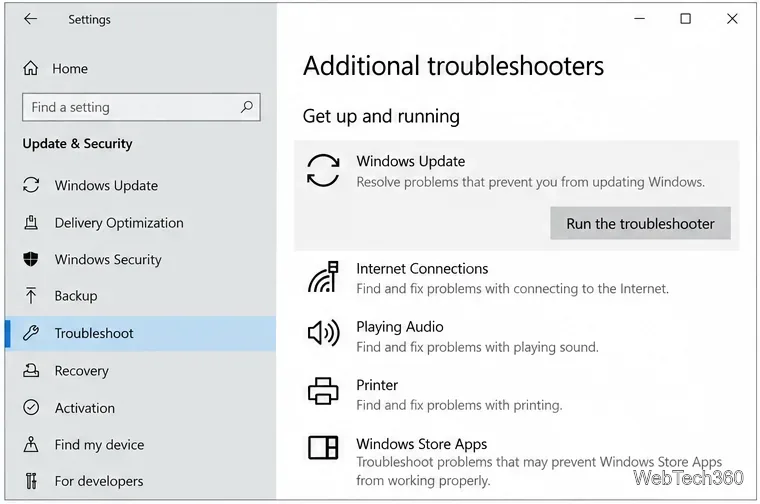
If Get Help is unavailable, use the built-in Windows 10 settings route: Start > Settings > Update & Security > Troubleshoot > Additional troubleshooters > Windows Update > Run the troubleshooter. Follow the on-screen steps to completion.
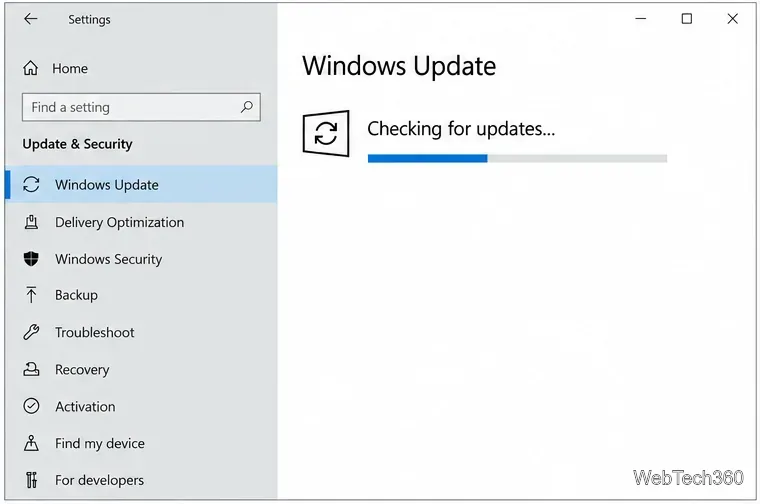
After the troubleshooter finishes, return to Settings > Update & Security > Windows Update and select Check for updates. Install the applicable update and restart if Windows asks. If error 0x80071160 appears again, reset the cached update files.
The SoftwareDistribution folder holds temporary files used by Windows Update. Microsoft’s troubleshooting guidance includes clearing this cache when corrupted or incomplete downloads keep failing. Installed updates are not removed by this step, but Windows may need to download update files again.
services.msc, and press Enter.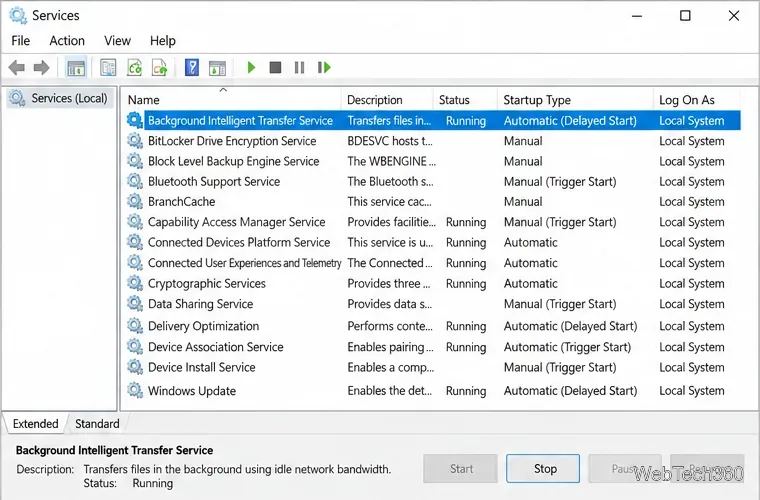
C:\Windows\SoftwareDistribution in the address bar. Open the folder, select its contents, and delete them. Delete the items inside the folder; keep the SoftwareDistribution folder itself. If Windows says a file is in use, verify that BITS and Windows Update are stopped before retrying.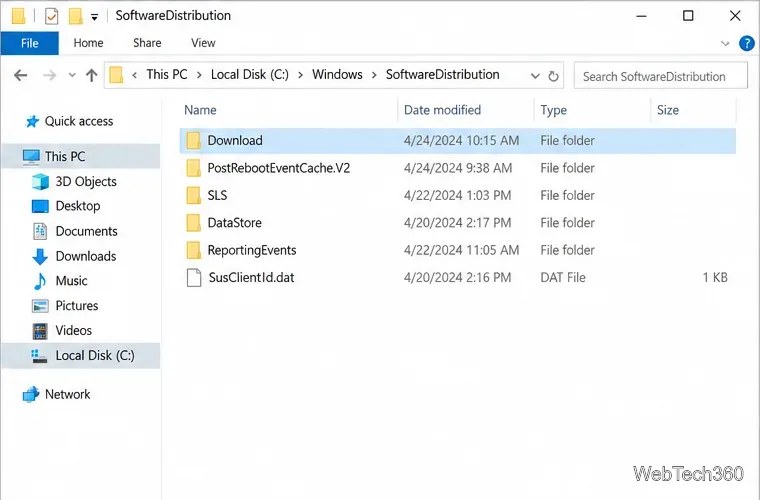
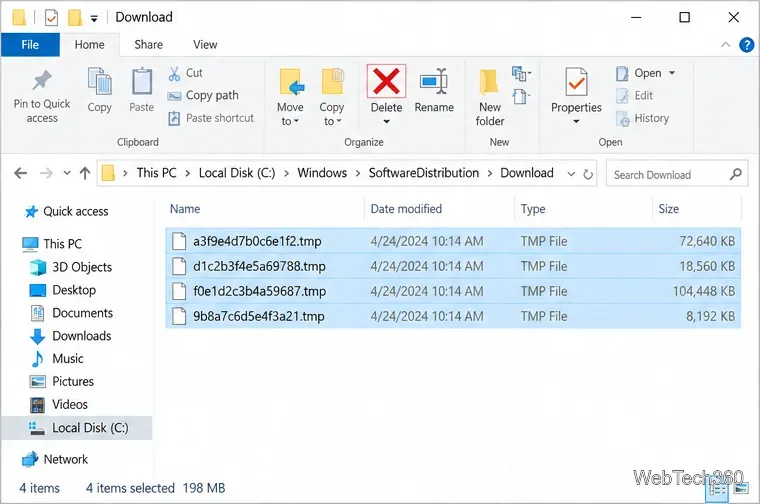
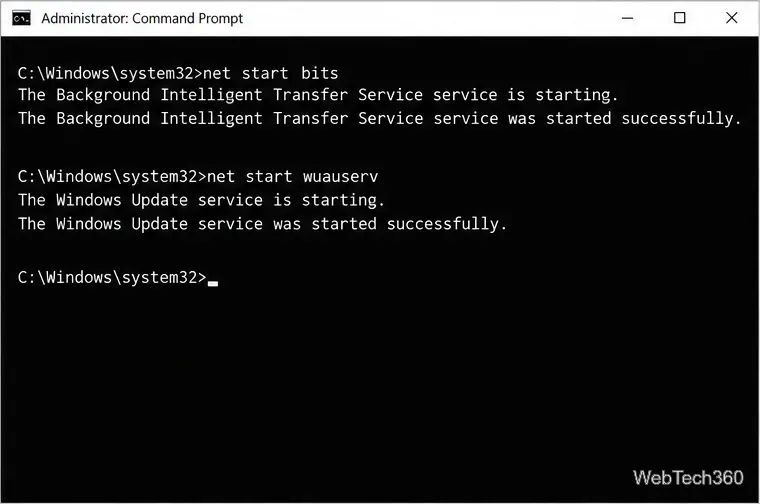
net start bits
net start wuauserv
Alternatively, return to Services and select Start for both services. Windows will rebuild the cache as needed. Then restart the PC and check for updates again. For Microsoft’s full manual reset procedure, including additional update components, see Reset Windows Update components.
A repeated failure after refreshing the cache can point to a problem elsewhere in the Windows component store or system files. Back up important files first. Search Start for Command Prompt, choose Run as administrator, and run the following command. Let it finish before entering the next one; the scan can take several minutes and may appear paused.
DISM.exe /Online /Cleanup-Image /RestoreHealth
sfc /scannow
Restart Windows when both commands complete, then retry Windows Update. Microsoft describes the order and purpose of these built-in repair tools in its System File Checker and DISM guidance. If DISM reports that it cannot find source files, or SFC cannot repair files, do not keep repeating the same update attempt; the device may need a repair source or administrator support.
If Windows Update still fails, search the recorded KB number in the official Microsoft Update Catalog. Match the product, Windows version, and system architecture shown for your PC. Do not install an older cumulative update if Microsoft has superseded it, and do not use a package for a different Windows release. Some Windows 10 security updates after end of support require ESU enrollment or another applicable servicing arrangement.
For more general troubleshooting options, use Microsoft’s guide to Windows Update problems. If the same KB continues to fail after these steps, keep the KB number and error code and ask your device administrator or Microsoft support for help with that specific update.
No. Clearing its contents removes cached update files; it does not uninstall updates that Windows has already installed. Windows can download fresh copies when it checks again.
Prepare Java or Bedrock on Windows 10 for offline single-player, enable the right Xbox setting, and back up your local Minecraft worlds.
Change a file type icon in Windows 10 while keeping its current default app. Follow the FileTypesMan steps, handle icon picker issues, and restore the original setting.
Set PhysX in NVIDIA Control Panel on Windows 10, understand Auto-select vs. CPU or GPU, and learn when to use Windows Graphics settings instead.
Compare six free office suites for documents, spreadsheets, and presentations, including browser-based collaboration and offline desktop options.
Turn on Notepad’s Status Bar to see the current line and column in Windows 10, troubleshoot a disabled option, and learn when you need a line-number gutter.
Display a custom Windows dialog with a short PowerShell command, Command Prompt, or a reusable .bat or .ps1 file, including a title, icon, and buttons.
Fix Windows 10 update error 0x80071160 with Microsoft’s troubleshooter, a safe update-cache reset, DISM and SFC repairs, and a careful manual-install check.
Create a Windows 10 UEFI installer with Microsoft’s Media Creation Tool or Rufus, then boot and install safely without wiping the wrong drive.
Stop individual Edge tabs from crowding the Windows 10 Alt+Tab switcher. Change one Multitasking setting, limit recent tabs, and check why the option may be missing.
Enable Adobe’s PDF thumbnail handler, correct File Explorer’s icon settings, rebuild the thumbnail cache, and check OneDrive files that are not stored locally.







