How to Play Minecraft Offline on Windows 10: Java and Bedrock

Prepare Java or Bedrock on Windows 10 for offline single-player, enable the right Xbox setting, and back up your local Minecraft worlds.
PDF thumbnails are missing because Windows File Explorer relies on a PDF thumbnail handler supplied by a reader. The quickest supported fix is to enable the PDF thumbnail option in Adobe Acrobat or Acrobat Reader, then confirm Explorer is using a view that can display previews. If thumbnails still do not appear, refresh Explorer, clear its thumbnail cache, and check whether the PDF is stored online only.
Adobe’s current instructions say its PDF Shell component supports thumbnail previews on 32-bit and 64-bit Windows, but the feature is off by default.
Open the folder that contains your PDFs. On the View tab, choose Large icons or Extra large icons. Details and List views show file-type icons, so use an icon layout while checking for page previews. Microsoft documents that File Explorer layouts can show either thumbnails or standard icons.

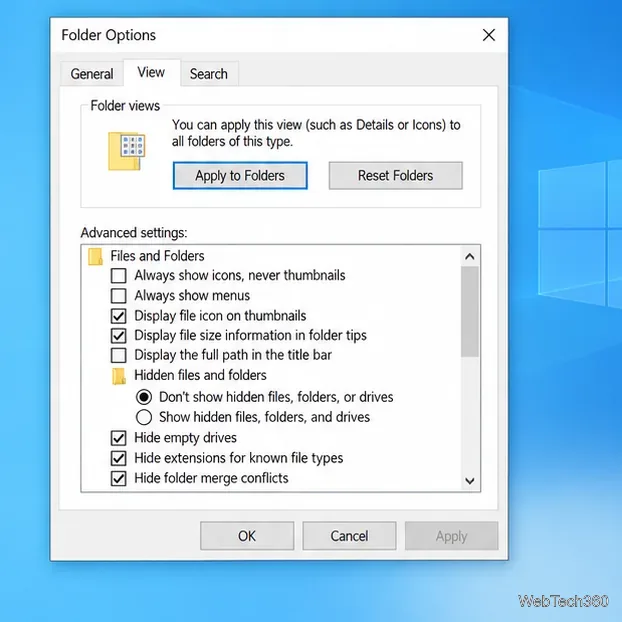
Next, select View > Options, open the View tab, and clear Always show icons, never thumbnails. Select Apply, then OK. When this box is checked, Explorer hides thumbnails even if a PDF app has registered a preview handler.
If you do not already have Acrobat Reader or Acrobat, install the current desktop version from Adobe’s Reader installation guide. If it is installed, update it first: in Reader, choose Help > Check for updates and install any available update.
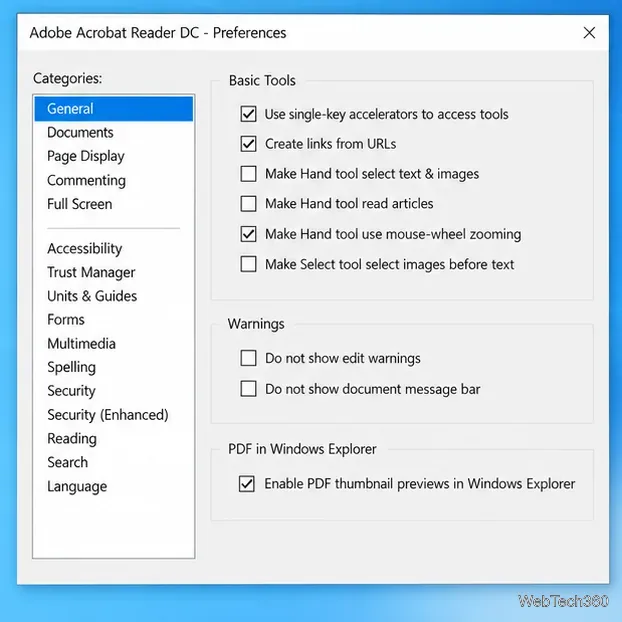
Open Acrobat or Reader and choose Menu > Preferences. Older versions use Edit > Preferences. In Preferences, select General, check Enable PDF thumbnail previews in Windows Explorer, and click OK. The checkbox may appear near the bottom of the General settings.
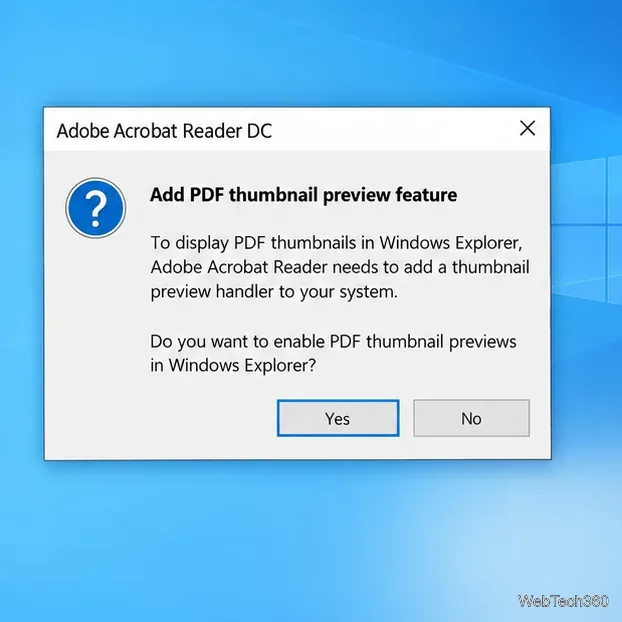
Reader may ask to add the PDF thumbnail preview feature to its installation. Select Yes and allow the setup to finish; Adobe says the handler can take a few seconds to configure. If the checkbox is missing, update Reader or Acrobat and check Preferences again.
Close the PDF folder and open it again, or press F5 to refresh it. Give Windows a moment to create previews for the files in the folder. If PDFs still show generic icons, press Ctrl+Shift+Esc to open Task Manager, select Windows Explorer, and choose Restart. Then reopen the folder and check the same files.
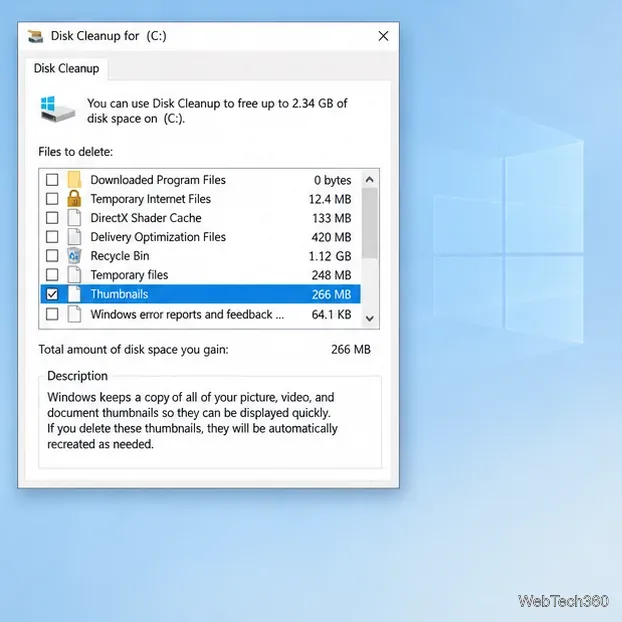
A stale or damaged cache can keep Explorer from showing a preview after the handler is enabled. To clear it, type Disk Cleanup in the taskbar search box and open the tool. Choose the Windows drive, usually C:, and select OK. Check Thumbnails; leave the other boxes unchanged if you only want to clear the preview cache. Select OK, then Delete Files. Windows can recreate the thumbnails as you browse the folder again. This removes cached previews, not the PDF documents themselves. See Microsoft’s Disk Cleanup instructions for the Windows steps.
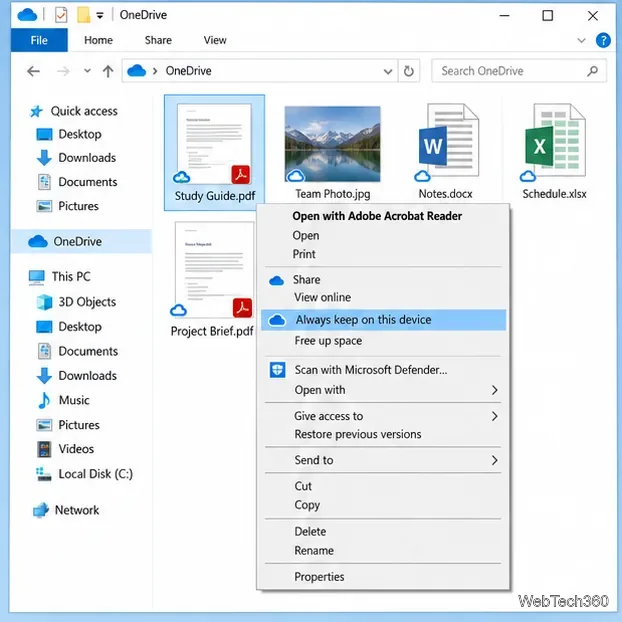
If the file is in OneDrive and has a cloud status icon, it may not be stored on the PC yet. Right-click the PDF and choose Always keep on this device. Wait for OneDrive to download it, then reopen or refresh the folder. Microsoft recommends this when OneDrive thumbnails do not appear, and notes that it does not provide previews for PDFs or images larger than 100 MB. Read Microsoft’s missing-thumbnail guidance for OneDrive for those limits.
If just one local PDF fails while others work, open it in Reader; if it fails there, replace the damaged copy. If every PDF fails, return to the Reader preference and Explorer settings above.
The Preview pane is different from folder thumbnails: it displays a larger view of the selected file. In File Explorer, select a PDF and press Alt+P to show or hide the pane. This requires a PDF preview handler. In an installed version of SumatraPDF 3.7 or later, press Ctrl+K to open its command palette and choose Toggle Windows Previewer; SumatraPDF documents that this registers its handler for the Explorer Preview pane. Then select the PDF again. For more detail, see SumatraPDF’s command reference and Microsoft’s File Explorer keyboard shortcuts.
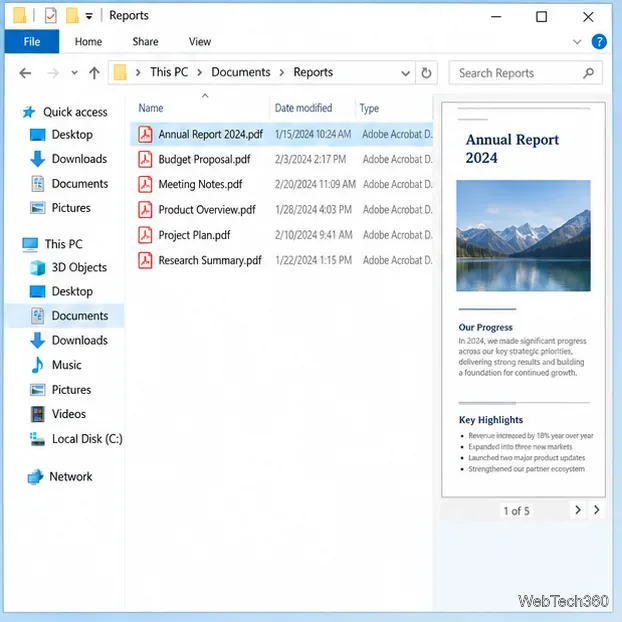
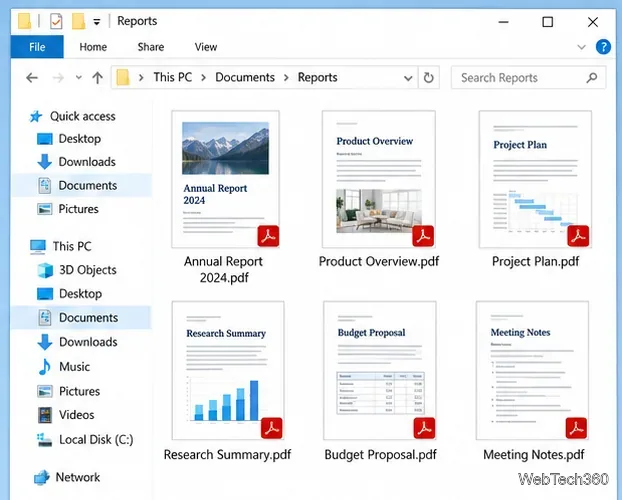
File Explorer should now create page previews as you browse folders. If Adobe’s checkbox is missing, update Acrobat or Reader before considering registry changes.
Prepare Java or Bedrock on Windows 10 for offline single-player, enable the right Xbox setting, and back up your local Minecraft worlds.
Change a file type icon in Windows 10 while keeping its current default app. Follow the FileTypesMan steps, handle icon picker issues, and restore the original setting.
Set PhysX in NVIDIA Control Panel on Windows 10, understand Auto-select vs. CPU or GPU, and learn when to use Windows Graphics settings instead.
Compare six free office suites for documents, spreadsheets, and presentations, including browser-based collaboration and offline desktop options.
Turn on Notepad’s Status Bar to see the current line and column in Windows 10, troubleshoot a disabled option, and learn when you need a line-number gutter.
Display a custom Windows dialog with a short PowerShell command, Command Prompt, or a reusable .bat or .ps1 file, including a title, icon, and buttons.
Fix Windows 10 update error 0x80071160 with Microsoft’s troubleshooter, a safe update-cache reset, DISM and SFC repairs, and a careful manual-install check.
Create a Windows 10 UEFI installer with Microsoft’s Media Creation Tool or Rufus, then boot and install safely without wiping the wrong drive.
Stop individual Edge tabs from crowding the Windows 10 Alt+Tab switcher. Change one Multitasking setting, limit recent tabs, and check why the option may be missing.
Enable Adobe’s PDF thumbnail handler, correct File Explorer’s icon settings, rebuild the thumbnail cache, and check OneDrive files that are not stored locally.







