How to Play Minecraft Offline on Windows 10: Java and Bedrock

Prepare Java or Bedrock on Windows 10 for offline single-player, enable the right Xbox setting, and back up your local Minecraft worlds.
Windows 10 does not have a built-in setting for changing only a file type’s icon. To give files such as .mp3 or .txt a different icon while keeping the app that opens them, use NirSoft’s free FileTypesMan utility and edit the type’s Default Icon value. Do not change the default app in Settings if your goal is only to change the icon.
Microsoft documents file icons as part of a file type’s association, separate from the app’s open action. The steps below use FileTypesMan to change that icon value without replacing the file association. Because the utility edits Windows file-type settings, first note the current icon and check whether the type is shared by other extensions.
.mp3 rather than a similarly named format..ico file is the simplest choice. Microsoft also documents icons stored in .exe and .dll files; if a file contains multiple icons, its path can include a comma and the icon index. Keep your chosen file in a folder you will not move or delete.
.mp3. Right-click that row and choose Edit Selected File Type. Review any notice that lists other extensions which may be affected. If it includes formats you do not want to change, cancel and leave the shared type alone.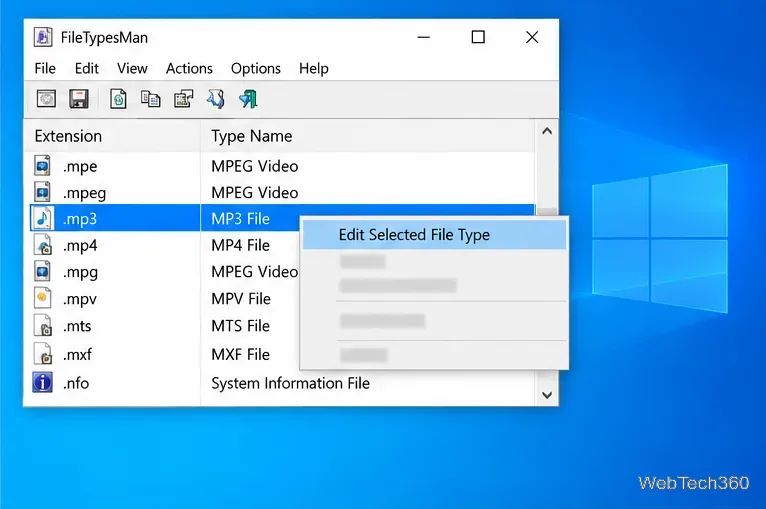
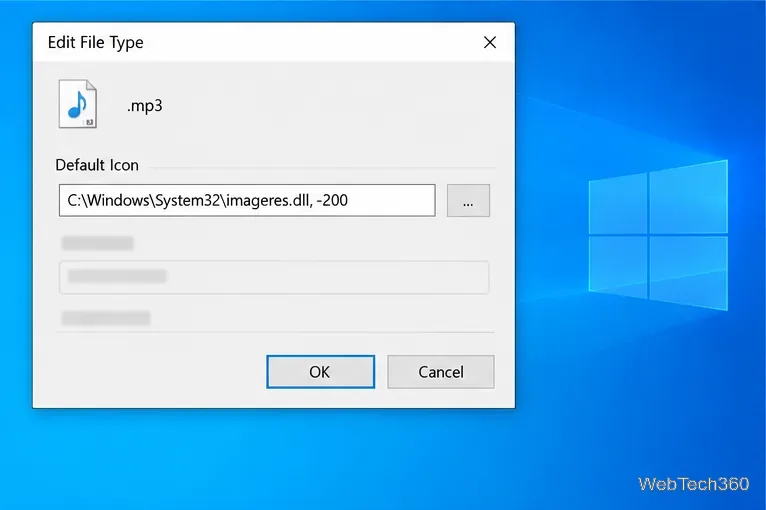
.ico file, select it, and confirm the icon. Then click OK in the icon dialog and again in FileTypesMan. NirSoft notes that the Windows icon picker may stop responding on some updated Windows 10 systems. If it hangs, cancel the picker if possible and type the full path to the icon directly into the Default Icon field, then click OK. For an icon stored in an .exe or .dll, include the appropriate icon index after a comma.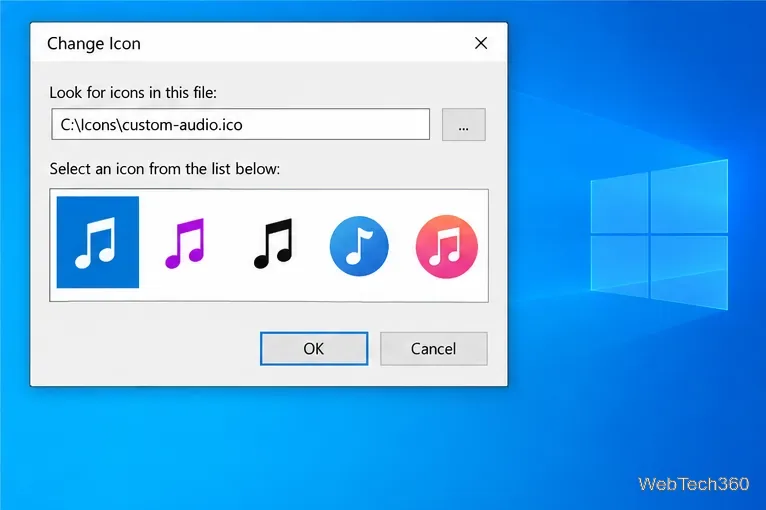
FileTypesMan automatically refreshes the desktop after a file-type change. Reopen or refresh the File Explorer folder and check a few files with the same extension. Their icons should change together, while double-clicking a file should still open it in the same app. If you do not see the new icon, use File > Refresh Desktop Now in FileTypesMan, then close and reopen File Explorer.
To undo the change, return to the same extension in FileTypesMan, open Edit Selected File Type, and restore the exact value you saved from Default Icon. Keep the replacement icon file in place until you have restored the old value. There is no need to uninstall or reinstall the associated app. Avoid FileTypesMan’s Replace File Type command for an icon-only rollback: it changes the file type association and can affect which app opens the files.
For more detail on how Windows associates an icon with a file type, see Microsoft’s DefaultIcon documentation. It explains why changing an icon is a different task from choosing the app that opens a file.
Prepare Java or Bedrock on Windows 10 for offline single-player, enable the right Xbox setting, and back up your local Minecraft worlds.
Change a file type icon in Windows 10 while keeping its current default app. Follow the FileTypesMan steps, handle icon picker issues, and restore the original setting.
Set PhysX in NVIDIA Control Panel on Windows 10, understand Auto-select vs. CPU or GPU, and learn when to use Windows Graphics settings instead.
Compare six free office suites for documents, spreadsheets, and presentations, including browser-based collaboration and offline desktop options.
Turn on Notepad’s Status Bar to see the current line and column in Windows 10, troubleshoot a disabled option, and learn when you need a line-number gutter.
Display a custom Windows dialog with a short PowerShell command, Command Prompt, or a reusable .bat or .ps1 file, including a title, icon, and buttons.
Fix Windows 10 update error 0x80071160 with Microsoft’s troubleshooter, a safe update-cache reset, DISM and SFC repairs, and a careful manual-install check.
Create a Windows 10 UEFI installer with Microsoft’s Media Creation Tool or Rufus, then boot and install safely without wiping the wrong drive.
Stop individual Edge tabs from crowding the Windows 10 Alt+Tab switcher. Change one Multitasking setting, limit recent tabs, and check why the option may be missing.
Enable Adobe’s PDF thumbnail handler, correct File Explorer’s icon settings, rebuild the thumbnail cache, and check OneDrive files that are not stored locally.







