How to Play Minecraft Offline on Windows 10: Java and Bedrock

Prepare Java or Bedrock on Windows 10 for offline single-player, enable the right Xbox setting, and back up your local Minecraft worlds.
To set NVIDIA PhysX on Windows 10, open NVIDIA Control Panel and go to 3D Settings > Set PhysX configuration. Choose Auto-select (recommended) for the driver to choose a processor, or select a listed NVIDIA GPU to prefer GPU acceleration for supported PhysX work. Click Apply to commit the selection. NVIDIA recommends Auto-select for most systems.
This setting controls PhysX processing only. It does not make every game use the NVIDIA GPU for graphics rendering, and it cannot add PhysX effects to a game that does not support them. If you are trying to select the GPU for an entire game, use Windows Graphics settings instead.
The selector may offer different choices depending on the graphics hardware and driver installed. NVIDIA describes the available options in its PhysX configuration reference.
| Choice | What it does | When to use it |
|---|---|---|
| Auto-select (recommended) | Lets the NVIDIA driver select the processor it considers best for PhysX. | Leave this selected unless you have a specific reason to test another option. |
| Your NVIDIA GPU | Uses the selected NVIDIA GPU to accelerate PhysX processing when the application and hardware support it. | Use for a controlled comparison or when an application’s instructions call for GPU PhysX. |
| CPU | Runs PhysX processing on the computer’s central processor. | Use as a troubleshooting comparison for a particular application, then return to Auto-select if it does not help. |
Choosing the GPU does not guarantee a higher frame rate or better visuals. The result depends on the game, its PhysX implementation, and the rest of the system. Avoid changing the global option just because one game stutters; test one setting at a time and restore Auto-select if performance or stability gets worse.
Open NVIDIA Control Panel. Select Start, type NVIDIA Control Panel, and open the app from the search results. If it appears in the desktop right-click menu, you can open it there too.

Open the PhysX page. In the left navigation pane, expand 3D Settings and select Set PhysX configuration. On some driver and multi-GPU setups, the page name may combine PhysX with SLI or multi-GPU settings; look for the PhysX processor selector.
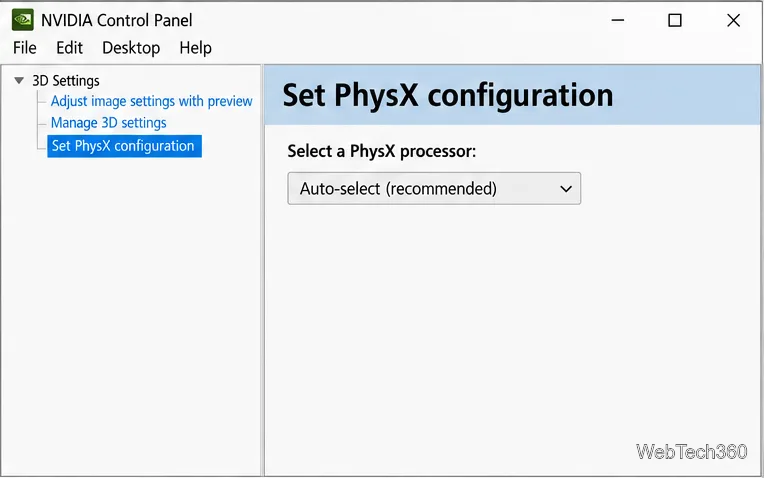
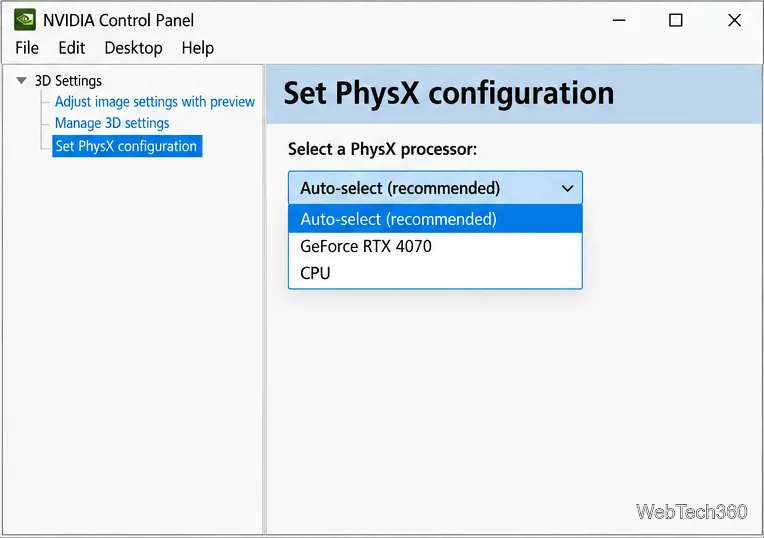
Choose a processor. Under Select a PhysX processor, open the menu. Keep Auto-select (recommended) for normal use, or select the NVIDIA GPU listed in the menu if you are deliberately testing GPU PhysX. The GPU name shown on your computer will differ from the example.
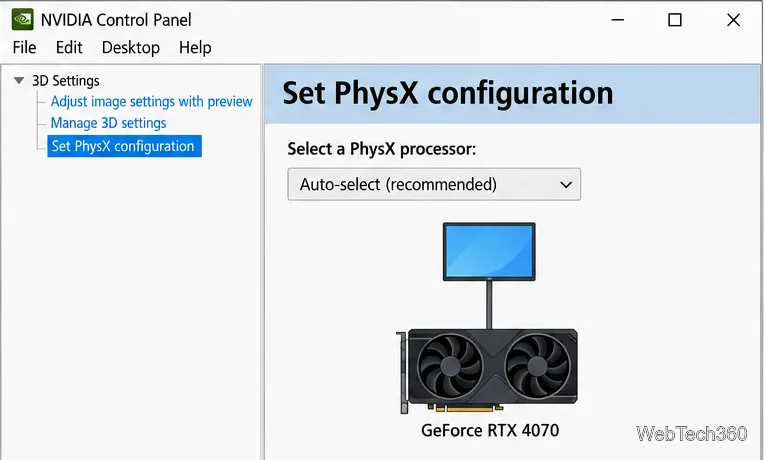
Apply and review the diagram. Click Apply. NVIDIA notes that choices do not take effect until you apply them. The GPU configuration visualizer can show the detected GPUs, active displays, and the selected PhysX processor. On laptops and docked systems, the connector diagram may not match the physical display wiring exactly, so do not treat it as the only test of which GPU a game is using.
If your goal is to make one game or app use the NVIDIA GPU for rendering, changing PhysX is the wrong control. NVIDIA says that starting with Windows 10 version 20H1, Windows assigns the graphics processor for apps and can override the preferred-processor setting in NVIDIA Control Panel. Open Settings > System > Display > Graphics settings, select or add the game’s executable, choose Options, and select High performance if Windows lists the NVIDIA GPU as that option. Save the choice and restart the game. Menu wording can vary slightly by Windows 10 build.
For the distinction, see NVIDIA’s preferred graphics processor guidance. The PhysX page remains useful for choosing a processor for PhysX tasks; Windows Graphics settings handle an app’s GPU preference.
For most Windows 10 PCs, the practical setup is simple: leave PhysX on Auto-select, use Apply after any change, and use Windows Graphics settings when you need to choose a game’s rendering GPU.
Prepare Java or Bedrock on Windows 10 for offline single-player, enable the right Xbox setting, and back up your local Minecraft worlds.
Change a file type icon in Windows 10 while keeping its current default app. Follow the FileTypesMan steps, handle icon picker issues, and restore the original setting.
Set PhysX in NVIDIA Control Panel on Windows 10, understand Auto-select vs. CPU or GPU, and learn when to use Windows Graphics settings instead.
Compare six free office suites for documents, spreadsheets, and presentations, including browser-based collaboration and offline desktop options.
Turn on Notepad’s Status Bar to see the current line and column in Windows 10, troubleshoot a disabled option, and learn when you need a line-number gutter.
Display a custom Windows dialog with a short PowerShell command, Command Prompt, or a reusable .bat or .ps1 file, including a title, icon, and buttons.
Fix Windows 10 update error 0x80071160 with Microsoft’s troubleshooter, a safe update-cache reset, DISM and SFC repairs, and a careful manual-install check.
Create a Windows 10 UEFI installer with Microsoft’s Media Creation Tool or Rufus, then boot and install safely without wiping the wrong drive.
Stop individual Edge tabs from crowding the Windows 10 Alt+Tab switcher. Change one Multitasking setting, limit recent tabs, and check why the option may be missing.
Enable Adobe’s PDF thumbnail handler, correct File Explorer’s icon settings, rebuild the thumbnail cache, and check OneDrive files that are not stored locally.







