How to Install Windows 10 From a UEFI Bootable USB

How to Install Windows 10 From a UEFI Bootable USB

To install Windows 10 on a UEFI PC, create a bootable USB with Microsoft’s Media Creation Tool or write a Microsoft ISO to a USB with Rufus. Then start the target computer from the USB entry labeled UEFI and follow Windows Setup. A blank USB drive with at least 8 GB is required, and creating the installer erases everything on it.

Back up the target PC before a clean install. Windows 10 support ended October 14, 2025: it still runs, but Microsoft no longer provides standard security updates, feature updates, or technical support. Consider Windows 11 if the PC supports it.

Option 1: Create the USB with Microsoft’s Media Creation Tool

This is the simpler route because the tool downloads Windows 10 and writes the installer directly to the USB. Use a working Windows PC with internet and administrator access. Microsoft recommends a blank USB of at least 8 GB; its contents will be erased.

Microsoft Windows 10 download page with the Create Windows 10 installation media heading and Download tool now button.
Use Microsoft’s Windows 10 download page to get the Media Creation Tool.
  1. Open the Microsoft Windows 10 download page and select Download tool now. Run the downloaded tool as an administrator and accept its license terms.
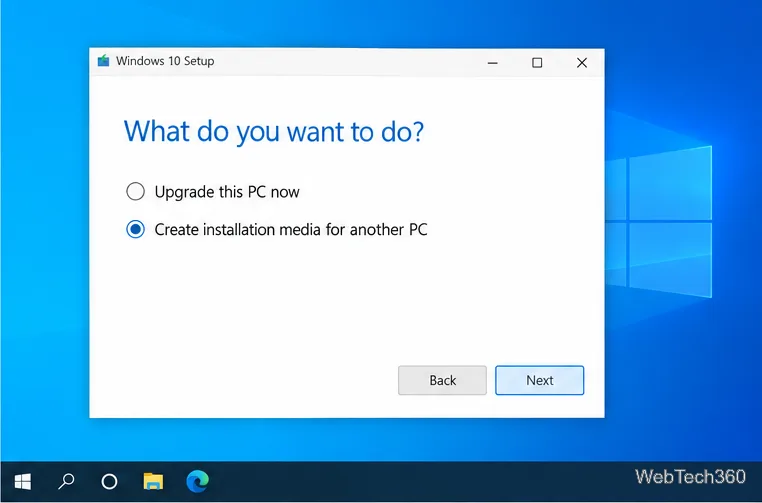
  2. On What do you want to do?, choose Create installation media for another PC, then select Next.
Windows 10 Setup asks what to do, with Create installation media for another PC selected.
Choose the option for creating installation media for the target PC.
  1. Choose the Windows language, edition, and architecture that match the target PC and its license. If the choices should differ from the working PC, clear Use the recommended options for this PC first.
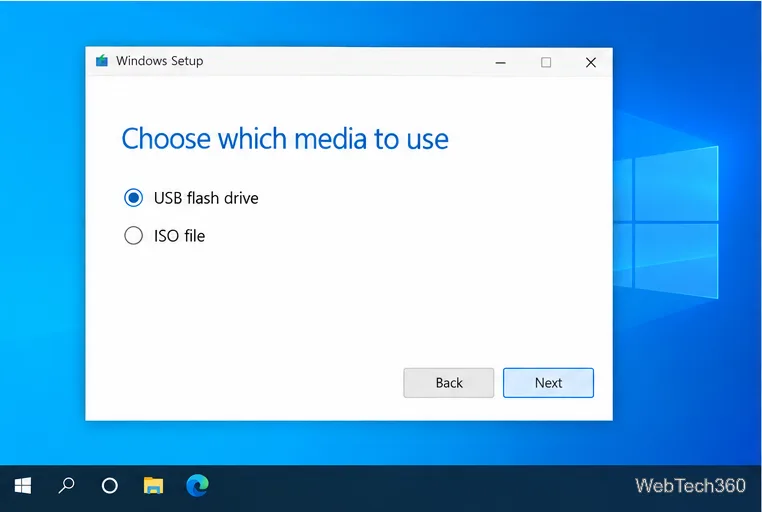
  2. Choose USB flash drive, select Next, then carefully choose the correct removable drive from the list. If several drives are connected, identify the USB by its capacity or label before proceeding.
Windows Setup media choice screen with USB flash drive selected instead of ISO file.
Choose USB flash drive to let the tool write the installer directly.
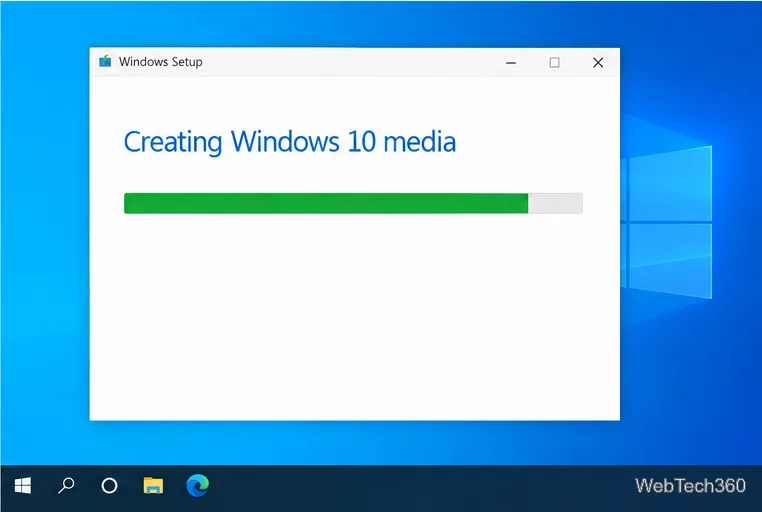
  1. Allow the tool to download and create the media. Keep the PC connected to the internet and do not remove the USB until the tool says it is finished.
Windows Setup is creating Windows 10 media, with a green progress bar.
Wait for Windows Setup to finish writing the USB.

Option 2: Write a Windows 10 ISO with Rufus

Use Rufus if you have a Windows 10 ISO and want to set the USB’s partition scheme. To make an ISO, choose ISO file in Media Creation Tool and save it. Download Rufus from its official website.

  1. In Rufus, confirm the USB under Device. Under Boot selection, choose SELECT and open the Windows 10 ISO.
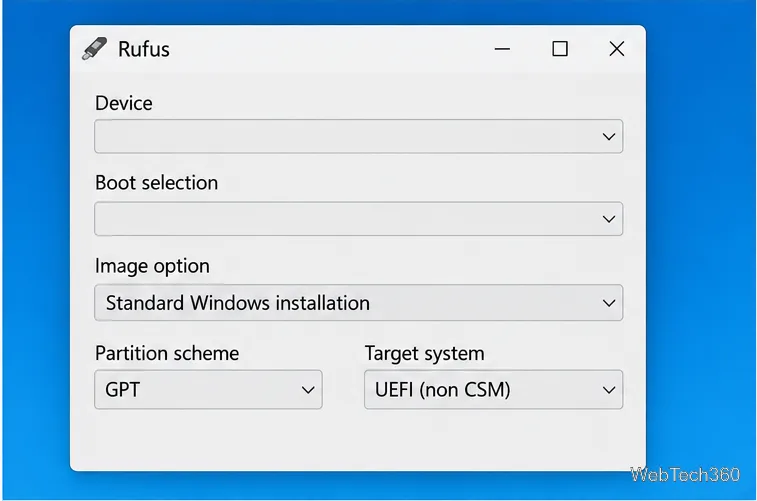
  2. Keep Image option at Standard Windows installation. Set Partition scheme to GPT and Target system to UEFI (non CSM); confirm those values before writing.
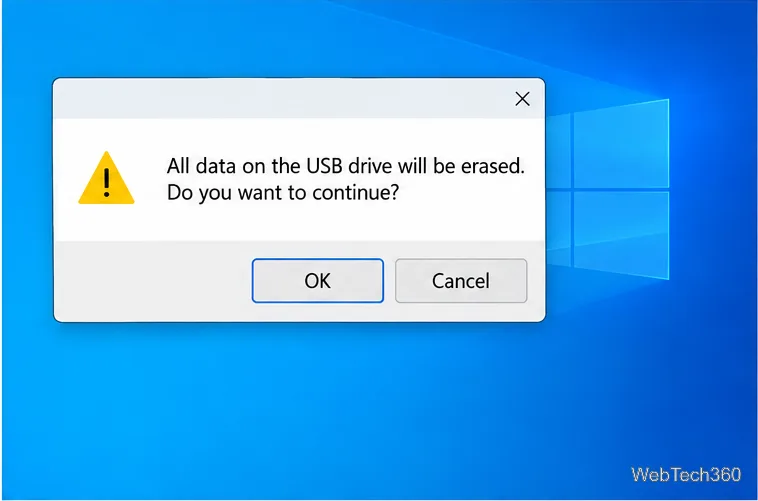
  3. Leave the file system and other format settings at their defaults unless the PC manufacturer’s instructions require a change. Select Start, review the USB-erasure warning, and continue only after confirming that the selected drive contains nothing you need.
  4. Wait for Rufus to show that writing is complete, then close it and safely eject the USB.
Rufus window showing Standard Windows installation, GPT partition scheme, and UEFI non-CSM target system.
For a UEFI installation, verify the GPT and UEFI settings before writing the ISO.
Rufus confirmation dialog warning that all data on the USB drive will be erased.
The confirmation applies to the selected USB drive, so check the device before continuing.

Boot the PC from the UEFI USB and install Windows

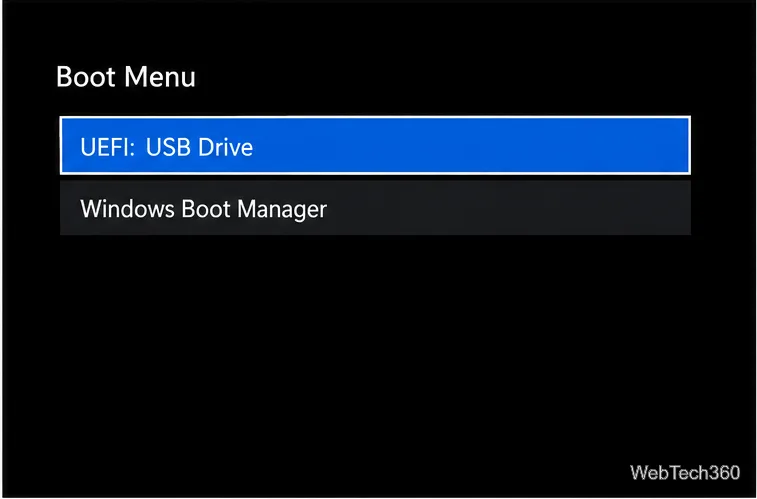
  1. Insert the installer into the PC where Windows will be installed and restart it. Immediately press the manufacturer’s one-time boot-menu key; common keys include F12, F2, Esc, or Delete, but the correct key varies by model. Choose the entry that begins with UEFI: and names your USB drive.
UEFI boot menu with UEFI: USB Drive selected above Windows Boot Manager.
Select the USB’s UEFI entry so Windows Setup starts in UEFI mode.
  1. When Windows Setup appears, choose the language and keyboard layout, select Next, and then Install now. Enter a product key when prompted. If this PC already has a digital license for the same Windows 10 edition, you can select I don’t have a product key and let Windows activate online later. Choose the edition that matches the license, such as Home or Pro.
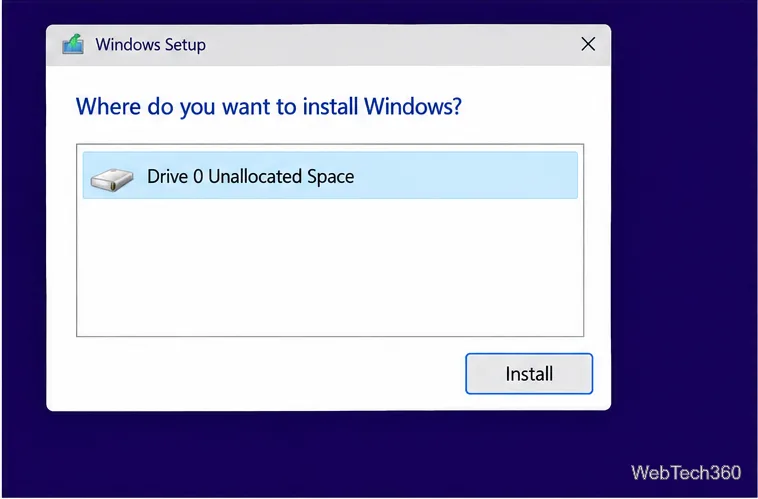
  2. For a clean installation, choose Custom: Install Windows only. At the drive list, select the intended destination. On a new, empty drive, select its unallocated space and choose Next; Setup creates required partitions. If the drive contains files or another Windows installation, verify the backup and target disk before deleting or formatting partitions, which permanently erases data.
Windows Setup destination screen with Drive 0 Unallocated Space selected and an Install button.
Select unallocated space only when it belongs to the intended installation drive.

If you want to keep installed apps and personal files while upgrading an existing Windows PC, start setup.exe from the USB while Windows is running instead of booting from it. A booted clean install follows a different path.

If the USB does not appear in the boot menu

  • Try another USB port and reopen the boot menu with the PC maker’s key.
  • Recreate the media with Microsoft’s tool or confirm Rufus uses UEFI (non CSM) and GPT.
  • If Setup reports a partition-style mismatch, check that you booted the UEFI: USB. Do not switch to Legacy/CSM or alter partitions until you have backed up the target disk; conversion or formatting can erase data.

Microsoft’s installation-media guide covers USB creation and booting from the media. Its Windows 10 end-of-support notice explains the current support status.

Leave a Comment

How to Play Minecraft Offline on Windows 10: Java and Bedrock

How to Play Minecraft Offline on Windows 10: Java and Bedrock

Prepare Java or Bedrock on Windows 10 for offline single-player, enable the right Xbox setting, and back up your local Minecraft worlds.

How to Change a File Type Icon in Windows 10

How to Change a File Type Icon in Windows 10

Change a file type icon in Windows 10 while keeping its current default app. Follow the FileTypesMan steps, handle icon picker issues, and restore the original setting.

How to Set PhysX Configuration in NVIDIA Control Panel on Windows 10

How to Set PhysX Configuration in NVIDIA Control Panel on Windows 10

Set PhysX in NVIDIA Control Panel on Windows 10, understand Auto-select vs. CPU or GPU, and learn when to use Windows Graphics settings instead.

Best Free Office Software: 6 Alternatives to Word, Excel, and PowerPoint

Best Free Office Software: 6 Alternatives to Word, Excel, and PowerPoint

Compare six free office suites for documents, spreadsheets, and presentations, including browser-based collaboration and offline desktop options.

How to Get Line Numbers in Notepad on Windows 10

How to Get Line Numbers in Notepad on Windows 10

Turn on Notepad’s Status Bar to see the current line and column in Windows 10, troubleshoot a disabled option, and learn when you need a line-number gutter.

How to Show a Message Box on Windows 10 (PowerShell and Batch)

How to Show a Message Box on Windows 10 (PowerShell and Batch)

Display a custom Windows dialog with a short PowerShell command, Command Prompt, or a reusable .bat or .ps1 file, including a title, icon, and buttons.

How to Fix Windows 10 Update Error 0x80071160

How to Fix Windows 10 Update Error 0x80071160

Fix Windows 10 update error 0x80071160 with Microsoft’s troubleshooter, a safe update-cache reset, DISM and SFC repairs, and a careful manual-install check.

How to Install Windows 10 From a UEFI Bootable USB

How to Install Windows 10 From a UEFI Bootable USB

Create a Windows 10 UEFI installer with Microsoft’s Media Creation Tool or Rufus, then boot and install safely without wiping the wrong drive.

How to Hide Microsoft Edge Tabs from Alt+Tab in Windows 10

How to Hide Microsoft Edge Tabs from Alt+Tab in Windows 10

Stop individual Edge tabs from crowding the Windows 10 Alt+Tab switcher. Change one Multitasking setting, limit recent tabs, and check why the option may be missing.

How to Fix PDF Thumbnails Not Showing in Windows 10

How to Fix PDF Thumbnails Not Showing in Windows 10

Enable Adobe’s PDF thumbnail handler, correct File Explorer’s icon settings, rebuild the thumbnail cache, and check OneDrive files that are not stored locally.