How to Play Minecraft Offline on Windows 10: Java and Bedrock

Prepare Java or Bedrock on Windows 10 for offline single-player, enable the right Xbox setting, and back up your local Minecraft worlds.
Yes. Minecraft can be played offline on Windows 10 in a local single-player world, whether you use Java Edition or Minecraft for Windows (Bedrock). Install and authenticate the game before you disconnect. Bedrock players should also enable Xbox offline permissions while online. Offline play does not include servers, Realms, Marketplace downloads, or other features that need a connection.
Prepare while the PC is online. Sign in with the Microsoft account that owns Minecraft or has an active subscription, and use that same account in the Launcher, Xbox app, and Store.
See Xbox’s Windows offline steps and Minecraft’s account requirements.
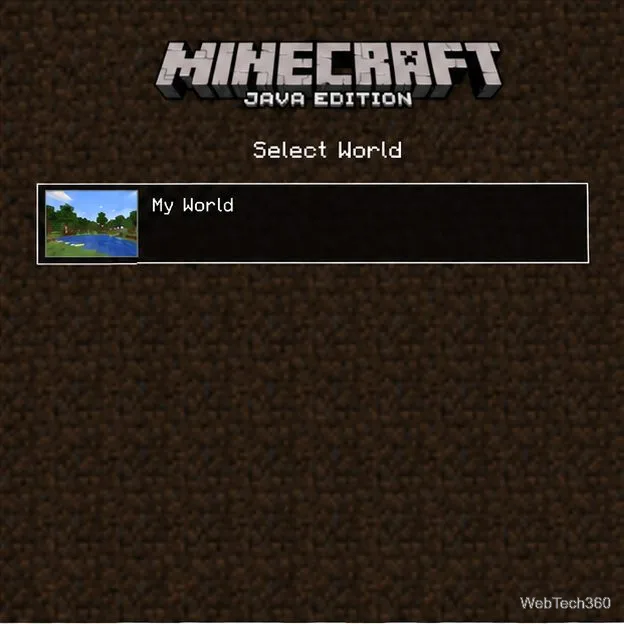
Java single-player worlds are local saves; choose an existing world or create one.
If the Launcher asks you to sign in or verify your license, reconnect and resolve that prompt before your next offline session. Offline mode does not bypass account ownership or a subscription requirement.
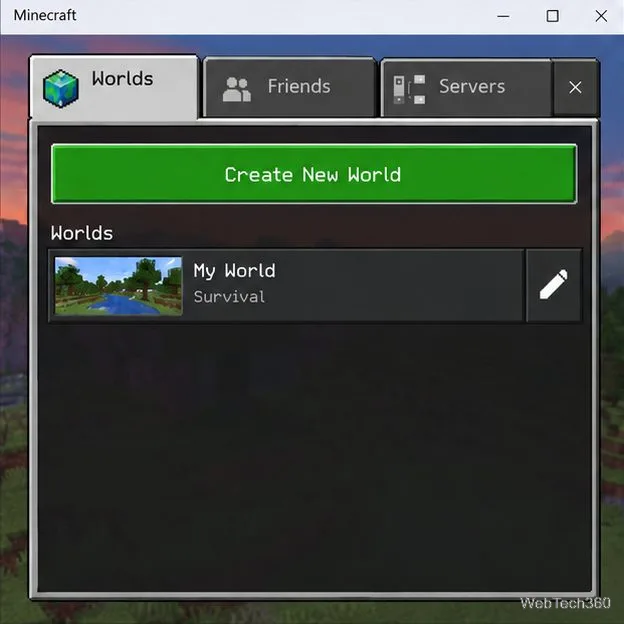
Minecraft for Windows is the PC version of Bedrock Edition. Enable Xbox offline permissions before disconnecting.
World creation and solo play work locally, but you cannot join a Realm, server, or online friend while disconnected. Marketplace items, updates, and online account services also require internet. If you play through Game Pass, subscription access still applies and the license may need to be refreshed online; reconnect and launch the game if offline access stops working.
Offline progress is saved on the computer. Make a separate backup before traveling or changing installations so a damaged or deleted save does not take your builds with it.
%APPDATA%\.minecraft\saves, and press Enter. Copy the complete folder for the world you want to protect. Java also has a built-in backup command: from Singleplayer, select a world, choose Edit, then Make Backup. Minecraft documents the save location in its world transfer guide..mcworld backup outside Minecraft’s data folder. The Windows storage path can vary between app builds, so the in-game export is easier to move and restore. See Minecraft’s official Backup & Restore instructions.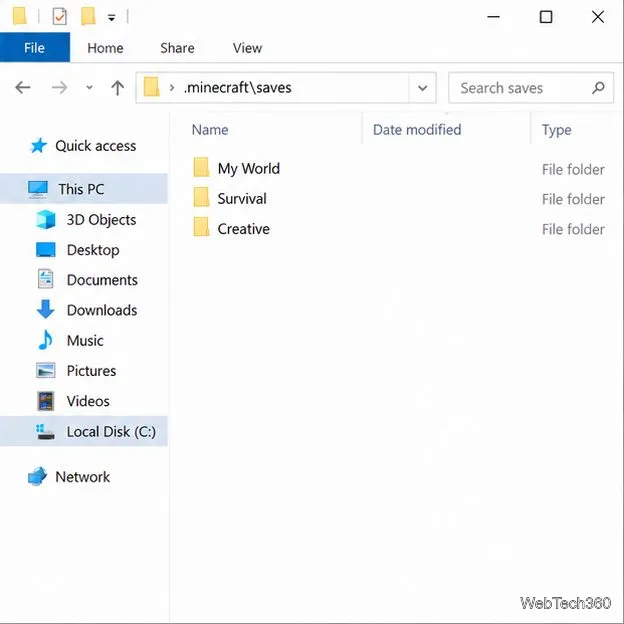
Windows 10 still runs after its support ended on October 14, 2025, but Microsoft no longer provides regular security updates unless the device is covered by an applicable Extended Security Updates program. Check Microsoft’s Windows 10 support notice for current options.
Prepare Java or Bedrock on Windows 10 for offline single-player, enable the right Xbox setting, and back up your local Minecraft worlds.
Change a file type icon in Windows 10 while keeping its current default app. Follow the FileTypesMan steps, handle icon picker issues, and restore the original setting.
Set PhysX in NVIDIA Control Panel on Windows 10, understand Auto-select vs. CPU or GPU, and learn when to use Windows Graphics settings instead.
Compare six free office suites for documents, spreadsheets, and presentations, including browser-based collaboration and offline desktop options.
Turn on Notepad’s Status Bar to see the current line and column in Windows 10, troubleshoot a disabled option, and learn when you need a line-number gutter.
Display a custom Windows dialog with a short PowerShell command, Command Prompt, or a reusable .bat or .ps1 file, including a title, icon, and buttons.
Fix Windows 10 update error 0x80071160 with Microsoft’s troubleshooter, a safe update-cache reset, DISM and SFC repairs, and a careful manual-install check.
Create a Windows 10 UEFI installer with Microsoft’s Media Creation Tool or Rufus, then boot and install safely without wiping the wrong drive.
Stop individual Edge tabs from crowding the Windows 10 Alt+Tab switcher. Change one Multitasking setting, limit recent tabs, and check why the option may be missing.
Enable Adobe’s PDF thumbnail handler, correct File Explorer’s icon settings, rebuild the thumbnail cache, and check OneDrive files that are not stored locally.








