How to Play Minecraft Offline on Windows 10: Java and Bedrock

Prepare Java or Bedrock on Windows 10 for offline single-player, enable the right Xbox setting, and back up your local Minecraft worlds.
To show a custom message box on Windows 10, call the built-in Windows Forms MessageBox.Show method from Windows PowerShell. Run it once from a terminal or save it as a reusable .bat or .ps1 file. No administrator account is needed in your signed-in desktop session.
A message box is a modal dialog that stays open until dismissed and can block interaction with its owner. It differs from a toast notification. Microsoft's MessageBox.Show reference lists the message, caption, button, and icon arguments.
powershell.exe.The examples use Windows PowerShell and the System.Windows.Forms assembly available on Windows. The command loads that assembly, then specifies the message, title, OK button, and information icon.

@echo off
powershell.exe -NoProfile -Command "Add-Type -AssemblyName System.Windows.Forms; [void][System.Windows.Forms.MessageBox]::Show('Backup complete.', 'Backup status', [System.Windows.Forms.MessageBoxButtons]::OK, [System.Windows.Forms.MessageBoxIcon]::Information)"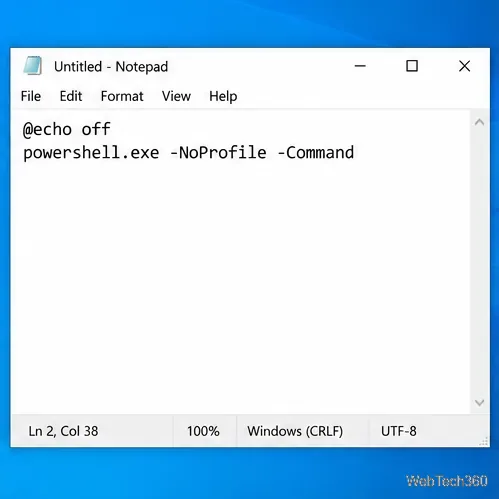
Backup complete. to the text you want and Backup status to the title. Keep the single quotes around both strings. The explicit button and icon values make the dialog predictable; [void] discards the method's return value because this example only needs to display the box. 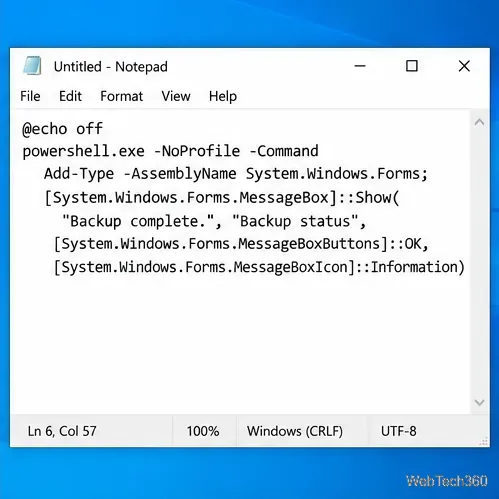
ShowMessage.bat as the file name and select All Files as the file type, then save it somewhere easy to find, such as the Desktop. If you leave the type as a text document, Notepad may save it as ShowMessage.bat.txt instead. 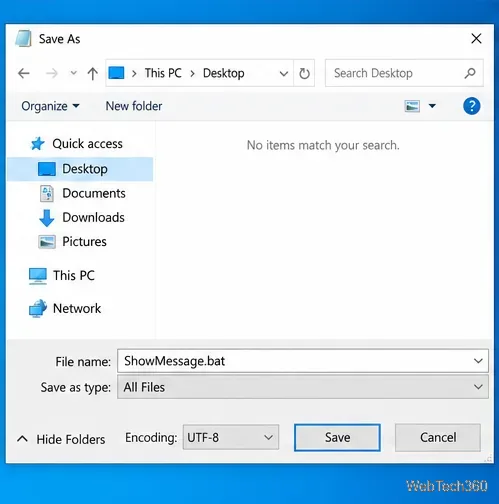
ShowMessage.bat file. The message box appears; click OK to close it. 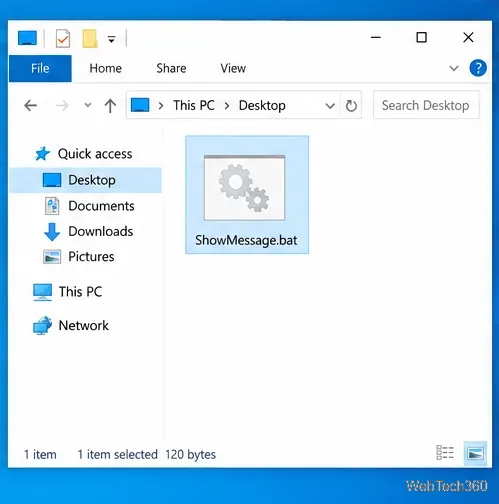
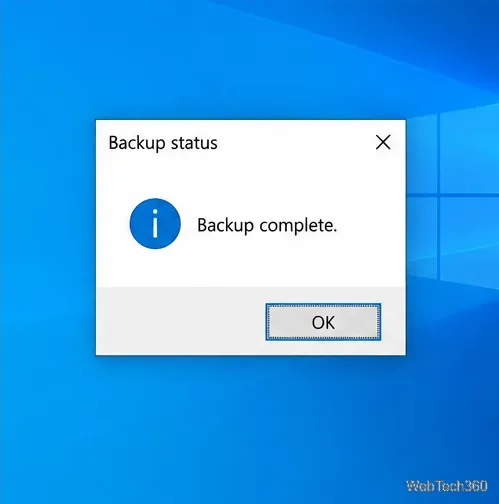
Because the batch file nests PowerShell inside a quoted command, keep the text simple and avoid double quotation marks in the message and title.
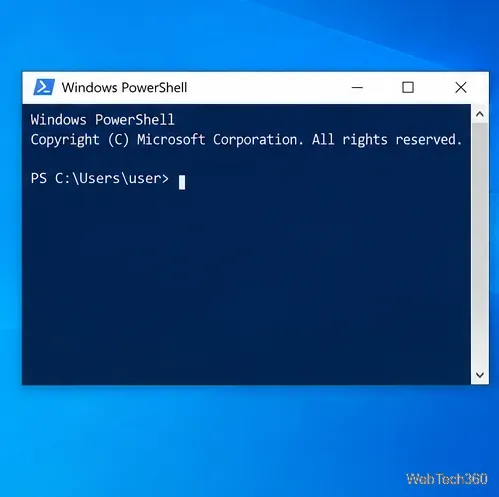
Add-Type -AssemblyName System.Windows.Forms
[void][System.Windows.Forms.MessageBox]::Show('Backup complete.', 'Backup status', [System.Windows.Forms.MessageBoxButtons]::OK, [System.Windows.Forms.MessageBoxIcon]::Information)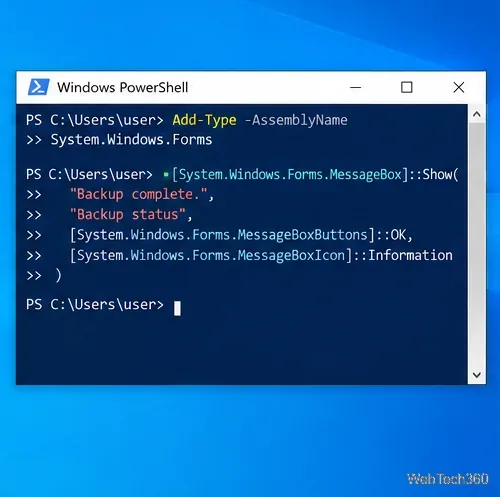
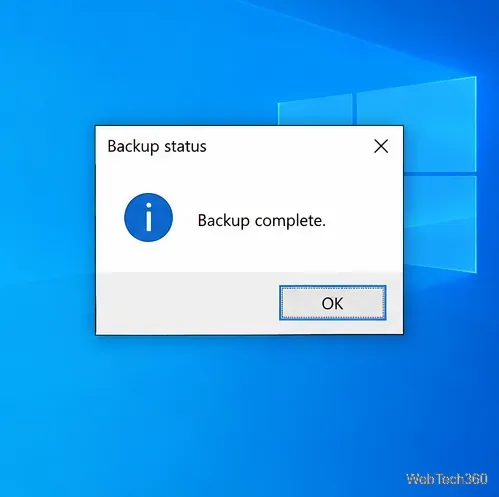
For a reusable PowerShell script, save the two PowerShell lines above in Notepad as ShowMessage.ps1, choosing All Files. Run a Desktop copy with & "$env:USERPROFILE\Desktop\ShowMessage.ps1". If an execution policy blocks the script, use the inline command or batch file rather than changing a device-wide policy. See Microsoft's Add-Type documentation.
In Command Prompt, paste this one-line command and press Enter. It starts Windows PowerShell and passes it the dialog code:
powershell.exe -NoProfile -Command "Add-Type -AssemblyName System.Windows.Forms; [void][System.Windows.Forms.MessageBox]::Show('Backup complete.', 'Backup status', [System.Windows.Forms.MessageBoxButtons]::OK, [System.Windows.Forms.MessageBoxIcon]::Information)"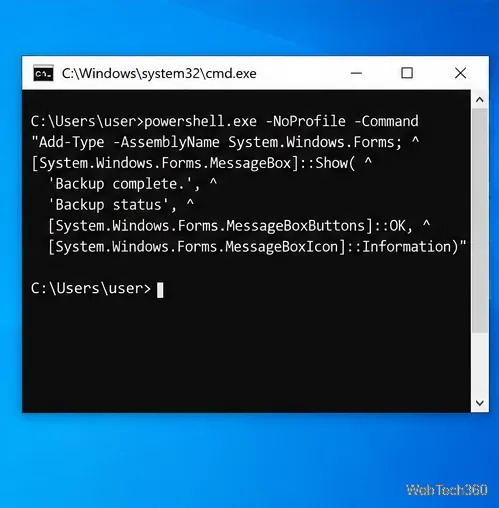
The dialog appears over the desktop; close it with OK, then Command Prompt returns to its prompt. The -NoProfile switch starts PowerShell without loading the user's profile, as described in Microsoft's Windows PowerShell command-line reference. 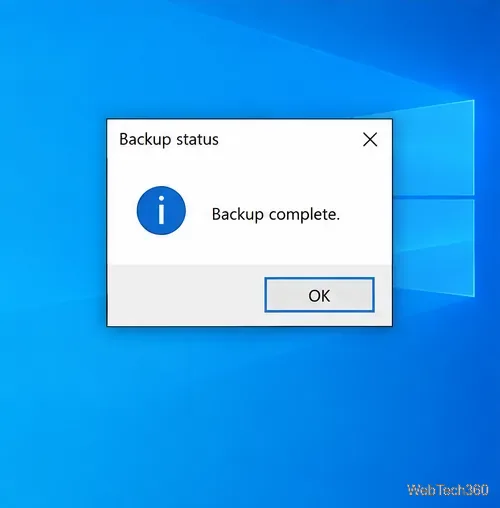
To ask a question, change the button and icon arguments, then check the result. The method returns a DialogResult, so your script can take a different action depending on the answer:
$answer = [System.Windows.Forms.MessageBox]::Show('Continue with cleanup?', 'Confirm action', [System.Windows.Forms.MessageBoxButtons]::YesNo, [System.Windows.Forms.MessageBoxIcon]::Question)
if ($answer -eq [System.Windows.Forms.DialogResult]::Yes) { 'Continue with cleanup' } else { 'Cancelled' }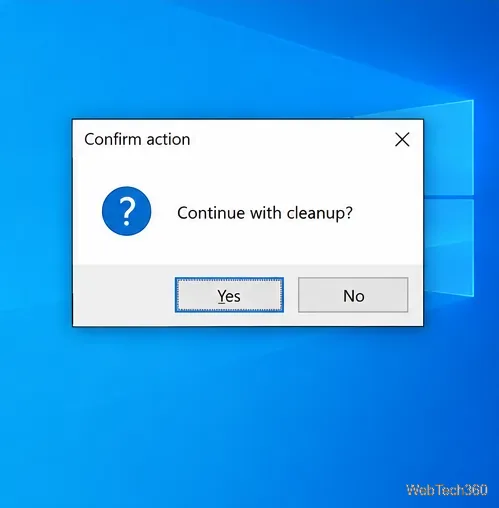
PowerShell single-quoted strings treat most characters literally. If your message itself contains an apostrophe, double it inside the string (for example, 'Don''t close this window'). See Microsoft's PowerShell quoting rules. For a batch command, also avoid double quotes inside the message because the command is nested inside a quoted -Command argument.
.bat or .ps1, not .txt.If all you need is a reminder that should not interrupt the current task, use a Windows notification instead of this modal dialog. For a simple custom pop-up that must be acknowledged, the PowerShell method above is the shortest route.
Prepare Java or Bedrock on Windows 10 for offline single-player, enable the right Xbox setting, and back up your local Minecraft worlds.
Change a file type icon in Windows 10 while keeping its current default app. Follow the FileTypesMan steps, handle icon picker issues, and restore the original setting.
Set PhysX in NVIDIA Control Panel on Windows 10, understand Auto-select vs. CPU or GPU, and learn when to use Windows Graphics settings instead.
Compare six free office suites for documents, spreadsheets, and presentations, including browser-based collaboration and offline desktop options.
Turn on Notepad’s Status Bar to see the current line and column in Windows 10, troubleshoot a disabled option, and learn when you need a line-number gutter.
Display a custom Windows dialog with a short PowerShell command, Command Prompt, or a reusable .bat or .ps1 file, including a title, icon, and buttons.
Fix Windows 10 update error 0x80071160 with Microsoft’s troubleshooter, a safe update-cache reset, DISM and SFC repairs, and a careful manual-install check.
Create a Windows 10 UEFI installer with Microsoft’s Media Creation Tool or Rufus, then boot and install safely without wiping the wrong drive.
Stop individual Edge tabs from crowding the Windows 10 Alt+Tab switcher. Change one Multitasking setting, limit recent tabs, and check why the option may be missing.
Enable Adobe’s PDF thumbnail handler, correct File Explorer’s icon settings, rebuild the thumbnail cache, and check OneDrive files that are not stored locally.







