How to Play Minecraft Offline on Windows 10: Java and Bedrock

Prepare Java or Bedrock on Windows 10 for offline single-player, enable the right Xbox setting, and back up your local Minecraft worlds.
For a slow computer, choose a current browser that still supports the operating system—not a decades-old app advertised as “lightweight.” Start with Firefox on a supported Windows or Linux system; Edge or Chrome are also worth trying on Windows because they can reduce background tab activity. The best fit depends on OS support, available RAM, and the websites you use.
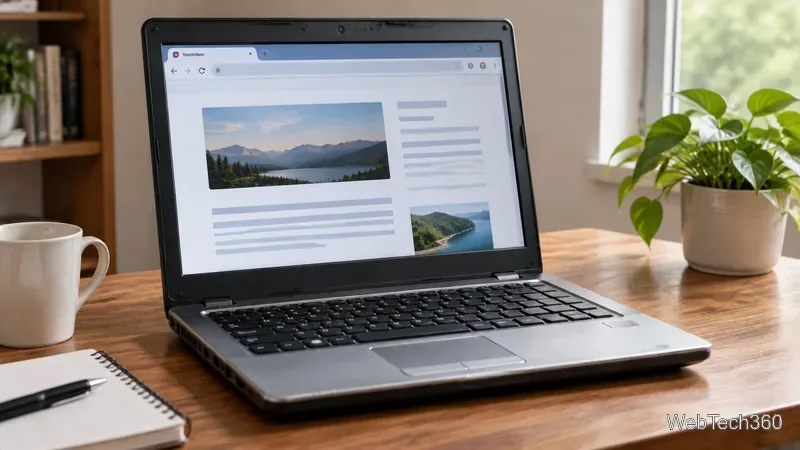
A browser cannot make an unsupported operating system secure or make media-heavy websites run well on extremely old hardware. These picks prioritize current software and verified support details.
Firefox is a strong first choice on an operating system Mozilla still supports. Mozilla says current releases will continue supporting Windows 10, although Microsoft ended standard Windows 10 support in October 2025. Firefox is also available for supported Linux distributions.
Type about:processes in Firefox to find tabs or processes using unusually high CPU or memory. Mozilla’s resource-use guide recommends closing heavy tabs, testing without problematic extensions, and checking hardware acceleration if performance is poor.
Edge is a practical option on a Windows PC that meets its current requirements. Its Sleeping tabs feature pauses inactive pages to reduce background CPU activity and free some memory; Energy saver can further reduce resource use, though it may make video or other foreground activity less smooth. See Microsoft’s Edge performance guide for the current controls and behavior.
Edge’s convenience is strongest on a supported Windows installation. It is not a substitute for operating-system security updates, and it may not be installable on older Windows versions that modern browser vendors have dropped.
Chrome is worth considering if the sites or web apps you rely on work best with it. Google’s current Windows requirements call for Windows 10 or later on Intel systems and an SSE3-capable processor. Chrome’s Memory Saver feature deactivates inactive tabs and reloads them when you return, helping active tabs run more smoothly. Find it under Settings > Performance; available deactivation levels can vary with the version.
Chrome is not automatically the lightest choice on every old PC. Try it with your normal workload and compare responsiveness rather than trusting broad claims that one browser always uses less RAM.
Pale Moon is an independently developed browser with its own compatibility trade-offs. Its official requirements list at least 2 GB of free RAM and recommend 4 GB or more. The official 64-bit build requires an AVX-capable CPU; the Windows 32-bit build has a lower CPU instruction requirement. Pale Moon supports Windows 7 SP1 or later but does not support Windows XP or Vista. Read its system requirements before installing it, and test the websites you need. It is not a realistic solution for a machine with only 512 MB of RAM.
about:processes for heavy tabs.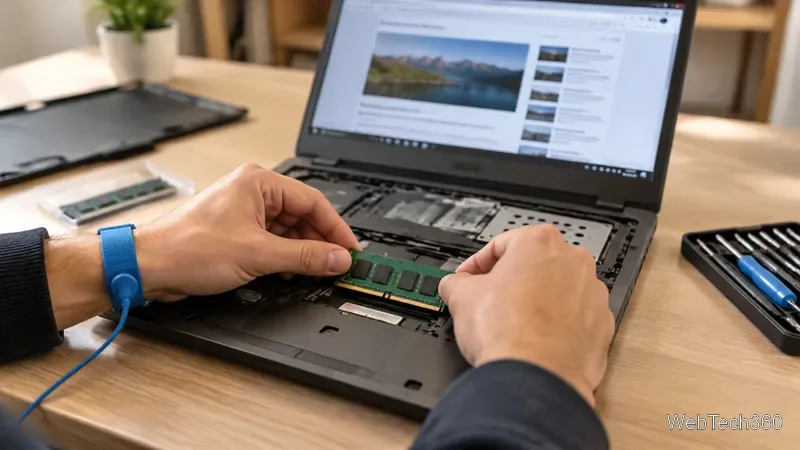
Do not pick a browser only because an old article says it runs on Windows XP or Windows 98. Chrome and Edge no longer support Windows 7, 8, or 8.1. Mozilla says Firefox 115 ESR is the final Firefox version for those systems and has extended security updates through March 2027, with support to be reassessed after that. Microsoft ended Windows 7 and 8.1 support in January 2023; standard Windows 10 support ended on October 14, 2025. Read the current Firefox guidance for Windows 7/8/8.1 and Microsoft’s Windows 10 end-of-support information.
Do not treat old versions of Opera, Maxthon, Avant, K-Meleon, or Lunascape as safe defaults just because they once advertised low system requirements. Before trusting a lesser-known browser with email, banking, or work, verify active maintenance, recent security updates, and modern-site compatibility. If your PC cannot run a maintained browser on a supported OS, consider a supported lightweight Linux distribution or reserve it for low-risk offline tasks.
Bottom line: start with Firefox, Edge, or Chrome on a supported OS, then reduce tabs and extensions. On truly old hardware, OS support and available RAM matter more than a “lightweight” label.
Prepare Java or Bedrock on Windows 10 for offline single-player, enable the right Xbox setting, and back up your local Minecraft worlds.
Change a file type icon in Windows 10 while keeping its current default app. Follow the FileTypesMan steps, handle icon picker issues, and restore the original setting.
Set PhysX in NVIDIA Control Panel on Windows 10, understand Auto-select vs. CPU or GPU, and learn when to use Windows Graphics settings instead.
Compare six free office suites for documents, spreadsheets, and presentations, including browser-based collaboration and offline desktop options.
Turn on Notepad’s Status Bar to see the current line and column in Windows 10, troubleshoot a disabled option, and learn when you need a line-number gutter.
Display a custom Windows dialog with a short PowerShell command, Command Prompt, or a reusable .bat or .ps1 file, including a title, icon, and buttons.
Fix Windows 10 update error 0x80071160 with Microsoft’s troubleshooter, a safe update-cache reset, DISM and SFC repairs, and a careful manual-install check.
Create a Windows 10 UEFI installer with Microsoft’s Media Creation Tool or Rufus, then boot and install safely without wiping the wrong drive.
Stop individual Edge tabs from crowding the Windows 10 Alt+Tab switcher. Change one Multitasking setting, limit recent tabs, and check why the option may be missing.
Enable Adobe’s PDF thumbnail handler, correct File Explorer’s icon settings, rebuild the thumbnail cache, and check OneDrive files that are not stored locally.








