How to Schedule a Wallpaper Change in Windows 10

Use Windows 10’s built-in slideshow for interval rotation or schedule an exact daily wallpaper change with Task Scheduler and a short PowerShell script.
If Chrome, Firefox, or Opera keeps switching to Yahoo Search after you choose a different search engine, start by setting your preferred engine again. If Yahoo returns after you restart the browser or computer, check extensions and installed software, then reset the browser and run a security scan. Yahoo Search itself is a legitimate search provider; an unexpected redirect usually means a browser setting, extension, policy, or unwanted program is changing where searches go.

A one-time change can simply mean Yahoo was selected as the default search engine. The problem becomes suspicious when you change the setting back and it is automatically changed again. Common causes include an extension with permission to control search, a recently installed program, synchronized browser settings, or management policies on a work or school device.
Do not begin by deleting your browser profile or random Registry entries. Modern browsers include safer recovery tools, and Windows includes built-in malware scanning that should be tried first.
Google notes that an unexpected search-engine change can be a sign of malware. See the official Chrome search-engine instructions.
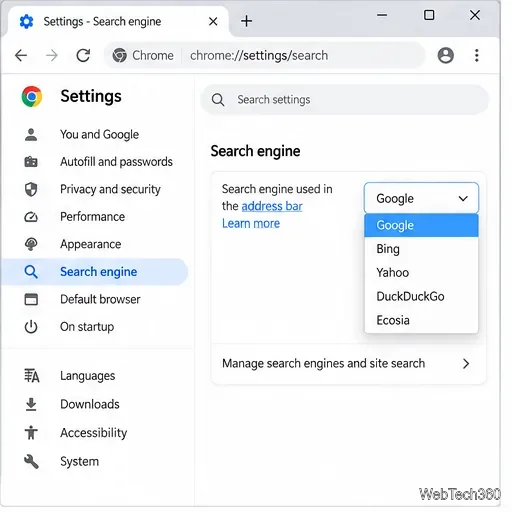
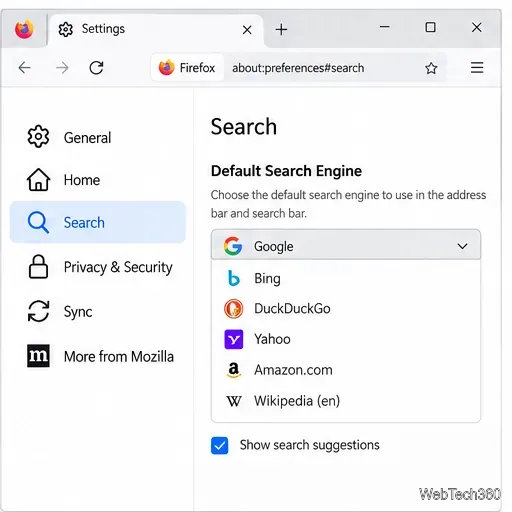
Open Menu > Settings > Search, then choose the provider under Default Search Engine. Mozilla also notes that an extension can change this setting. See Firefox search settings.
Open Settings > Basic > Search engine and choose the provider you want. Opera documents this path in its official FAQ.
If the search engine changes back, disable or remove extensions you do not recognize, especially anything installed shortly before the problem began.
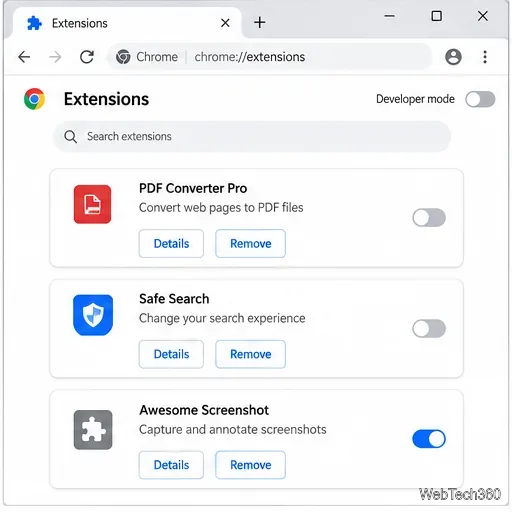
Open More > Extensions > Manage extensions. Remove suspicious extensions. Chrome states that extensions can change settings such as the search engine and that removing the responsible extension restores the setting it controlled. See Chrome extension management.
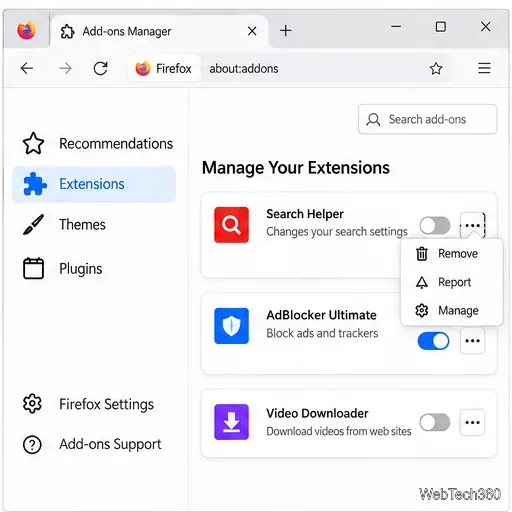
In Firefox, open the Extensions button and choose Manage extensions, or open Add-ons Manager, then disable or remove suspicious items. Mozilla's extension guide covers these controls. In Opera on Windows or Linux, open the Opera menu and choose Extensions > Extensions; Opera's customization documentation confirms that extensions can be turned on or off from the extensions page.
If the problem survives the extension check, use the browser's built-in recovery option instead of manually deleting profile folders.
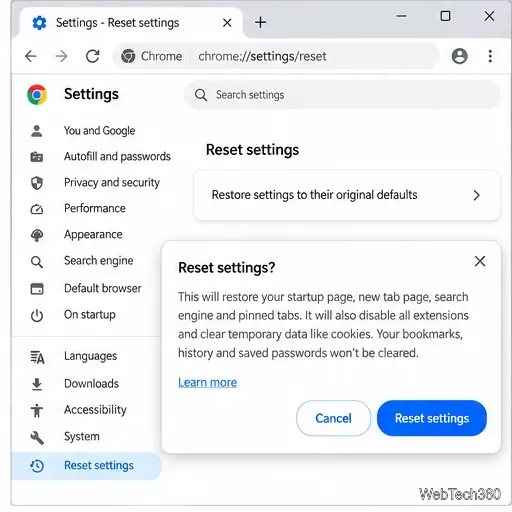
Go to Settings > Reset settings > Restore settings to their original defaults > Reset settings. Chrome says this resets the default search engine, startup pages, content settings, extensions, and themes while keeping saved bookmarks and passwords. See Reset Chrome settings to default.
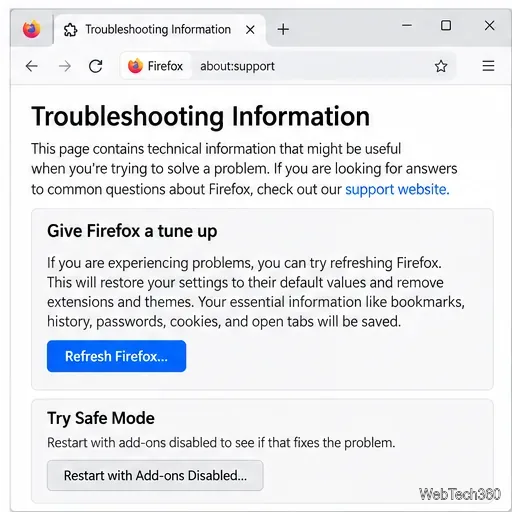
Open Menu > Help > More Troubleshooting Information, then select Refresh Firefox. Mozilla says Refresh preserves essential data such as bookmarks, history, passwords, cookies, and open tabs, while removing extensions and themes and resetting preferences. See Mozilla's troubleshooting guide.
Opera's current recovery path is Opera menu > Update & Recovery > Recover. The option to keep personal data resets browser settings, returns the search engine to its default, disables extensions, and clears temporary data without deleting bookmarks, history, or saved passwords. See Opera's recovery instructions.
These steps follow Microsoft's guidance for unwanted software. Avoid downloading random Registry cleaners or browser-hijacker removal tools from untrusted sites.
Check whether the browser says it is managed by your organization. On a work or school computer, an administrator may enforce the search engine, so changing local settings may not stick. If the device is personal and the redirect remains after the steps above, create a fresh browser profile or reinstall the browser from its official website. Reinstalling should be a last step, not the first, because a bad extension or unwanted Windows program can simply reapply the same change afterward.
Once the preferred search engine remains in place after a browser restart and a Windows restart, re-enable trusted extensions one at a time. If the redirect returns immediately after one extension is enabled, remove that extension.
Use Windows 10’s built-in slideshow for interval rotation or schedule an exact daily wallpaper change with Task Scheduler and a short PowerShell script.
Choose a built-in alert tone or WAV file for Windows 10 message notifications, test the change, and troubleshoot apps that keep playing another sound.
Arrange Windows 10 apps in top-and-bottom rows with the taskbar’s Show windows stacked command, or create a reusable two-zone layout with PowerToys FancyZones.
Keep each display at its recommended resolution, arrange Windows 10 monitors accurately, and use MouseUnSnag to cross mismatched edges and sticky corners.
Find whether your connected Wi-Fi uses WPA2, WPA3, or an older security mode in Windows 10 with Settings, Command Prompt, or Control Panel.
Automatically lock Windows 10 after inactivity with a screen saver timer and sign-in prompt, then check how sleep settings affect the result.
Add a persistent colored ring around your Windows 10 mouse pointer with PenAttention, or use built-in pointer tools and PowerToys for temporary highlights.
Keep the Xbox Game Bar Performance widget visible over other windows on Windows 10, with CPU, GPU, and RAM readings you can position and unpin.
Capture two or more Windows 10 displays in one OBS video. Add a Display Capture source for each monitor, fit the canvas, and test the layout.
Create a GUID on Windows 10 with [guid]::NewGuid() or New-Guid, reuse it in a script, and learn when to look up an existing identifier.








