How to Schedule a Wallpaper Change in Windows 10

Use Windows 10’s built-in slideshow for interval rotation or schedule an exact daily wallpaper change with Task Scheduler and a short PowerShell script.
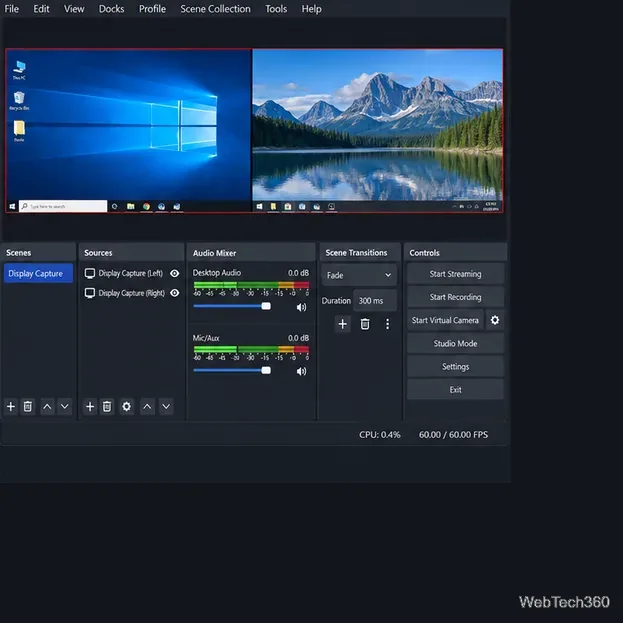
OBS Studio can record multiple Windows 10 monitors at once. Add one Display Capture source per monitor to a scene, expand the canvas to fit, and place the captures side by side. OBS records the scene as one combined video file, not separate files per screen.
Get the Windows installer from the official OBS download page, which lists Windows 10 and 11 for its Windows release. Windows 10 support ended on October 14, 2025. The PC still works, but standard security updates have ended unless it is enrolled in an eligible Extended Security Updates program; see Microsoft's notice.
The interface illustrations show the relevant controls; their appearance can vary by OBS version and hardware.
Connect the displays, press Windows key + P, and choose Extend so each screen has its own desktop. Open Start > Settings > System > Display, select Identify, then arrange the numbered boxes to match your desk. If a connected screen is missing, choose Detect. See Microsoft’s guide to using multiple monitors for more Windows display options.

Open OBS and select or create a scene. In Sources, click + and choose Display Capture. Name the source “Monitor 1,” open its properties, select the matching monitor from Display, and click OK. See OBS's Display Capture guide.
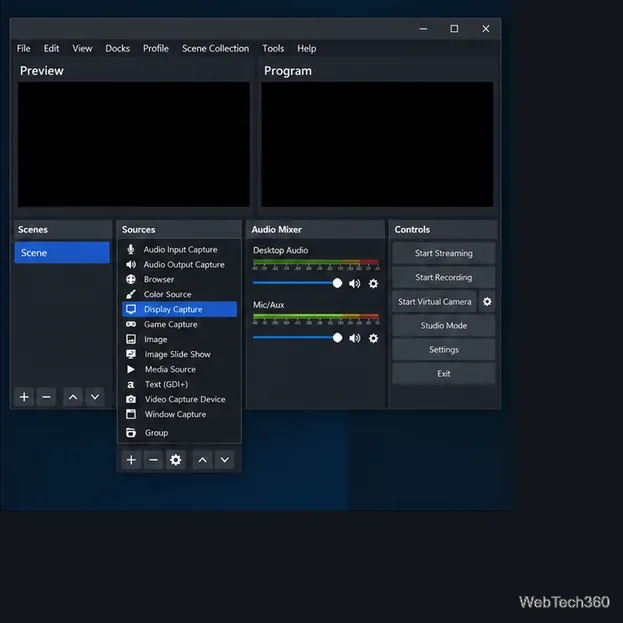
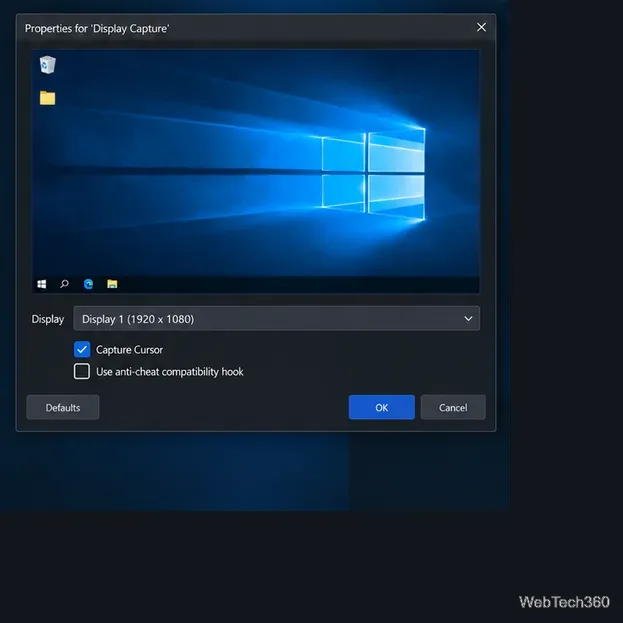
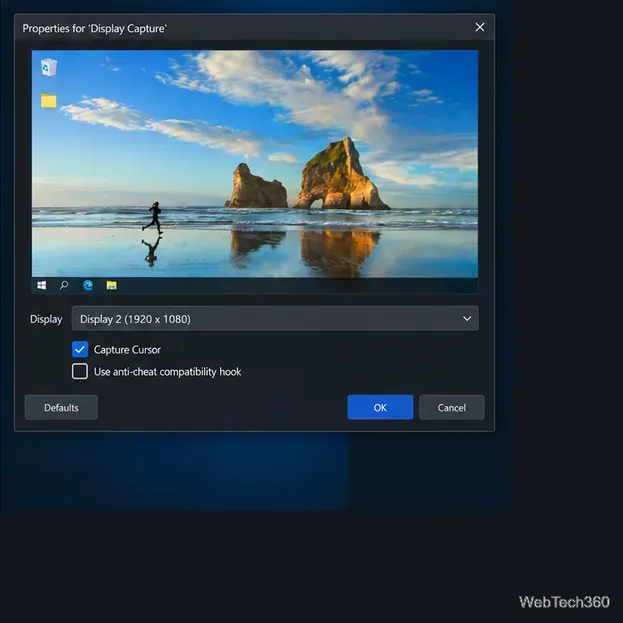
Repeat Sources > + > Display Capture, select the next monitor, and keep each source in the same scene. Name sources by monitor number or location. OBS allows one Display Capture source per display; reuse that source in other scenes instead of duplicating it.
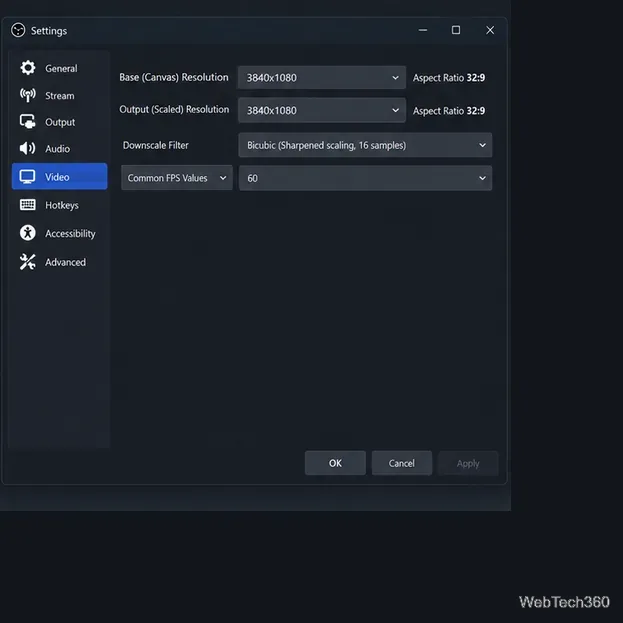
Open Settings > Video and set Base (Canvas) Resolution to the full area you want recorded. For two 1,920 × 1,080 displays in one horizontal row, use 3,840 × 1,080. For different resolutions, portrait screens, or staggered displays, size the canvas to cover the layout's outer edges; empty gaps can appear black until you position the sources.
Output (Scaled) Resolution sets the recorded frame size. Match it to the canvas for full detail, or choose a smaller size if the PC struggles; downscaling makes small text harder to read. The OBS overview explains both settings.
Select a source in the preview and drag it into place. Use the red corner handles to resize while keeping the screen's proportions. For two equal 1,920 × 1,080 displays, put the first at the canvas origin and the second immediately to its right. For exact placement, select a source and choose Edit > Transform > Edit Transform (or press Ctrl + E); in this example the positions are (0, 0) and (1,920, 0). The OBS Sources guide covers transforms.
Changing the base canvas can move or resize sources, so check the preview again afterward. Make sure no screen overlaps another and all edges fit inside the canvas.
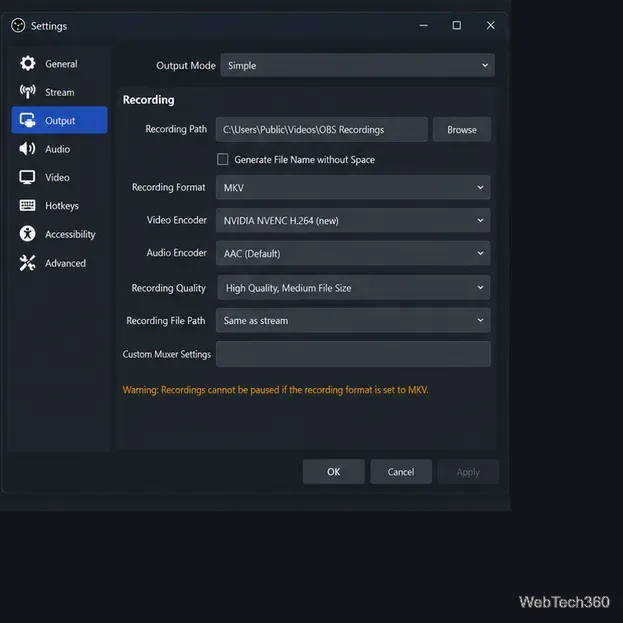
Open Settings > Output > Recording and choose a folder with enough space. MKV can preserve an unfinished file after an unexpected shutdown. Recent Windows builds also offer Hybrid MP4, designed to combine recovery with broad compatibility. If an editor needs MP4 and you recorded MKV, use File > Remux Recordings. See the official recording guide.
Click Start Recording, use both screens briefly, then click Stop Recording and watch the file. Check both displays, alignment, cursor, and audio. If it stutters, lower the output resolution or frame rate, or try an available hardware encoder. OBS recommends a short test before an important capture in its Quick Start Guide.
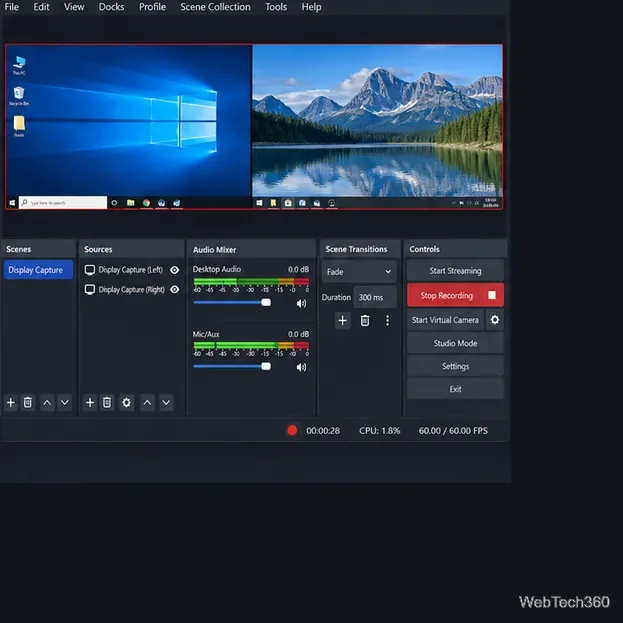
When the test file shows every display clearly, the scene is ready for a longer recording. It will remain one combined video.
Use Windows 10’s built-in slideshow for interval rotation or schedule an exact daily wallpaper change with Task Scheduler and a short PowerShell script.
Choose a built-in alert tone or WAV file for Windows 10 message notifications, test the change, and troubleshoot apps that keep playing another sound.
Arrange Windows 10 apps in top-and-bottom rows with the taskbar’s Show windows stacked command, or create a reusable two-zone layout with PowerToys FancyZones.
Keep each display at its recommended resolution, arrange Windows 10 monitors accurately, and use MouseUnSnag to cross mismatched edges and sticky corners.
Find whether your connected Wi-Fi uses WPA2, WPA3, or an older security mode in Windows 10 with Settings, Command Prompt, or Control Panel.
Automatically lock Windows 10 after inactivity with a screen saver timer and sign-in prompt, then check how sleep settings affect the result.
Add a persistent colored ring around your Windows 10 mouse pointer with PenAttention, or use built-in pointer tools and PowerToys for temporary highlights.
Keep the Xbox Game Bar Performance widget visible over other windows on Windows 10, with CPU, GPU, and RAM readings you can position and unpin.
Capture two or more Windows 10 displays in one OBS video. Add a Display Capture source for each monitor, fit the canvas, and test the layout.
Create a GUID on Windows 10 with [guid]::NewGuid() or New-Guid, reuse it in a script, and learn when to look up an existing identifier.







