How to Schedule a Wallpaper Change in Windows 10

Use Windows 10’s built-in slideshow for interval rotation or schedule an exact daily wallpaper change with Task Scheduler and a short PowerShell script.
To generate a GUID on Windows 10, open Windows PowerShell and run [guid]::NewGuid(). Press Enter to get a new identifier in the familiar 8-4-4-4-12 format. You do not need to launch PowerShell as an administrator for this command. You can also use the built-in New-Guid cmdlet.

PS prompt, type the following command and press Enter:[guid]::NewGuid()![Windows PowerShell console showing the command [guid]::NewGuid() and a sample GUID result](https://tips.webtech360.com/resources_cts/images2/how-to-generate-a-guid-in-powershell-on-windows-10_197874774.webp)
PowerShell displays a value similar to 9f2d6f48-1e3a-4f86-9a51-c781c6d3a20b. Each time you run the method, it creates another GUID. The value is an identifier only: it does not create a registry entry, power plan, file, or Windows component by itself.
If you need to use the same GUID later in a script, assign it to a variable once. Then refer to that variable instead of generating another value each time:
$newId = [guid]::NewGuid()
$newId.ToString()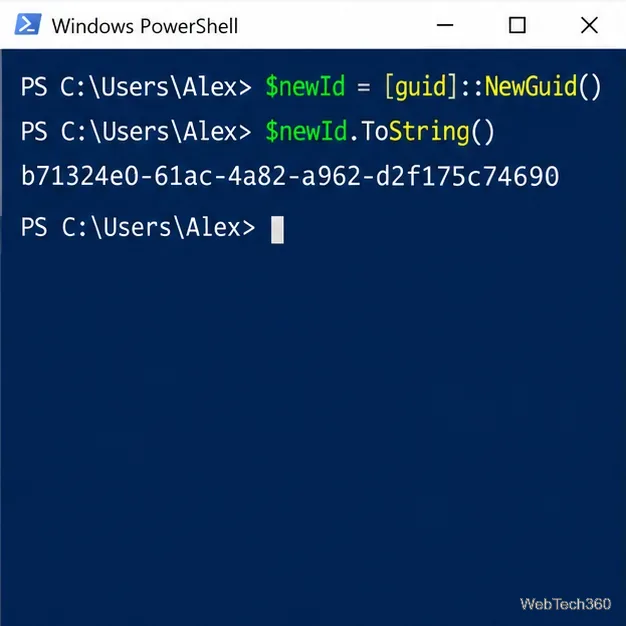
The variable contains a .NET Guid object. Calling .ToString() converts it to text for display, logging, or a parameter that expects a string. To save a copy in a text file on your Desktop, run:
$newId.ToString() | Set-Content -Path "$env:USERPROFILE\Desktop
ew-guid.txt"
This writes the current variable value to the named file. If you close PowerShell before saving or copying the value, the temporary variable will no longer be available in a new session.
Windows PowerShell 5.1 includes New-Guid in the Microsoft.PowerShell.Utility module. Type the cmdlet by itself and press Enter:
New-Guid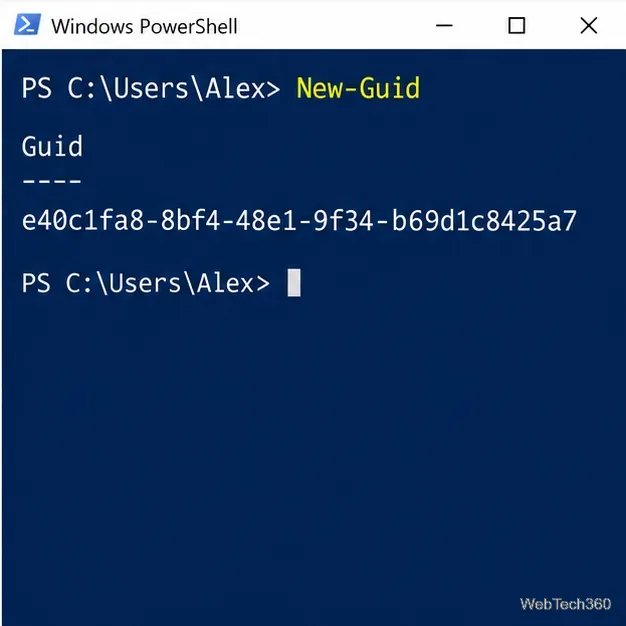
It returns a GUID object just like [guid]::NewGuid(). If PowerShell reports that New-Guid is not recognized, use the static method shown above or check the host with $PSVersionTable.PSVersion. In the Windows PowerShell 5.1 documentation, Microsoft lists New-Guid as a supported Utility cmdlet.
A standard GUID string contains 32 hexadecimal digits separated by four hyphens: xxxxxxxx-xxxx-xxxx-xxxx-xxxxxxxxxxxx. The .NET Guid type also supports other text formats. For example, $newId.ToString("N") returns the digits without hyphens, while $newId.ToString("B") surrounds the standard form with braces. Use the format required by the application or command receiving the value; do not add braces or remove hyphens unless that interface accepts the chosen form. See Microsoft's Guid.ToString documentation for supported formats.
If you need the identifier for something already configured in Windows, generate nothing. For example, run powercfg /list in PowerShell or Command Prompt to display the power schemes on that PC and their scheme GUIDs. Those returned values identify existing schemes; a random result from [guid]::NewGuid() will not point to one. Microsoft's powercfg command reference documents /list as the option that lists power schemes and notes that it returns a scheme GUID.
More generally, a GUID is useful only when the software or Windows component that receives it supports GUIDs and stores or recognizes that value. Creating an identifier does not automatically register or connect it to an item. Follow the relevant component's documentation for the operation that associates the value with a setting, object, or record.
No. A GUID is intended to identify an item, not to serve as a password, API key, or other secret. Microsoft's documentation explains that Guid.NewGuid() creates a version 4 UUID on Windows and advises against using it for cryptographic purposes. For authentication tokens or secret keys, use a cryptographic random-number API and the security guidance for the system that will validate the secret. Read the official System.Guid.NewGuid remarks before using GUIDs in a security-sensitive design.
Use Windows 10’s built-in slideshow for interval rotation or schedule an exact daily wallpaper change with Task Scheduler and a short PowerShell script.
Choose a built-in alert tone or WAV file for Windows 10 message notifications, test the change, and troubleshoot apps that keep playing another sound.
Arrange Windows 10 apps in top-and-bottom rows with the taskbar’s Show windows stacked command, or create a reusable two-zone layout with PowerToys FancyZones.
Keep each display at its recommended resolution, arrange Windows 10 monitors accurately, and use MouseUnSnag to cross mismatched edges and sticky corners.
Find whether your connected Wi-Fi uses WPA2, WPA3, or an older security mode in Windows 10 with Settings, Command Prompt, or Control Panel.
Automatically lock Windows 10 after inactivity with a screen saver timer and sign-in prompt, then check how sleep settings affect the result.
Add a persistent colored ring around your Windows 10 mouse pointer with PenAttention, or use built-in pointer tools and PowerToys for temporary highlights.
Keep the Xbox Game Bar Performance widget visible over other windows on Windows 10, with CPU, GPU, and RAM readings you can position and unpin.
Capture two or more Windows 10 displays in one OBS video. Add a Display Capture source for each monitor, fit the canvas, and test the layout.
Create a GUID on Windows 10 with [guid]::NewGuid() or New-Guid, reuse it in a script, and learn when to look up an existing identifier.







