How to Schedule a Wallpaper Change in Windows 10

Use Windows 10’s built-in slideshow for interval rotation or schedule an exact daily wallpaper change with Task Scheduler and a short PowerShell script.
For a colored circle that stays around the mouse pointer, use PenAttention’s mouse-highlighting controls. The maintainer’s download page currently lists several builds: its v10 notes specifically document mouse support, while the newer v12 description focuses on pen input. Choose a build that includes the “Highlight mouse as well as pen” option before following the steps below. Windows 10 also has a built-in Ctrl-key locator for finding a lost pointer, and Microsoft PowerToys can highlight clicks; those options do not keep a ring around the pointer continuously.

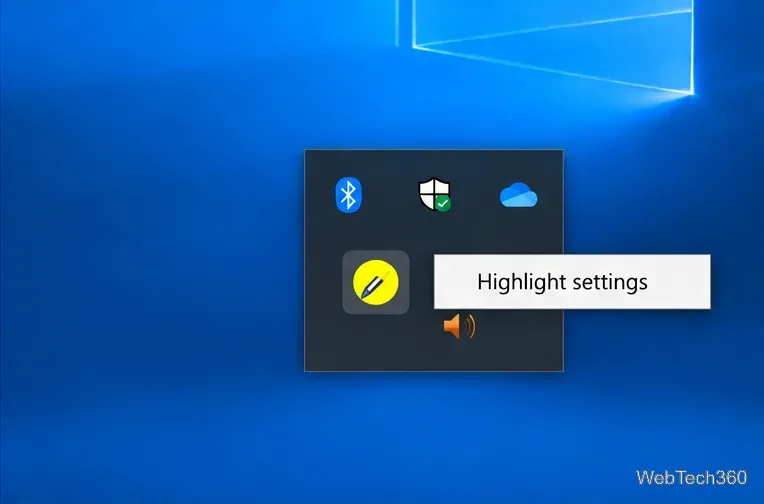
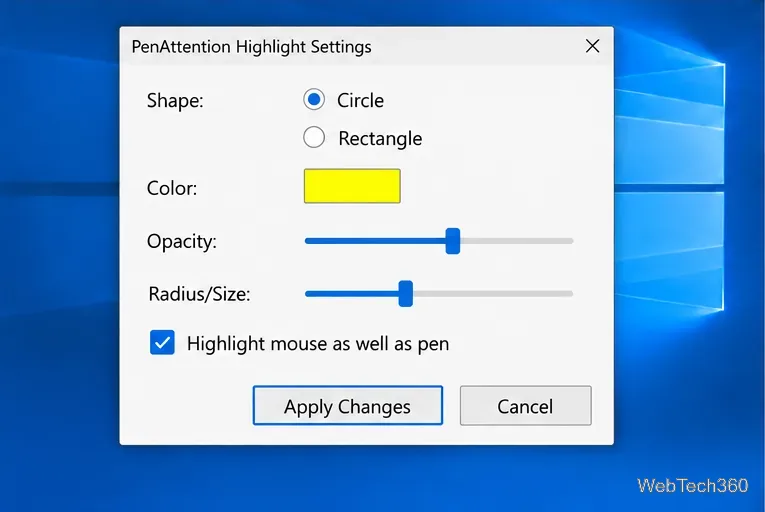
Select Circle for a halo around the pointer. Use the color control to choose a shade that contrasts with the apps and backgrounds you present. Adjust opacity so the highlight is easy to notice without hiding text beneath it, then increase or reduce the radius until the ring is visible but not distracting. If a ring is not useful for your task, choose Rectangle and adjust its dimensions instead.
Turn on Highlight mouse as well as pen to apply the effect to a standard mouse cursor. Then choose Apply Changes. Changing the color or size without enabling the mouse option can leave the pen highlight configured while the mouse remains unchanged.
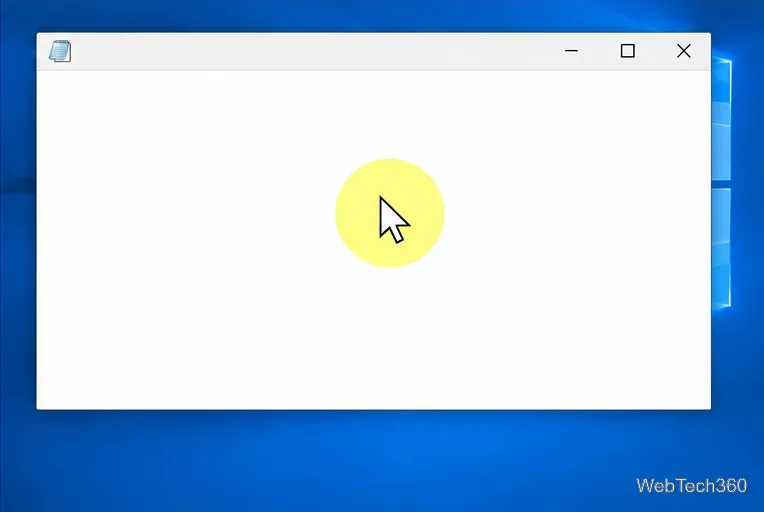
Move the mouse over a light window and a dark window. Check that the pointer remains centered in the circle, that the color is visible on both backgrounds, and that the size does not obscure buttons or text. If you plan to share your screen, take a test screenshot or short recording using the exact app and capture method you will use. Desktop overlays are not guaranteed to appear in every screenshot, remote desktop session, or recording workflow.
For a quick, temporary locator, open Start > Settings > Devices > Mouse > Additional mouse options. In Mouse Properties, select Pointer Options, check Show location of pointer when I press the CTRL key, and select OK. Press Ctrl to display a brief locating ripple. It is useful when you lose the pointer, but it is not a continuous halo. You can also change pointer size and color or enable pointer trails under Settings > Ease of Access. See Microsoft’s Windows visibility and pointer guidance for the built-in options.
If you want a highlight when clicking rather than a ring that follows the pointer all the time, install Microsoft PowerToys. In Mouse Utilities, Mouse Highlighter displays visual indicators for primary and secondary clicks; its default toggle is Win + Shift + H, and the settings include Circle highlight and Ripple modes. Microsoft lists Windows 10 version 2004 (build 19041) or later and a 64-bit processor as minimum requirements. Read the Mouse Utilities documentation for current settings and shortcuts.
Windows 10 support ended on October 14, 2025. The PC still works, but Microsoft no longer provides free Windows Update security fixes or technical support for standard Windows 10 installations. If you continue using Windows 10, get installers from the project maintainer or Microsoft and keep the operating system covered by an available support option. Microsoft explains the end-of-support status in its mouse settings and support page.
Use Windows 10’s built-in slideshow for interval rotation or schedule an exact daily wallpaper change with Task Scheduler and a short PowerShell script.
Choose a built-in alert tone or WAV file for Windows 10 message notifications, test the change, and troubleshoot apps that keep playing another sound.
Arrange Windows 10 apps in top-and-bottom rows with the taskbar’s Show windows stacked command, or create a reusable two-zone layout with PowerToys FancyZones.
Keep each display at its recommended resolution, arrange Windows 10 monitors accurately, and use MouseUnSnag to cross mismatched edges and sticky corners.
Find whether your connected Wi-Fi uses WPA2, WPA3, or an older security mode in Windows 10 with Settings, Command Prompt, or Control Panel.
Automatically lock Windows 10 after inactivity with a screen saver timer and sign-in prompt, then check how sleep settings affect the result.
Add a persistent colored ring around your Windows 10 mouse pointer with PenAttention, or use built-in pointer tools and PowerToys for temporary highlights.
Keep the Xbox Game Bar Performance widget visible over other windows on Windows 10, with CPU, GPU, and RAM readings you can position and unpin.
Capture two or more Windows 10 displays in one OBS video. Add a Display Capture source for each monitor, fit the canvas, and test the layout.
Create a GUID on Windows 10 with [guid]::NewGuid() or New-Guid, reuse it in a script, and learn when to look up an existing identifier.







