How to Schedule a Wallpaper Change in Windows 10

Use Windows 10’s built-in slideshow for interval rotation or schedule an exact daily wallpaper change with Task Scheduler and a short PowerShell script.
To split a Windows 10 screen horizontally, right-click an empty area of the taskbar and select Show windows stacked. With two app windows open, Windows arranges one across the top and the other across the bottom. For a custom layout you can reuse, install Microsoft PowerToys and set up two top-and-bottom zones with FancyZones.

This built-in command is the fastest way to place windows in horizontal rows. It tiles open windows together, so prepare the desktop first if you want a clean two-window split.
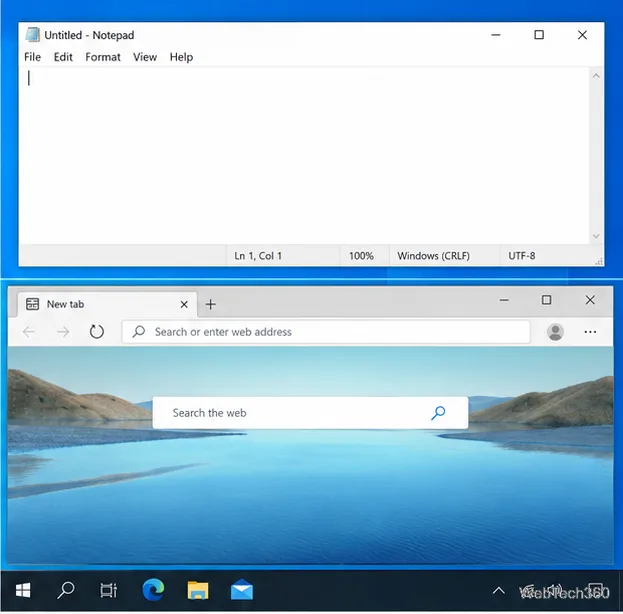
Windows Snap is useful for putting a window on the left or right, or in a screen corner. The taskbar command is a better fit when you want full-width rows without installing an extra utility. It is also temporary: if you open or close windows, you may need to tile them again.
Use FancyZones when you want a specific two-zone layout that you can apply repeatedly. FancyZones is part of Microsoft PowerToys, a free set of Windows utilities. Microsoft’s current installation guide lists Windows 10 version 2004 (build 19041) or later and a 64-bit x64 or ARM64 processor as minimum requirements. Check the requirements before installing on an older PC.
Install PowerToys from the Microsoft Store or follow Microsoft’s PowerToys installation guide. Open PowerToys Settings, select FancyZones, and turn the utility on if needed. Select Open layout editor. If you have more than one monitor, select the display you want to configure.
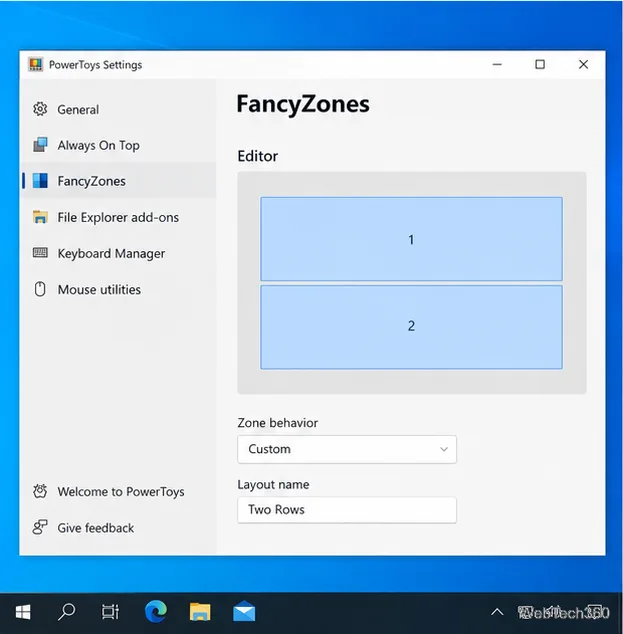
In the layout editor, choose a layout with two rows if one is available. To make your own, select Create new layout and choose Canvas. Canvas starts with one zone and lets you add, move, and resize zones. Add a second zone, then position and size the two zones so they fill the monitor as a top and bottom row. You can also use the Grid editor and adjust its dividers to create two horizontal zones. Save the layout with a name you will recognize, then apply it to the selected monitor.
Drag the first app by its title bar. With FancyZones’ default setting, hold Shift while dragging to show the zones. Move the window over the top zone and release it when that zone is highlighted. Repeat for the second app and place it in the lower zone. The windows should take the dimensions you set in the layout.
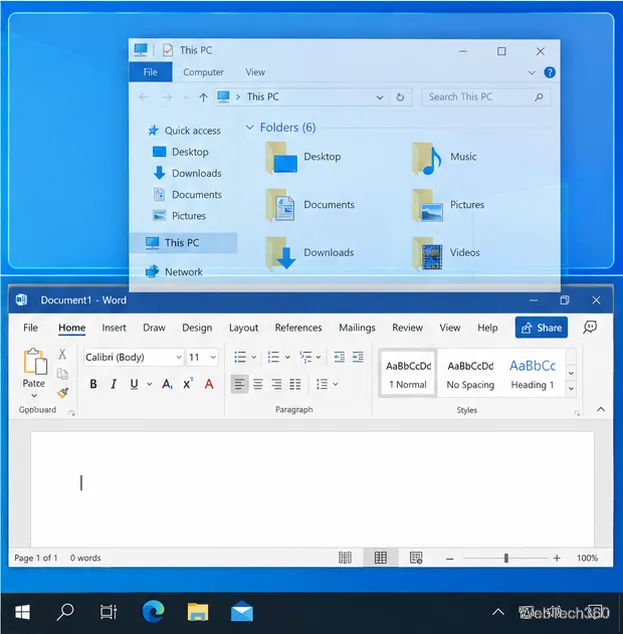
If no zones appear, confirm FancyZones is enabled and keep holding Shift during the drag. You can change this behavior in FancyZones settings under the option for holding Shift to activate zones. Some elevated apps, such as Task Manager or Windows Terminal launched as administrator, require PowerToys to run with administrator permissions before FancyZones can position them.
Choose Show windows stacked for a quick, no-install split across the open windows on your desktop. Choose FancyZones when you want to control the exact row sizes or reuse the same layout. Microsoft documents Windows Snap and its keyboard and mouse behavior in Snap Your Windows, and the FancyZones guide covers custom layouts and snapping windows.
Windows 10 support note: Microsoft ended standard support for Windows 10 on October 14, 2025. These window-arrangement features can still be used, but standard security updates for Windows 10 have ended. See Microsoft’s Windows support information for details.
Use Windows 10’s built-in slideshow for interval rotation or schedule an exact daily wallpaper change with Task Scheduler and a short PowerShell script.
Choose a built-in alert tone or WAV file for Windows 10 message notifications, test the change, and troubleshoot apps that keep playing another sound.
Arrange Windows 10 apps in top-and-bottom rows with the taskbar’s Show windows stacked command, or create a reusable two-zone layout with PowerToys FancyZones.
Keep each display at its recommended resolution, arrange Windows 10 monitors accurately, and use MouseUnSnag to cross mismatched edges and sticky corners.
Find whether your connected Wi-Fi uses WPA2, WPA3, or an older security mode in Windows 10 with Settings, Command Prompt, or Control Panel.
Automatically lock Windows 10 after inactivity with a screen saver timer and sign-in prompt, then check how sleep settings affect the result.
Add a persistent colored ring around your Windows 10 mouse pointer with PenAttention, or use built-in pointer tools and PowerToys for temporary highlights.
Keep the Xbox Game Bar Performance widget visible over other windows on Windows 10, with CPU, GPU, and RAM readings you can position and unpin.
Capture two or more Windows 10 displays in one OBS video. Add a Display Capture source for each monitor, fit the canvas, and test the layout.
Create a GUID on Windows 10 with [guid]::NewGuid() or New-Guid, reuse it in a script, and learn when to look up an existing identifier.







